

“Any customer can have a car painted any color that he wants so long as it is black,” remarked Henry Ford, after streamlining the assembly line that, at its peak, would build a new Model T in just over 90 minutes. Optimization meant reduced options, and if monotone cars meant more people would buy Fords, monotone cars it would be.
Software, with infinite potential screen space and near-zero marginal cost, would seem like it shouldn’t have such limitations. Another page of settings doesn’t add material cost to software, the way a new part would both complicate an assembly line and add to the bill of materials. Yet every new thing costs time, and developers have to optimize somewhere. Which is why most software today integrates with some tools—but not everything.
Landing page apps take this tradeoff to the extreme. They’re designed to be simple and easy to use, so you can build a link page for a social media profile or a promotional page for your book or product launch in minutes. That simplicity comes with tradeoffs, though, and integrations are often the first thing to be cut.
Buttondown isn’t everywhere, yet
Buffer’s Start Page, for example, creates landing pages in minutes with a form to add subscribers to any newsletter you want, as long as it’s a Mailchimp newsletter. Milkshake, an iOS and Android app for building a quick site on the go, similarly includes a mailing list form that will add subscribers to Mailchimp or a Google Sheets spreadsheet. Linktree opens things up a bit, with Webhooks support, but its default newsletter signup tool is also limited to Mailchimp, Kit, Klaviyo, and Google Sheets. The tradeoff for simplicity is support for a limited number of newsletter apps—and no options to embed an iFrame or add another signup form instead.
The same problem exists if you have an existing site with a signup form, and can’t easily edit or replace it on your own. Or if you have existing third-party integrations sending signups to an older newsletter from your CRM, eCommerce store, or other software, and would like a solution to redirect all new signups at once without hunting down and changing every lead magnet and form.
We aren’t dunking on Mailchimp. It’s testament to their success that they’ve become the de facto newsletter integration included when apps include a single integration. But when you use another newsletter app like Buttondown, and a site builder won’t let you add a Buttondown form to your site or app, you need a workaround.
The good thing is, there’s always an option even with the most locked-down forms. You can repurpose an existing form, even Mailchimp’s native newsletter signup form, and automatically copy every signup from Mailchimp or whatever newsletter that form supports over to Buttondown. You could use webhooks, spreadsheets, or other integrations to add subscribers to Buttondown. Or you could skip the form altogether and simply add a link to your Buttondown newsletter’s archives instead.
Here’s how.
How to redirect signups from one email newsletter form to another
So: You’ve got a Mailchimp (or other newsletter) signup form, and you want or need to continue using that form, but want new subscribers to go to your Buttondown form, not Mailchimp.
The easiest option is to use an integration platform like Zapier to copy each new subscriber over to Buttondown, then optionally delete them from your Mailchimp list entirely. And, with a few setting tweaks, you can make that redirection invisible to your readers by having the double-opt in and welcome emails come from Buttondown, not Mailchimp. It’s the best way to get newsletter subscribers from Buffer Start Page, Later Link-in-Bio, Milkshake, Taplink, and Mailchimp’s own landing page, among other Mailchimp-focused tools.
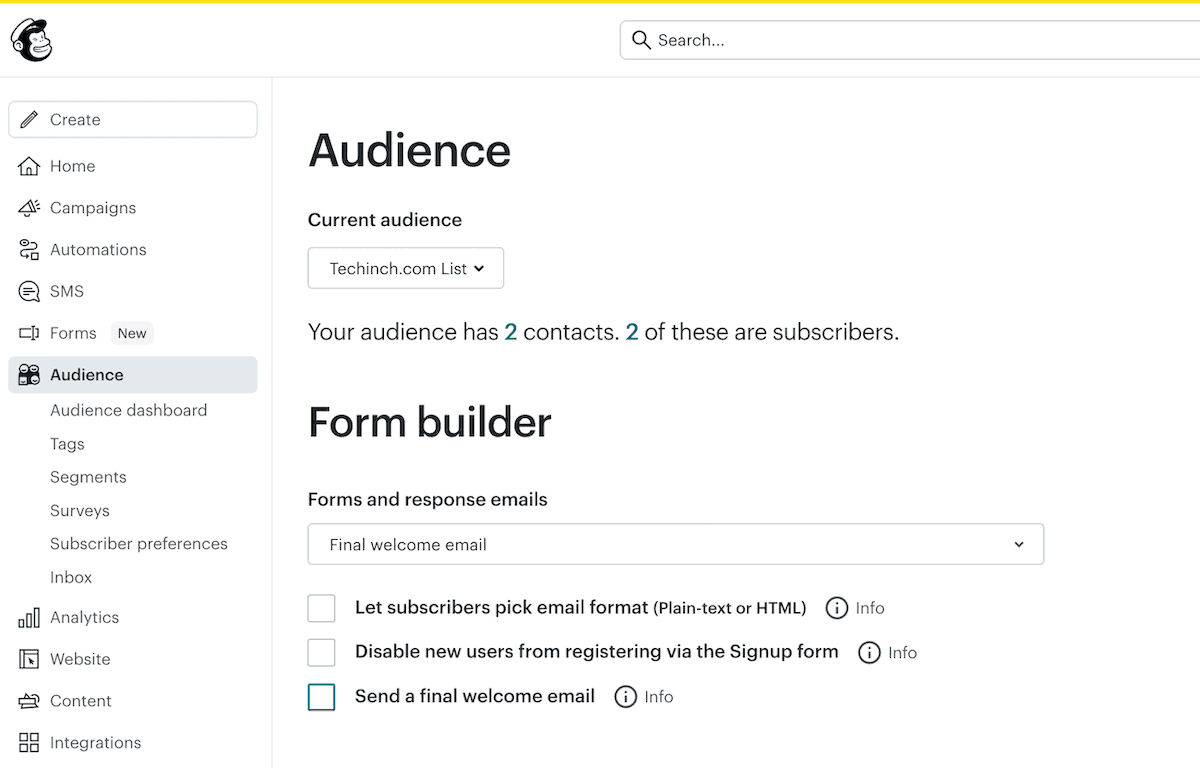
Start on the Mailchimp side (and, if you’re using another newsletter platform, check its documentation to find similar settings) to ensure it’s not sending any extraneous emails.
First, check the opt-in email settings. Open the Audience page, click the More options menu, and edit your Email opt-in settings to enable single opt-in, so Mailchimp won’t send a “Confirm your subscription” email.
Then, turn off any followup emails. On a standard popup Mailchimp form, open its settings, click the menu under Forms and response emails, and select Final welcome email, then uncheck its box to disable it. Similarly, check Mailchimp’s automation tab and ensure you’ve turned off any welcome or opt-in emails you have set up. Now when someone signs up to your Mailchimp list, they’ll receive exactly zero emails.
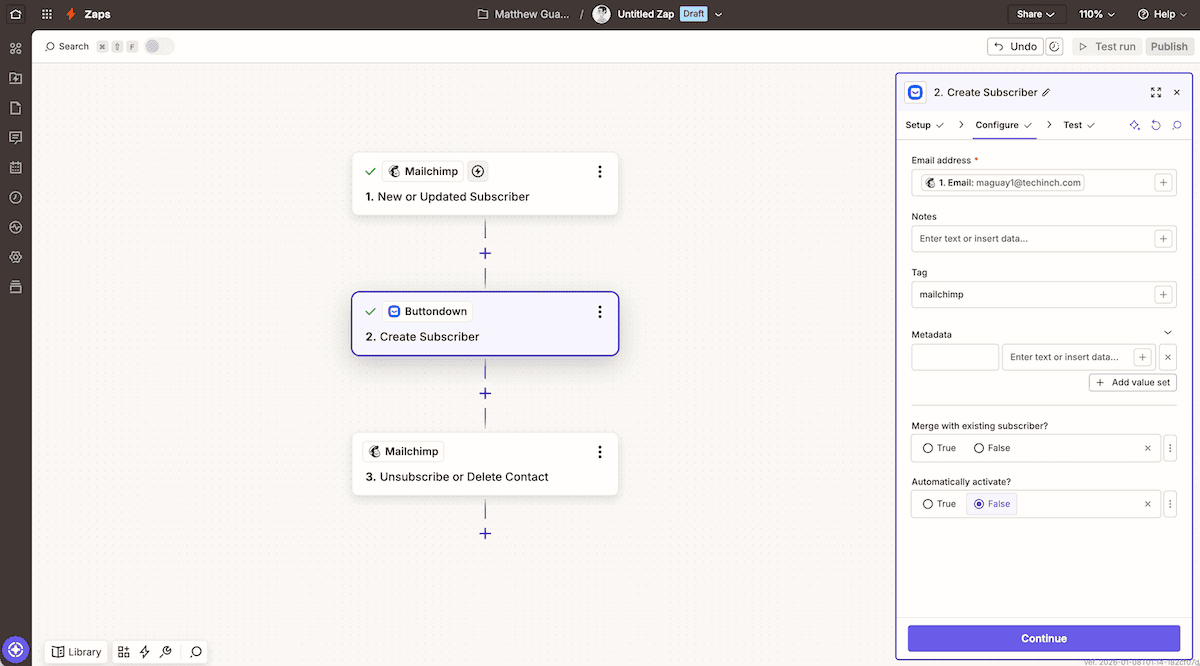
Then you’ll need to copy the Mailchimp signups over to Buttondown, and trigger your opt-in and welcome emails there (because yes, you should always have double opt-in enabled on your email newsletter). The easiest way is with an automation platform like Zapier, and even a free account will work for up to 100 signups per month.
In Zapier, create a new automation that starts by watching Mailchimp for new subscribers. Follow that with a Mailchimp action to create subscribers, and in the Email address field, click the + button and select the email address from Mailchimp. Add any other data you’d like, including perhaps a tag to indicate that this subscriber came from your Mailchimp form. Finally, click False on the Automatically activate? question, so Buttondown will send your standard double-opt in email whenever a new subscriber comes in from Mailchimp.
Finish that off, if you’d like, with a final step that deletes the subscriber from Mailchimp, once they’ve been migrated over to Buttondown.
And that’s it. Your old Mailchimp form is now, effectively, a Buttondown signup form, and no one’s the wiser.
Add subscribers to Buttondown via Google Sheets
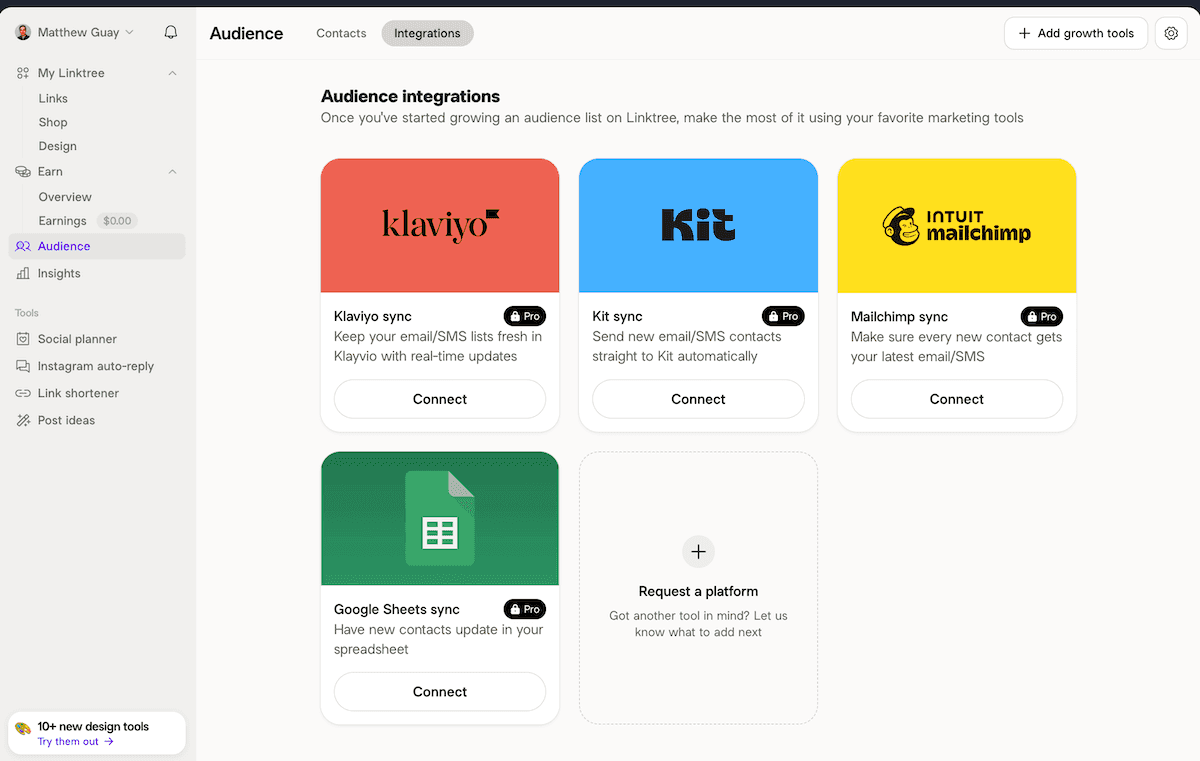
A better option is to directly send subscribers to Google Sheets, and then send them to Buttondown. That's the best option for Linktree and Milkshake, which offer Google Sheets integrations alongside Mailchimp. It works much the same, and skips the steps of needing to turn off verification emails and remove subscribers from Mailchimp.
Add the signup form to your landing page; ensure sure it at least includes an email field. Activate the Google Sheets sync, so each new form entry gets added to the spreadsheet. Then create a Zapier automation, similar to the Mailchimp one above, only this time have it pull data from Google Sheets rows and add it to Buttondown. And as a bonus, you’ll have a backup of your subscriber list in Google Sheets.
The same general steps work to move subscribers from any other app—another spreadsheet, a CRM, an eCommerce platform—into your Buttondown email newsletter list. As long as data’s flowing into an app with a Zapier integration, you can get it out and into Buttondown.
Add subscribers to Buttondown via webhooks
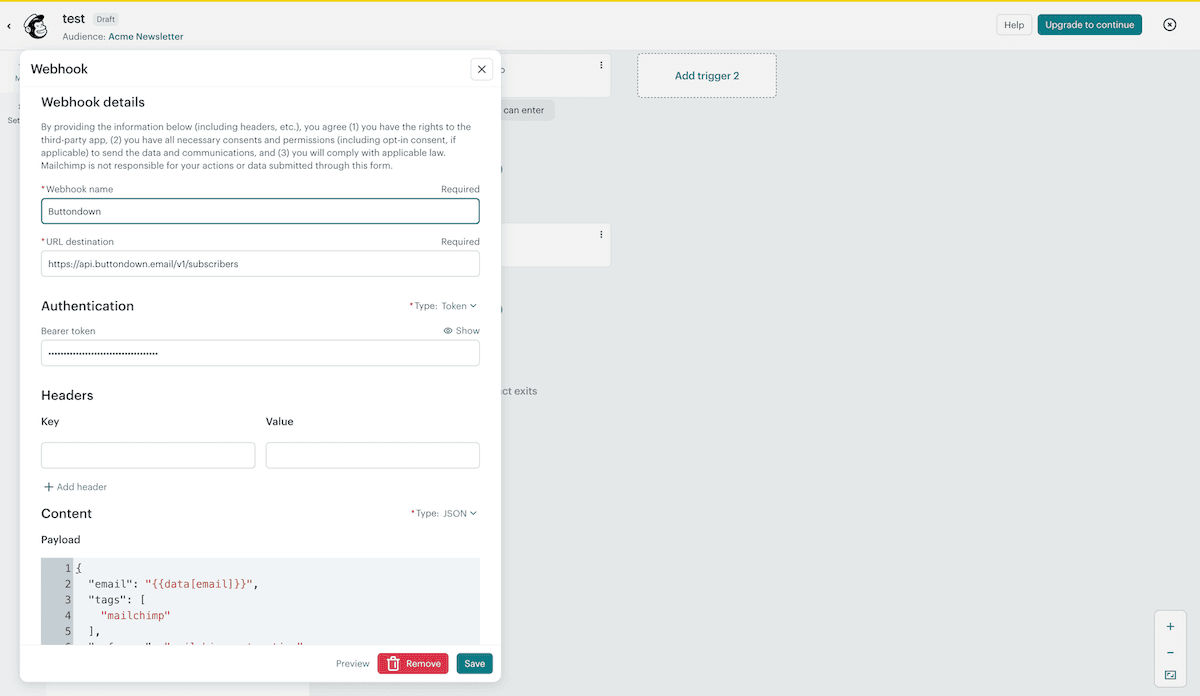
The next step up the technical ladder is to push subscribers directly to Buttondown, via the Buttondown API, as long as your form or other software supports sending data out via webhooks. This trick works in Mailchimp’s automations, with a paid plan, or with apps that support webhooks natively including Linktree, Beacons, and Viral Loops (along with most apps that natively support Zapier integrations). Here, you’re essentially replicating Zapier’s workflow, in code, using your app’s Webhooks settings to push data to Buttondown’s API.
Start in Buttondown. Open settings, click the API Key button, and copy your API key.
Then, open your Webhook-supported app’s Webhooks settings, and set up everything as expected. Add your API key to an Authentication header as Token API_KEY, replacing API_KEY with your API key, set request to JSON, and add the email address from your app to the Webhooks request body. Test, and tweak until it’s running (and check our guide to newsletter API for more info, if you get stuck, since the details work the same in Terminal or your subscriber-centric app).
If you set that up, say, in a Mailchimp automation, then your Mailchimp form can more-or-less directly add subscribers to Buttondown, without a third-party app in the mix.
If all else fails: Send people to your Buttondown signup form
Or, the Hail Mary that’s also the simplest option, for you if not necessarily for your readers: Just share a link to your Buttondown signup form.
In a Linktree-style landing page, folks expect a list of profiles and details. Here’s a link to your Instagram, another to your blog, another to your TikTok, perhaps a banner mentioning a 25% sale on your book this month. In that flow, a link to “Sign up for my newsletter” that sends the visitor to your Buttondown signup form wouldn’t feel out of place at all.
Buttondown makes that easy, too, since your newsletter’s homepage is your signup form. Share a link to https://buttondown.com/your_newsletter, with your newsletter’s name swapped in. Name the button that points to your newsletter whatever you want: My newsletter, Signup for updates, Newsletter_Name, Get updates in your inbox. And whenever anyone visits it, they’ll see a space to sign up, or can browse your email archives if you’ve left them enabled—which itself might be a better way to build the audience you want than a plain signup form.
A better option would be to embed your Buttondown signup form into your site. But if you don’t have HTML edit access, or your app simply doesn’t allow custom HTML and iFrame embeds, a raw link to your Buttondown signup page is the next best option.
When life gives you a newsletter signup form, any signup form, you can turn it into a signup form for any email newsletter app you like—Buttondown included.
And then, back to writing, without worrying about juggling multiple newsletters or manually migrating subscribers.
Image Credit: Detour sign by John Cardamone via Unsplash.