
You can now create snippets — reusable chunks of content you can drop into any email with a few keystrokes.
Think of snippets as your personal content library. Maybe you've got a promo block for your latest project — a poster, a trailer link, a quick blurb — that you want to drop into different emails without rebuilding it each time. Or a sign-off you use every week, or a disclaimer for sponsored posts. Instead of copying and pasting (and inevitably forgetting to update one of them), you can create a snippet once and insert it wherever you need it.
To get started, head to Settings → Snippets and create your first snippet. Give it a name and an identifier (that's what you'll use to insert it), then write whatever content you want.
When you're writing an email in Fancy mode, type / to open the command menu and search for your snippet by name. Select it, and the content gets inserted right where your cursor is.
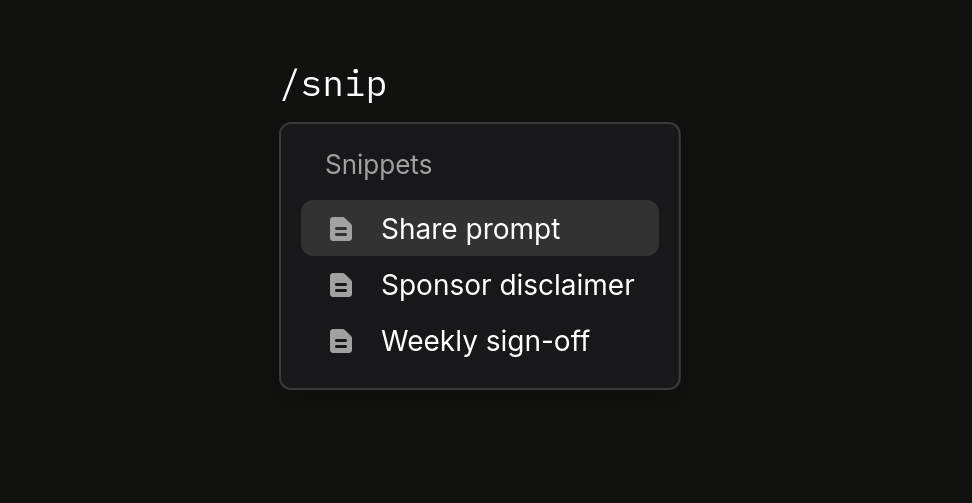
If you're writing in Markdown mode, you can insert a snippet using the <buttondown-snippet> tag:
Snippets can even include other snippets — useful if you want to build up modular content blocks. (We cap it at 4 levels deep to prevent infinite loops, but that should be plenty for most use cases.)
If you reference a snippet that doesn't exist, you'll see a warning in your draft so you can fix it before sending. No more accidentally sending emails with broken placeholders.