How to turn off those AI summaries (and other thoughts)
Hi! This week I’m going to show you how to turn off Google’s AI feature, then talk a bit about why it’s fun to make things working
How to get the old Google back
A lot of people ask me how to get rid of the AI suggestion box at the top of Google’s search results. And I personally have my own beef with the feature, even while understanding it can occasionally be useful.
There’s a lot of bad advice for removing the feature out there. Some people recommend ending every search with “-ai”, which is just plain annoying to do in practice. Some recommend ending every search with the word “fuck”, which also works but can lead to other issues.
In my experience, the only real way to use Google without AI pop-ups is Google’s own “web” search, a hilariously buried feature that gives you nothing but links to websites. To find it you need to click More and then Web in the options below your search results.
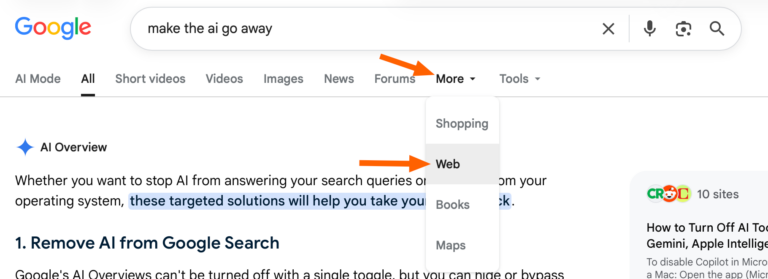
Now, clicking that every time is annoying. That’s where &udm=14 comes in. This website, from journalist Ernie Smith, loads a Google web search. You can use this as your homepage to avoid AI summaries.
Of course, most people use the address bar in their browser for searches—bookmarking a website doesn’t help with that. There are browser extensions out there for Chrome, Firefox, and Safari that do the redirection for you. Install those and you’ll never see AI pop-ups in Google again.
There’s an argument to be made that you should stop using Google entirely. DuckDuckGo isn’t perfect, but it does allow you to turn off AI summaries in the settings. And I’ve heard a lot of good things about Kagi, a paid search engine that’s extremely well reviewed. But if you just want Google without the summaries, installing one of the browser extensions above is quick. Take back a little bit of control.
🔗 https://justinpot.com/how-to-get-the-old-google-back/
Tech is better when it kinda sucks
My e-reader is a Kobo Touch, released in 2011. It’s still getting feature updates after all these years, a minor miracle given how quickly other tech companies abandon their products. When Pocket shut down last year, for example, an Instapaper integration showed up almost immediately, which I deeply appreciate.
So this decade-and-a-half old device is well supported in some ways. But not all ways. For example: there’s no simple way to get library books onto it.
From the official Kobo documentation I know that some Kobo devices support transferring Libby books over WiFi, but the Touch isn’t one of them. Fine. Instead I need to use Adobe Digital Editions, desktop software that can transfer the book using a USB cable. Fine.
But when I first tried that, it didn’t work. At some point in the past ten years—I don’t remember when—I learned that the Kobo Touch only works with Adobe Digital Editions 3.0. That version of the software cannot run on modern Macs, though—it’s 32-bit. So I have to transfer ebooks from a desktop PC running Windows.
So generally I find the library book I want, download the EPUB file, send it over the network to my Windows PC, then use VNC to open it in Adobe Digital Editions. Then I plug in the Kobo and complete the transfer.
It’s a lot of extra steps, and I can’t add library books to my e-reader if I’m away from my house. But it works, and I’ve been doing it for so long it’s become reflexive. I’m a little jealous of my wife, who has a newer device that can receive books wirelessly. But I’m not jealous enough to replace my e-reader, which is still working fine. I don’t mind putting in a little bit of work in order to keep using this still-functioning hardware. And to be honest, I get to feel a little smug about figuring out how to make it work.
Earlier this week I asked you about your most elaborate workarounds. One person mentioned digitizing old home videos using four different devices. Another mentioned learning formatting languages instead of paying for Microsoft Office back in grad school.
I love stories like these. I am a big fan of how easy it is to use modern tech—it makes tools available to more people. But there’s real value to digging in, learning how these systems work, and finding workarounds.
Figuring out how to make something work is satisfying, and the feeling of satisfaction you get from accomplishing something is one of the better parts of being alive. The tech industry’s obsession with removing friction is robbing people of that.
I’m not proposing that tech be harder to use on purpose—that would be dumb. But I do think it’s worth pushing past what you think you can accomplish. If something’s not working, don’t give up—try to figure out why. You might just fix it. Worst case: you don’t fix it, but you learn a few things while researching. There’s no downside to trying.
🔗 https://justinpot.com/tech-is-better-when-it-kinda-sucks/
Stuff I Wrote
Humans are very bad at knowing what they want. A dive into the science of happiness, for PopSci: https://www.popsci.com/health/ways-science-can-help-you-feel-happier/
Finally, a meditation app that doesn’t bombard you with pop-ups and upsells: https://theintelligence.com/43688/meditation-app/
Annoyed by all the animations and music videos in Spotify? I explain how to turn them all off over at WIRED: https://www.wired.com/story/how-to-disable-all-the-music-videos-in-spotify/
Thanks for hanging out! Here are some more ways to keep in touch, and feel free to just respond to this email if you’ve got something to say. See you next time.