Software Updates — Week of August 11, 2026
Here's what's new this week in GovPossible:
Hello everyone! The weekend before last I was up moving my daughter into her new new apartment where she'll be attending law school at GW. We also walked a lot and then did a run the next morning; here we are the mid-point and I'm already drenched :-D
All that to say we didn't push out updates last week, so bonus changes today... but first, grants!
Grants
- 8/14 - SC Environmental Services Sec 319 Grants - cleanup grants for eligible watersheds learn more
- 8/17 - Homeless Youth Shelter ($100k-$350k) - Administration for Children and Families learn more
- 8/24 - COPS Microgrant Program (up to $200k) - Grants for various topics, including vagrancy and drones learn more
- 9/2 - SC Dept of Archives Historic Preservation Grants ($40k-$200k) - preservation projects that benefit local communities and the public through the physical repair and rehabilitation of South Carolina’s historic buildings learn more
- 9/4 - Foundation for Rural Service ($250-$5K) - aid to communities served by NTCA members learn more
Inspections: Reschedule Related Inspections in One Step
Building inspections are often bundled. A single property often has several inspections scheduled together — rough-in, electrical, plumbing, roofing — and when one fails, the others on that permit usually need a new visit too. Until now, permitting staff had to reschedule each of those inspections one at a time, repeating the same date and time entry over and over.
With this update, when you schedule a new attempt on a failed inspection, the system automatically checks for other failed inspections on the same permit — including any related child permits — and offers to reschedule them all at once. A simple checklist appears with the related inspections pre-selected, so you can confirm with a single click or uncheck any that shouldn't be included.
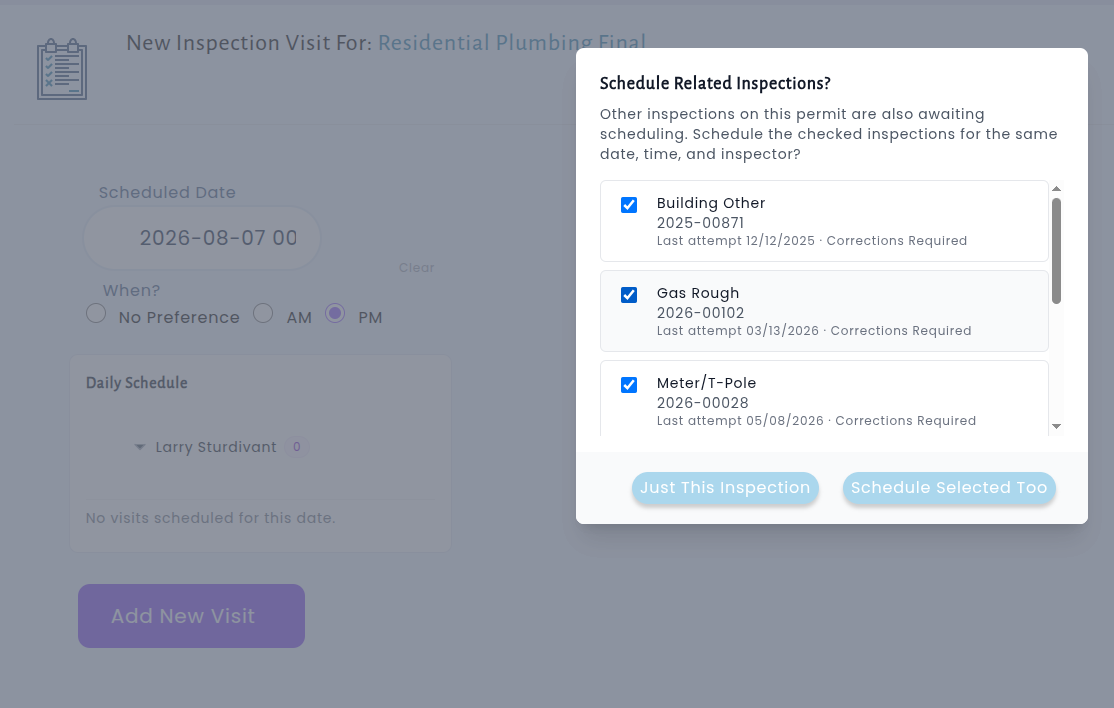
Every selected inspection gets its new attempt scheduled for the same date and time, keeping the property's inspections grouped together the way your inspectors actually work in the field. The result: fewer clicks for your permitting team, fewer missed reschedules, and a smoother experience for contractors waiting on their next inspection.
Conditions: Reusable Templates
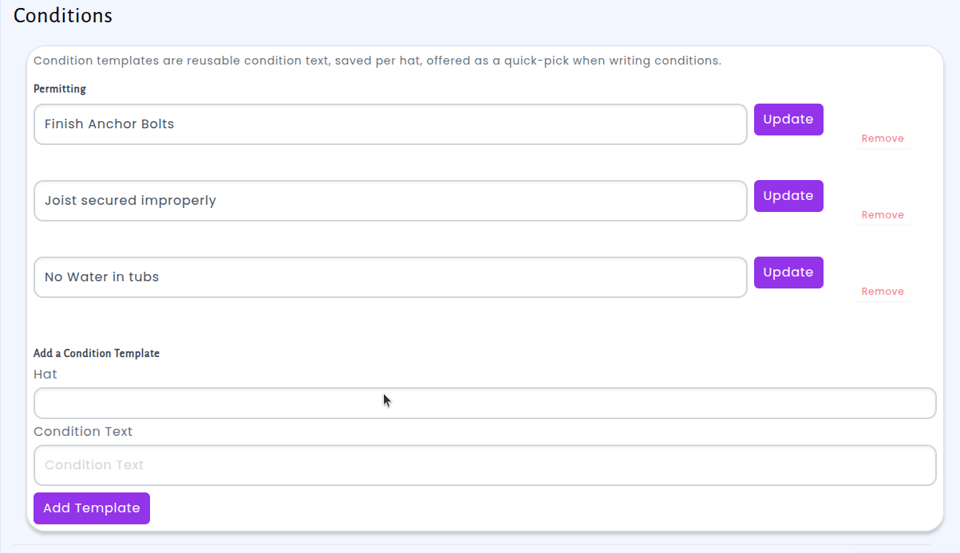
Writing conditions on permits and applications just got a lot faster. Reviewers often find themselves typing the same standard conditions over and over — the same setback requirements, the same erosion control language, the same inspection notes. With this update, you can now save any condition as a reusable template and apply it again with just a couple of clicks.
When you're writing a condition, you'll see a new option to save it as a template for your current role. The next time you need it, a searchable dropdown lets you find the template you want, and selecting it instantly adds that language to your condition text. No more retyping boilerplate or hunting through old applications to copy and paste — your go-to responses are always at your fingertips.
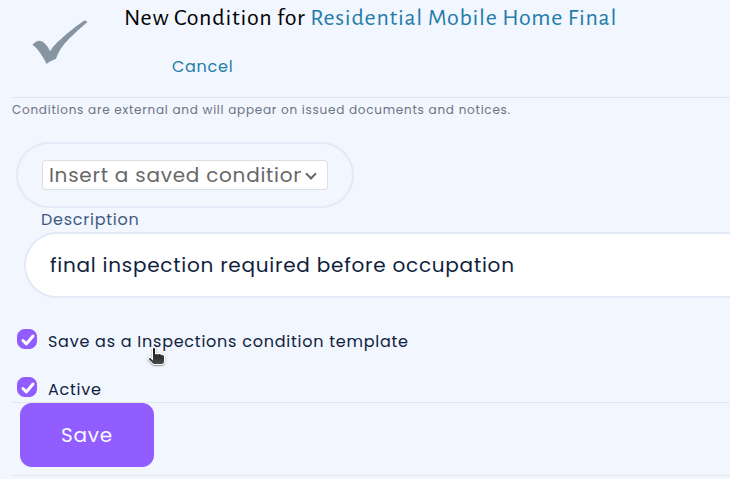
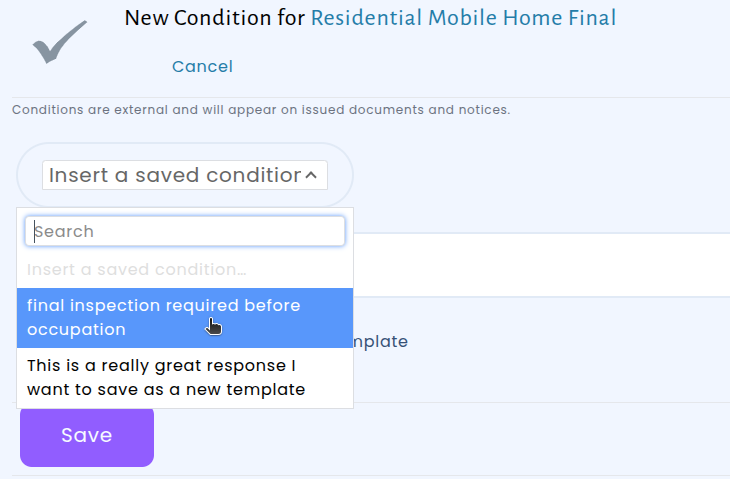
You're also in full control of your library of templates. A new "Condition Templates" section on your account page shows all of your saved templates, organized by role, where you can add new ones, edit existing language, or remove templates you no longer need.
Planning: Regulatory Deadline Tracking for Planning
Planning departments in South Carolina are required by state law to take action on planning cases within 60 days. Keeping track of these statutory deadlines — and documenting any adjustments — is critical for staying in compliance and avoiding delays for applicants. We've added built-in regulatory deadline tracking to make this easier for your team.
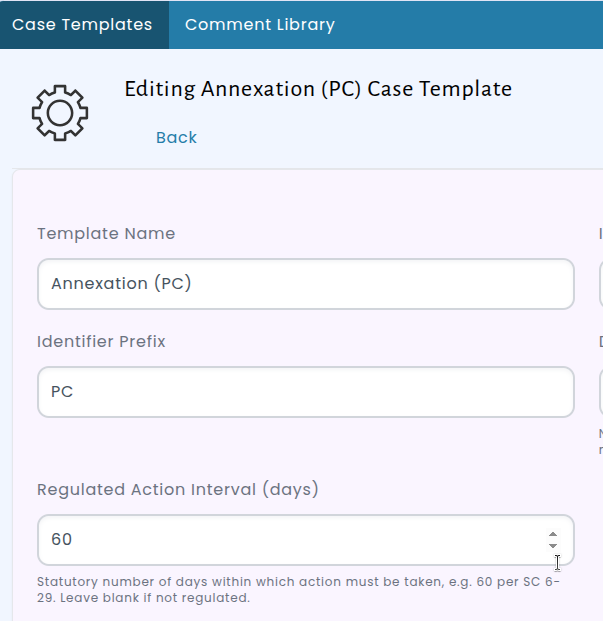
When you set up a case template with a regulated action interval (such as 60 days), every new case created from that template will automatically calculate and display its regulatory deadline. The deadline appears on the case detail page, on case cards, and in the case list — so your staff can see at a glance which cases are approaching or past their deadline. Cases that have gone overdue are clearly flagged with a red "Overdue" badge, making it simple to prioritize your workload.
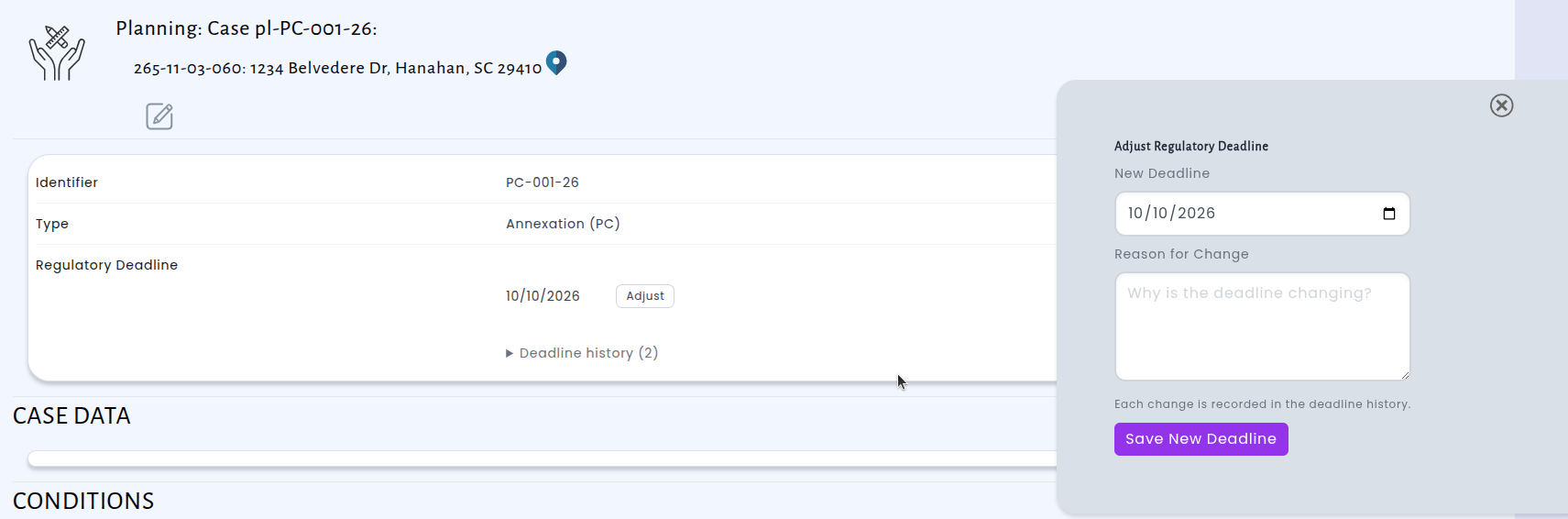
If circumstances require a deadline to be adjusted, staff can update it directly from the case page — but a reason is always required, and every change is preserved in a full history log. This means your department has a clear, auditable record of every deadline and any modifications, giving you confidence during reviews or audits. The original deadline, each adjustment, who made the change, and why are all recorded and visible right on the case page.
Licensing: Activity Location Now Available on the Online License Applications Portal
We've improved the online licensing application process to support activity locations. When a license type requires applicants to specify where their licensed activity will take place — such as a lab location, job site, or project address — that prompt now appears directly in the online application wizard. Applicants can search by street address or parcel number and select the correct municipal parcel, ensuring the location is verified and within city limits before the application is even submitted.
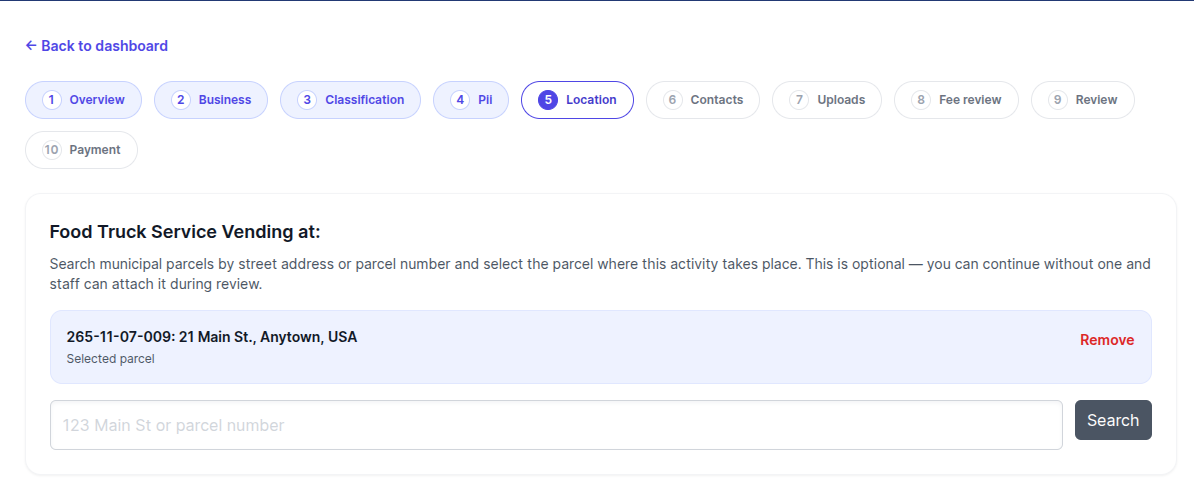
Previously, these custom location fields were only visible to staff when processing applications internally. That meant applicants couldn't provide this information up front, and staff had to follow up after submission to collect it. Now, the location prompt uses the same label your team has already configured (for example, "Lab Location" or "Construction Site"), so applicants see a clear, familiar prompt and can provide the right information on their first submission.
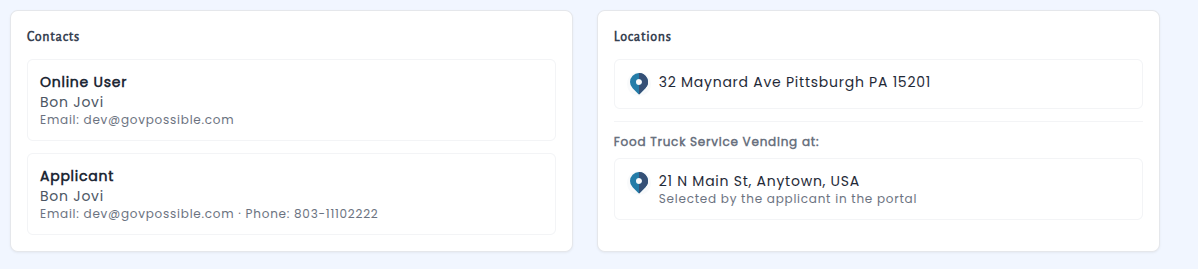
The selected location is shown on the application's review step so applicants can confirm it before submitting, and it carries through to your staff review screen automatically. This reduces back-and-forth with applicants, speeds up the review process, and ensures that activity locations are tied to verified municipal parcels from the start.
Permitting: Daily Report Now Shows Fees Collected
We've added a new Collections section to the top of the permitting daily report, showing the fees collected for the day in an easy-to-read breakdown — presented in the same familiar format you already see on the licensing daily report, to more closely align the information on both.
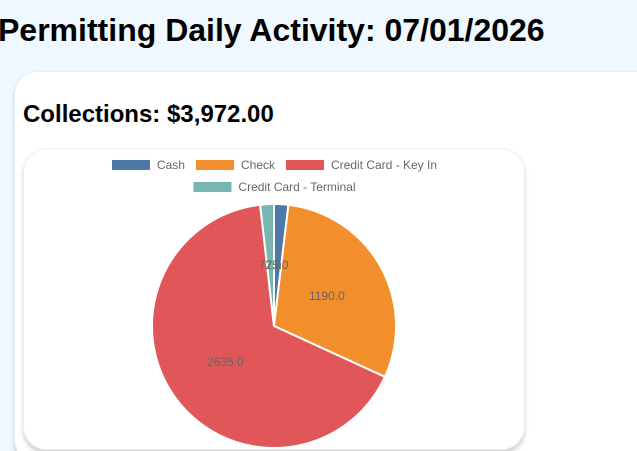
Previously, the report was only sent on days with new applications. Now it will also go out on days when fees were collected, even if no new applications came in — so you won't miss a summary of the money that moved through your office.
New: Task Delegator Screen
Supervisors now have a dedicated Task Delegator screen — a single place to see and assign the tasks their team is responsible for. Just like the Inspection Delegator you may already use, the Task Delegator shows all active tasks grouped by date, alongside a list of open, unassigned tasks that need an owner. Instead of hunting through individual queues or asking around to find out what still needs attention, supervisors can review everything at a glance and hand tasks off to the right person in a couple of clicks.
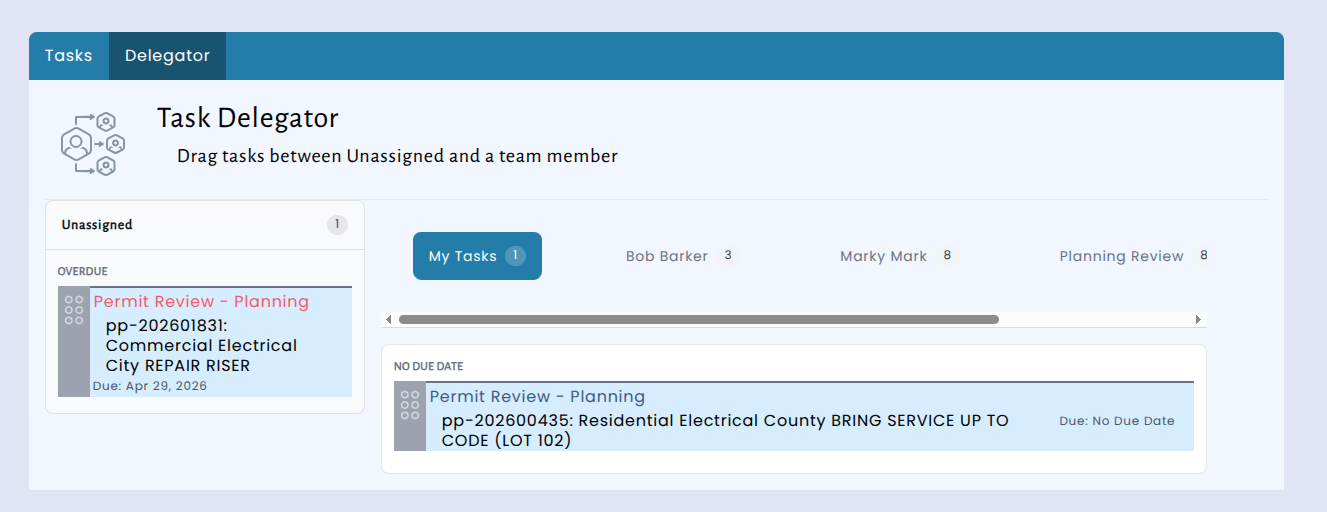
Delegation is fully controlled at the user level. Each supervisor's account specifies exactly which staff members they may delegate to and which types of tasks they may hand off — so work always flows to people who are authorized and equipped to handle it. And there's nothing to configure in your menus: if you have people you can delegate to, the Task Delegator automatically appears in your navigation.
For municipal teams, this means less time spent tracking down loose ends and more confidence that nothing slips through the cracks. Unassigned work is visible the moment it appears, workloads are easier to balance across staff, and supervisors get a clear, up-to-date picture of what their team is working on — all from one screen.
Permitting: Reactivate Rejected Permit Applications
Previously, if an online permit application was rejected, the applicant had to start over from scratch — re-entering all of their information and submitting a brand-new application. Now, you have the ability to reactivate their rejected application and continue the process.
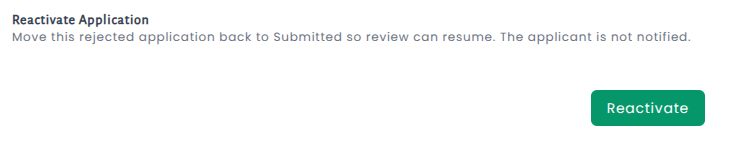
There is now a Reactivate button on rejected applications. Clicking it moves the application back into the submitted queue.