GovPossible Software Updates — Week of May 19, 2026
Good morning all, I hope the two weeks went by as quickly for you as it did for me! :-)



You may notice this is coming out Wednesday morning instead of the usual Tuesday. Two reasons:
- There were two items on this list I was wanting to squeeze in.
- I was out of town yesterday morning and there is a lot in this update! I wanted to make sure I was available to respond if you had any questions. :-)
As promised, this week we have several updates we've been holding off for Licensing until after the renewal season ended.
Licensing: Updated New License Application Wizard
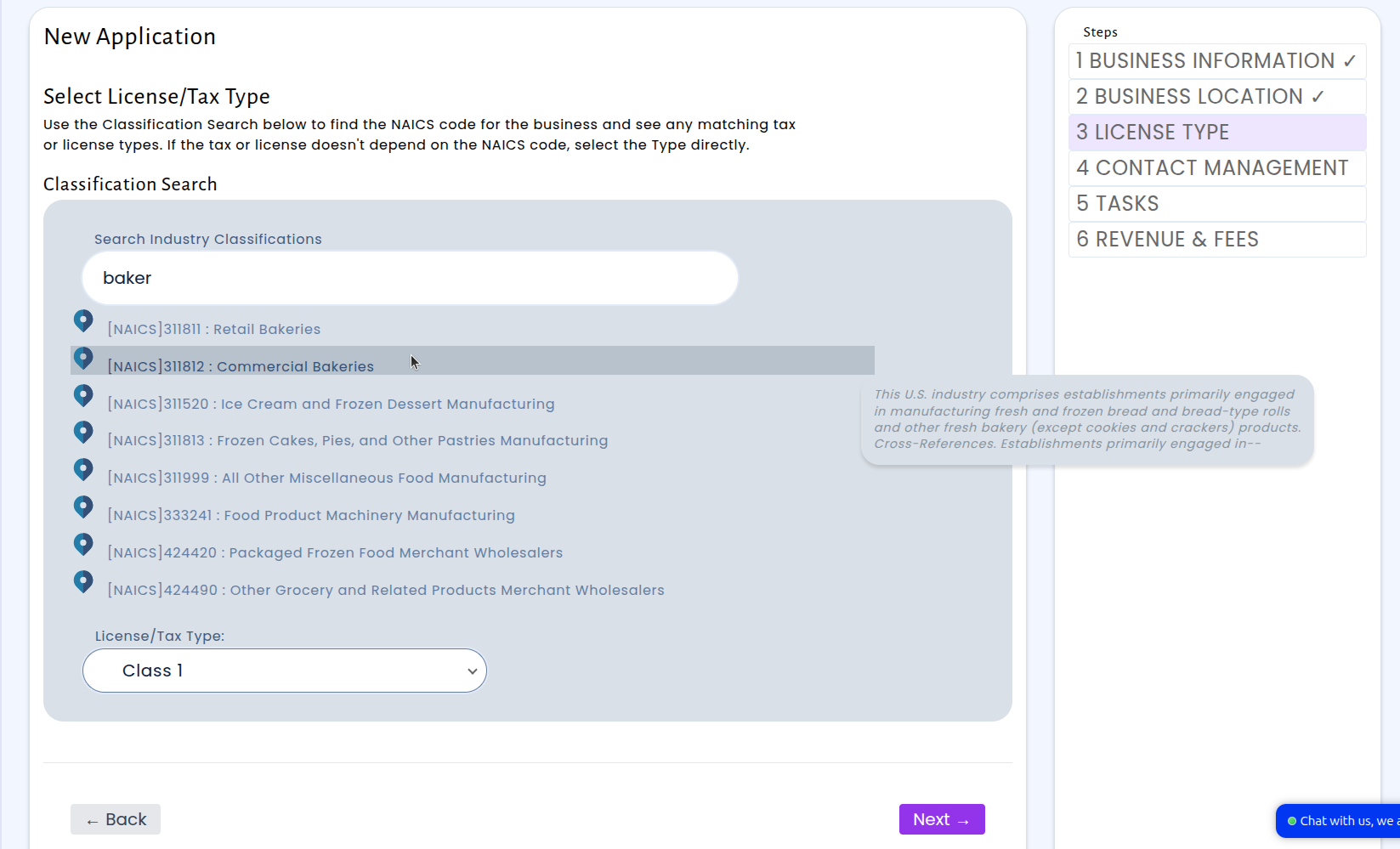
We've redesigned the license application wizard from the ground up to make creating new applications faster and more intuitive. The updated wizard guides you through a clear, six-step process — starting with Business Information, then Business Location, License Type, Contact Management, Tasks, and Revenue & Fees — with a step tracker on the right side of the screen so you always know exactly where you are and what's coming next.
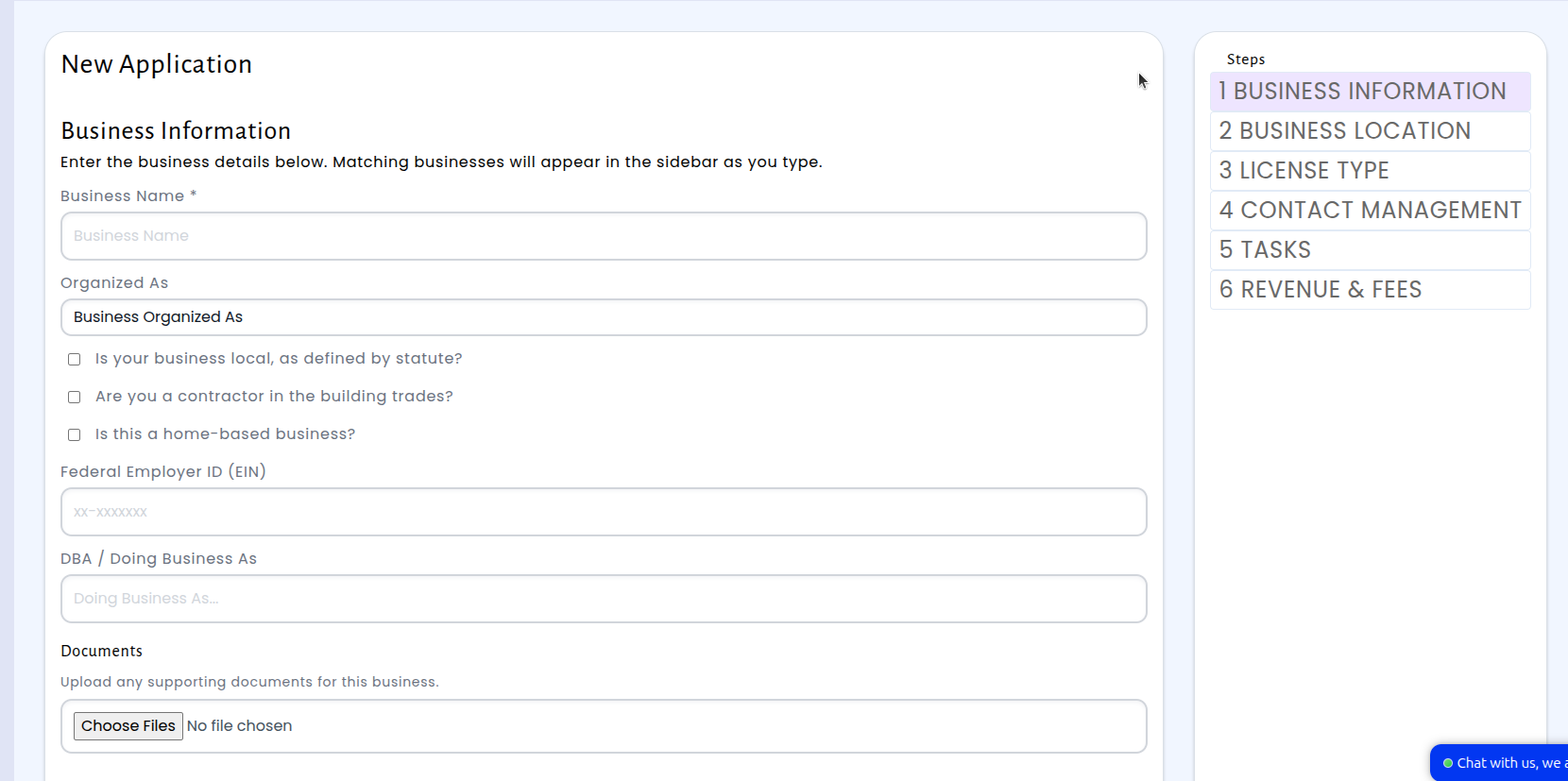
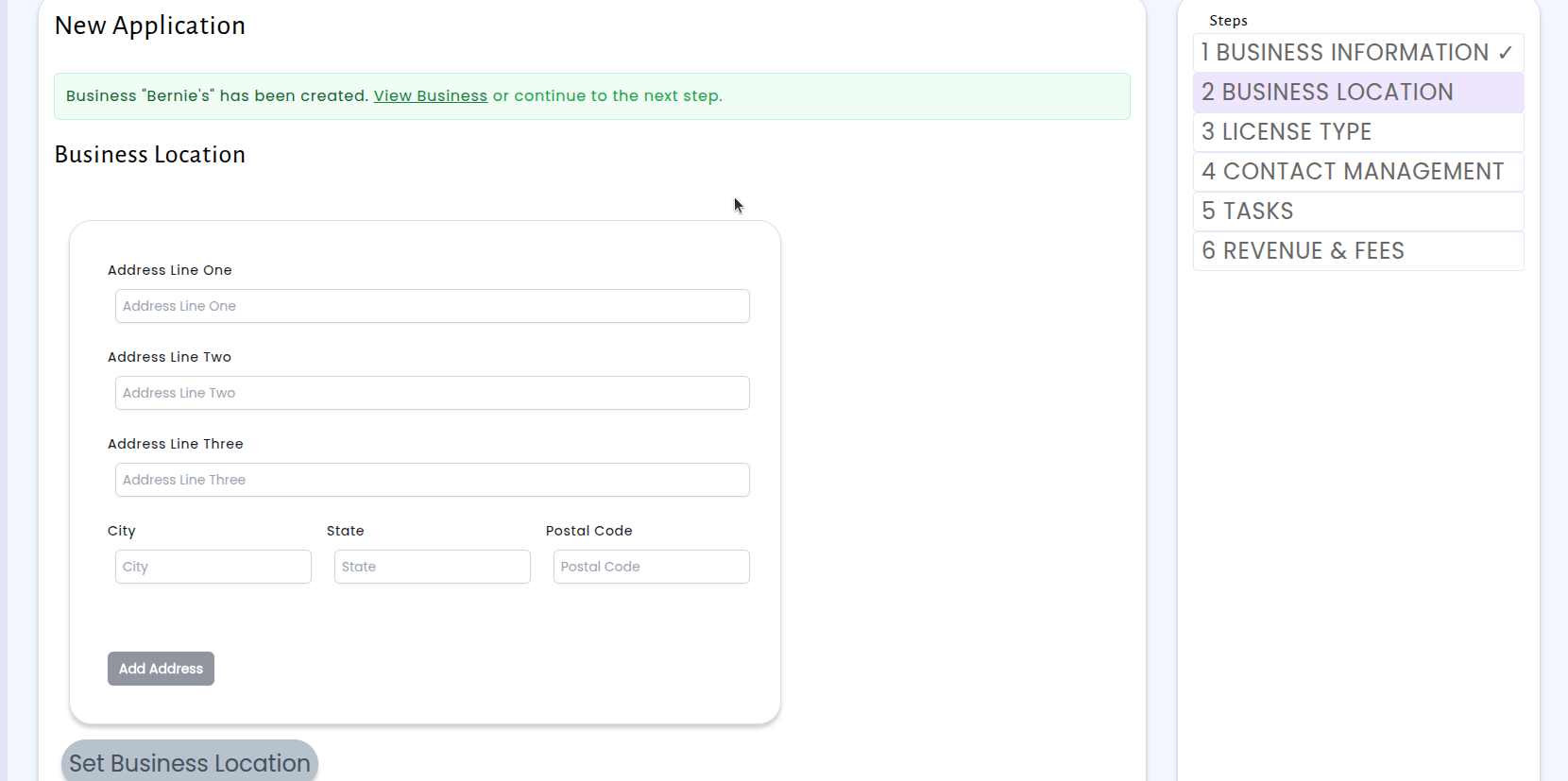
The new flow aligns with the order you're already familiar with from the community portal, so business details come first before selecting a license type. You can move freely between steps using the Back and Next buttons, or click any completed step in the sidebar to jump directly to it. As each step is finished, a checkmark appears next to it so you can easily see your progress at a glance. The wizard also supports keyboard shortcuts for navigating between steps, making the process even quicker for power users.
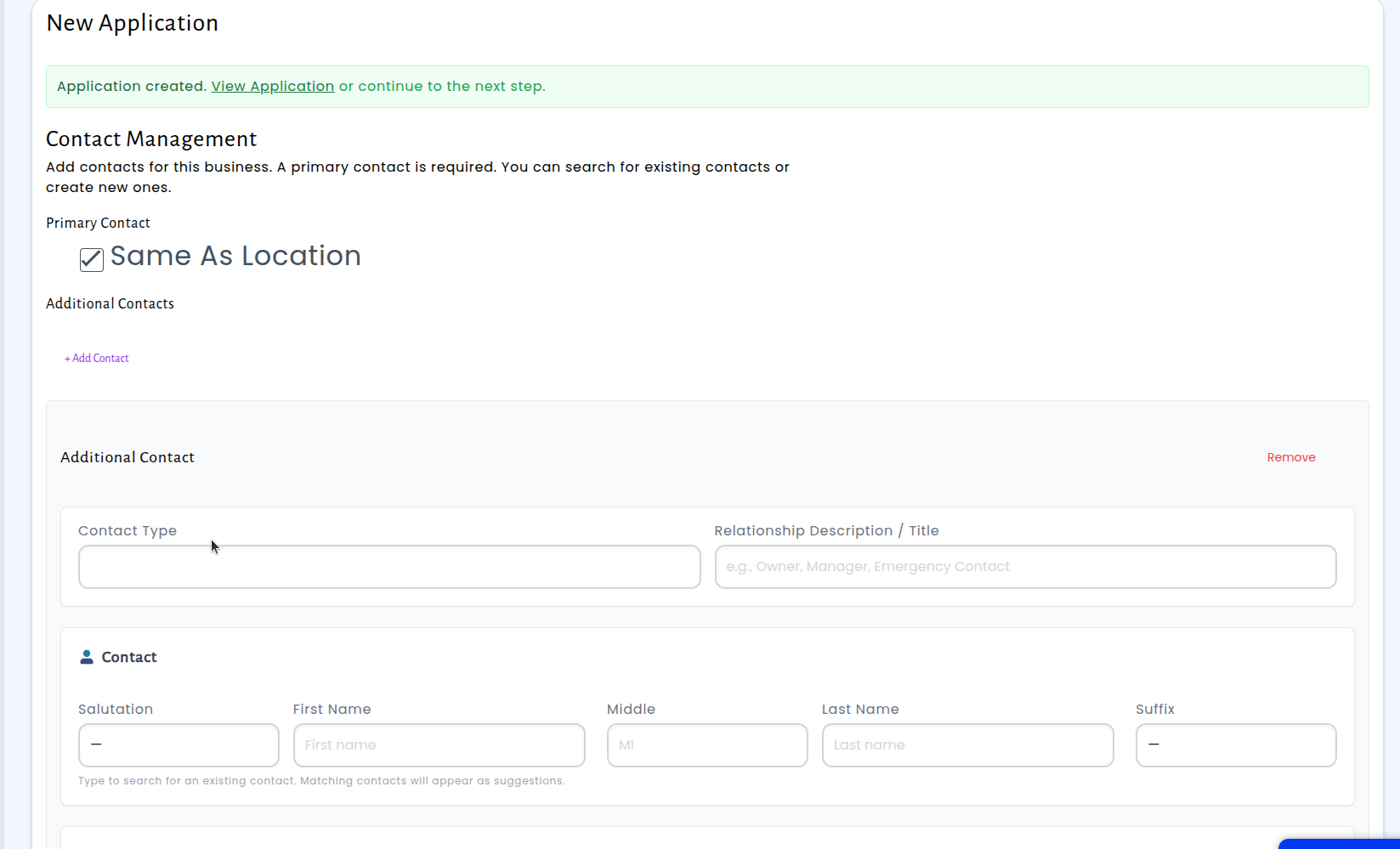
A brand-new Contact Management step lets you add multiple contacts to an application — including a primary contact and as many additional contacts as needed, each with a contact type and relationship description. You can search for existing contacts or create new ones right within the wizard. Throughout the process, the wizard clearly notifies you when records are created and gives you the option to jump directly to the newly created business or application at any time, so you're never left wondering what happened behind the scenes.
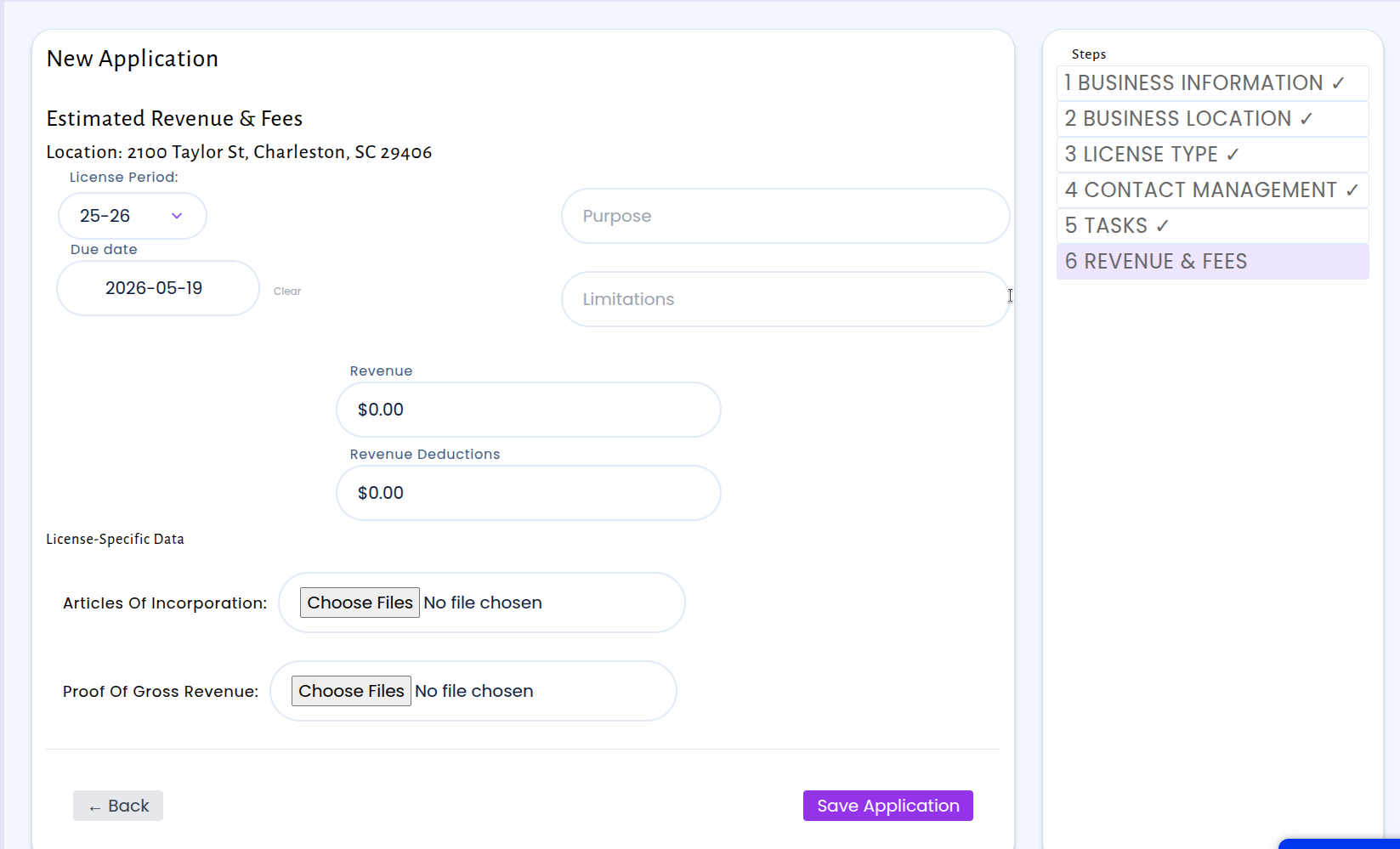
The updated wizard is available now as a configurable option in your Customer Settings. Your existing wizard setup continues to work — you can switch to the new version whenever you're ready.
Finance: New Grants Management Module
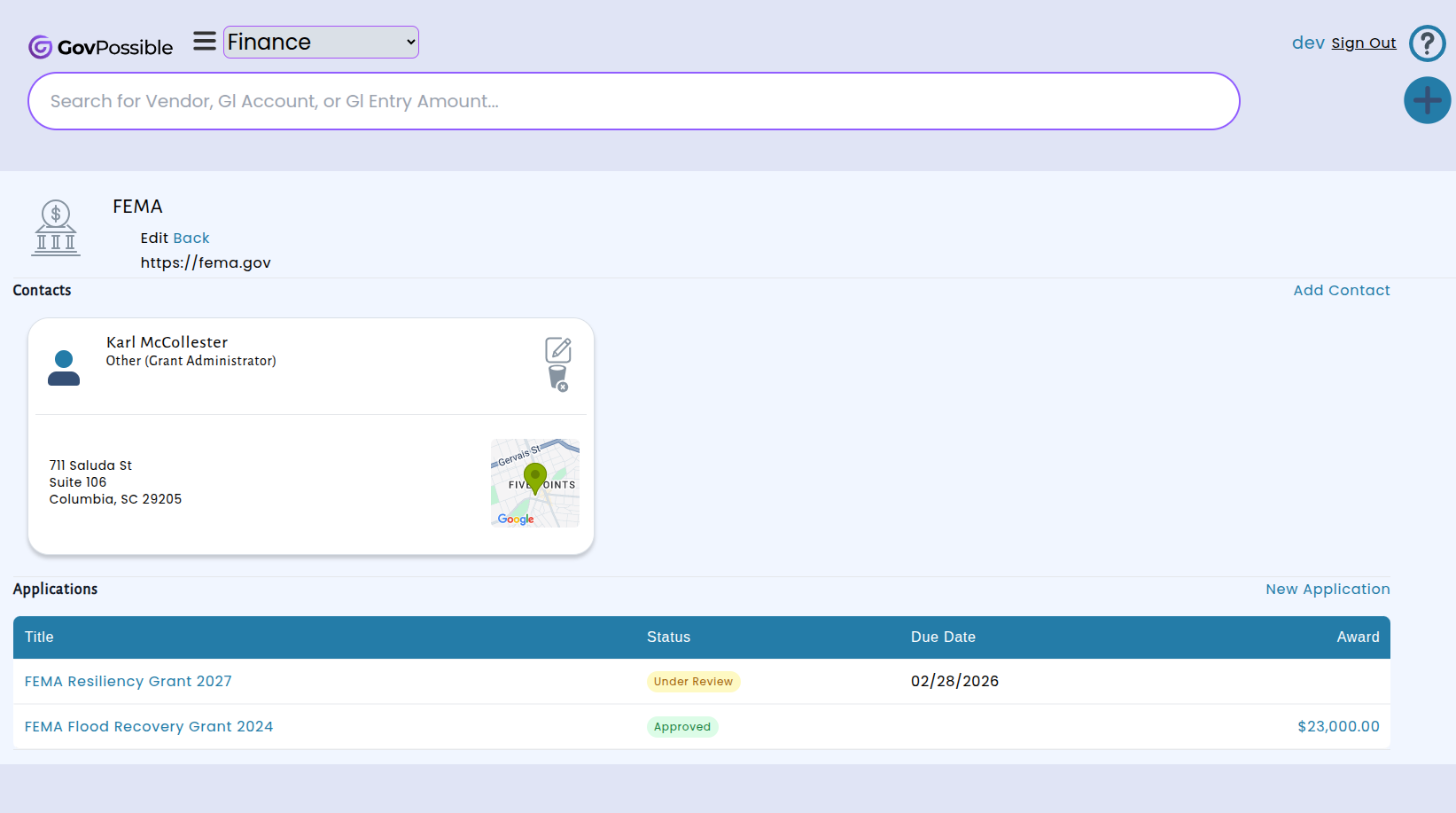
Managing grants just got a whole lot easier. We've added a complete Grants Management module that lets you organize every step of the grant lifecycle — from identifying granting bodies and tracking contacts, to submitting applications and managing awarded funds — all in one place.
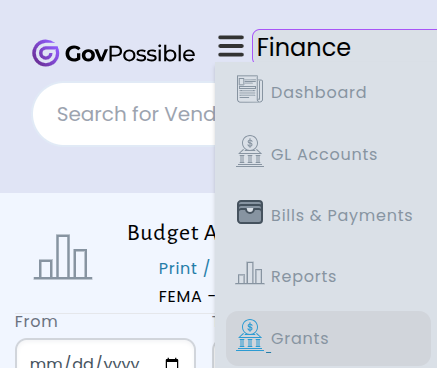
Start by setting up your granting bodies with their contact information and supporting documents. From there, create grant applications and track key details like criteria, deadlines, application status, and important dates — when the application is due, when it was submitted, and when a decision was received. When an application is approved, you can record the award details including the amount awarded, any matching funds required, and an optional bank account designation.
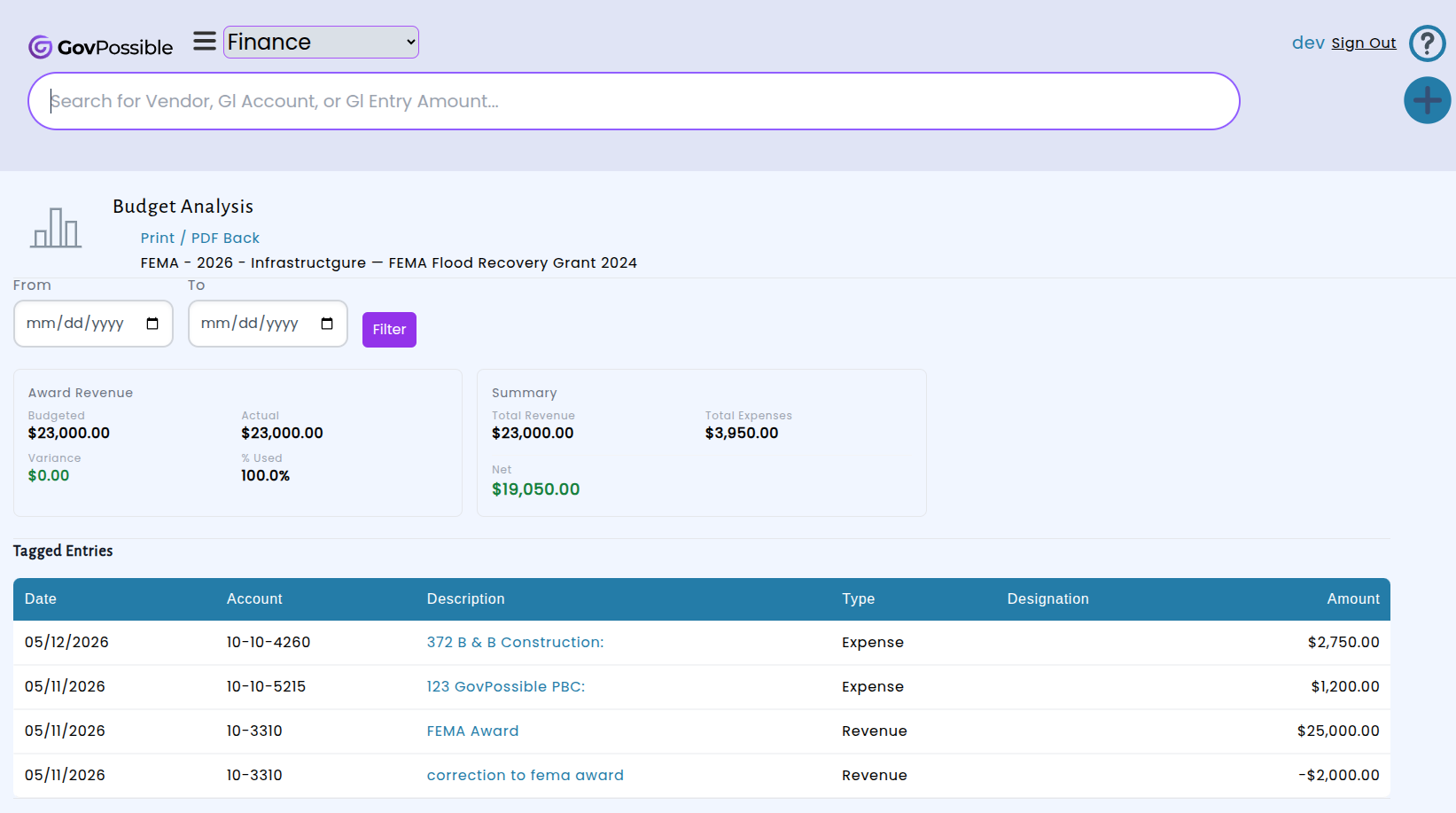
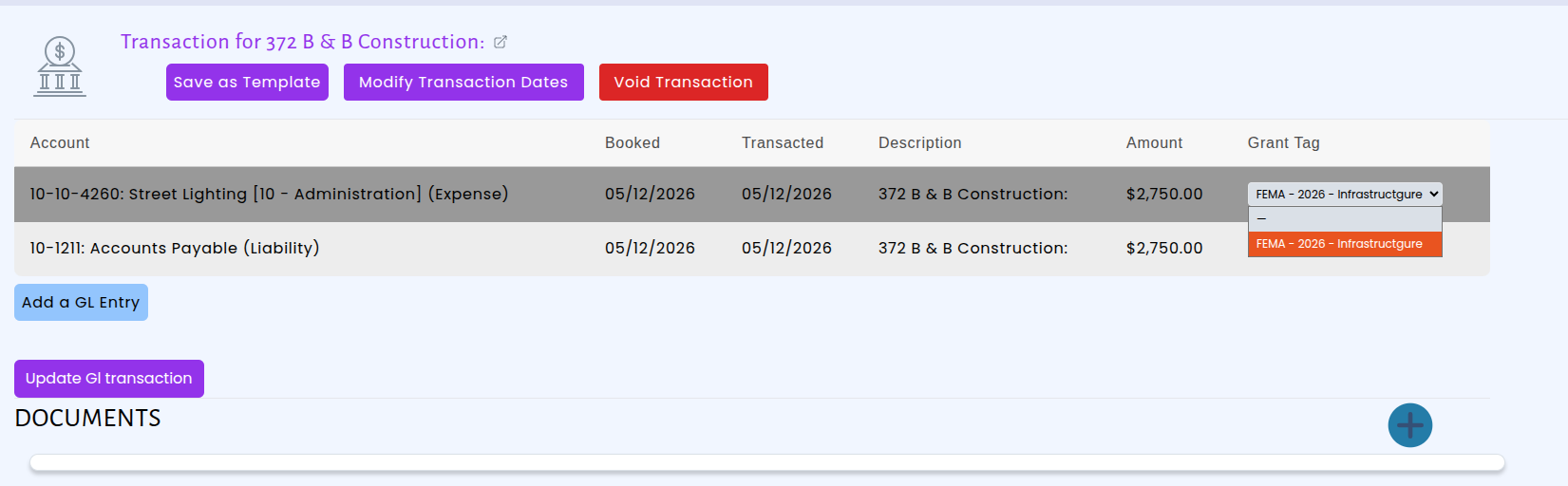
The module also connects directly to your financial workflows. When working with transactions, bank reconciliations, or invoices, you can tag revenue and expense items to a specific grant. For grants with a match requirement, revenue items can be designated as either award funds or matching funds, giving you clear visibility into both funding sources. On the grant award page, you'll find a summary of all tagged expenses and revenues along with a printable budget analysis report that compares actual amounts against the awarded and match-required totals — making grant reporting and compliance straightforward.
Licensing: License Editing is Clearer
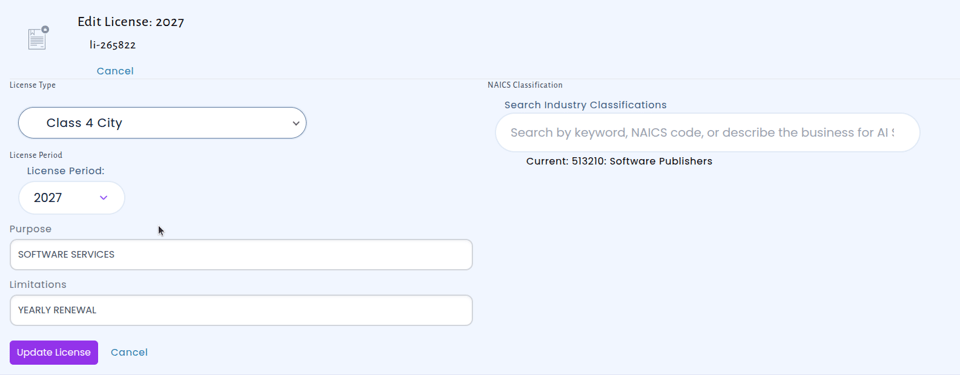
Licensing was one of the first screens we designed and I was bound and determined not to add an edit button... which probably has led to every one of you calling me 2-3 weeks after training asking: "How do I change the license period?"
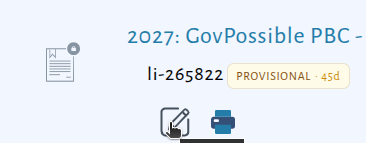
The license detail screen now includes an Edit button, giving you the ability to update key license information directly — no need to know on what part of the license to click to change something:
Licensing: Provisional License Option
Introducing Provisional Licensing — a new option that gives your licensing staff the flexibility to issue temporary licenses with built-in oversight. When a license category is configured for provisional status, staff can issue a time-limited license (45 days by default, adjustable to you) that clearly identifies itself as provisional throughout the system.
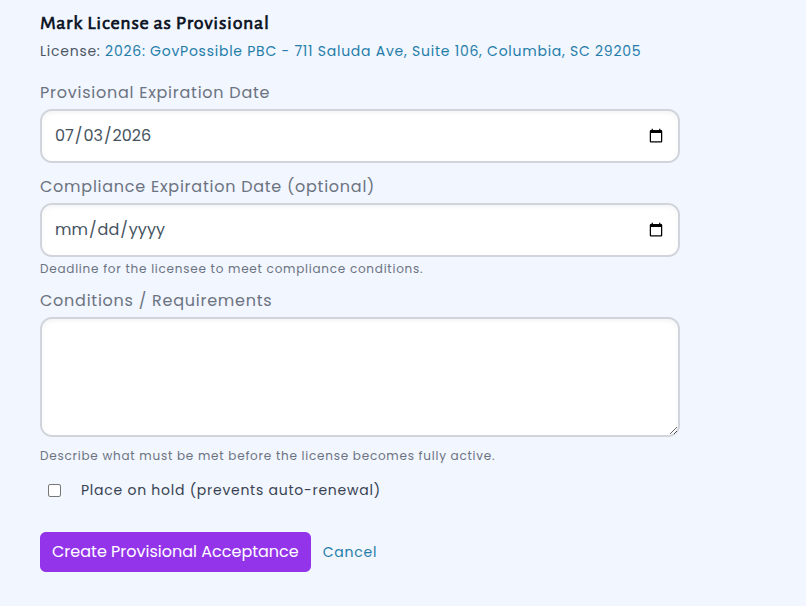
Once the license is present (after payment), click on the 'Mark Provisional' link on the license:

Provisional licenses default to the expiration date set as your default and optional compliance conditions that the licensee must meet override any conditions on the license. If more time is needed, staff can extend the provisional period directly from the license record — every extension is logged with the reason, the previous date, and who approved it, so you have an audit trail. Licenses on hold won't auto-renew, giving you full control over the process.
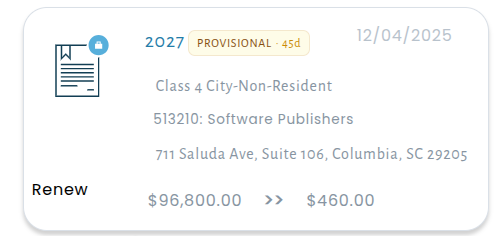
The provisional status is clearly visible on printed licenses as well, appearing under "Restrictions" with the provisional expiration date — so there's no ambiguity for the licensee or inspectors in the field.
The weekly licensing email report now includes a dedicated section for provisional licenses, showing upcoming expirations, recent extensions, and renewal dates so nothing falls through the cracks.
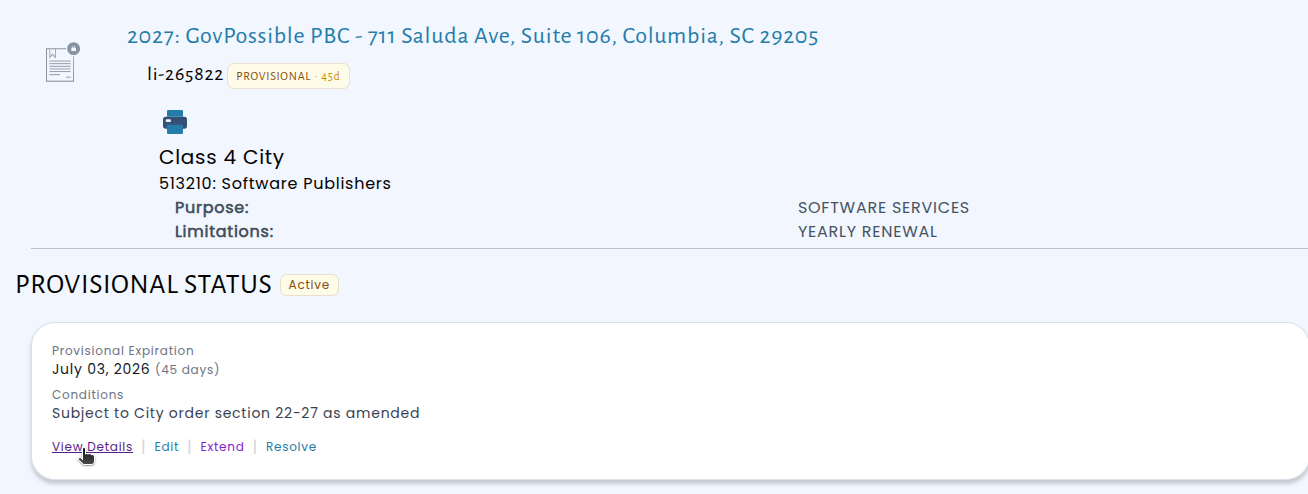
To get started, ask us to enable the provisional option. From there, staff can begin marking individual licenses as provisional right from the license form.
Cash Receipting: Choose Your Default Payment Type
We've made it easier to streamline your cash receipting workflow. You can now set a preferred default tender type for your checkout screen — so instead of always starting with "Cash" selected, the system can automatically default to whichever payment method your office uses most often, such as Check or Credit Card.
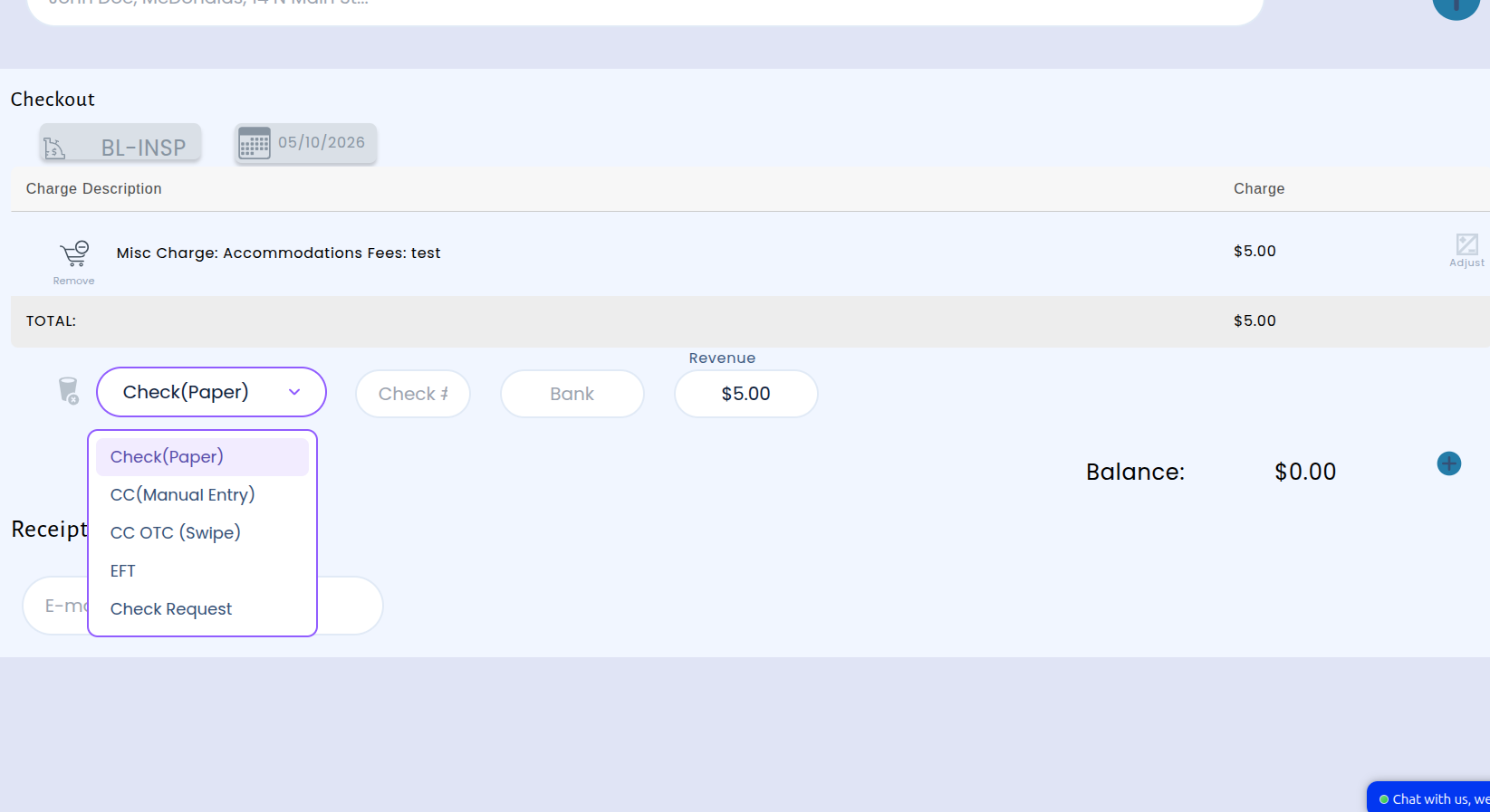
This update is available now. If you'd like to change your default tender type, reach out to us to update the setting in your customer configuration.
Cash Receipting: Money Order Now Available as an Optional Payment Option
We're pleased to announce that Money Order is now available as an optional payment type within the Cash Receipting checkout process. Staff who process payments at the counter can now select Money Order alongside existing options like cash, check, and EFT, making it easier to accurately record how residents choose to pay.
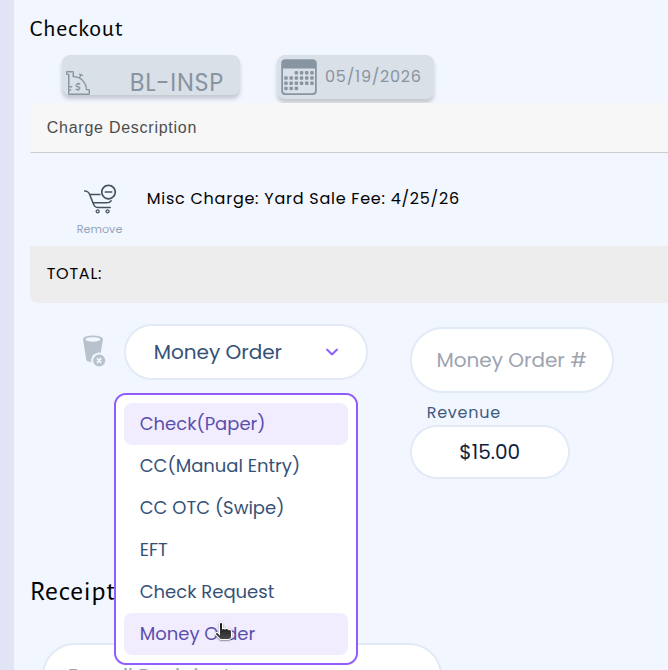
This addition means your records will better reflect the actual payment methods your office accepts. Instead of categorizing money orders under a different payment type or adding manual notes, staff can simply choose Money Order during checkout. The result is cleaner reporting, fewer workarounds, and a more straightforward experience for everyone at the front desk. If you'd liked this added to your payment type list, please let us know!
Planning: New Monthly Community Development Report
We're introducing the Monthly Community Development Report — a new consolidated report that brings together building, inspection, and land use activity across all your jurisdictions into one polished, easy-to-read document.
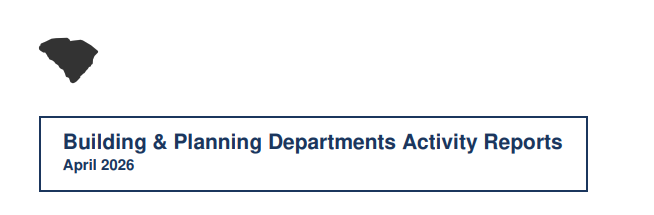
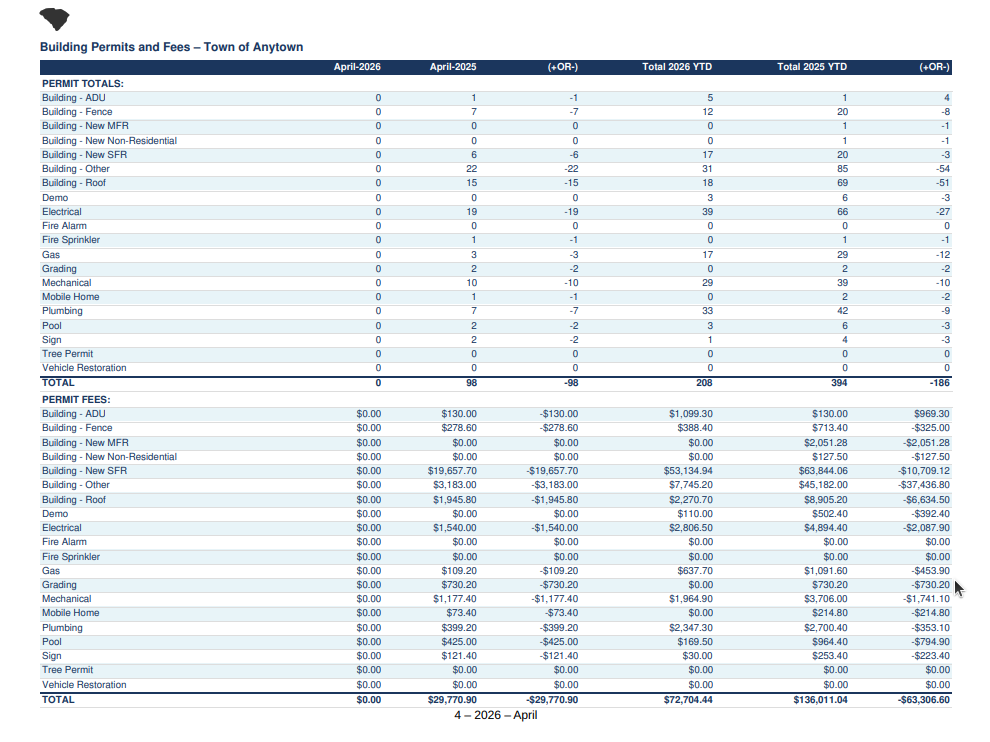
A single report that covers all community development activity — building permit activity, permit fees, inspection totals, and planning cases — broken down by jurisdiction so you can compare performance side by side. The report is available as both an interactive web page with month, year, and jurisdiction filters, and as a presentation-style PDF ready to share with leadership, council members, or the public.
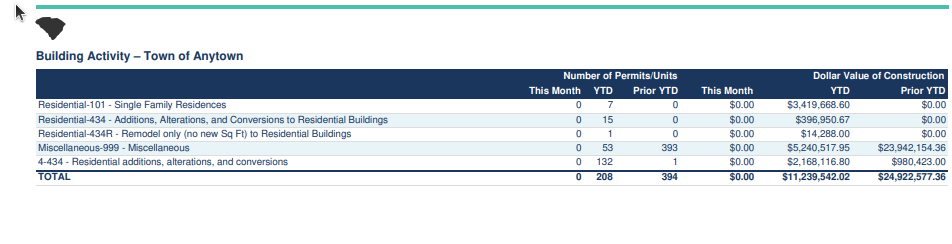
Each section of the report includes year-to-date totals alongside prior-year comparisons, making it simple to spot trends and measure growth at a glance. The PDF version features a professional layout with clear section dividers for Building Activity, Inspections, and Land Use, plus automatic page numbering for easy reference. Reports can also be emailed directly to your team on a scheduled basis, so the right people always have the latest numbers without lifting a finger.
Finance: Card Payments Now Available in Accounts Payable
We've added a new payment method to your Accounts Payable workflow: Card Payment. When recording a payment against an invoice, you'll now see Card Payment listed alongside your existing Check and EFT options. Simply select it from the payment method dropdown, enter the transaction details, and optionally record the last four digits of the card used for easy reference later.
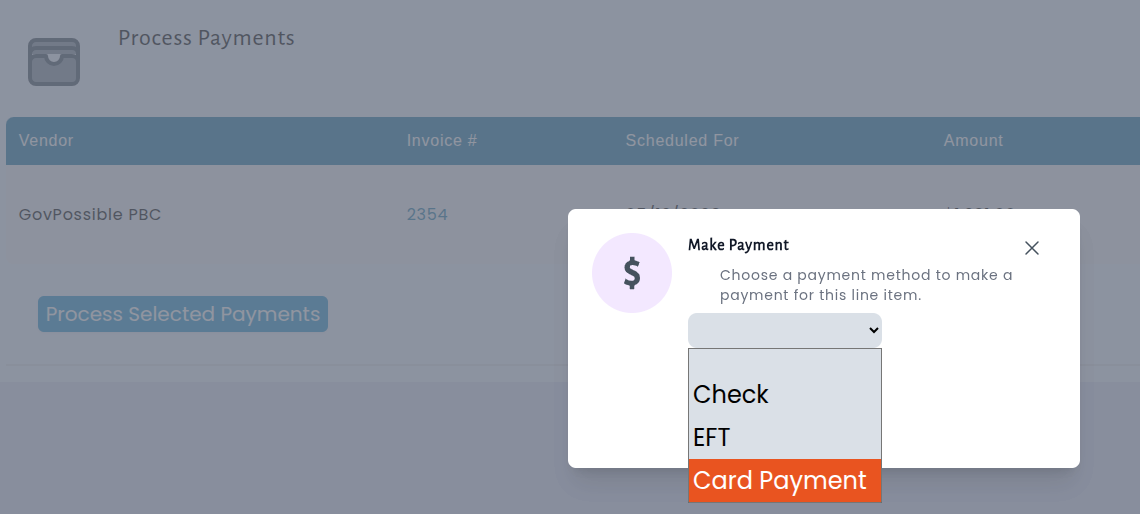
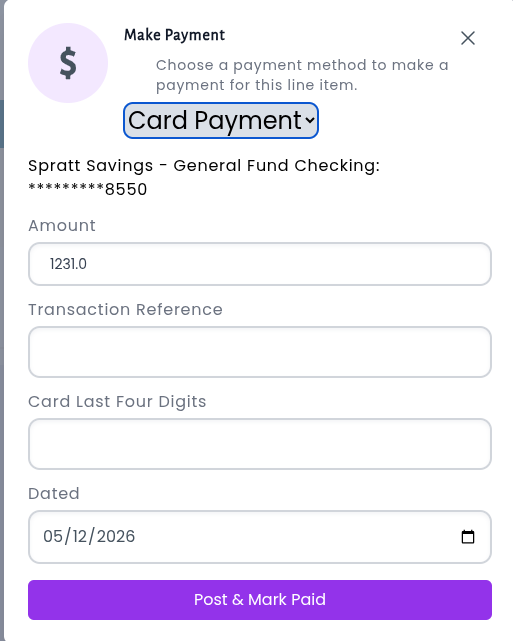
No changes are needed on your end — the new option is ready to use the next time you process a payment. If you have any questions about recording card payments, please don't hesitate to reach out.