How to Use Helium 10 (Step-by-Step for Beginners)
Disclosure: I am a Helium 10 affiliate. If you sign up through my link, I may earn a commission at no extra cost to you. Everything below comes from how I actually use the tools, and I point out the weak spots too.
How to Use Helium 10 in 60 Seconds
If you only have a minute, here is the short version of the whole workflow:
- Install the Helium 10 Chrome extension and create your account (free plan works to start).
- Use Black Box to filter Amazon's catalog down to product ideas.
- Use Xray on Amazon's search results to check sales, revenue, reviews and fees.
- Use Cerebro (type in a competitor's ASIN) and Magnet (type in a keyword) to find the keywords that will sell the product.
- Use Listing Builder and Scribbles to write a listing around those keywords.
- Use Keyword Tracker, Index Checker and Alerts after launch to protect your rankings.
The rest of this guide walks through each step in detail, including the exact filters and habits that make the data useful.
Want to follow along while you read? Open Helium 10 here and your account will be ready to click through as we go. If you decide to upgrade, that link applies 30% off automatically, and I explain the discount options in the pricing section below.
What Is Helium 10 and What Do People Use It For?
Helium 10 is a suite of software tools for Amazon sellers (and Walmart sellers too). Instead of guessing which product to sell, which keywords to put in your listing, or why a competitor outranks you, you get data for each of those decisions.
People mostly use it for five jobs:
- Product research: finding products with real demand and manageable competition.
- Keyword research: finding the exact words shoppers type into Amazon.
- Listing optimization: writing titles, bullets and backend keywords that rank and convert.
- Operations: tracking inventory, profits, refunds and listing changes.
- Advertising: managing Amazon PPC with the help of data and automation.
My own first impression when I used it to search for products was how easy the site is to move around and how complete the data felt. I did not need a manual to run my first search. That matters when you are a beginner and everything else about Amazon selling already feels like a lot.
Step 1: How to Get Started with Helium 10
Create your account
Go to Helium 10 and sign up. You can start on the free plan, which gives you limited use of several core tools. Reports I found put the free allowance at roughly 5 Black Box uses and 10 Xray uses, but limits get adjusted, so check the plan page for the current numbers. It is enough to learn the layout and run a few real searches before you pay for anything.
Install the Chrome extension
The Chrome extension is where a lot of the daily work happens. Once installed, you can run Xray directly on any Amazon search results page or product page without leaving Amazon. Pin the extension to your browser toolbar so it is one click away.
Connect your marketplace
Pick the marketplace you plan to sell in (Amazon US, UK, Germany and others are supported, plus Walmart for some tools). Searches are marketplace specific, so choosing the wrong one gives you data for the wrong shoppers. This is a very common beginner mistake.
Watch the training that comes with it
Paid plans include the Freedom Ticket course, which teaches the whole Amazon selling process using Helium 10's tools. If you learn better from video than from reading, start there alongside this guide.
Create your free Helium 10 account and install the extension
Step 2: How to Use Helium 10 to Find Products
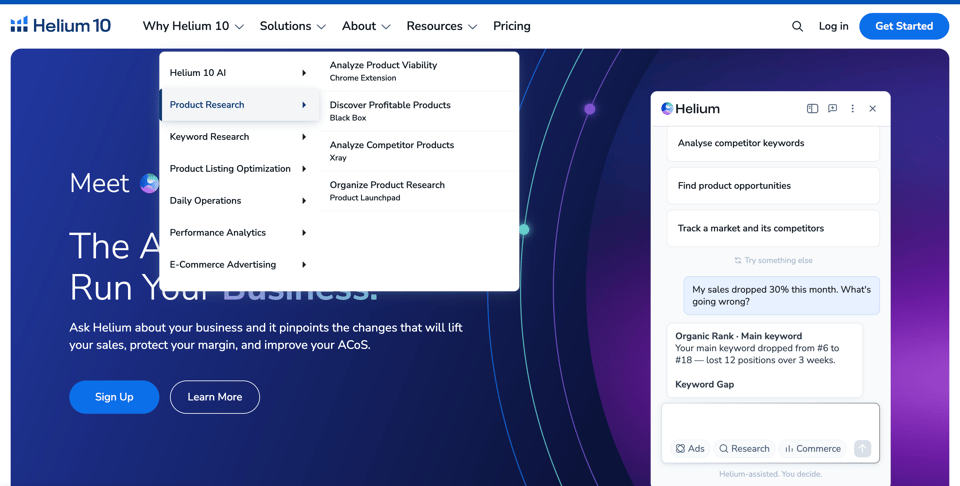
Product research is where most sellers spend their first week, and it is where Helium 10 earns its reputation. There are two main routes: Black Box (filtering the database) and Xray (analyzing live Amazon pages). Use them together.
How to use Black Box for product research
Black Box lets you search a database of hundreds of millions of Amazon products by filters, instead of scrolling Amazon hoping something jumps out.
Basic steps:
- Open Black Box and choose Products.
- Select your marketplace and one or more categories.
- Enter your filters (below) and click Search.
- Sort the results by monthly revenue or by sales, then open the interesting ones for deeper checks.
Filters worth setting as a beginner:
- Price range: Helium 10's own beginner guidance points to products priced roughly between $20 and $120. Cheaper items leave very little margin after fees, and expensive items tie up your cash.
- Monthly revenue: set a minimum so you only see products with real sales. Many new sellers start by looking for products in the several-thousand-dollar-per-month range or higher.
- Number of reviews: setting a maximum shows you markets where competitors do not have thousands of reviews protecting their position.
- Review rating: products with weak star ratings can signal that customers want a better version.
- Size tier and weight: smaller, lighter products usually cost less to store and ship through FBA.
- Number of sellers and listing quality: these help you spot markets that are not crowded and listings that are not well built.
Treat these numbers as starting points, not laws. The right filters depend on your budget, your category and your appetite for risk. Run a broad search first, look at what comes back, then tighten.
What a good result looks like: steady demand, price room for a healthy margin, competitors with a modest review count, and listings you could clearly improve on (poor images, thin bullets, weak titles).
How to use Black Box Keywords and Product Targeting
Black Box also has a Keywords search, which finds keywords by search volume, competition and other filters, and a Product Targeting search, which helps with ad targeting ideas. Once you have a product idea, these are useful for seeing how crowded the keyword side of the market is before you commit.
How to use Xray to validate a product
Xray is the tool you will probably use most. It runs on top of Amazon itself.
Basic steps:
- Search a keyword on Amazon (for example "silicone baking mat").
- Click the Helium 10 extension and choose Xray.
- Xray overlays estimated monthly sales, monthly revenue, price, BSR, reviews, rating, fees and size tier for each product on the page.
- Look at the market as a whole: what share of the revenue goes to the top three products? How many listings have very few reviews but still sell? Is there a price gap?
An honest warning: Xray's sales figures are estimates. They are good for direction (is this market big, medium or tiny?) and not for accounting. I treat them as "roughly this order of magnitude" and double check with a second angle before spending money on inventory. Every Amazon tool has this limit, and a seller who treats an estimate as exact is the one who gets burned.
A simple product research routine you can copy
- Run a Black Box search and save 10 to 15 candidates.
- Open each in Amazon and run Xray on the surrounding search results.
- Cut anything where one dominant product owns most of the revenue.
- Take the 3 to 5 survivors into Cerebro and Magnet to check the keyword side.
- Only then start contacting suppliers.
Try this routine with Helium 10
Step 3: How to Use Helium 10 for Keyword Research
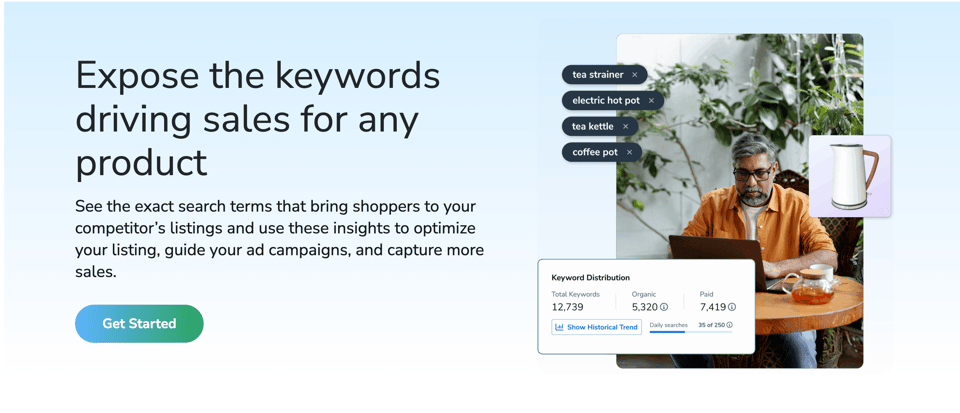
Products do not sell if shoppers cannot find them. Helium 10 has two main keyword tools that approach the problem from opposite directions.
How to use Cerebro (reverse ASIN lookup)
Cerebro starts from a competitor. You give it an ASIN, and it shows you the keywords that product ranks for.
Basic steps:
- Copy the ASIN of a competing product from its Amazon page.
- Open Cerebro, paste the ASIN (you can add more than one), and click Get Keywords.
- Review the list. Pay attention to search volume, the Cerebro IQ Score (a measure of how valuable a keyword looks for you), competing products and the competitor's organic rank.
- Filter out junk: set a minimum search volume, and exclude brand names and irrelevant terms.
- Export the list or send it to your listing tools.
Why it works: the products that are already selling have effectively done the keyword testing for you. Cerebro lets you read their results.
How to use Magnet (reverse keyword lookup)
Magnet starts from a keyword instead of a product.
Basic steps:
- Open Magnet and enter a seed keyword, like "yoga mat".
- Click Get Keywords to see related terms with their search volume and Magnet IQ Score.
- Use filters to remove low-volume or off-topic phrases.
Think of it as a very fast, data-backed brainstorm. It is especially good for long-tail phrases (more specific searches with less competition) that you might never think of yourself.
Cerebro vs Magnet: which one first?
- Use Magnet when you only have a product idea and no competitor yet.
- Use Cerebro when you have competitor ASINs to study.
- Use both for the best list. Cerebro shows what already works for rivals, and Magnet fills the gaps they missed.
How to clean your keyword list with Frankenstein
Raw keyword lists are messy: duplicates, awkward phrasing and repeated words. Frankenstein is a keyword processor that cleans and organizes a list so you can drop it into a listing or an ad campaign without doing it by hand.
How to find misspelled keywords with Misspellinator
Shoppers misspell things all the time, and Amazon often still shows them results. Misspellinator generates common misspellings of your keywords, which you can place in your backend search terms so you catch that traffic without cluttering your visible listing.
Step 4: How to Use Helium 10 to Write and Optimize Your Listing
Once you have your keywords, your listing has to put them to work.
How to use Listing Builder
Listing Builder is where you organize your keyword list and write your title, bullets, description and backend terms while the tool tracks which keywords you have already used. It also gives you a listing quality score so you can see how well you have covered your important terms.
Basic steps:
- Import your keyword list from Cerebro or Magnet.
- Write your title with the most important keyword near the front.
- Work the remaining keywords into bullets and the description in natural language, not stuffing.
- Check the score and fill in gaps.
How to use Scribbles
Scribbles is a lighter tool that tracks your keywords as you type your listing and helps you use your backend search terms efficiently. It is handy if you like to write directly in a clean text box.
How to check if your keywords are indexed with Index Checker
Writing a keyword into your listing does not guarantee Amazon is indexing it. Index Checker tells you whether your ASIN is actually indexed for the keywords you care about. If it is not, you know to fix your listing instead of wondering why traffic never arrived.
How to use the AI features
Helium 10 has been adding AI features quickly. The AI Listing Builder and the Helium AI assistant can help draft and improve listing copy, and the MCP connector lets outside AI tools query your Helium 10 data. As far as the pricing reports I found describe it, the MCP connector sits on the Diamond plan with a monthly allowance of calls. Use AI for first drafts and ideas, then edit by hand. Your listing still has to sound like it was written for a human shopper.
Step 5: How to Use Helium 10 After You Launch
How to track keyword rankings with Keyword Tracker
Keyword Tracker shows where your product ranks for your chosen keywords over time. It is the quickest way to see whether your listing changes, ad spend or price changes are actually moving the needle. Add your main 10 to 20 keywords right after launch.
How to monitor competitors with Market Tracker
Market Tracker watches a whole market, not just a single product. You can follow competitor revenue, market share and new entrants. It is useful once you are established and want to know when someone starts eating into your category.
How to stay safe with Alerts
Alerts notifies you when something changes on your listing, such as a hijacker, a changed price, a lost Buy Box or a hit to your content. Problems on Amazon move fast, so catching them early saves real money.
How to track profit with Profits
Profits pulls your sales, fees and costs together so you can see what you actually make per product, not just what you sell. Many sellers feel profitable until this dashboard says otherwise.
How to manage stock with Inventory Management
Inventory Management helps forecast when to reorder so you do not run out of your best seller or overpay for stock that sits. Stockouts hurt rankings, so this tool pays for itself the first time it prevents one.
How to recover fees with Refund Genie
Refund Genie looks for FBA fee errors and reimbursable losses so you can file claims. It is a small thing that can add up over a year.
How to use Helium 10 Ads
Helium 10 has advertising tools for building and managing Amazon PPC with automation. On the Diamond plan, reports describe a fee of 2% of the ad spend managed through Helium 10 Ads, so factor that into your math if you plan to run large budgets.
How to Use Helium 10 for Specific Goals
How to use Helium 10 for Amazon FBA beginners
- Start on the free plan and learn Black Box and Xray.
- Pick one category and learn it deeply instead of researching ten.
- Validate with Xray, then check keywords in Cerebro and Magnet.
- Do not order inventory until you have checked fees, margin and competition from at least two angles.
How to use Helium 10 to find profitable niches
A niche is more than one product. Look for a keyword where multiple products sell steadily, reviews are spread out, and you can see a way to be different (bundle, better material, improved design). Black Box finds the products, Xray shows the market size, and Magnet shows how many related keywords support the niche.
How to use Helium 10 for Walmart
Several Helium 10 tools support Walmart Marketplace, including product research, keyword research and listing tools. If you are diversifying beyond Amazon, switch the marketplace selector and run the same research process.
How to use Helium 10 for KDP and book publishing
Self-publishers use Xray for competitor analysis, Black Box for niche research, and Cerebro and Magnet for backend and advertising keywords. The same logic applies: see what sells, see which words it ranks for, and build around that.
How to use Helium 10 for free
The free plan lets you use limited amounts of several tools each month or day. It is the right way to learn the interface. Once you run into the limits because you are doing real research, that is the signal you are ready for a paid plan.
How to use Helium 10 to analyze a competitor
- Paste the competitor ASIN into Cerebro to see their keywords.
- Run Xray on their search results to see how their revenue compares.
- Add them to Market Tracker to watch changes over time.
- Read their listing and reviews for weaknesses you can fix.
Helium 10 Pricing: Which Plan Should You Use?
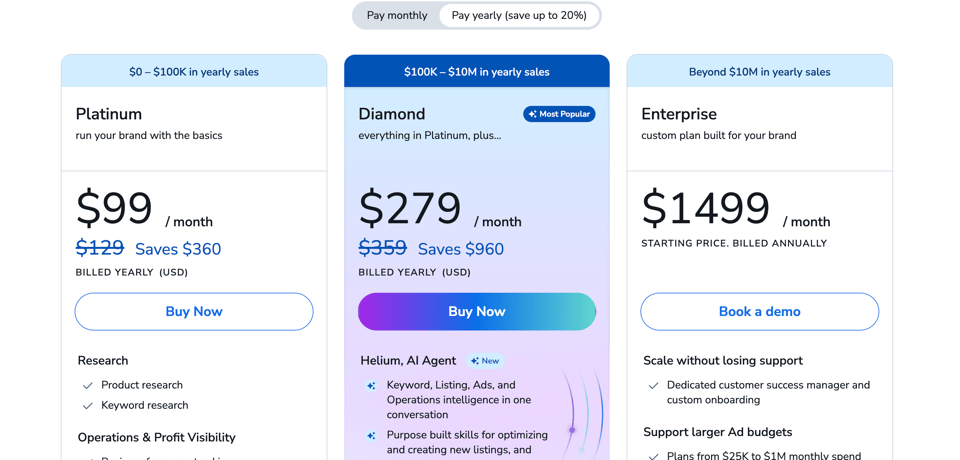
Helium 10 changed its pricing in 2026, and the old Starter plan is no longer sold to new users. According to the sources I checked, here is how the paid plans look:
- Free: limited use of core tools. Good for learning.
- Platinum: about $99 per month on annual billing, or $129 on monthly billing. The place to start if you are testing the waters with higher limits than the free plan.
- Diamond: about $279 per month on annual billing, or $359 on monthly billing. Built for sellers who are serious about growing, with higher limits, the AI and MCP features, and more advanced tools.
- Enterprise: custom pricing for larger operations.
Prices move, so always confirm on the official pricing page before you buy.
Which one should you pick? If you are still deciding whether Amazon is for you, Platinum or even the free plan is a reasonable test. If you already know you are going to run a real business, Diamond is the plan I would look at first, because the extra limits and tools remove the friction that slows beginners down. It costs more per month, but the time you save and the bad inventory decisions you avoid are what you are really paying for.
Helium 10 discount: link vs code
There are two ways to save, and they do not stack:
- My link applies 30% off for the first 6 months automatically.
- Code FLEXOBA10 gives 10% off every month, for as long as you stay subscribed.
The simple math: 30% for 6 months equals 180 "percent-months." 10% for life catches up to that after 18 months. So if you expect to use Helium 10 for a year and a half or more, the lifetime code comes out ahead. If you want the biggest savings right now and plan to reassess in six months, the link is the better pick. Check which offer applies at checkout, since promotions can change.
Start with the 30% link here, or use code FLEXOBA10 if you plan to stay long term.
Mistakes to Avoid When Using Helium 10
- Treating estimates as exact. Xray and other sales numbers are directional.
- Choosing a product from one tool alone. Cross-check with Cerebro, Magnet and Amazon itself.
- Chasing huge search volumes. The biggest keywords are the hardest to rank for. Long-tail phrases are often easier wins.
- Keyword stuffing. Amazon shoppers read your listing. Write for people first.
- Ignoring fees. A product that looks profitable can lose money after FBA fees, ad costs and returns. Check Profits.
- Using the wrong marketplace. Always confirm the selector before you search.
- Never using the training. The Freedom Ticket course and tutorials save you weeks.
Pros and Cons of Helium 10
Pros
- Covers product research, keywords, listings, operations and ads in one place.
- Easy to navigate, with a lot of data per search.
- The Chrome extension makes Xray quick and practical.
- Training included on paid plans.
- Active development, including AI and MCP features.
Cons
- Prices went up in 2026 and the Starter plan is gone.
- There is a learning curve, since there are many tools.
- Sales estimates are estimates, not guarantees.
- Annual plans are reported to be non-refundable after the first month, so start monthly if you are unsure.
Is Helium 10 Worth It?
For a seller who actually uses the tools, yes, in my experience. Product research alone can save you from one expensive wrong order, and that single avoided mistake can cover many months of subscription. For someone who signs up and never opens it, no software is worth the money.
My suggestion: start free, run real research on a product you are considering, and upgrade only when the free limits slow you down.
Try Helium 10 and see how it fits your workflow
Frequently Asked Questions About Using Helium 10
How do I use Helium 10 to find products to sell?
Use Black Box to filter by price, revenue, reviews and size, then validate your shortlist with Xray on Amazon and check keywords with Cerebro and Magnet.
How do I use Helium 10 Xray?
Install the Chrome extension, search a keyword on Amazon, click the extension and choose Xray. It overlays sales, revenue, fees and review data on the results.
What is the difference between Cerebro and Magnet?
Cerebro starts with a competitor ASIN and shows the keywords they rank for. Magnet starts with a keyword and shows related terms.
Can I use Helium 10 for free?
Yes. There is a free plan with limited use of core tools. It is meant for learning the platform.
How do I use Helium 10 for keyword research?
Use Magnet with a seed keyword, use Cerebro with competitor ASINs, clean the list with Frankenstein, then put the best terms into your listing with Listing Builder or Scribbles.
Is Helium 10 good for beginners?
Yes. The interface is approachable, there is a free plan to start with, and paid plans include the Freedom Ticket training. Start with Black Box and Xray before you explore the rest.
How accurate is Helium 10 data?
The data is useful for direction, but sales numbers are estimates. Verify any important decision with more than one source.
How do I use Helium 10 to track rankings?
Add your ASIN and main keywords to Keyword Tracker and check how your ranks change over time.
Does Helium 10 work for Walmart?
Yes, several tools support Walmart Marketplace, including product and keyword research.
How much does Helium 10 cost?
Paid plans are Platinum (about $99 per month annual, $129 monthly) and Diamond (about $279 annual, $359 monthly), plus custom Enterprise. Confirm on the official page before buying.
Is there a Helium 10 discount code?
Yes. My link gives 30% off for the first 6 months, and code FLEXOBA10 gives 10% off every month for as long as you subscribe. They do not stack.
How do I install the Helium 10 Chrome extension?
Sign in to your account, follow the extension prompt, and install it from the Chrome Web Store. Pin it to your toolbar for easy access.
Can I cancel Helium 10 anytime?
Monthly plans can be cancelled, but annual plans are reported to be non-refundable after the first month. Check the current terms before choosing annual billing.
What is Helium 10 used for?
Amazon and Walmart sellers use it for product research, keyword research, listing optimization, inventory and profit tracking, and advertising.
Conclusion: Your First Week With Helium 10
If you want a plan for the first seven days:
- Day 1: Create your account and install the Chrome extension.
- Day 2: Run three Black Box searches with different filters and save candidates.
- Day 3: Use Xray on each candidate's search results.
- Day 4: Run Cerebro on competitor ASINs for your best two or three.
- Day 5: Use Magnet to expand the keyword list, then clean it with Frankenstein.
- Day 6: Draft a sample listing in Listing Builder.
- Day 7: Decide which product, if any, passes your checks, and whether you need a paid plan.
The tool does not sell for you, but it replaces guessing with evidence, and that is the biggest early advantage you can give yourself.
Start your Helium 10 account here and get the 30% offer if you upgrade, or use code FLEXOBA10 for 10% off every month.
