
Share your call and invite jurors: Your October EntryThingy update
See how many artists your call has reached, copy ready-made email and Instagram text, and send each juror a personal invitation.
This month's updates help with two jobs every call involves: getting it in front of artists and getting your jurors on board. Here's what changed and where to find each one.
See how many artists your call has reached
Until now, you could see how many entries came in, but not how many artists had heard about your call in the first place. Every week, we email artists a list of calls that match their work, and your call's Overview now shows how many artists that email reached.
Open your call and look right below your entry count. Before the next email goes out, you'll see the day it's scheduled. Once it's sent, the same spot shows how many artists it reached.
Here is what it looks like, with your entries at the top and the next recommendation email right below:
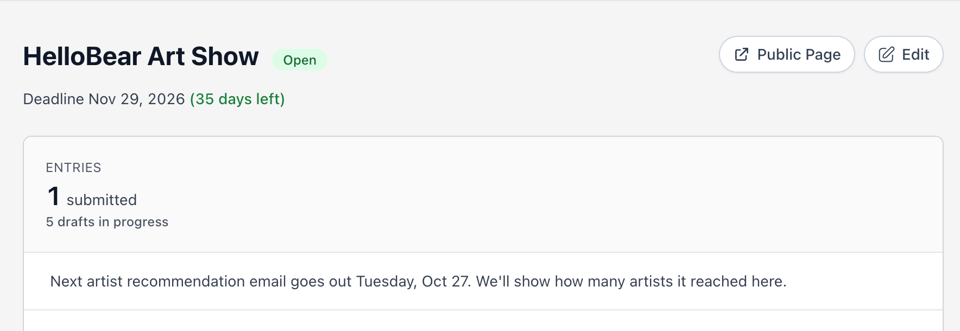
Comparing reach with entries helps you decide what to do next. If many artists have seen the call but few have applied, look at the call itself: are the eligibility rules, fee, and deadline easy to find? Our call writing checklist covers what artists look for. If the call hasn't reached many artists yet, that's your cue to share it more widely, and the next update makes that easier.
Our email marketing guide explains which artists receive our weekly emails.
Copy ready-made text to share your call
Sharing a call used to mean copying its link and writing a post around it yourself. Now your call's Overview has a Promote your call section with three things ready to copy: your call link, an email invite, and an Instagram caption, all filled in with your call's details.
Here is what it looks like. Select Copy email or Copy caption, then paste the text into your newsletter, a message to past exhibitors, or a new Instagram post:
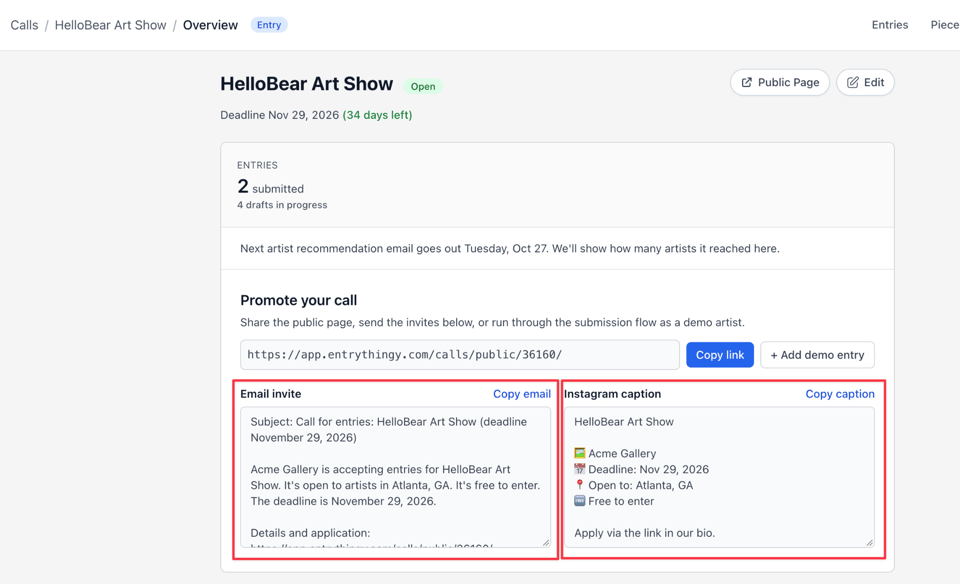
Before you send or post, add a line that's specific to your audience, such as a note to past exhibitors or a reminder of the deadline. The Instagram caption already ends with "Apply via the link in our bio," so use Copy link to add your call link to your Instagram profile before you post.
When you share on Instagram, tag us too. We also post calls on EntryThingy's Instagram account, and your call image is what we share. When you upload an image while creating your call, our team posts it with a caption based on your call description. Our guide to Instagram promotion lists the image size that works best.
Invite jurors with a personal email
Each juror you invite now gets a personal email for your call, so they know exactly which call they're reviewing. You can also invite someone who doesn't have an EntryThingy account yet. They'll get a link to set one up and start reviewing your call.
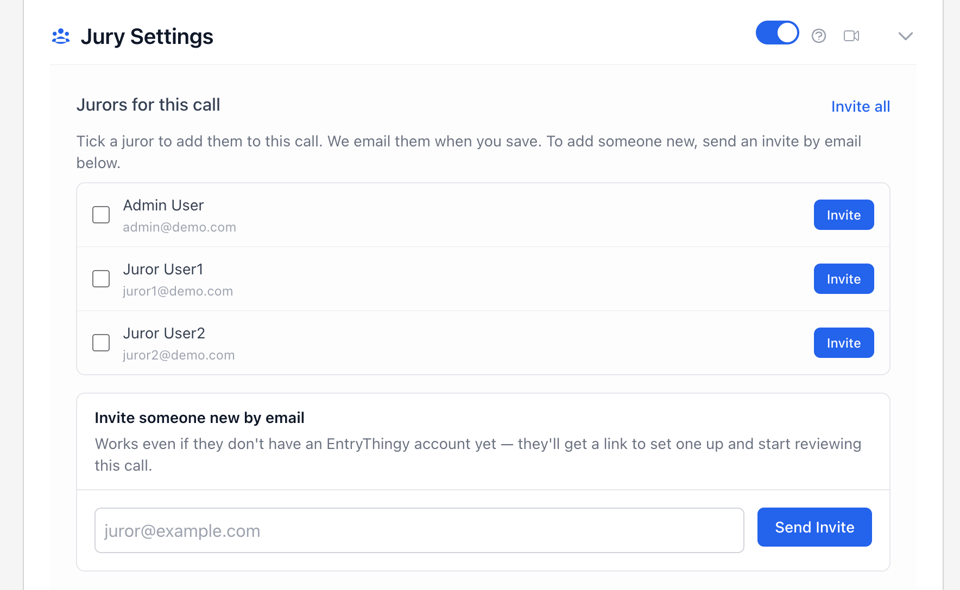
To invite jurors, edit your call and open Jury Settings. From there, you can:
Tick the jurors you want on this call. We email them when you save.
Select Invite next to a juror, or Invite all to invite everyone on your list.
Enter a new juror's email under Invite someone new by email and select Send Invite.
Here is what it looks like, with your current jurors at the top and the invite for new jurors below:
If your jurors haven't reviewed on EntryThingy before, send them our guide on how to jury an art show along with the invitation. It walks them through what to do once they're invited.
Questions? Reply to this email and you'll reach us directly.
Denisa, Myles & the EntryThingy team
