
Automatic resizing and city filters: Your October EntryThingy update
Upload images without resizing them first, find calls near you, and see your past entries in your portfolio.
We've made three changes this month that take some of the busywork out of applying: fitting images to a call's size rules, finding calls near you, and keeping your portfolio complete.
See your past entries in your portfolio
Your portfolio can now bring in the work you've submitted to calls on EntryThingy, so it gives you a full record of your entries, not only the pieces you uploaded to it directly.
If any of your past pieces aren't in your portfolio yet, we'll show you how many. Click Add them to my Portfolio, and we'll bring them in, starting with your newest work. And since September's limit increase, you have more room for them: the Free plan now holds 25 pieces.
Here is what it looks like, with the number of past pieces waiting to be added:

Older entries can tell you something about your own practice. Look at which pieces you've submitted most often, and compare them with what you're making now. If you'd like to see how other artists chose what to submit, our accepted portfolio examples show how seven artists picked their pieces.
Upload images without resizing them first
Every call sets its own image size rules, and an image that didn't meet them used to mean a trip to an editing app before you could apply. Now, if your image doesn't fit a call's size rules, EntryThingy resizes it for free during the upload.
You don't need to do anything differently. Upload your image to the application as usual, and EntryThingy handles the resizing:
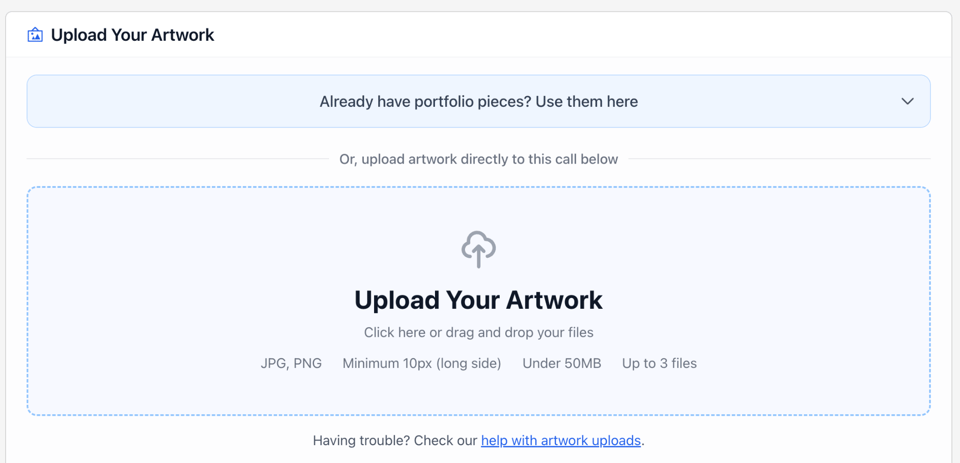
Resizing gets your image to the right size, but it can't add detail that isn't in the original file. Start with the highest-resolution photo you have, since that will still look sharpest to jurors. If you're unsure what the pixel and DPI numbers on an upload page mean, our guide to image size requirements explains them.
Portfolio subscribers who want more control, such as setting exact dimensions or preparing an image for Instagram, can still use Pixel Prep.
Find calls in your city
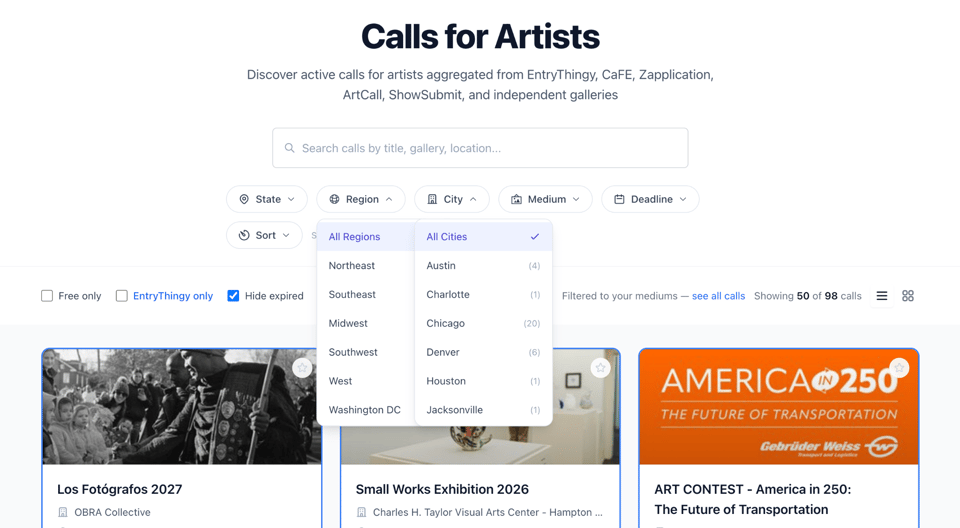
When you're signed in, you can now filter calls by any city in a state or region. That makes it easier to find shows you can visit or deliver work to without sorting through listings across the whole state.
To try it, sign in, open the calls list, and choose a city from the City filter, right next to Region. Each city shows how many calls it has, so you can see at a glance where the opportunities are.
Here is what it looks like, with the Region and City filters open:
Our weekly emails now show the city each call is in, too, so you can spot nearby opportunities before you open a listing.
Have a question about any of these updates? Reply to this email and let us know.
Denisa, Myles & the EntryThingy team
