“I just chose words carefully,” pt. 2
Welcome to this week’s digest of Unsung, a blog about software craft and quality. Here’s what was posted since last time.
This week’s issue had to be split into two because of a bug in Buttondown, my mailing list provider. I’m sorry about this!
View this issue in the browser with inline videos and better formatting
The Swiss Cheese model, pt. 3
After two more serious posts in this series, I wanted to stop somewhere a bit more lighthearted and inconsequential.
“Here’a a fun thing you can try,” begins this 13-minute video from Retro Game Mechanics Explained:
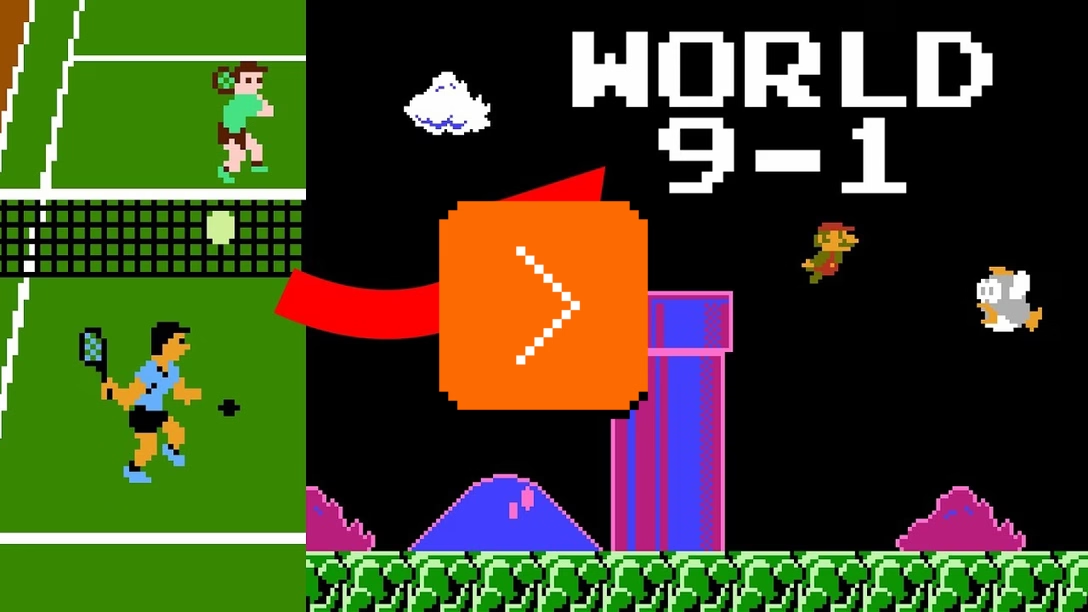
The premise of the parlor trick the video describes is a bit convoluted:
- Get your Nintendo Entertainment system, put in the Mario cartridge, and power it on,
- without powering it off, grab the cartridge and replace it with the Tennis cartridge,
- start the game, wait until the music stops, then move around for a bit,
- take that cartridge out and put Mario back in,
- press A+Start and you will see that you will start at a random “invalid” level that doesn’t exist, which should not be possible.
I’ll let you watch the video for a nice explanation, but this I think is a good example of the Swiss Cheese model:
- A+Start is real feature that allows you to continue the new game at the last level you finished (as opposed to Start, which always goes to Level 1).
- The NES allows you to take the cartridges out and put them back in while the machine is under power.
- The creators of Mario decided to make the game reset itself on every game over, and differentiate between cold boot and warm boot in a specific way.
- Tennis doesn’t wipe the memory on start.
- Tennis happens to change the memory in a very particular way that ends up being accidentally “compatible” with Mario.
- The Mario game doesn’t sanitize the level number on entry, so you can start on an invalid/broken level.
Just like before, the absence of just one of these Swiss Cheese holes would prevent the bug from happening. But the holes line up perfectly.
I found this whole thing kind of fun and delightful, and I actually understood why the creators of Mario decided to reset the game (with a small exception) on every game over – it’s brutal but elegant, and something I found myself wishing was easier to do during various projects I worked on in the last few decades.
Of course, there might be an argument that this is such a highly manufactured scenario (how did anyone even find that out to begin with!?), and of limited value, particularly if you end up at a random level anyway. We will pull on that thread in a future post, because the story doesn’t end here. People who spend time hacking old games go way further than this.
Monday, August 31 / #bugs / #super mario bros / #youtube
The secrets of your menus
I’m curious if you know of this pattern that existed for as long as I remember.
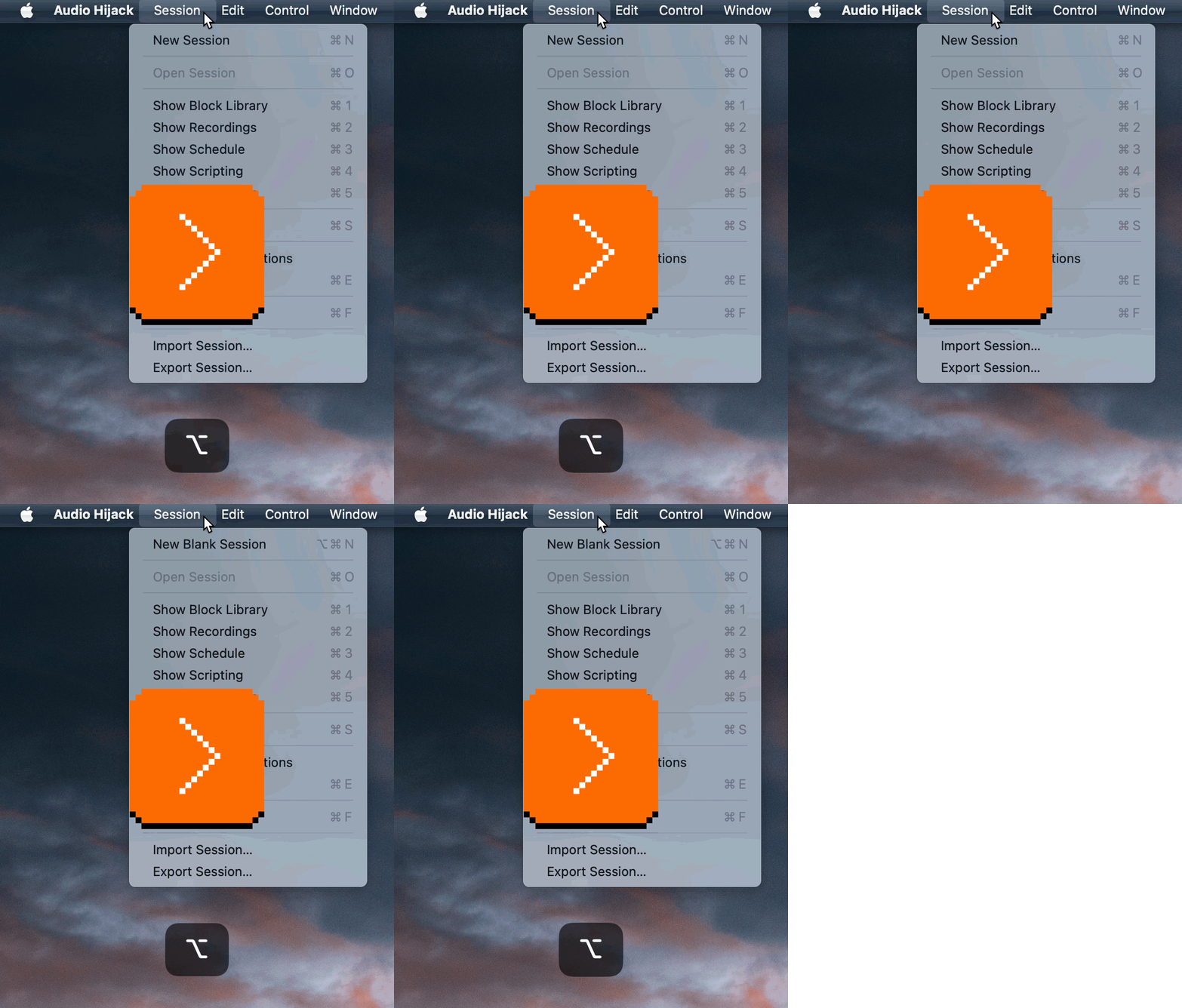
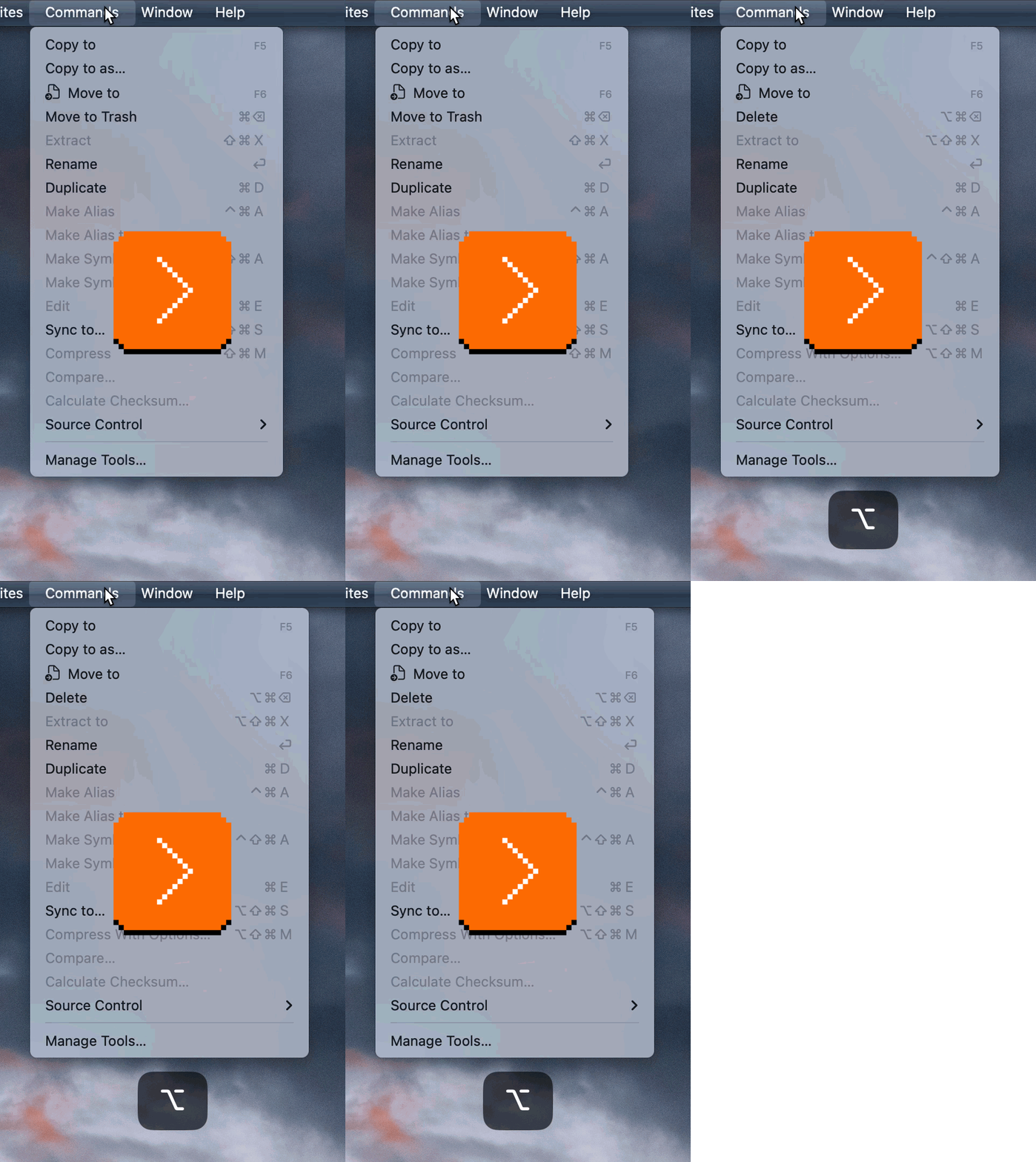
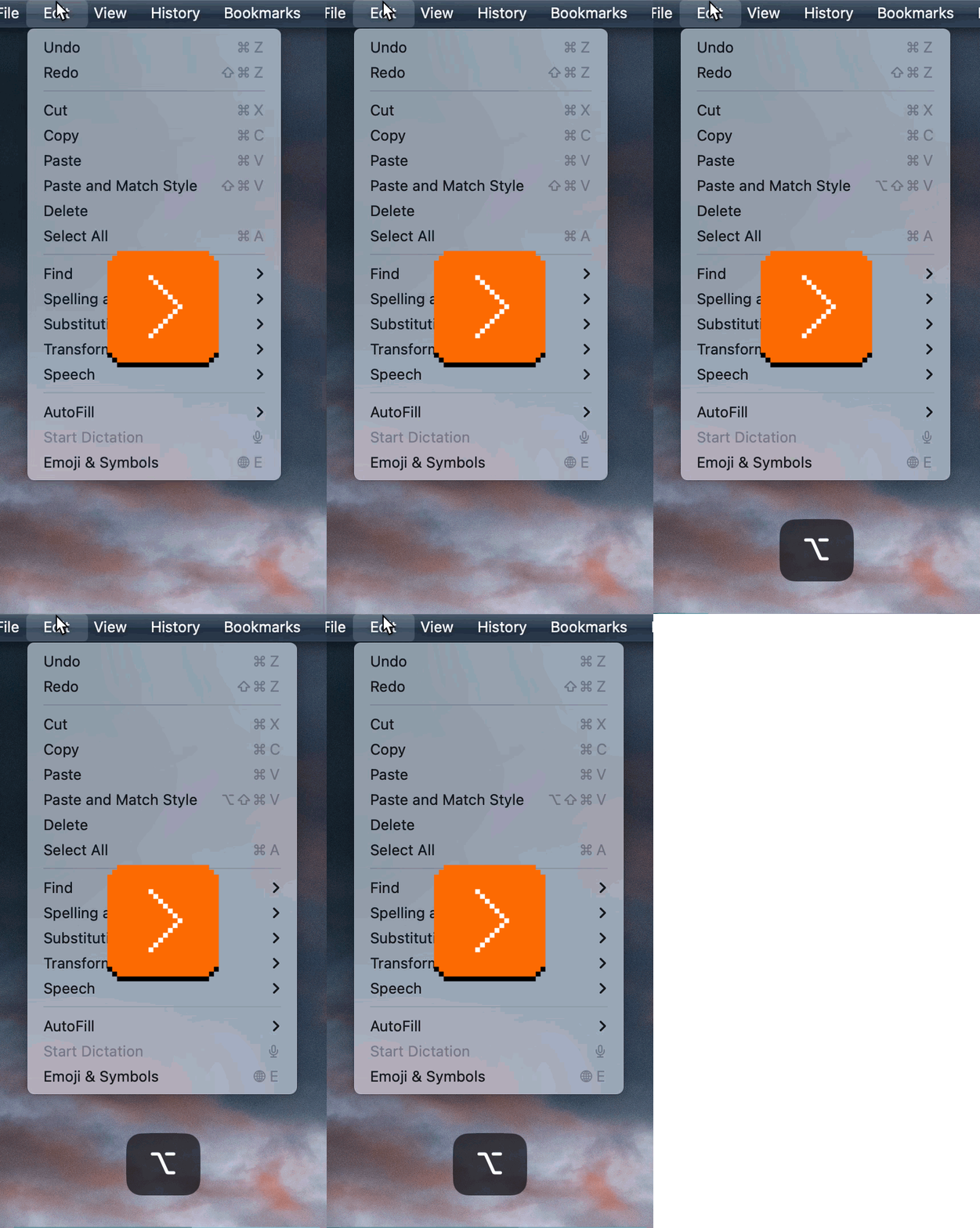
On a Mac, you can hold an ⌥ key (Option) whenever any menu is open, and often see more powerful, advanced, or faster variants of existing commands, helpful for a power user. Here’s Audio Hijack and Forklift:
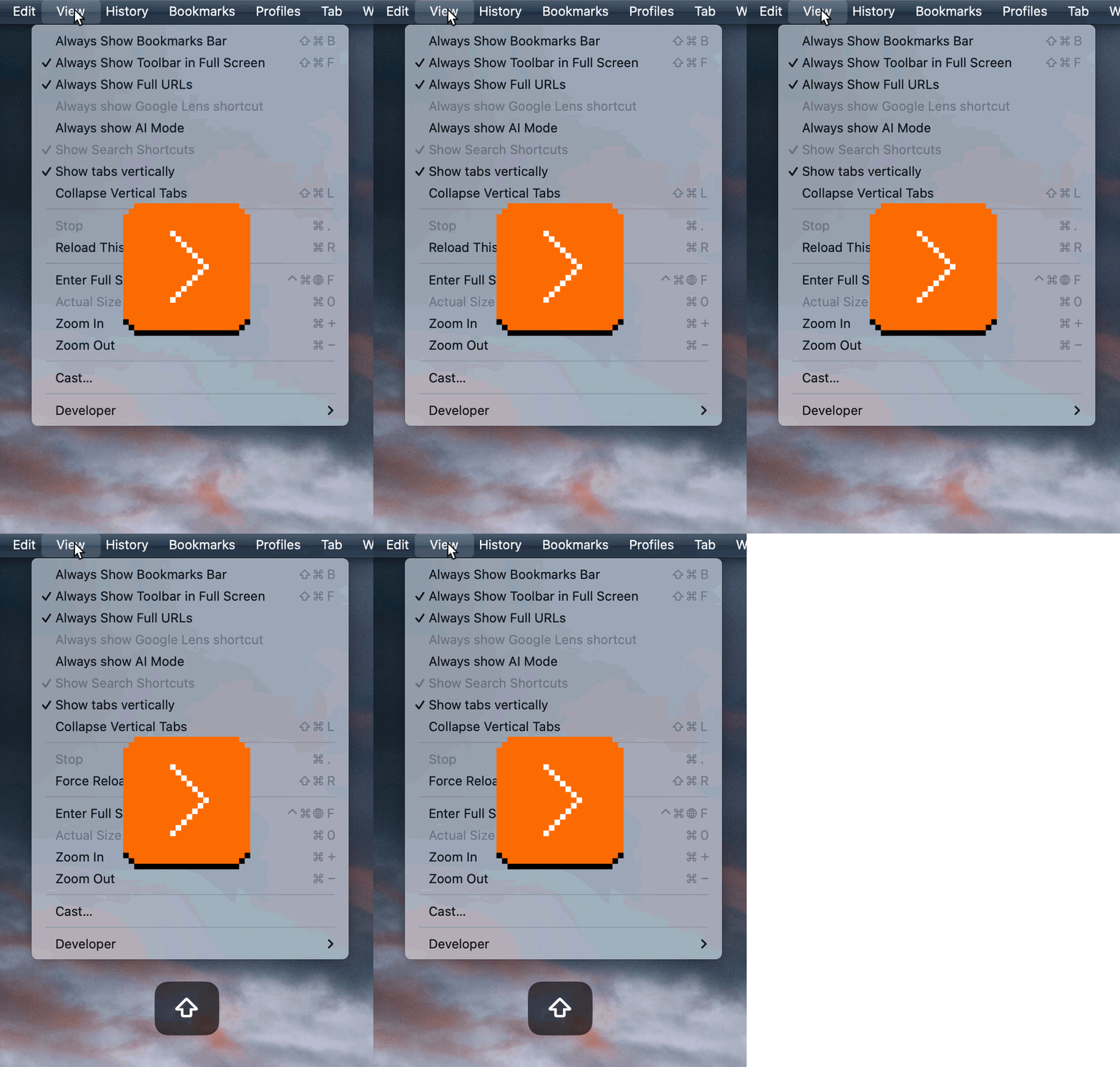
This is not limited to just ⌥. Here in Chrome’s increasingly impenetrable View menu, ⇧ (Shift) works the same way:
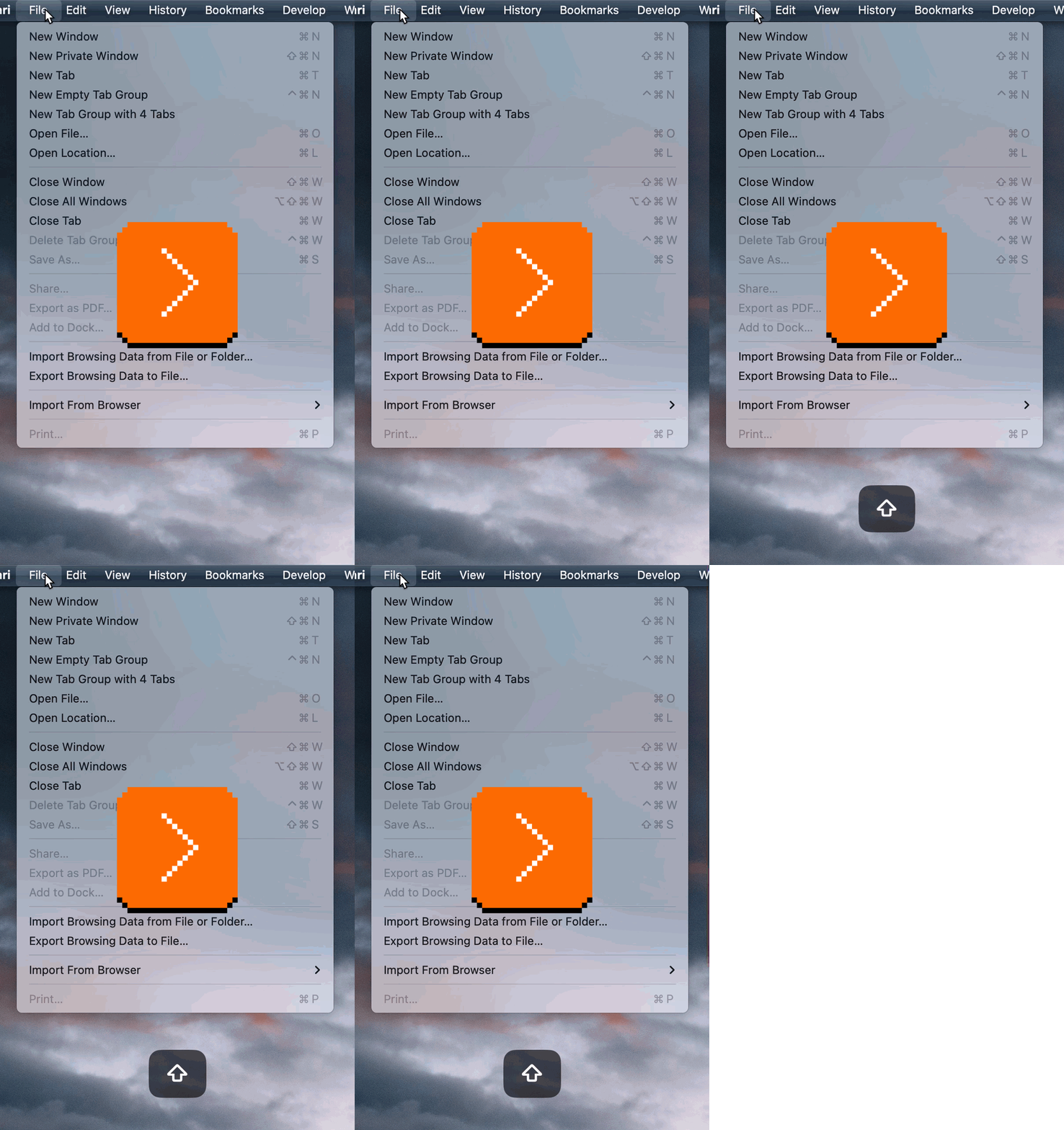
And in the Finder’s File menu, both ⇧ and ⌥, and even the rare ⌃ (Ctrl) get to play:
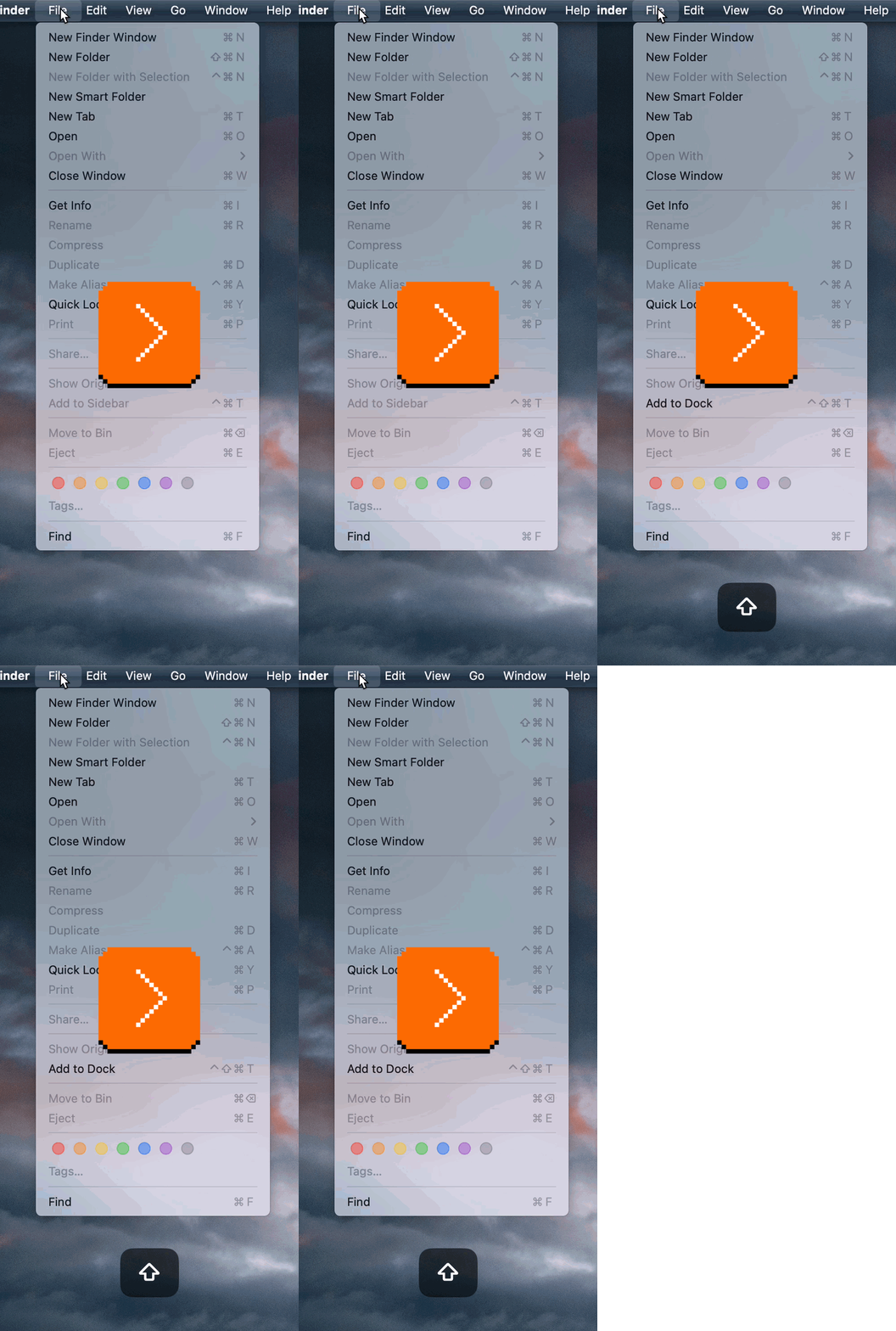
This feels like a nice, thoughtful extension of the command system. It’s clever, too – the key to reveal secret things is the same key you would use for their shortcuts, so you can make the connection either cerebrally or in your fingers.
There are menus that treat it slightly differently, though. Here in Finder and Safari, you can see commands themselves changing when you press ⌥, no shortcut in sight:
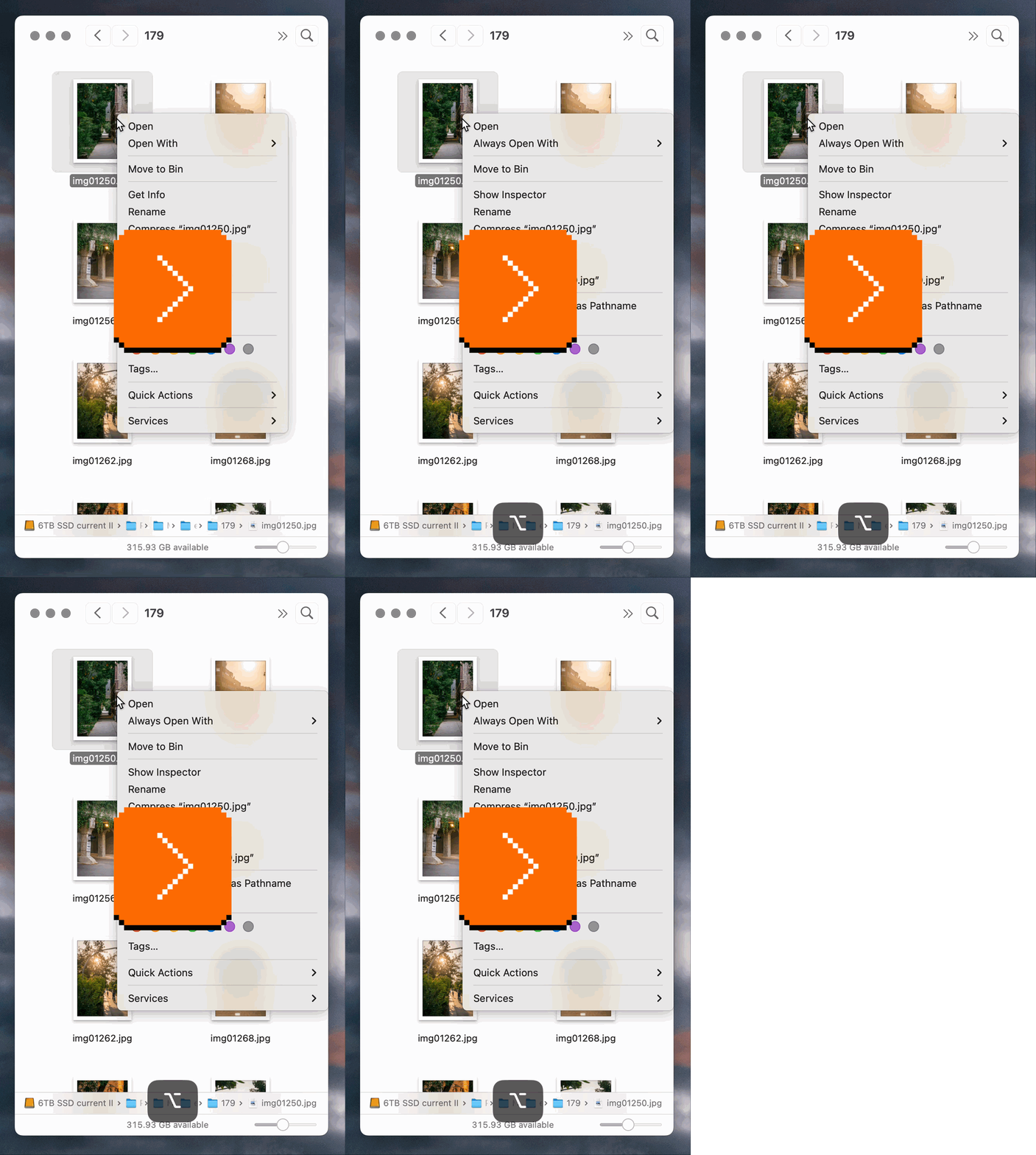
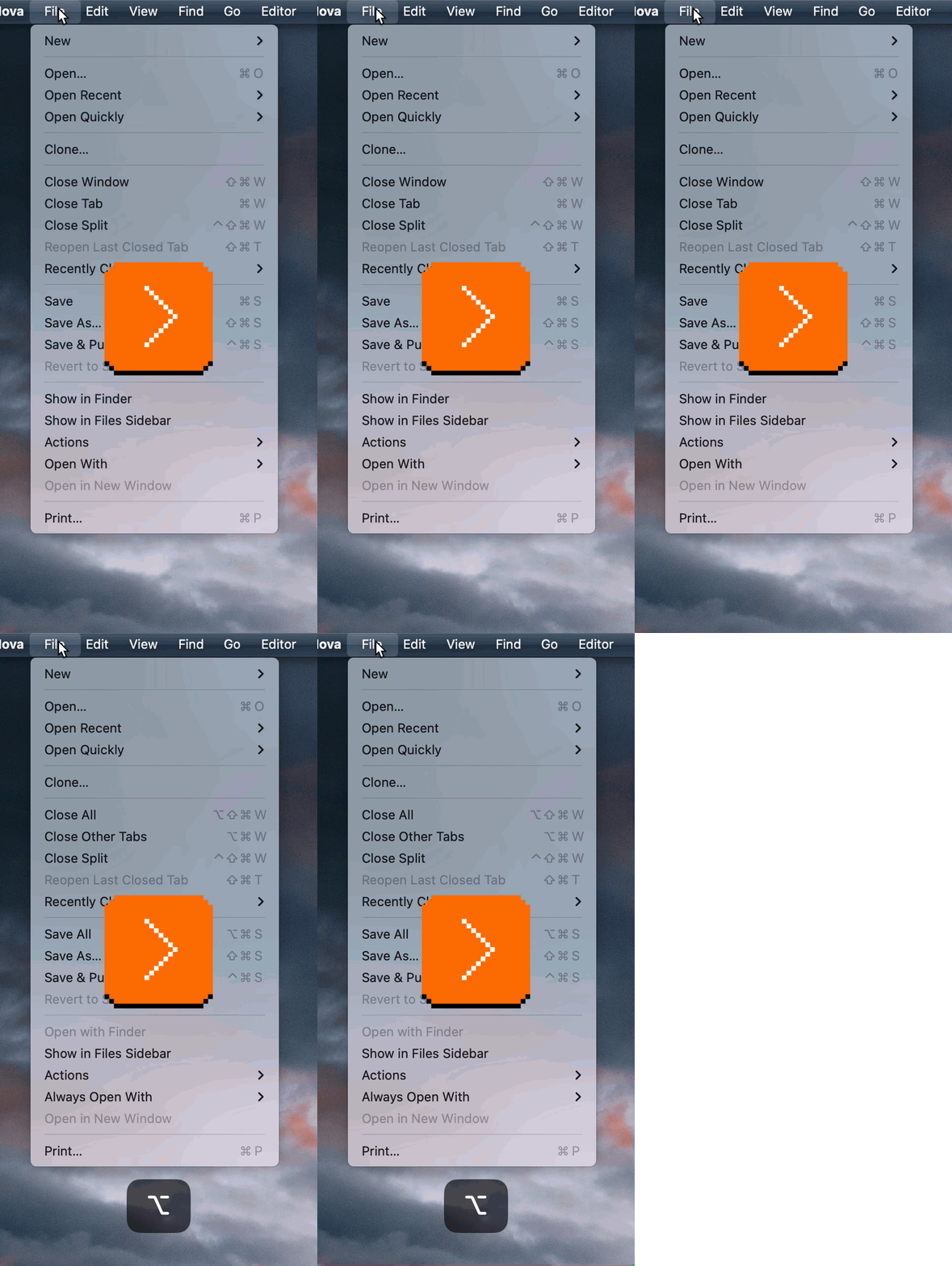
(By the way, a nice touch in the entire system: Once the menu gets wider to accommodate longer strings, it doesn’t shrink on key release.)
And in other places, the modifier key only reveals an alternative shortcut for the same command:
I have mixed feelings about this feature.
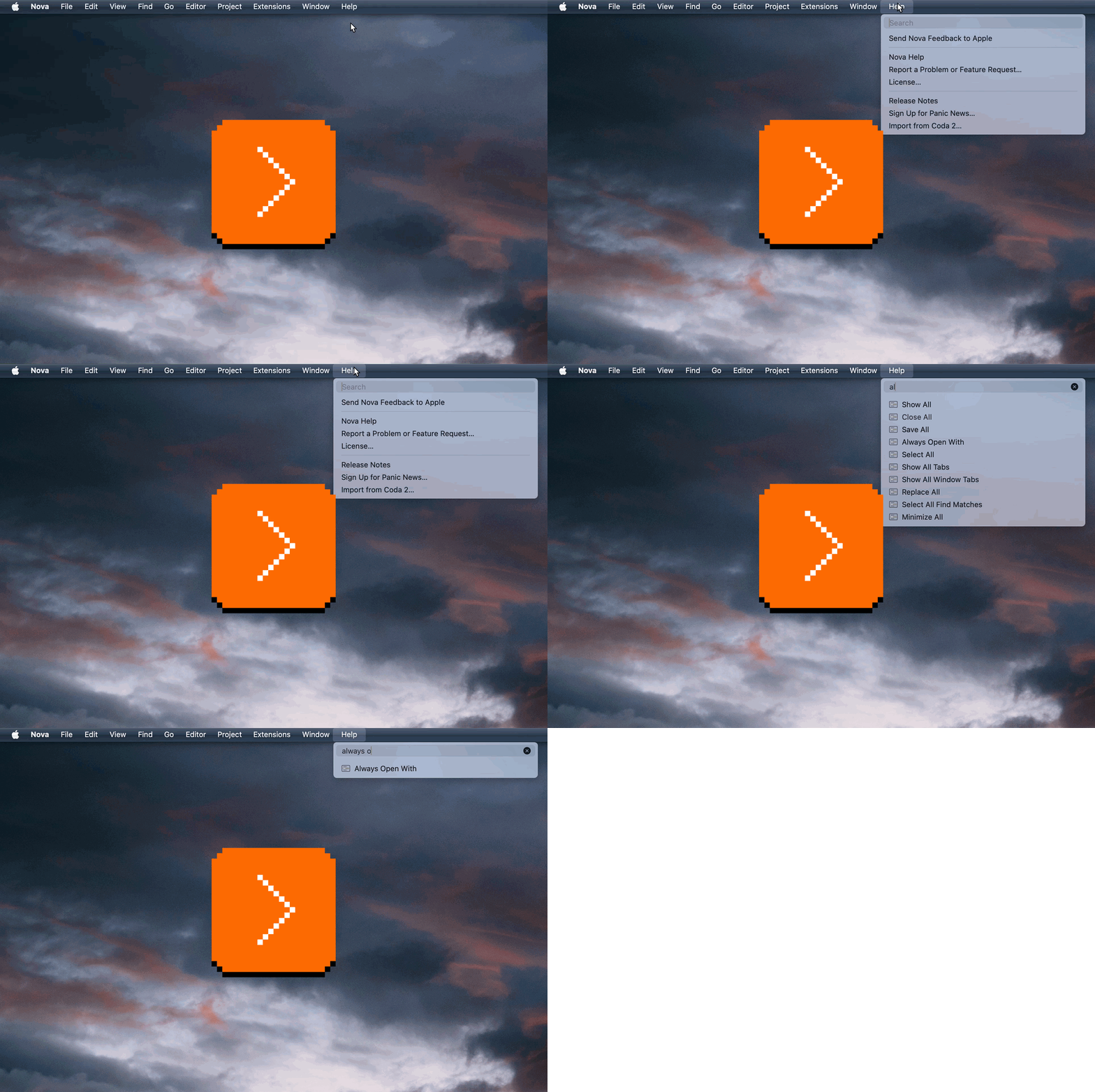
On one hand, it has felt like dying art for a while now. Apple has never invested in the discoverability here, which I think kneecapped it. As far as I know, there is no hint these exist, and no way to see all of these options easily by clicking something on the screen. Even if you know the alternate name and you search for it, it doesn’t always reveal the key to press to see it natively:
It’s not as much fun to keep pressing all the modifier keys in every menu to find out what might be hiding in there. I wonder if an alternate version where any modifier key reveals all would be better? (And more compatible with commands without modifiers changing anyway.)
On the other hand, I really want this to spread its wings. In theory, the feature makes it possible to build up good motor memory habits, and understand some of the modifier key patterns: ⇧ often means “more,” and ⌥ (ironically) often means “alternate” (try ⌥ while selecting text on a Mac if you haven’t ever done it). It is also a clever way to accommodate power users without blowing up the menus for everyone else.
And, once in a while, I have a truly glorious moment – like what happened to me last year.
I scan a lot of documents, and merge them into PDFs using a database application called DevonThink. The process usually goes like this: I drag individual page files, select them, right click, and choose Merge:
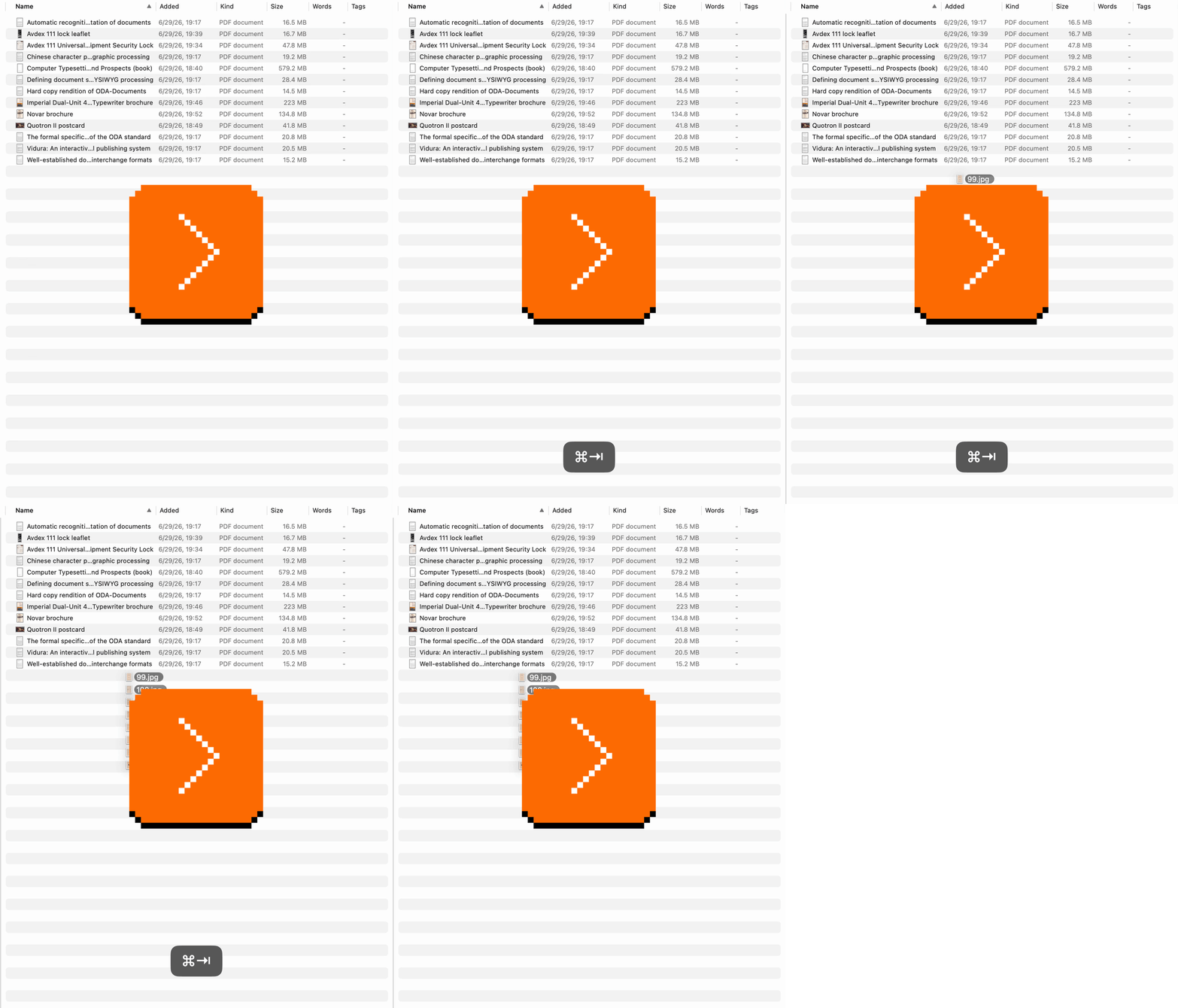
But at the end of that process, I am left with the extra original files I no longer need, so I have to select these, and then delete them:
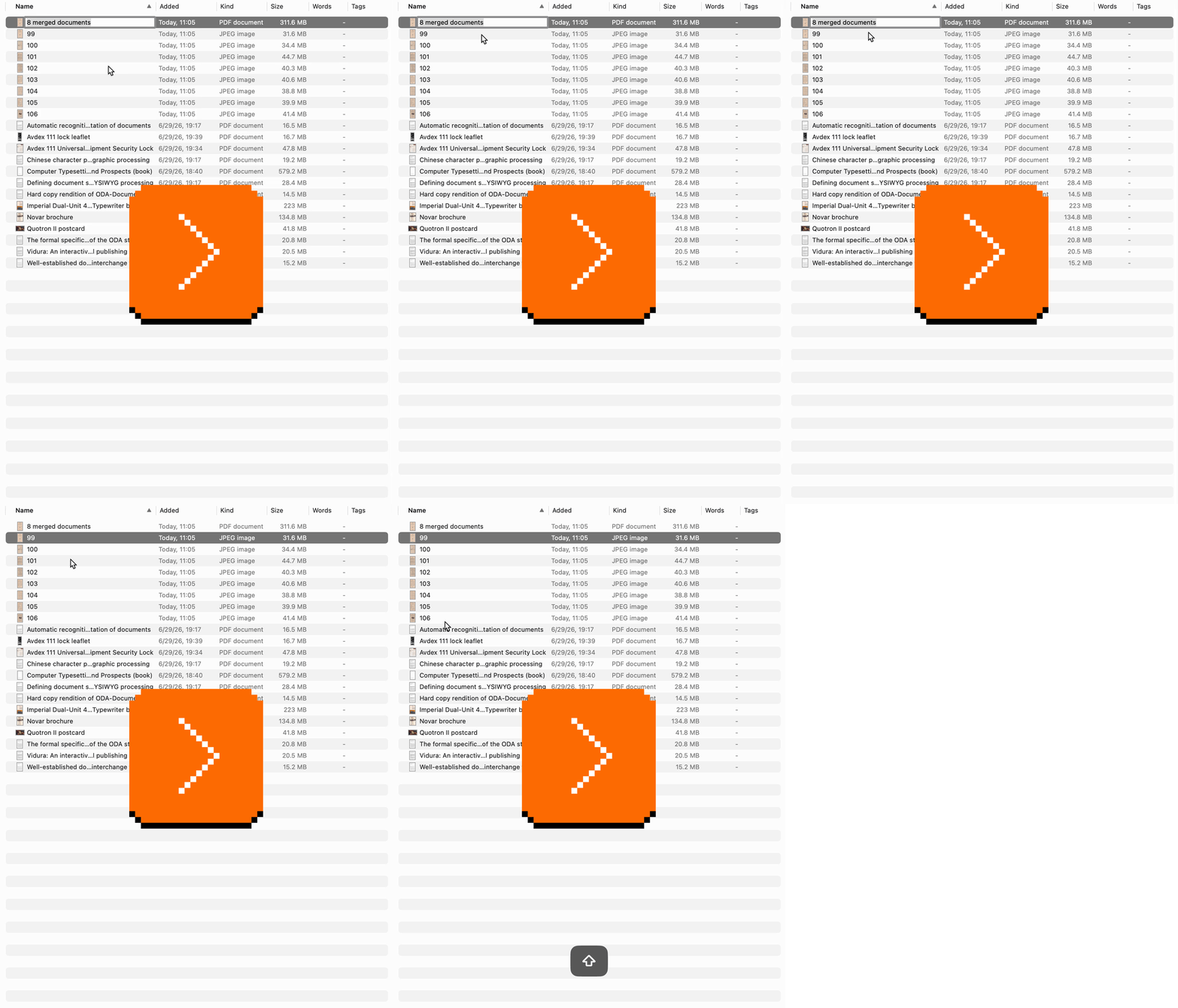
Not a big deal, but any “not a big deal” becomes a big deal if you have to do it dozens of times a month.
Yet, only after years of doing it this way, I had a thought. More precisely, my fingers had a thought. Surely, more people must be facing this issue? So, on a lark, I pressed ⌥ with the menu open, and saw this:
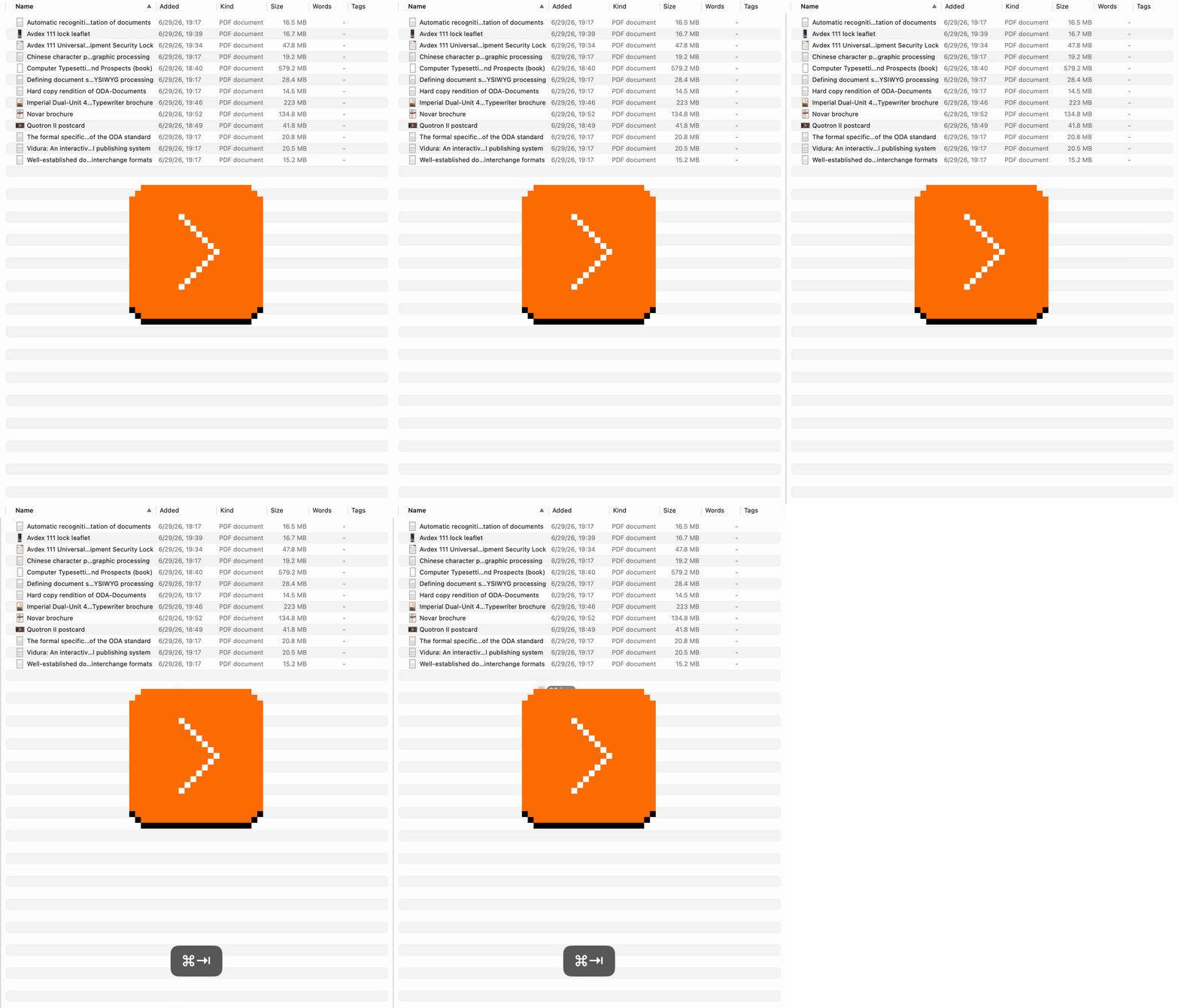
The precise option I needed was there all along, with a perfect label, hiding exactly in a place and under a key combination that was the first thing my fingers naturally tried.
I smiled so much. It’s a really great feeling when you’re rewarded for learning a pattern, when your motor memory does the job for you, and when you sense you’re on the same wavelength as software’s creators. Someone was there ahead of me and cleaned up this rare path for me.
Tuesday, September 1 / #complexity / #flow / #keyboard / #menus / #onboarding
“A tricky problem I had to be thoughtful about.”
Phones grow big and their top edges inch closer and closer toward the horizon. Over time, iOS and apps moved some of the important surfaces to the bottom (for better or worse – I still struggle with seeing results and completions appearing above inputs), and the well-designed Reachability gesture helps, too.
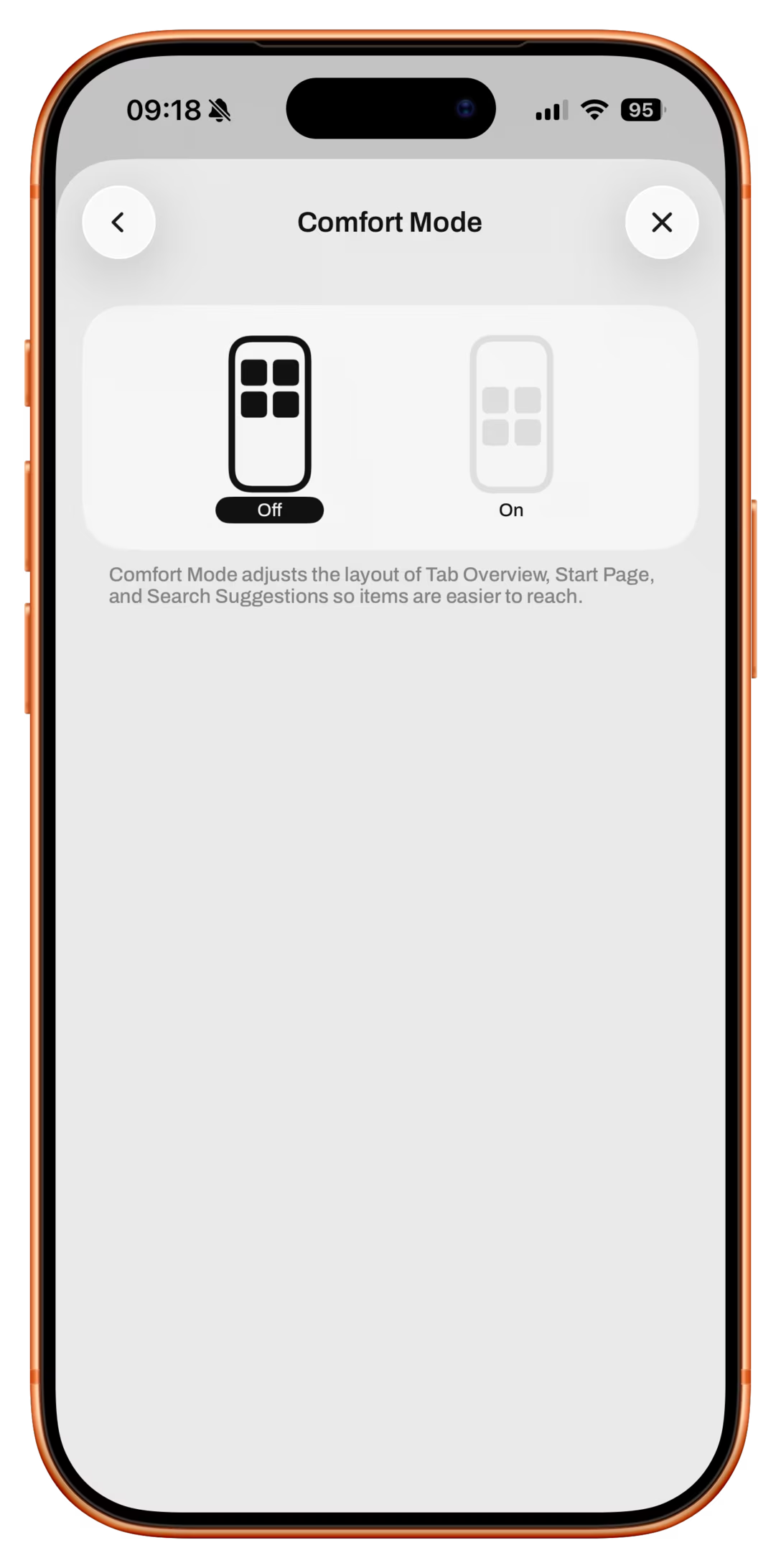
Still, the iOS web browser called Quiche Browser chose to tackle the problem, not the symptoms. It offers “Comfort Mode,” where you can ask it to move down the top edge of a bunch of surfaces closer to your fingers:
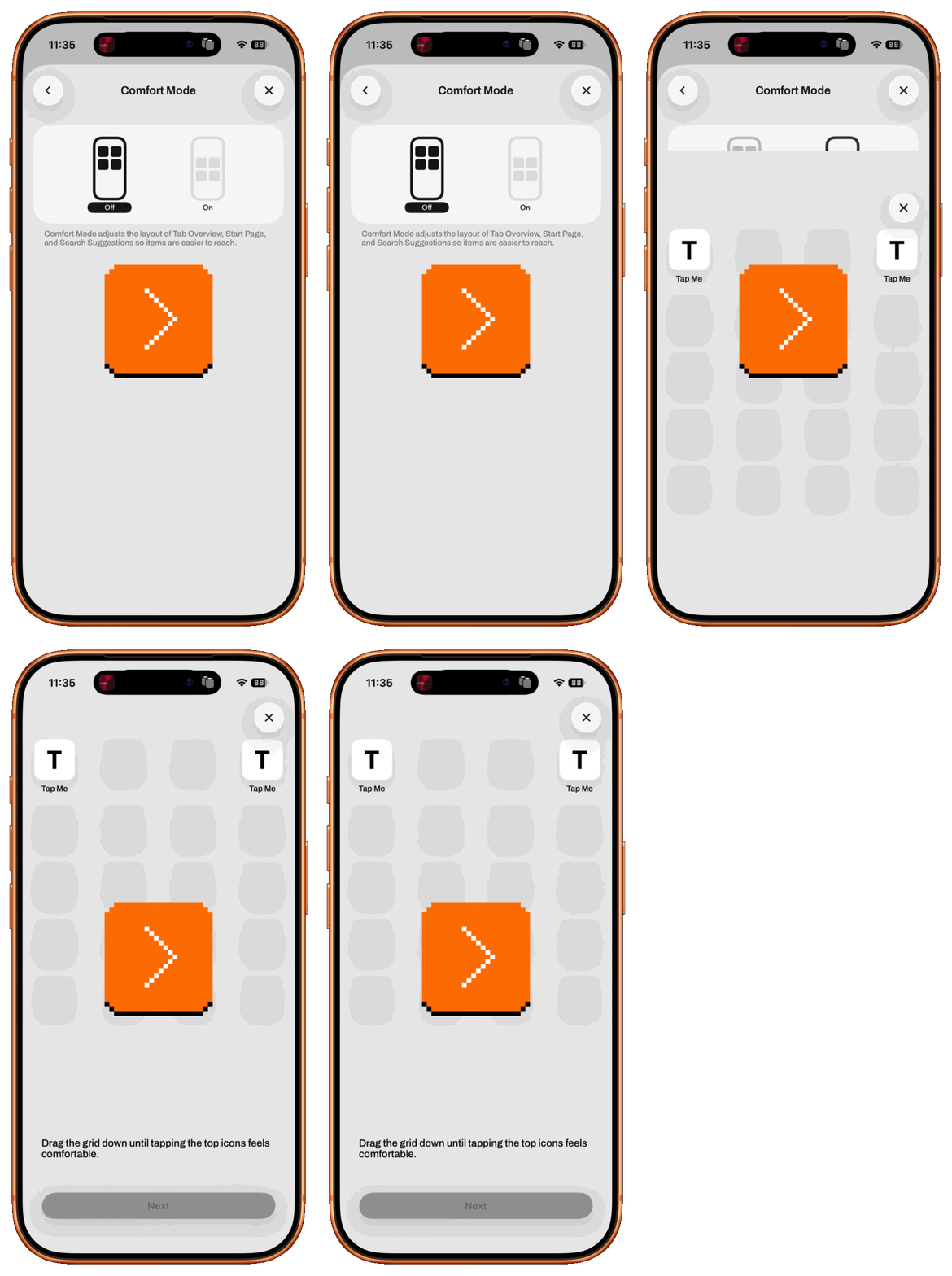
On top of that, true to the spirit of the app which revels in power-user customization, Quiche Browser allows you to decide precisely where the top should go in order to accommodate different people’s hands, and it even offers to do so per surface:
These are the affected surfaces with the option off and on:
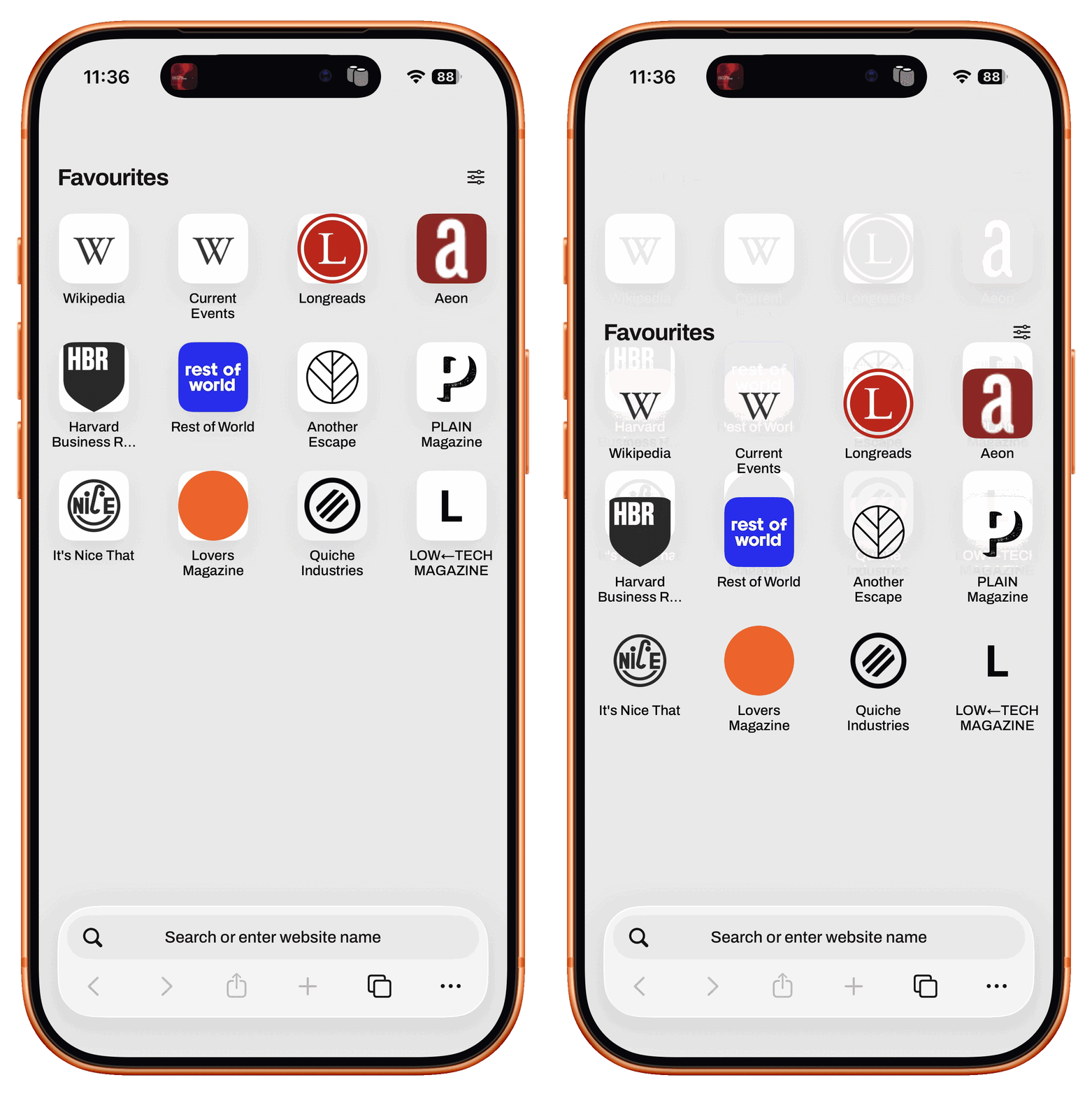
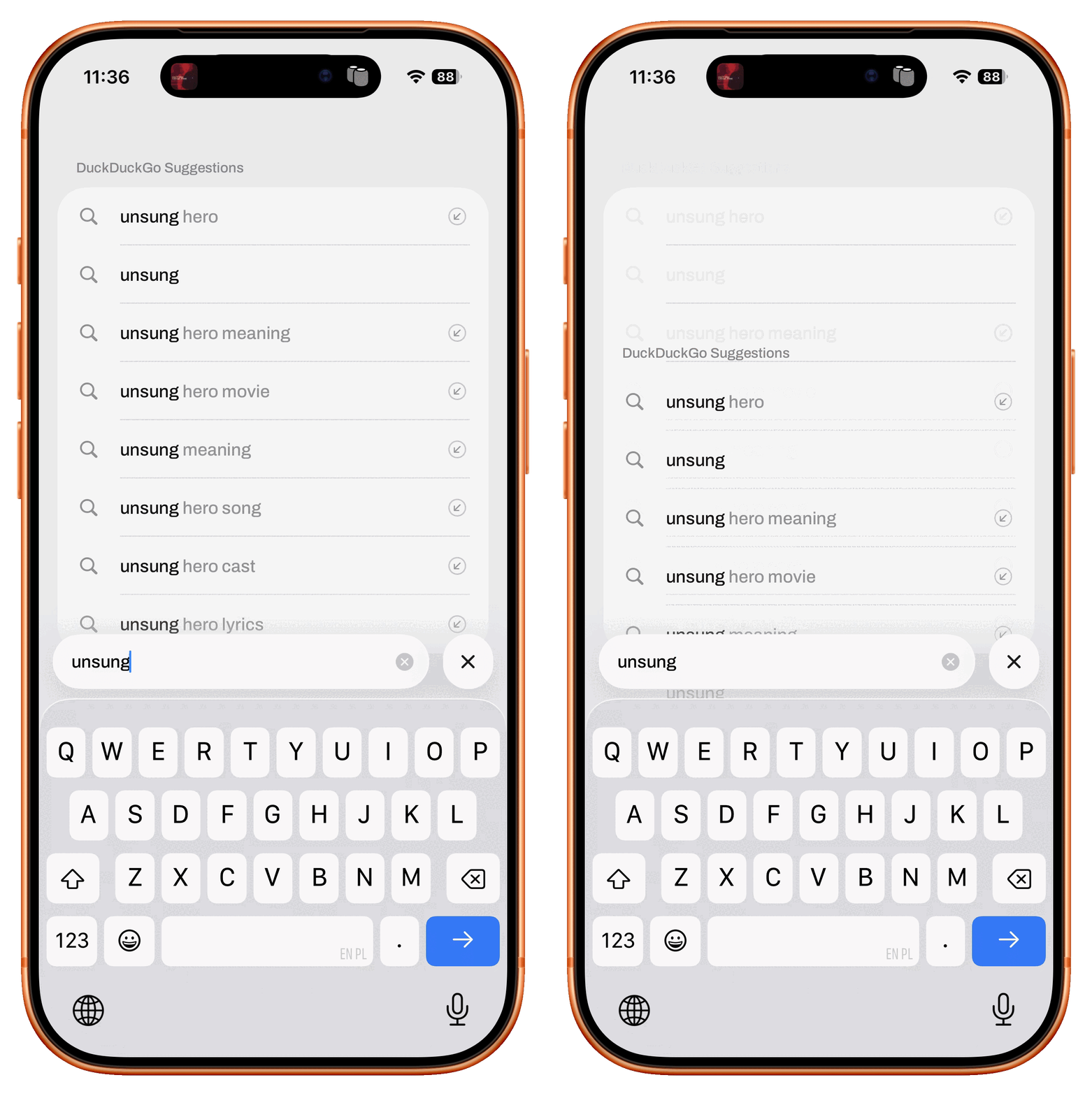
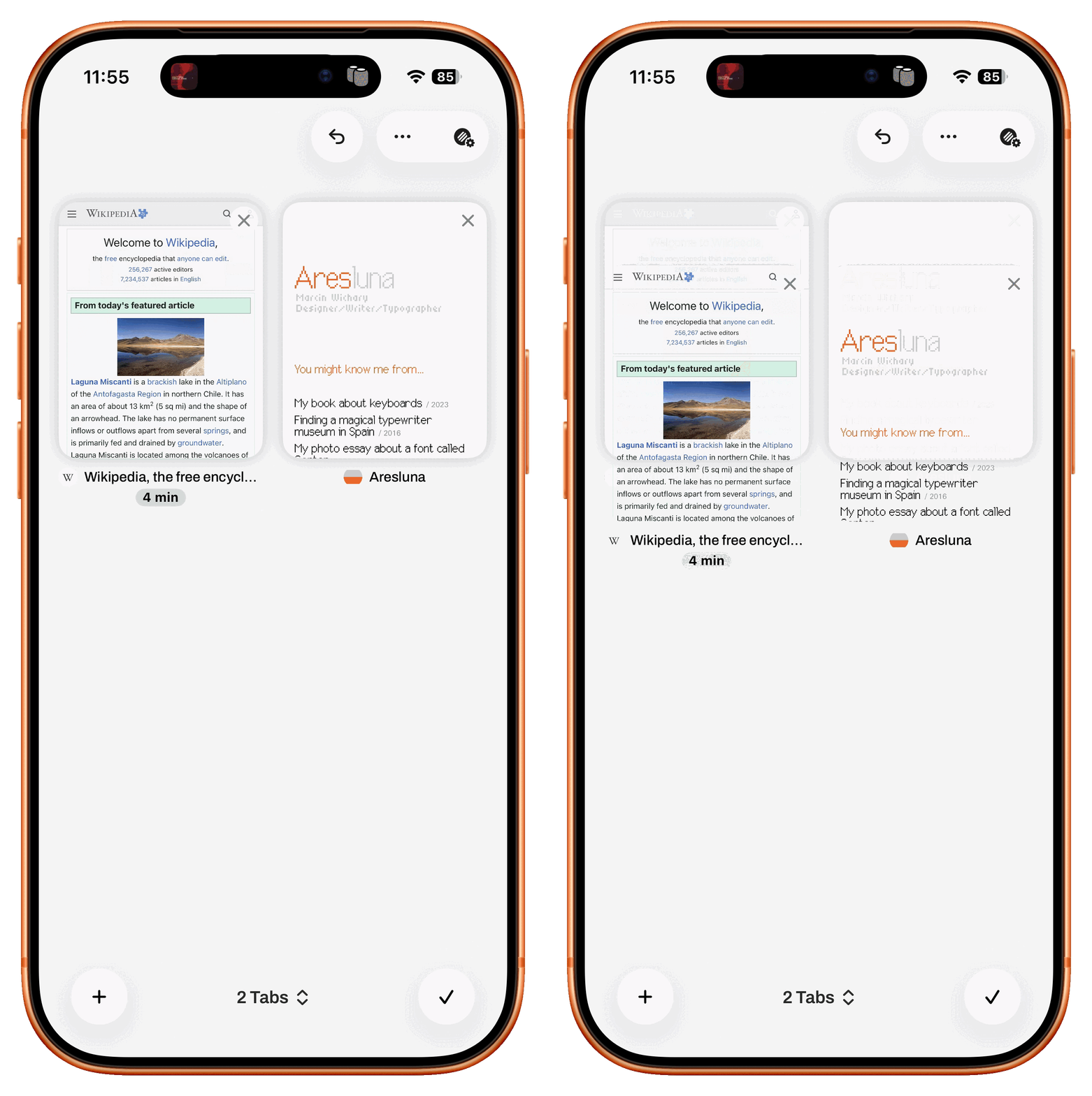
The author, Greg de J., expanded on that on Threads:
While designing Comfort Mode in Quiche Browser, a tricky problem I had to be thoughtful about:
When you hold your phone in your right hand, favorite icons in the top left are harder to reach than ones on the right.
Search suggestions don’t have this problem, since they span the width of the screen.
That’s why favorites need to sit slightly lower than search suggestions, and why Comfort Mode lets you position both independently, so they all stay easy to reach one-handed.
It’s an interesting idea and I wonder if it’s seeing a lot of use.
The only design thought I had was: could the top space be filled or stylized so that this looks more intentional, rather than a potential rendering bug? Reachability does a good job of making it feel physical and adding a little arrow:
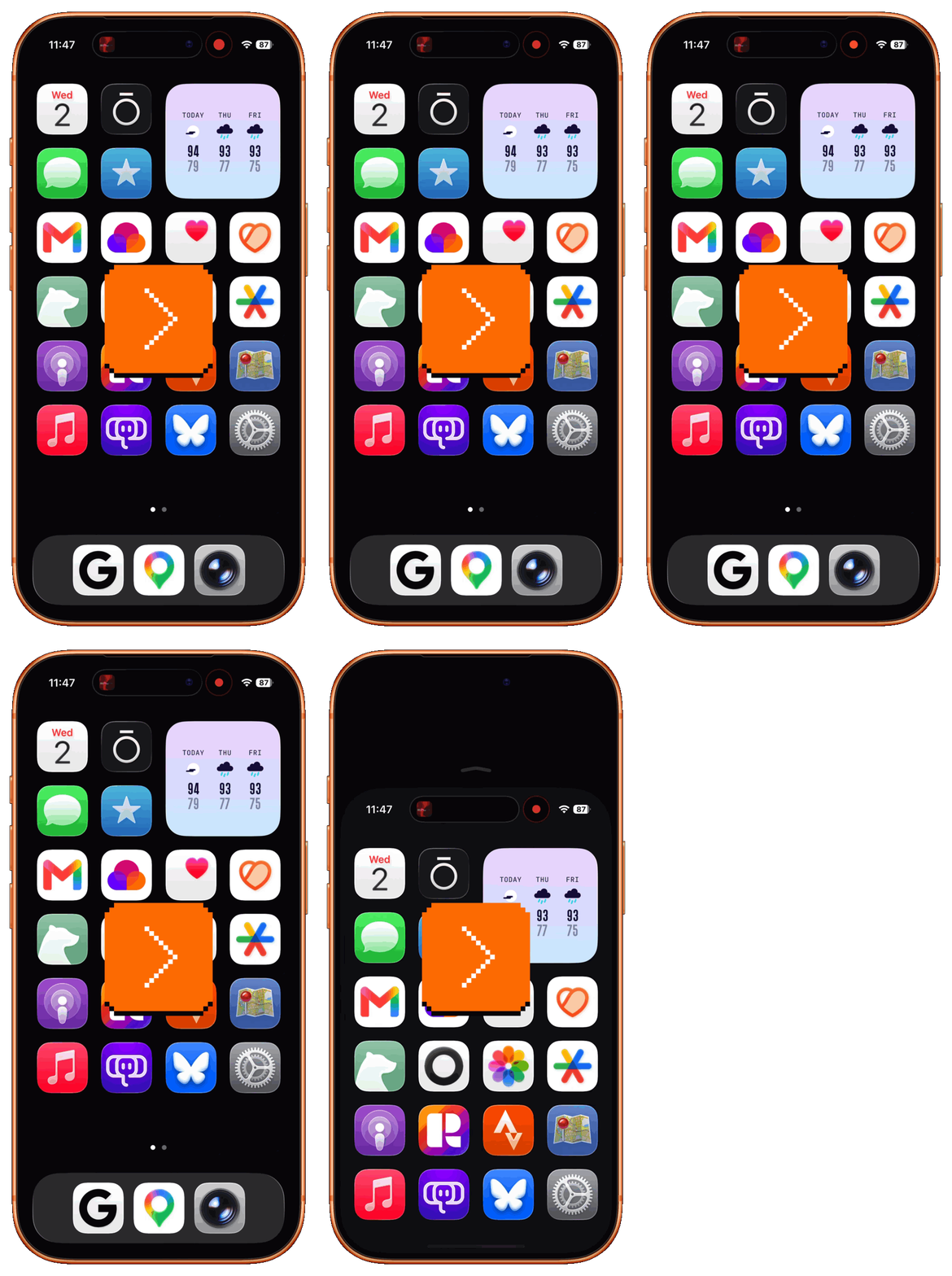
Then again, given my job, my brain might be perfectly primed to see rendering errors everywhere.
Wednesday, September 2 / #ergonomics / #touch
Windows does it better, pt. 3: Cut in File Explorer
Dragging and dropping files with your mouse in the Finder is nice, but there are many moments you wanna reach for the keyboard instead. Finder supports that. You dragged the file to a wrong place by accident? ⌘Z can undo it in a jiffy. You already have the right windows open? ⌘C and ⌘V can start a copy faster than the fastest of mouse gestures. And for cutting, there’s always…
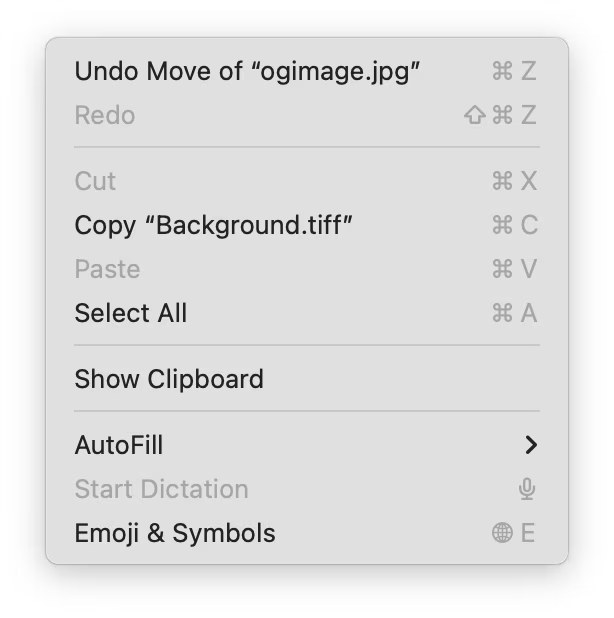
…well, no, there isn’t. To the best of my knowledge, the Cut item in the menu never lights up around files or folders; you simply cannot ⌘X or cut in the Finder.
I think I understand the reasoning here. Of the Fantastic Four that is ⌘ZXCV, it’s ⌘X that is the truly dangerous one. Putting something in a clipboard is always a balancing act – a moment of inattention, and ⌘X turns into Delete. We generally accept it for text because the stakes are not very high, and text undo is basically too cheap to meter. Even then, occasionally, disaster strikes.
For files, the stakes are quite a bit higher. The creators of the File Explorer in Windows knew all that – yet, Cut still works there:
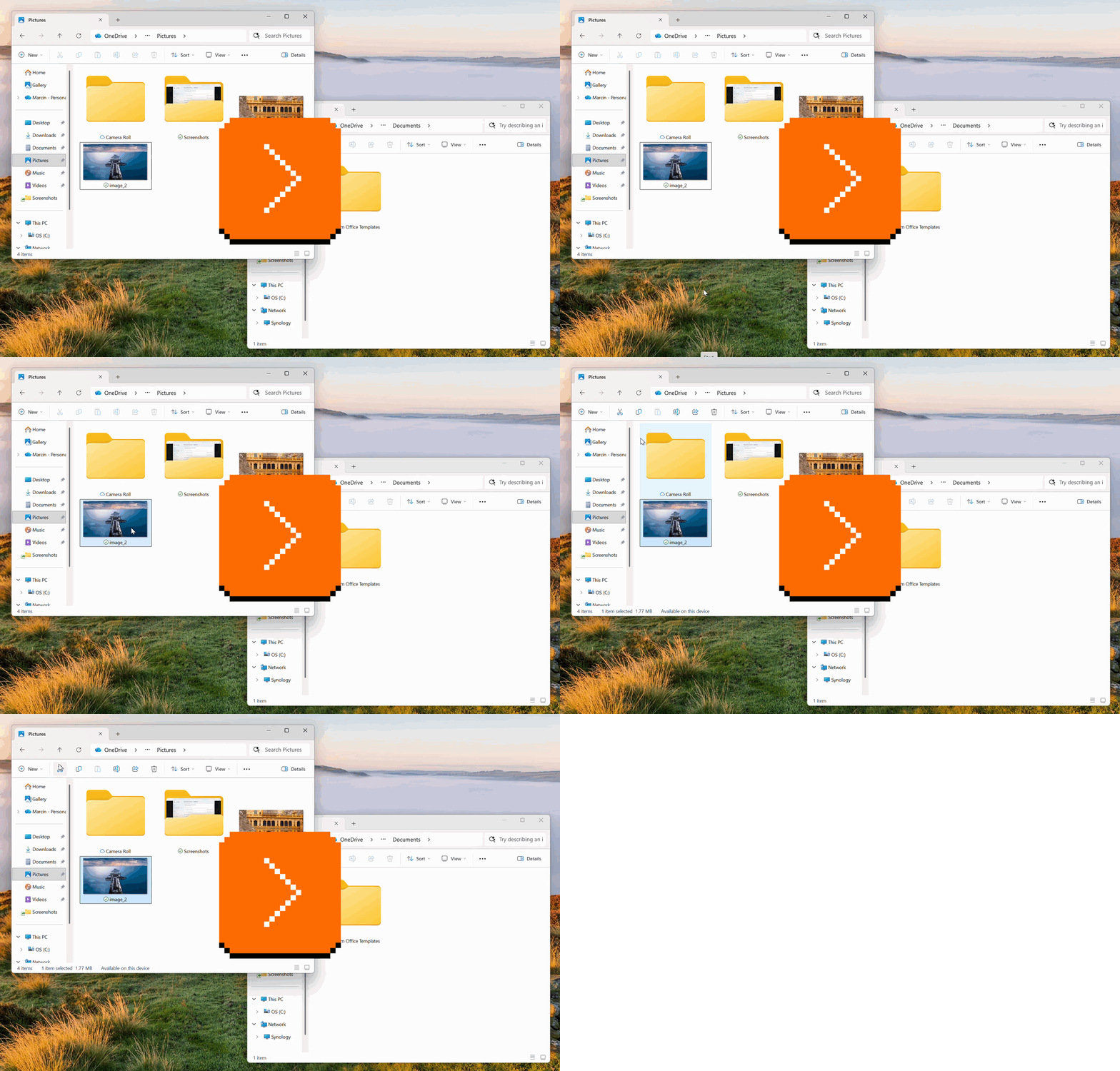
The way this is done is that the file isn’t immediately removed and put on the clipboard. No, only the intention of cut is registered – one half of the handshake, if you will – but the file stays put and nothing happens until the deal gets closed via a subsequent paste.
Or, almost nothing. There is a signal that ⌘X took effect – the cut files turn slightly transparent to indicate they put on their shoes and they’re ready to go. But if you don’t finish the paste, they become solid again the moment you cut something else, or when you restart the computer. (I wouldn’t be surprised if there’s a timeout, too, although I couldn’t verify that.)
I am not sure why macOS doesn’t do it the same way, particularly since they have a half-finished state designed already, for copying larger selections:
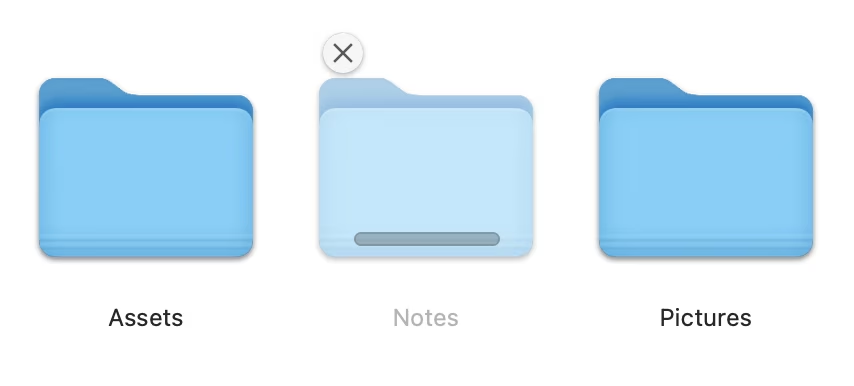
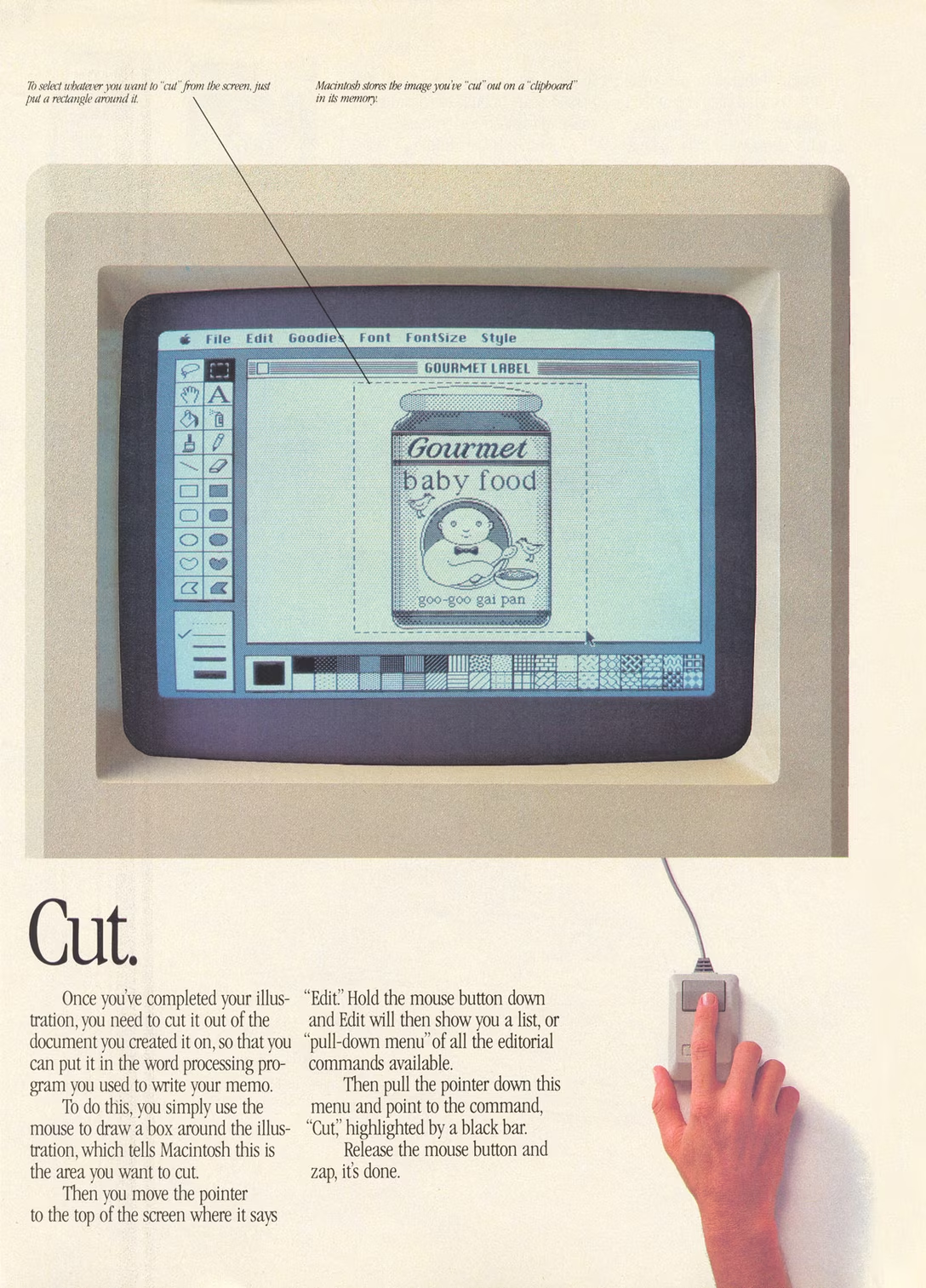
This feels like a strange omission I don’t fully understand, particularly given that it was vintage Mac OS that put the ⌘XCV combination on the map:
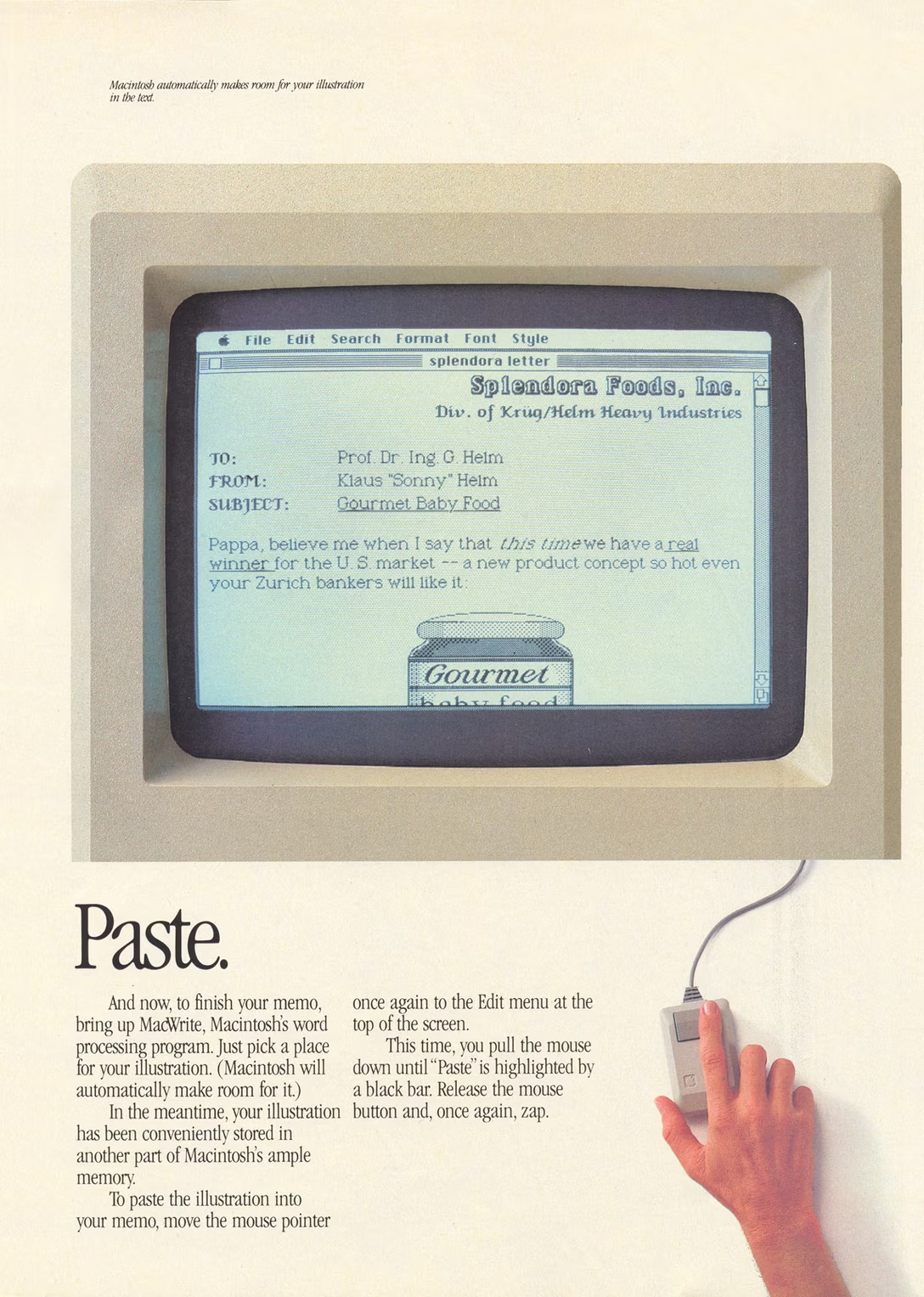
What’s even stranger is that the Finder has a command to move files – but an unusual one, buried inside the secret area in one of the menus, as an ⌥ alt to Paste:

It works. By putting the action on the other side, it avoids the “file floating in outer space” challenge, too. But it’s so undiscoverable that even though Move Item Here was introduced in 2011, I only learned about it a month ago as I started researching this more – and even though I know about it now, it still feels profoundly alien, being on the wrong side of the cut/paste continental divide.
In a reversal of typical state of things, it feels to me is that it was Mac that did a simple/cheap thing, and Windows that spent extra effort to dress it up into clothes of an existing Cut for reasons of familiarity, consistency, and better experience. Sure, a keyboard way to move files like Move Item Here is somewhat valuable, but nowhere near as valuable as a traditional cut, put under ⌘X ahead of ⌘V, working the same as everywhere else for years, even for decades, as one of the first denizens of motor memories all around the world.
Thursday, September 3 / #finder / #flow / #keyboard / #sins of our finders / #system design / #windows / #windows does it better
“I would be very happy to see all kinds of text editors adopt this.”
Speaking of cut in File Explorer, Will McGugan, creator of the writing editor Ishmael, proposes doing the same thing for text editing – that is, leaving ghost text behind:
I call it “Ghost Cut”, and it works like this: pressing Ctrl+X fades the selected text and makes it inert—you can’t click on the cut text and the cursor just kind of leaps over it, but it is still present in the document. Nothing is placed in the clipboard at this point and there is nothing to undo. If you decide you don’t want to paste then hitting Escape will restore the text to its active editable state.
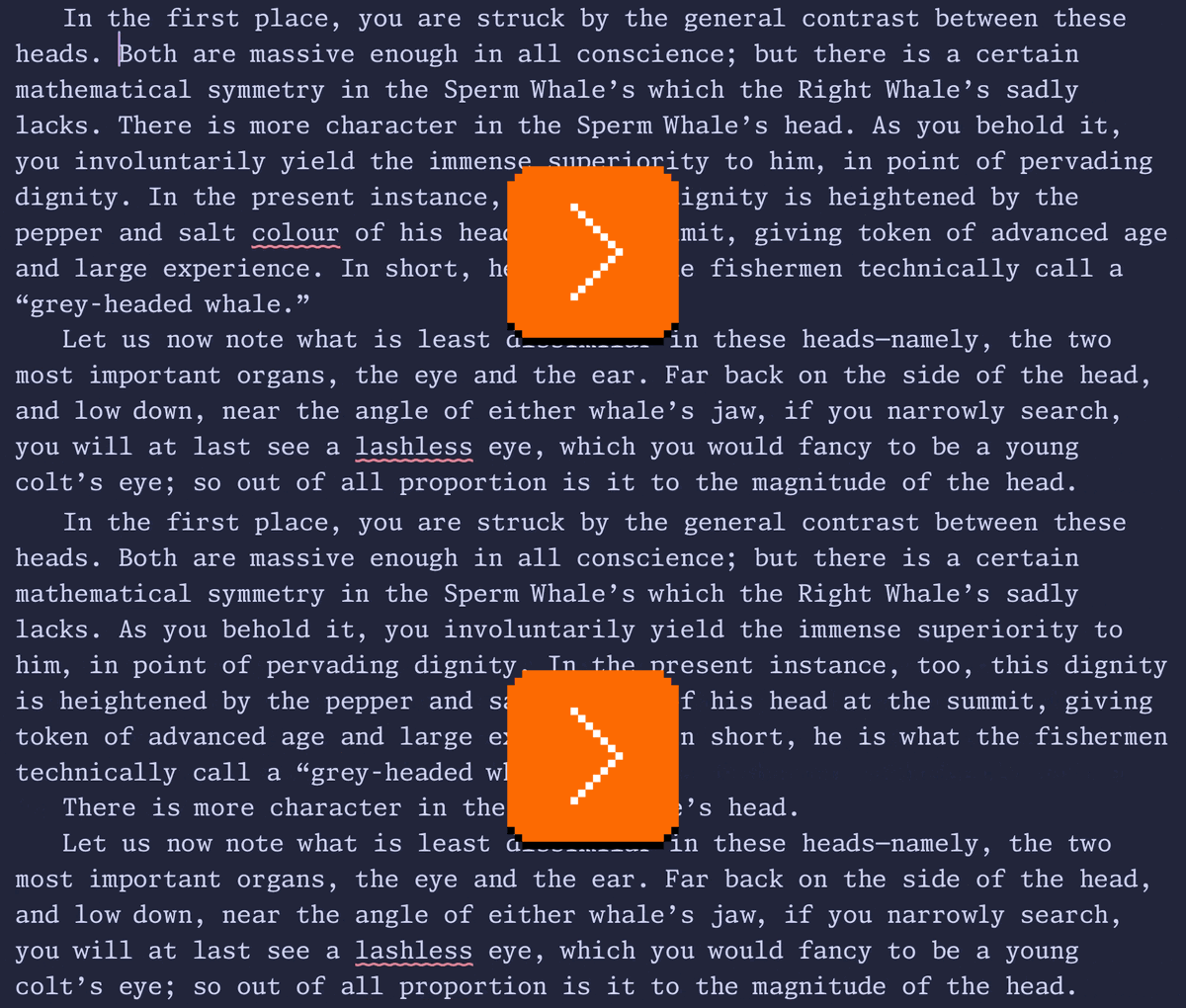
I do not think this is a good idea. It seems like McGugan proposes somewhat arbitrary reasons that cut and paste are “broken,” and to me the proposal fails even within his own framework: for example, it still doesn’t avoid the reflow, but moves it to the other side, making paste feel unstable (the included JavaScript playground feels disorienting to use). I think it also is at odds with the editor’s own about page, which talks about distraction and simplicity – and yet, what’s introduced here is a host of complex new things: a new visual state for cut text (that looks like AI autocomplete), some new logic to avoid moving into the cut text (which will also prevent easy selection adjustments), likely new confusion around undo, and a necessary new Esc gesture to get rid of a cut you decided not to pursue.
But! There is something interesting in seeing this ghost text, and specific critique aside, it is fun to see experiments like these, with interactive explainers, poking at long-established interactions. Just yesterday, a second one appeared: an interesting new way to extend selection upwards – similar to double and triple clicking on text, but via the keyboard. This is the power of prototyping: sometimes seeing an idea you disagree with is the only thing that can unlock a different solution in your head.
Let’s go back to cut and paste, though. You will notice that what’s listed as a precedent is not File Explorer, but Excel. It also doesn’t immediately remove selected cells on cut, but leave them in a temporary “possibly getting moved or removed” state first, only to have them disappear after paste:
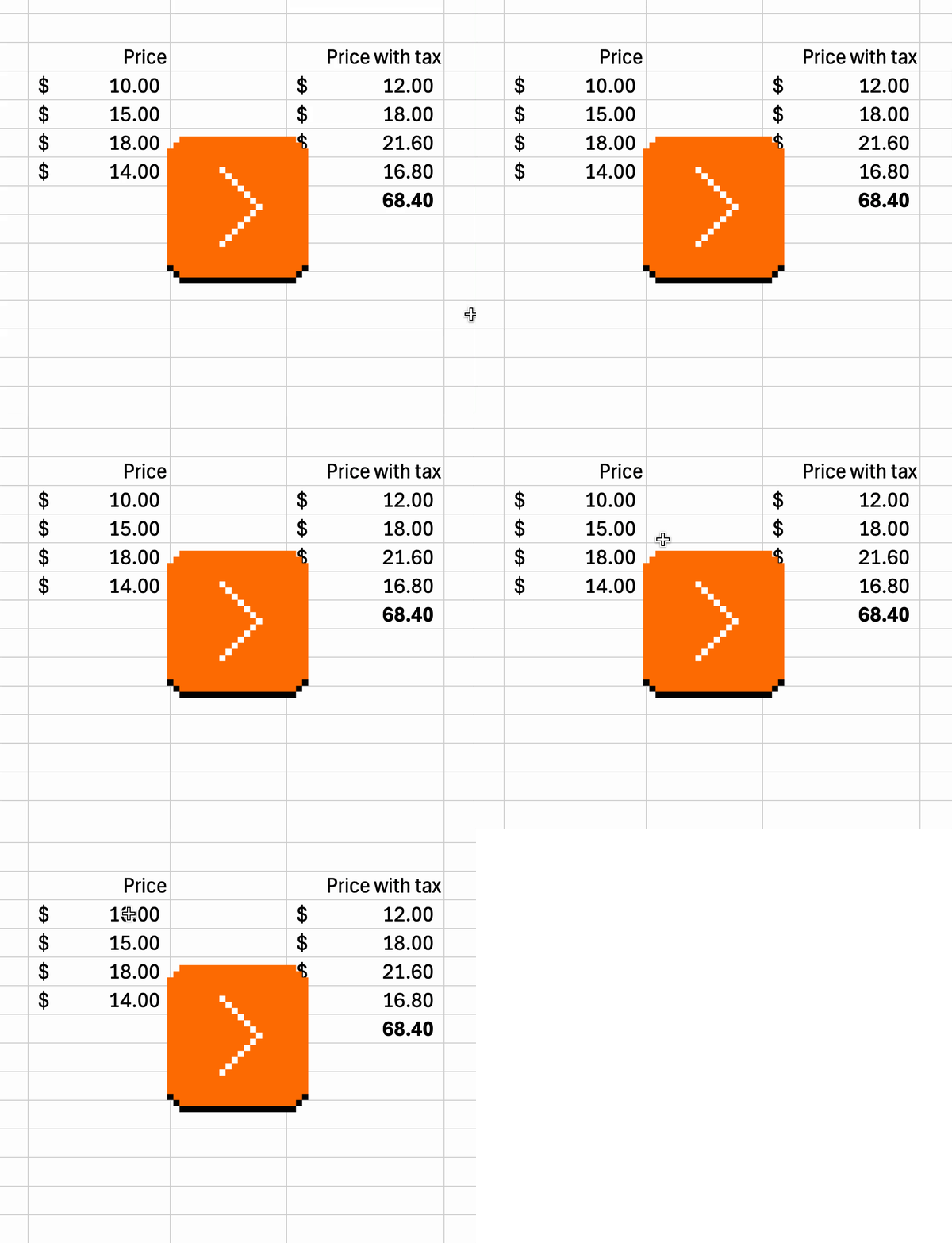
Why is that? I believe out of a similar principle, but a distinct reason that File Explorer too opts to leave a cut ghost behind. The stakes are higher in a different sense: cells refer to other cells. Were the removed cells to disappear immediately, you might witness the rest of the spreadsheet error out or show zeroes, as its formulas start pointing to emptiness.
And it’s a good principle to generally avoid frightening your users.
Here’s an example from Numbers, which doesn’t do ghosting, making cut a bad choice to do a simple move, as it doesn’t even recover after paste: