
DEVLOG 5 - Screen Readers in GameMaker
Hi hi!
Happy Halloween! I’m teaisfortoby, the developer of PATIENCE IS A VIRTUE. It has been a busy, busy month, huh? Let’s just jump right in!
WALLPAPER
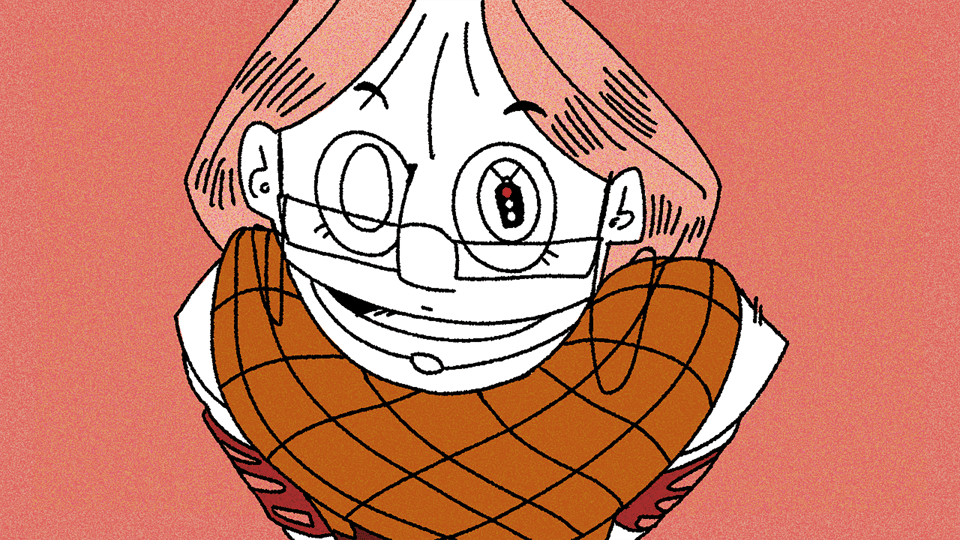
Another new wallpaper’s ready for you…
NEWS
We were a part of a few festivals this month: Games That Ace It and Steam Next Fest both showed PIAV off to tons of new folks. Check out all the other games and demos from these events when you can! (Especially Games That Ace It… so many good games in there…)
The game was also covered by Rock Paper Shotgun, written about by some kind IGF judges (who got to read through the whole thing!), and played by some streamers. Thank you to everyone who gave it a try! There’s no feeling quite like people earnestly trying and talking about something you’ve made. It’s scary, but exhilarating!
And for no reason in particular, you should keep your eyes out for some news on November 2nd. Maybe… something will be announced then… I don’t know… It's probably nothing cool…
To celebrate such an exciting month, here’s a jam-packed technical look at how the game works with screen readers.
SCREEN READERS IN GAMEMAKER
PIAV is a game about a lot of things, but it’s especially about navigating and grieving disability. So, it was really important to me that the gameplay be as accessible as I can make it. Since PIAV is mostly a visual novel, it’s a great candidate for screen readers.
If you don’t know, a screen reader is a program that reads out all the text on a screen. It’s an important tool for blind and low-vision communities to be able to browse online, but it can also be helpful for cognitive disabilities, hearing disabilities, and more. It’s a wide-reaching accessibility tool! Not knowing how screen readers worked, I assumed that my game was automatically able to be read by them, purely by the nature of it having text. I downloaded NVDA (a free screen reader for Windows) to test it out, and…
…yeah. It didn’t read anything. It was safe to say that I had no clue what I was doing, and needed to look into it.
While screen readers can automatically read through lots of different documents and websites, a separate software like PIAV was a whole different game. I’m developing it in GameMaker Studio 2, and it was gonna need a lot of extra steps to get screen readers set up. So, how does one set up a screen reader in-engine?
After some searching around, I found GMSTolkTalk, a GameMaker-specific extension of the well-known Tolk screen reader abstraction library. Tolk is also compatible with Braille displays (a device that can translate computer text into Braille) so it’s all around a pretty solid starting point for implementing better accessibility. In theory, all I needed to do was plug this into my game and it would start reading text out loud! …in theory.
The initial setup was simple, at least. After importing the GitHub package, I created a new object specifically for managing screen reader output. This object would then get created during gameplay in one of two ways:
At the splash screen intro, the game checks to see if a screen reader is active on the device. If it is, the game creates the object and shows an additional splash screen:
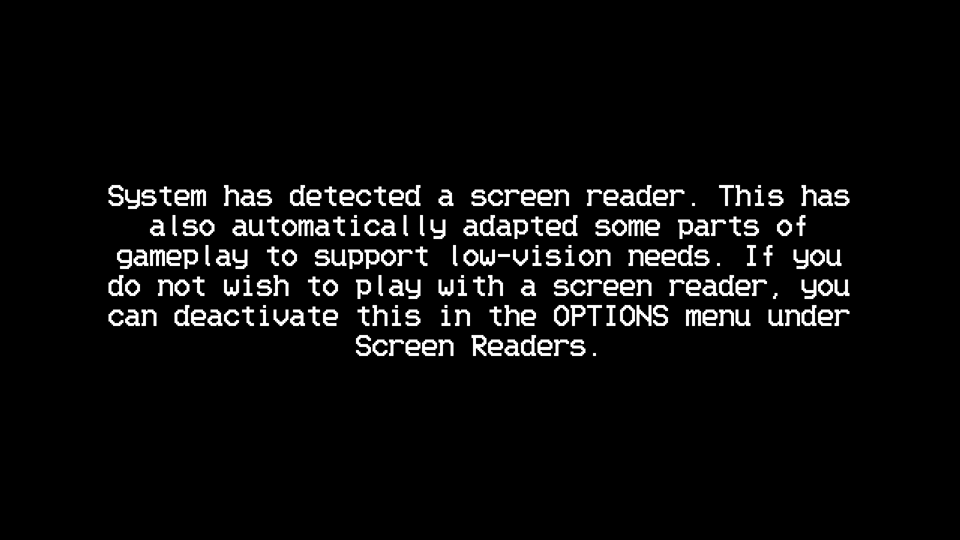
In the OPTIONS menu, players can manually toggle screen readers on, regardless of whether a screen reader is active or not.
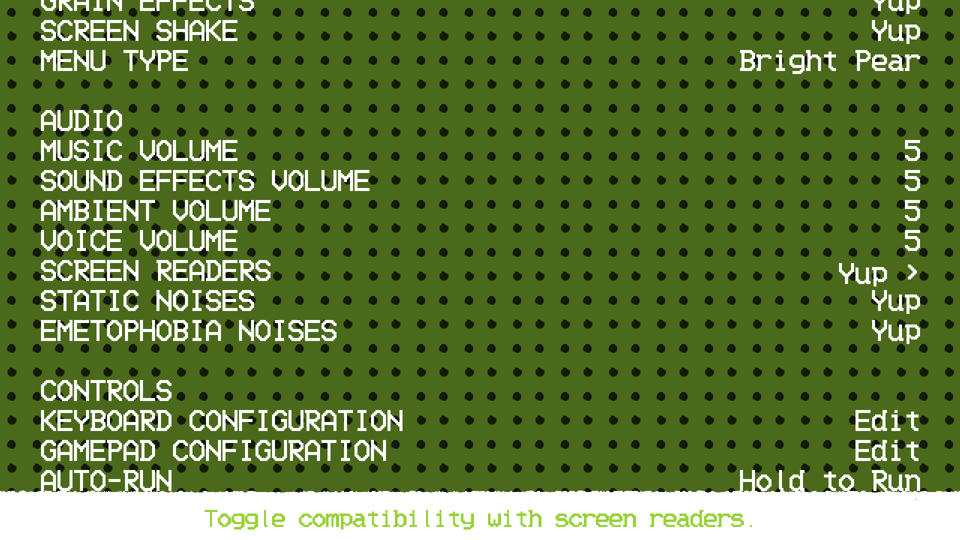
Whenever the object gets created, it turns the Tolk extension on, checks for an active screen reader, then begins reading text according to the Step event.

Here’s where I ran into an issue. If Tolk doesn’t detect a screen reader, it normally activates a fallback instead, which will then read the text it’s prompted to like normal. In my personal experience, this fallback was extremely bad for my game’s performance, slowing my frame rate down immensely. I may just be bad at optimizing or have missed something obvious, but after a bit of fiddling I decided that using the fallback for more than a few frames was completely impractical. That unfortunately meant that all players had to have a native screen reader downloaded to use the feature. There are free screen readers available, so it’s not the worst… but in an ideal world, a fallback would make it so anyone could use it the feature, regardless of their software access. Better than nothing, though!
With this obstacle, I needed to add some new code. Back in the object’s Create event, instead of letting the fallback run, I set a variable (active), which is set to false if the Tolk is using the fallback screen reader.

You might be wondering, “Why set a new variable? Why not just destroy the object immediately?” Well, if I destroyed the object, the person who’s expecting a screen reader to start talking wouldn’t be getting any auditory feedback. They’d have no clue what happened! But… if I could leave the fallback on for a few frames, it would be able to read out anything I supply it — including a brief message letting the player know the game couldn’t find a compatible screen reader.
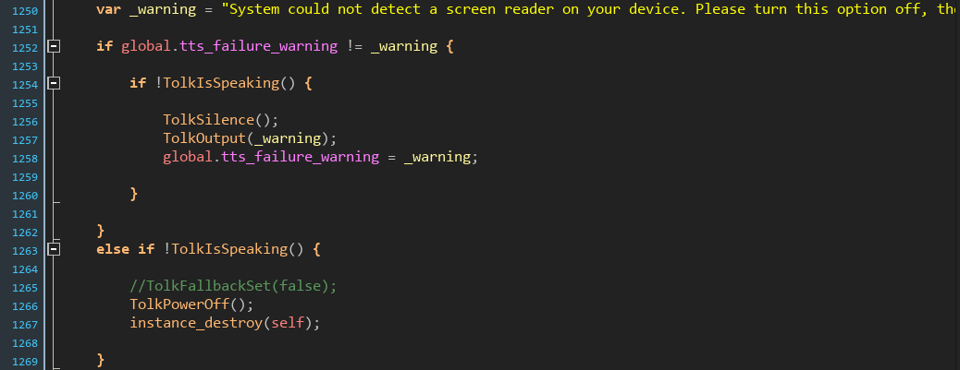
This code block in the Step event starts to read the _warning variable out, and then immediately disables Tolk and destroys the object to prevent performance issues. Now, the players knows what to do if they still want to use a screen reader. Hooray!
Every screen in the game has a custom set of statements that tells Tolk what to read out and when. This is the longest part of the process — deciding what to say, and how often to say it, is crucial. It’s hard to know, especially as someone who doesn’t use these tools myself, and I’ve been working very hard to improve these features behind the scenes.
Before I close out, I want to touch on a few extra features I added to help with screen reader use. If the game detects one of the compatible devices on the splash screen, it turns on two other settings automatically as it starts to read:
Auto-focus - This changes the way free-roam adventure sections of gameplay work, making Louis automatically move to the nearest interactable object just by pressing the arrow keys. It’s also potentially helpful for cases outside of screen readers, like if you have trouble with holding down buttons (like me!).
Image descriptions - This toggles on extra “dialogue” that describes illustrations and other visual changes to the player during VN sections of the game. You’ve probably read image descriptions before — or a shortened version of an image description called alt text — but it’s essentially the text that a screen reader reads aloud when it encounters a picture. I find image descriptions and alt text very difficult to write (seriously, how do I clearly and quickly describe a graphic with 3 illustrations and two paragraphs all in different places and typed in different colors???), so this is what I’ve been working on the most leading up to the game’s full release.
Thanks for reading. If I got anything wrong or you have something to add, please let me know! And don’t forget to wishlist the game! It really helps. See you next month!
