Tray icons!
Hello! I know: it’s been a while. This week I’ve got some tray icon tips for Windows and Mac users alike, and a backlog of articles I’ve been working on. Thanks for reading, and please get in touch if you find this newsletter helpful—I could use the extra motivation. Let’s dive in!
A collection of tiny tray apps for Windows
Mac users love menu bar apps. These tiny tools let you quickly reference bits of information—my favorite, Itsycal, shows a calendar complete with appointments. But I could mention many more: MacMenuBar.com, a directory dedicated to compiling exactly these apps, offers over 1,500 of them.
Windows has a system tray, in the bottom-right corner, but it doesn’t have a similar ecosystem of tray icon apps. One man is trying to change that: Joe Finney. He’s the developer who built Traydio, the perfect Windows radio app, which I wrote about for WIRED back in May. That application makes it easy to listen to any radio station.
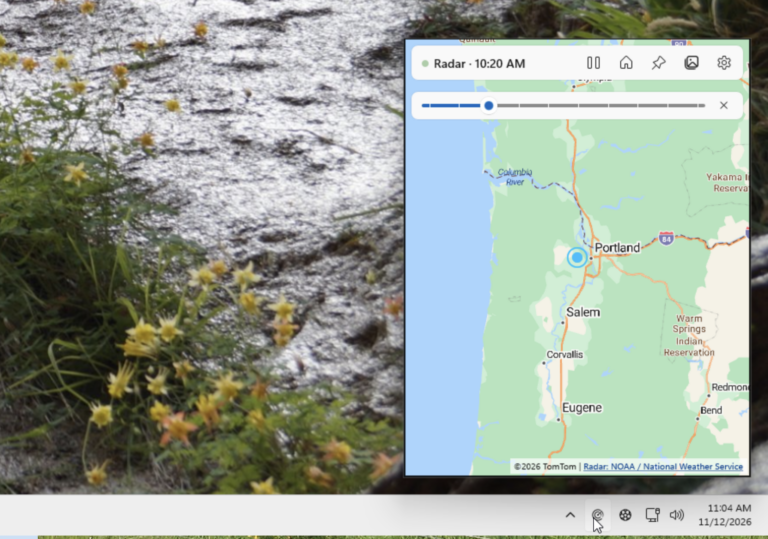
Finney has been busy building more apps like this, which do something useful while living in the system tray. In October he challenged himself to build one of these apps every day—there are some real gems. There’s Tray Sport, which shows last night’s scores for your favorite teams complete with a quick link to watch the highlights. There’s Tray Times, which tells you when your bus or train is departing. And Tray Radar, pictured above, which shows the radar for your area (I took the screenshot on a sunny day).
All of these applications are free and open source, so there’s no reason not to download any that look useful. You can browse the complete collection here.
🔗 https://justinpot.com/a-collection-of-tiny-tray-apps-for-windows/
This free app finally fixes the Mac menu bar

I can’t stand a cluttered Mac menu bar. I hate visual distractions in my workspace—I want as few icons in the top-right corner as possible.
Apple doesn’t make this kind of thing easy. A free app called Chest does, and—unlike certain alternative applications—doesn’t record your screen.
Software like this shouldn’t be necessary—the operating system should just work this way. Microsoft solved this issue completely way back in 2009. Windows 7 made it easy for users to hide tray icons they don’t like—just drag them to a secondary box.
But Apple still doesn’t offer anything remotely similar to this. A year ago it added a feature to disable any icon in System Settings, but there’s no secondary tray. What if you want to see an icon only occasionally?
There have been countless third-party applications offering to do it over the years, all using workarounds. Most used some kind of screen recording to get the job done, meaning a purple dot was near-constantly in the top-right corner to indicate that your screen was being recorded. That’s annoying, not to mention a security concern. How is this the solution?
Well, there’s a better one now. Chest is free, open source, and doesn’t constantly take screenshots of your screen. The application instead uses the built-in option to hide icons while still making them easy to access when you want to. It also doesn’t do anything else—there’s no menu bar theming, no complex customizations—which, to me, is perfect. Install it if you want a no-drama way to hide menu bar icons. Note that it requires macOS 27.
Install and run Chest and you’ll see a dot in your menu bar. You can drag menu bar icons while holding the command key. You can put them to the left of the dot and they’ll stay hidden until you need them. Or, if you prefer, you can drag icons to the “chest” and you’ll get a Windows-style pop-up with your icons. You can even mix the two approaches, storing some icons in the chest and some to the left of the dot.
So yeah, you can now bring your menu bar to something resembling what Microsoft started offering 17 years ago. Neat.
🔗 https://justinpot.com/this-free-app-finally-fixes-the-mac-menu-bar/
Stuff I Wrote
Delete Apple’s AI models from your Mac, then remove crap left behind by apps you uninstalled: https://www.wired.com/story/this-totally-free-app-can-free-up-space-on-your-mac-purge/
What if Wikipedia only showed you articles about your neighborhood? https://theintelligence.com/44154/wikipedia-neighborhood-guide/
Turns out the US tried going to year-round daylight savings in the 70s and everyone hated it. https://www.popsci.com/science/myths-about-daylight-saving-time/
Debunking a few myths lots of people (read: managers) believe about remote work: https://www.popsci.com/health/myths-about-working-from-home/
Does making your computer look like paper help with focus? I looked into this for WIRED: https://www.wired.com/story/paperman-makes-your-laptop-screen-look-like-paper/
I contributed a few blurbs to this TIME roundup of interesting new technologies. It was fun! https://time.com/collection/best-inventions/2026/
You don’t need to pay for fancy distraction blocking toys—you can make your own. https://www.wired.com/story/you-dont-need-to-pay-for-distraction-blocking-software/
Productivity systems don’t have to be complicated—this app proves that. https://www.wired.com/story/productivity-app-tasks-txt-is-just-a-text-document/
That’s it for this week! Stay tuned, and keep on doing what you’re doing—it’s really working.