GovPossible Updates - 12/1/2025 - Receipting: Quickbooks Export
Finance: QuickBooks Online CSV Export
Hello everyone! For communities using QuickBooks Online alongside GovPossible, we have a new feature that makes syncing your financial data much easier.
What's New?
After many years without, Intuit has finally released a format for importing into quickbooks online! You can now export financial transaction data from GovPossible in a CSV format that's specifically designed to import directly into QuickBooks Online. This streamlines the process of keeping your books synchronized between the two systems.
Why This Matters
Many municipalities use GovPossible for day-to-day operations - collecting payments, managing licenses, tracking permits - but need to consolidate that financial information into QuickBooks Online for accounting and reporting purposes.
Previously, this meant: - Manually re-entering transaction data - Using complex spreadsheet manipulation - Spending significant time reconciling between systems - Increased risk of data entry errors
How It Works
The QuickBooks Online CSV export creates a properly formatted file that QuickBooks can directly import. The export includes:
Transaction Details - Date and time of transactions - Transaction amounts - Account codes that match your chart of accounts - Payment methods - Reference numbers for tracking
Proper Formatting The CSV file is structured exactly how QuickBooks Online expects it, with: - Correct column headers - Appropriate data formatting - Proper encoding for special characters - Organized by transaction date
GL Account Mapping Your GL accounts in GovPossible are mapped to corresponding accounts in QuickBooks Online, so transactions automatically flow to the correct place in your books.
The Export Process
When you need to sync data to QuickBooks Online, you can:
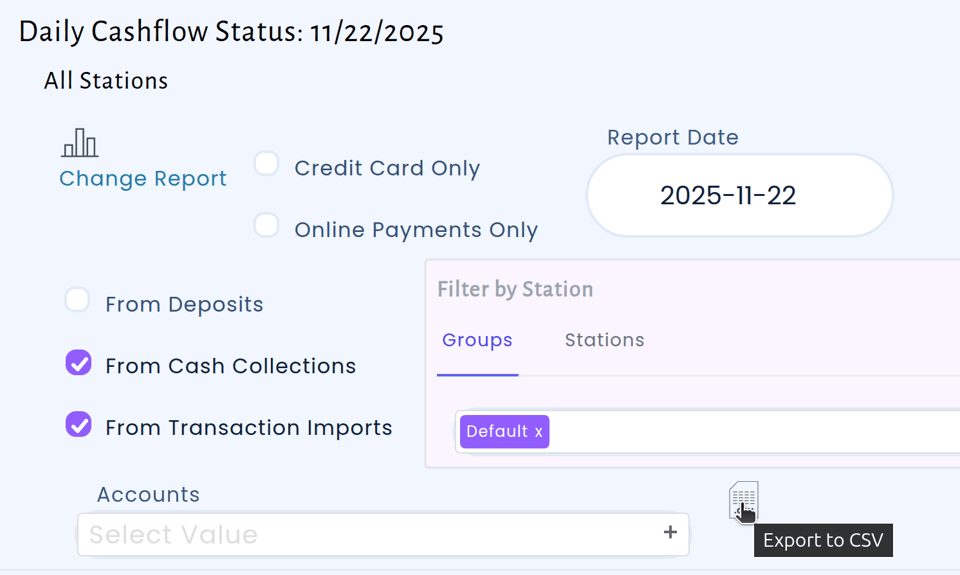
- Select the date for transactions you want to export as you normally would on the Daily Cashflow Report
- Generate the CSV file by clicking on the 'CSV' icon:
- Download the file to your computer
- Import it directly into QuickBooks Online using their standard import tool
The entire process takes just a few minutes instead of hours of manual data entry.
Reconciliation Made Easier
The export includes reference numbers that tie back to transactions in GovPossible. This means if you need to research a transaction or handle a discrepancy, you can easily find the original transaction details in GovPossible using the reference number from QuickBooks.
For Your Accountant
If you have an external accountant or bookkeeper who works in QuickBooks Online, they'll appreciate this feature. You can simply: - Generate the export file - Email it to them (or share via secure file transfer) - They import it directly into QuickBooks
No more sending them spreadsheets they have to reformat or lists of transactions they have to manually enter.
Data Integrity
The CSV export maintains the integrity of your financial data: - All amounts are precise (no rounding errors) - Dates are properly formatted - Debits and credits balance correctly - Account codes are consistent with your setup
This reduces the reconciliation work needed and increases confidence in your financial reports.
Getting Started
To start using the QuickBooks Online CSV export:
- Reach out to us and so we can setup your default export to Quickbooks online
- Make sure your GL accounts are set up correctly in GovPossible
- Verify that account codes match between systems
- Do a test export
- To import the test file into QuickBooks go to settings and click 'Import Data'
 1.Choose 'Journal Entries' from the 'What do you want to import' dropdown

- Once verified, you can export regularly with confidence
If you need help setting up the account mapping or have questions about the export process, reach out to us! We can help ensure your QuickBooks integration works smoothly.