Helium 10 Tutorial: Start Here, Save 30%
Helium 10 is an all-in-one Amazon seller platform, and you can learn it in seven days by working through its tools in a fixed order: product research, keywords, listing, then operations. This tutorial walks you through every step, from creating your account to running your first product search, and shows exactly where to enter a Helium 10 promo code so you pay less from day one.
Helium 10 promo code and discount: the short answer
- Best Helium 10 promo code for the long run: FLEXOBA10. It gives 10% off every month for as long as you stay subscribed, so the saving never expires.
- Best Helium 10 promo code for a short burst: FLEXOBA20. It gives 20% off for the first 6 months.
- Best no-code route: use my Helium 10 link, which applies 30% off for 6 months automatically.
- Important: the link offer and the codes do not stack. Pick one. The math in the savings section below shows which is cheaper for you.
- Free option: Helium 10 has a free plan, so you can open an account and look around before paying anything.
If you only want the discount and nothing else, click here to open Helium 10 with 30% off applied, create your account, and come back to this guide whenever you want to learn a tool.
Who this Helium 10 tutorial is for
This guide is written for people who have never opened Helium 10 before. If you are thinking about selling on Amazon, or you sell already and feel like you are guessing about products and keywords, you are the reader I had in mind. You do not need any technical background. You need a laptop, a Chrome browser, and about an hour for the first session.
What is Helium 10?
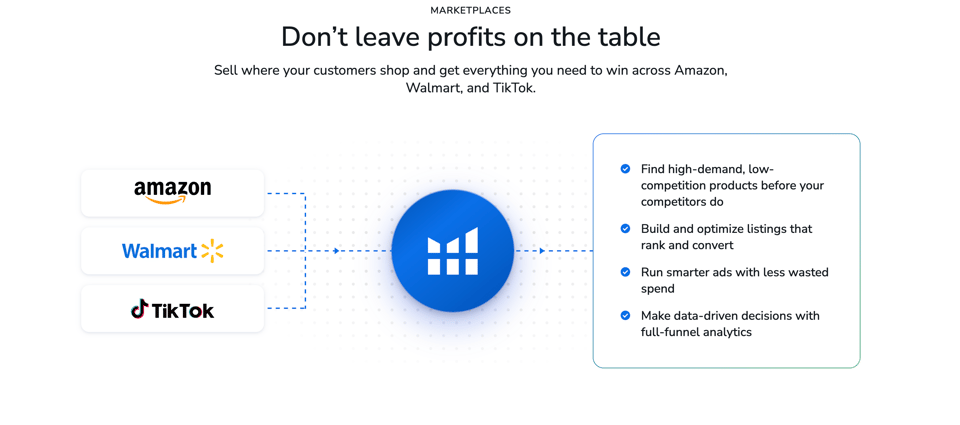 Helium 10 is a software suite for Amazon sellers that bundles product research, keyword research, listing optimization, advertising help, inventory tools, and analytics into one login. Instead of paying for five separate tools and copying data between them, you open one dashboard and move from idea to launch to daily operations.
Think of it as a toolbox with four drawers:
- Product research: tools that show you what sells, how much it earns, and how crowded the market is.
- Keyword research: tools that show you the exact words shoppers type into Amazon, so your listing can be found.
- Listing optimization: tools that help you write, score, and improve the title, bullets, and description.
- Operations and analytics: tools that watch your inventory, alert you to problems, and track profit.
Helium 10 also works with Walmart for sellers who want to sell there, and it has added AI features in recent months, which I cover in Step 8.
Who should use Helium 10?
- Complete beginners who want to check whether a product idea can sell before they spend money on inventory.
- Part-time sellers who have a job and need a faster way to research, because the data is already organized.
- Existing sellers who want better keywords, better listings, and an early warning when something goes wrong.
- Brand owners who manage several products and want one place to track them.
If you do not plan to sell physical products on Amazon or Walmart, Helium 10 is probably not for you. It is built around marketplace selling.
Why new users pick Helium 10 first
In my own use, the thing that stood out was how easy the site is to move around and how complete the data looks once you start searching for products. You are not left staring at an empty screen. You type a keyword or set a few filters, and you get a list you can actually act on. That matters when you are new, because the biggest risk is not a lack of information. It is not knowing which information to trust and what to do next.
The platform also carries a strong public rating. Review sites commonly show it around 4.7 out of 5, though ratings move, so check the current number before you quote it. The point is simple: a lot of sellers have used it, and most of them stay.
Step 1: Sign up for Helium 10 and apply your discount
To sign up, open Helium 10 through a tracked link, create an account with your email, and choose a plan at checkout, applying a promo code there if you prefer a code over the link offer. The whole thing takes about five minutes.
How to sign up with the 30% link offer
- Open Helium 10 through my link. Opening the site this way is what applies the 30% off for 6 months.
- Click the sign-up button and enter your name, email, and a password.
- Confirm your email if Helium 10 asks you to.
- Pick your plan. If you want to test first, start on the free plan.
- Check the order summary before you pay. You should see the discount reflected in the price.
A small tip that saves a lot of headaches: finish the sign-up in the same browser window you used to open the link. If you open the link, wander off, clear your cookies, and come back later through the main website, the offer may not carry over.
How to use a Helium 10 promo code instead
Some people prefer a code because it is easier to remember and easier to share. Here is how it works.
- Go to the Helium 10 pricing page and pick your plan.
- At checkout, find the field marked for a coupon or promo code.
- Type FLEXOBA10 for 10% off every month, or FLEXOBA20 for 20% off for 6 months.
- Apply it and confirm the price changes before you enter payment details.
Get started with Helium 10 here if you would rather skip the typing.
Do the link offer and the promo codes stack?
No. The 30% link offer and the codes are separate savings options, and you choose one. Do not expect 30% plus 10% or 30% plus 20%. The practical question is which single option saves you more money over the time you plan to use Helium 10, and I answer that with real numbers in the savings section near the end.
Step 2: Choose the right Helium 10 plan
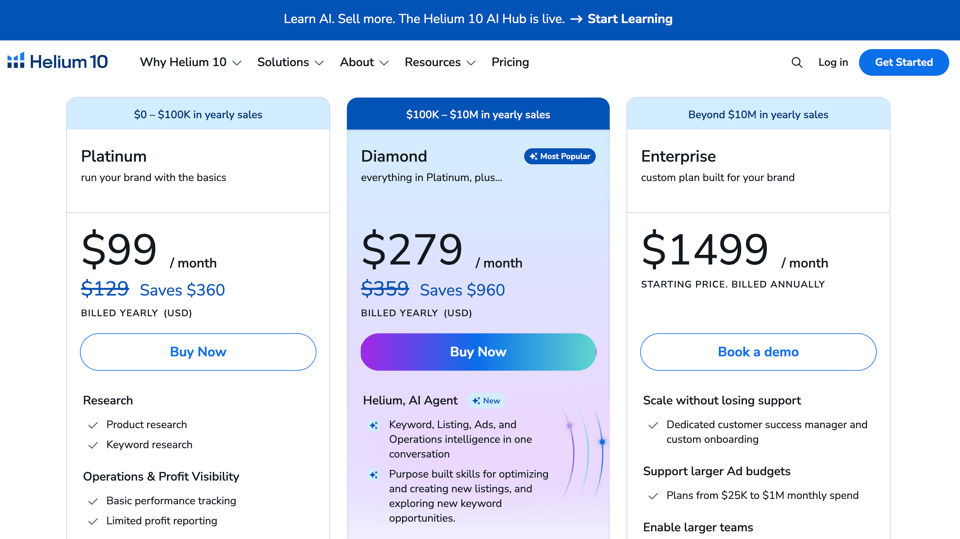
Helium 10 currently sells a free plan plus two standard paid plans, Platinum and Diamond, and the old Starter plan is no longer offered to new customers. Platinum is the lower-cost way in. Diamond is the plan for people who want higher limits, more room to grow, and the newest AI tools.
Published prices, as reported by review sites at the time of writing:
- Free plan: $0. Limited access and usage caps, good for looking around.
- Platinum: about $129 per month billed monthly, or about $99 per month billed yearly.
- Diamond: about $359 per month billed monthly, or about $279 per month billed yearly.
Prices move, so confirm the live numbers on the pricing page before you buy.
Free plan: who it is for
The free plan is the right place to start if you are still deciding whether to sell on Amazon at all. You can create your account, explore the dashboard, and run a few basic lookups. You will hit limits quickly, which is the point: it lets you see how the tools feel without any risk.
Platinum plan: who it is for
Platinum fits a solo seller with a handful of products who wants the core research, keyword, and listing tools and does not need the highest limits. If you are testing your first product ideas and watching your budget, it is a sensible entry point.
Diamond plan: who it is for
Diamond is built for where you are trying to go, not just where you are today. It gives you higher limits across the tools you use most, support for more products and a bigger workload, and it is the plan that includes Helium, the built-in AI agent, and the Helium 10 MCP connector. MCP access is Diamond only, and there is no add-on that unlocks it on Platinum.
That matters for new users in one specific way. If you already know you are serious, starting on Diamond means you never hit the wall of changing plans in the middle of a project. You learn the tools once, with the limits you will eventually need.
See what Diamond includes through my Helium 10 link
A simple way to decide
- Still unsure whether to sell? Start free.
- Serious, on a tight budget, with a few products? Platinum is a fair starting point.
- Serious, planning several products, or you want the AI tools and higher limits from day one? Diamond is the better value for the work you will actually do.
Which plan do you pick if the price still worries you?
Take the discount seriously, because it changes the math. With the 30% link offer, Diamond billed monthly drops to roughly $251 per month for the first 6 months. With FLEXOBA10, it is about $323 per month for as long as you stay. I show the full comparison in the savings section.
Step 3: Install the Chrome extension and tour the dashboard
After you sign up, install the Helium 10 Chrome extension and spend ten minutes clicking through the dashboard, because the extension is where you will do most of your day-to-day research. The dashboard is your home base. The extension sits on top of Amazon pages and shows data without making you leave the product page.
How to install the extension
- Log in to your Helium 10 account in Chrome.
- Find the prompt to install the Chrome extension, or open the Chrome Web Store and search for Helium 10.
- Click add to Chrome and approve the permissions.
- Pin the extension to your toolbar using the puzzle-piece icon, so it is always one click away.
- Sign in to the extension with the same Helium 10 login.
- Open any Amazon product page and look for the Helium 10 tools appearing on the page.
If nothing appears, refresh the Amazon page and check that the extension is switched on. Ad blockers sometimes interfere, so try pausing yours.
A quick tour of the dashboard
The dashboard layout can change as Helium 10 updates it, but the structure stays familiar. Look for these areas:
- The tools menu: a list of every tool, grouped by what it does. This is where you will find product research, keyword tools, listing tools, and operations.
- Your account and plan area: shows your plan, usage, and billing. Check it to see how many searches you have left.
- The marketplace selector: lets you pick which Amazon marketplace you are researching, such as the United States.
- Learning resources: Helium 10 offers training material, and paid plans include the Freedom Ticket course. Reviewers list it as a $997 value when bought separately, though you should confirm the current terms.
Start with Helium 10 through this link and get the 30% offer
Step 4: Find products with Black Box, Xray, and Product Database
To find a product to sell, use Black Box to filter the whole catalog by your rules, then use Xray to check any product you like in detail. This is the heart of Helium 10 for new sellers, and it is the part that saves you from buying inventory nobody wants.
Black Box: filter for products that fit your rules
Black Box is a product search tool. You tell it what you want, and it returns products that match. Think of it as a very picky shopping assistant.
Here is a simple beginner setup to try on your first search:
- Open Black Box from the tools menu and choose Products.
- Select your marketplace and a category you are curious about.
- Set a price range. Many beginners start between $20 and $50, because it leaves room for fees and profit without tying up too much cash.
- Set a minimum for monthly sales, so you only see products that actually sell.
- Set a maximum for review count. Fewer reviews often means less entrenched competition.
- Run the search and sort the results by revenue or sales.
You will get a list. Do not fall in love with the first item. Open five or six that look interesting and move on to the next tool.
Run your first Black Box search with Helium 10
Xray: check a product on the Amazon page
Xray is a Chrome extension tool. Open any Amazon search results page or product page, click the extension, and launch Xray. It reads the page and shows estimated monthly sales, revenue, price, review counts, and more for the products listed.
Here is how to read an Xray result in plain English:
- Estimated sales and revenue: a rough guide to how much money a product brings in each month. Treat it as an estimate, not an accounting record.
- Price: tells you how much room you have for costs and profit.
- Reviews and rating: show how hard it will be to compete. A product with thousands of reviews is a tougher fight than one with a few hundred.
- Number of sellers: tells you whether one seller owns the product or many sell it.
Step 5: Find keywords with Magnet and Cerebro
Use Magnet to turn one idea into a list of search terms, and use Cerebro to see which terms your competitors rank for. Keywords are the words shoppers type into the Amazon search bar. If your listing does not contain them, shoppers will not find you, no matter how good your product is.
Magnet: start from a seed phrase
Magnet is a keyword research tool. You type a simple phrase, called a seed, and it returns related search terms along with their estimated search volume.
- Open Magnet from the tools menu.
- Type a seed phrase, such as yoga mat or insulated water bottle.
- Choose your marketplace and run the search.
- Sort the results by search volume.
- Pick the terms that clearly describe your product and save them.
Do not chase only the highest volume. A phrase with huge volume often has huge competition too. A mix of a few broad terms and several specific ones usually works better for a new listing. Specific phrases, like non slip yoga mat for hot yoga, tend to attract buyers who know what they want.
Cerebro: reverse-search a competitor
Cerebro works in the opposite direction. You paste in the ASIN, which is the product ID, of a competing listing, and Cerebro shows you the keywords that product is associated with.
Here is a simple routine:
- Choose two or three strong competitors from your Xray research.
- Copy each ASIN from the Amazon product page.
- Paste an ASIN into Cerebro and run it.
- Look at the keywords with solid search volume that make sense for your product.
- Add the best ones to your list.
When you do this across several competitors, patterns appear. Keywords that show up again and again are usually the ones that matter in your niche.
Try Magnet and Cerebro on your own product idea with Helium 10
Frankenstein: clean up your keyword list
After research, your list will be messy. It will have duplicates, awkward variations, and words you do not need. Frankenstein is a keyword processing tool that helps you clean and combine the list so you can use the words efficiently in your listing. It is a good example of a tool that saves time rather than just giving you more data.
Step 6: Build your listing with Listing Builder, Scribbles, and Listing Analyzer
Write your listing around your best keywords, then score it with Listing Analyzer before you publish. A listing is your sales page on Amazon: the title, five bullet points, the description, and the images. Helium 10 gives you tools for the writing and tools for checking your work.
The parts of a good listing
- Title: says what the product is, includes your main keyword near the front, and stays readable. Do not stuff it with every term you found.
- Bullet points: each one should highlight a single benefit in plain language, with a keyword where it fits naturally.
- Description: gives extra detail and answers questions a shopper might have.
- Backend search terms: extra keywords that shoppers do not see but Amazon reads.
- Images: often the deciding factor, so give them as much attention as the words.
Scribbles: keep your keywords in one place
Scribbles is a listing writing tool that lets you keep your keyword list beside the text you are writing. As you type your title and bullets, it helps you see which keywords you have already used and which you have left out. For a beginner, that simple visibility removes a lot of guesswork.
Listing Builder: write faster with AI help
Helium 10 has added an AI Listing Builder that helps draft listing copy from your product details and keywords. Use it as a first draft, not a finished product. Read every line, remove claims you cannot back up, and make sure the copy matches what you actually sell. Amazon expects listings to be accurate, and a shopper who feels misled will leave a bad review.
A good way to work:
- Gather your product facts: size, material, what is in the box, and who it is for.
- Add your top keywords.
- Generate a draft.
- Edit it until it sounds like a real person wrote it and every claim is true.
- Run it through Listing Analyzer.
Use the Helium 10 listing tools with the 30% link offer
Listing Analyzer: score before you publish
Listing Analyzer checks a listing against best practices and highlights gaps. You can run it on your own draft or on a competitor's live listing. Reviewers note that Platinum includes a smaller monthly allowance of analyzer uses than Diamond, so plan your runs if you are on the lower plan.
When you review a score, ask three questions:
- Is my main keyword in the title?
- Do my bullets each make one clear point?
- Is anything missing that competitors include?
Step 7: Run the business with Alerts, Inventory, Refund Genie, and Profits
Once you have a product live, use Helium 10's operations and analytics tools to protect your listing, manage stock, recover fees, and see whether you are making money. These tools are less exciting than product research, but they are what keep a store healthy after launch.
Alerts: catch problems early
A listing can change without you doing anything. A hijacker can start selling on it, a competitor can cut the price, or your listing content can be altered. Alerts watch your listings and notify you when something changes, so you can react in hours instead of finding out weeks later when sales drop.
Set this up the day your listing goes live:
- Connect your Amazon seller account when Helium 10 asks you to.
- Add the listings you want to monitor.
- Choose which changes should trigger a notification.
- Make sure the notifications go to an email you actually read.
Inventory Management: avoid running out
Running out of stock is one of the most expensive mistakes a seller can make, because you lose sales and often lose ranking too. Inventory tools help you estimate how fast you sell and when to reorder, so you can plan around the weeks it takes to produce and ship new stock. As a beginner, the simple habit to build is this: check your stock level every week and compare it with how many days of sales you have left.
Profits: see the real picture
The profit dashboard pulls in your sales, fees, and costs so you can see what you are actually keeping. Revenue feels good. Profit pays your bills. Check it at least once a week, and especially after you change pricing or start advertising.
Open Helium 10 and connect your first store with the discount applied
Step 8: Use Helium, the AI Listing Builder, and MCP
Helium 10's newest tools are its built-in AI agent, called Helium, the AI Listing Builder, and an MCP connector that lets an AI assistant read your Helium 10 data. These are the features that make Helium 10 feel current rather than just familiar, and they are worth knowing about before you pick a plan.
Helium: ask questions in plain language
Instead of clicking through filters, you can ask the Helium agent a question the way you would ask a colleague. For example, you might ask what kinds of products fit a budget and a price range, or how a listing could be improved. It saves time on the first pass, and it is a gentle way for a new user to learn what the platform can do.
MCP: connect your data to an AI assistant
MCP stands for Model Context Protocol. It is a standard way for an AI assistant to connect to a tool and use its data. The Helium 10 MCP connector lets you link your Helium 10 account to an assistant such as Claude and ask questions about your own data in everyday language.
The practical points for a beginner:
- MCP access is a Diamond feature. There is no add-on that unlocks it on Platinum.
- Diamond includes a monthly allowance of connector calls. Reviewers and Helium 10 materials describe about 1,000 included calls, with a top-up available if you exceed it, so confirm the current terms before you plan around it.
- You do not need MCP to use Helium 10 well. It is a bonus for sellers who like working with AI assistants.
See Diamond, with the AI tools, through my Helium 10 link
Is the AI part worth paying for?
Here is my honest view. If you are brand new, you do not need AI features to learn the fundamentals. Product research, keywords, and listings are the core. But if you expect to sell for a year or more, the AI features will probably save you real hours, and that is a strong reason to look at Diamond from the start rather than upgrading later.
Helium 10 has been adding features quickly, with AI and MCP among the latest, and that pace is a good sign if you are choosing a platform you plan to use for a long time.
Your 7-day Helium 10 starter plan
Spend about 45 minutes a day for seven days, and by the end you will have a product shortlist, a keyword list, and a draft listing. The plan below is designed so each day builds on the one before it. Do not skip ahead, and do not try to learn every tool at once.
Day 1: Set up
- Create your Helium 10 account through the link, or choose your plan and enter a code at checkout.
- Install the Chrome extension and pin it.
- Set your marketplace.
- Open any Amazon product page and look at the data the extension shows.
Day 2: Learn to read a product
- Browse five Amazon search results pages in a category you like.
- Launch Xray on each page.
- Write down the price, estimated monthly sales, and review count for the top ten products in each.
- Note which products have steady sales and fewer reviews.
Day 3: Run Black Box
- Set your filters for price, monthly sales, and review count.
- Run three searches in three different categories.
- Save the five most interesting products.
- Do a quick margin check on each, subtracting product cost, shipping, and Amazon fees.
Day 4: Narrow to one idea
- Compare your five candidates.
- Read the reviews of the top competitors in each niche and note common complaints.
- Pick one product to research deeply. Keep a second as a backup.
Day 5: Build your keyword list
- Run your seed phrase through Magnet.
- Pick two or three strong competitors and run each ASIN through Cerebro.
- Clean the list and keep your top ten to fifteen terms.
Day 6: Draft your listing
- Write a title, five bullets, and a description around your keywords.
- Use the AI Listing Builder for a first draft if your plan includes it, then edit by hand.
- Run the draft through Listing Analyzer and fix the gaps.
Day 7: Decide
- Review everything you built this week.
- Ask yourself three questions: Is there steady demand? Can I make a healthy margin? Can I make this product clearly better in some way?
- If yes, you have a real plan. If no, run the process again with your backup idea. That is the tool doing its job, because it cost you a week instead of a container of unsold stock.
Start your seven days now with Helium 10
Helium 10 promo code: which discount saves you the most?
 For a stay of 18 months or longer, the FLEXOBA10 code saves more than the 30% link offer, and for anything shorter, the 30% link offer saves more. At exactly 18 months the two come out equal. The reason is simple arithmetic: 30% off for 6 months is 180 percentage-months of savings, and 10% off for 18 months is also 180.
Here are the three options side by side:
- 30% link offer: open Helium 10 through this link. It applies automatically, 30% off for 6 months, no typing.
- FLEXOBA20: 20% off for 6 months. It is always slightly worse than the link offer over the same period, so it makes sense mainly if you prefer entering a code.
- FLEXOBA10: 10% off every month for as long as you stay subscribed. It starts smaller and keeps going.
Remember that these are separate options and do not stack.
Diamond example, billed monthly at about $359
- With the 30% link offer: about $251 per month for the first 6 months, then the regular $359.
- With FLEXOBA10: about $323 per month, every month.
- After 6 months: link total is about $1,508 and code total is about $1,939. The link is ahead by roughly $431.
- After 12 months: link total is about $3,662 and code total is about $3,877. The link is still ahead by roughly $215.
- After 18 months: both come to about $5,816. They are level.
- After 24 months: link total is about $7,970 and code total is about $7,754. FLEXOBA10 is ahead by roughly $215, and the gap keeps growing.
Platinum example, billed monthly at about $129
- With the 30% link offer: about $90 per month for 6 months, then $129.
- With FLEXOBA10: about $116 per month, every month.
- The break-even point is again 18 months. After that, the code costs less in total.
Which one should you choose?
- Choose the link if you want to test Helium 10 hard for a few months, you like simple, or you are not sure you will keep it past a year.
- Choose FLEXOBA10 if you already know you will sell long term and want the saving to follow you for as long as you subscribe.
- Choose FLEXOBA20 if you prefer a code and plan to stay roughly six months.
These figures use monthly billing and published list prices as reported by review sites, so confirm the exact amounts, and how a discount applies to yearly billing, on the checkout screen.
Pick your offer and start with Helium 10
Is there a Helium 10 Black Friday deal?
Black Friday is the time of year when sellers pay the most attention to software prices, and the question comes up every November. As of this writing, Helium 10 has not announced an official Black Friday sale. That is worth saying plainly, because many pages promise one before the company confirms anything.
Here is a practical way to think about it. A discount that is live today is worth more than a deal that might appear later, because every week you wait is a week you are not researching, listing, or selling. And if a bigger offer does appear, you can compare it using the same percentage-months method: multiply the discount by the number of months it lasts, and compare the totals.
The fourth quarter is also when shoppers spend the most, so sellers who prepare in November are in a better position for the holiday rush than sellers who start in January. If you have been meaning to start, this is the season to learn the tools while the demand is high.
Helium 10 pros and cons for new users
Helium 10 is strong on data and breadth, and its main drawbacks are price and a learning curve. A fair tutorial should say both.
Pros
- Everything in one place. Product research, keywords, listings, operations, and analytics live under one login.
- Complete, current-feeling data. In my use, the product search results were detailed and the site was easy to move around in.
- Beginner-friendly entry. A free plan lets you look around before you pay.
- Learning material. Training resources are available, and paid plans include the Freedom Ticket course.
- AI features. Helium, the AI Listing Builder, and MCP show the platform is still moving forward.
- Real discounts. The link offer and the codes can reduce the cost noticeably, especially in the first months.
Cons
- It costs more than it used to. Prices rose this year and the Starter plan is gone, so the cheapest paid option is now Platinum.
- There is a learning curve. The number of tools can feel like a lot at first. The seven-day plan above exists for that reason.
- Estimates are estimates. Sales and search volume figures are modeled, so use them to compare, not to predict exact numbers.
- Plan limits matter. Lower plans have tighter usage caps, which can feel restrictive once you get busy.
- Some details differ between sources. Which advertising features belong to which plan is described differently by different reviewers, so check the pricing page.
- It does not sell for you. A tool can show you a promising product. You still have to source it, list it, and market it.
Is Helium 10 worth it?
For a seller who will use it every week, yes, I think the value outweighs the price, because a single bad product decision can cost more than months of the subscription. For someone who only wants to poke around, the free plan is the right starting point, and you can upgrade when you are ready. The honest test is simple: if you will not open it at least a few times a week, do not pay for it yet.
And if you try it and decide it is not for you, you can choose not to subscribe again. There is no need to stay.
Helium 10 tutorial FAQs
What is the best Helium 10 promo code?
FLEXOBA10 is the best code for long-term users because it gives 10% off every month for as long as you stay subscribed. FLEXOBA20 gives 20% off for 6 months. The 30% link offer, available through this Helium 10 link, is the best short-term saving. You choose one, since they do not stack.
Do Helium 10 discount codes stack?
No. The link offer and the promo codes are separate options. Pick whichever saves you more for how long you plan to stay. The savings section above shows the break-even point at 18 months.
How do I use a Helium 10 promo code?
Choose your plan on the pricing page, find the coupon or promo code field at checkout, type the code, apply it, and check that the price changed before you pay. If you use the tracked link instead, no code is needed.
Is there a free Helium 10 plan?
Yes. Helium 10 has a free plan with limited access and usage caps. It is a good way to open an account, explore the dashboard, and try a few lookups before you decide on a paid plan.
How do I use Helium 10 as a beginner?
Follow this order: create your account, install the Chrome extension, find products with Black Box and Xray, find keywords with Magnet and Cerebro, write and score your listing, then set up Alerts, inventory tracking, and the profit dashboard. The seven-day plan above lays this out day by day.
What is the difference between Helium 10 Platinum and Diamond?
Diamond has higher usage limits, support for a bigger workload, and the AI agent and MCP connector, which are Diamond only. Platinum costs less and covers the core tools with tighter limits. Reviewers report that the Listing Analyzer allowance, for example, is about 50 uses a month on Platinum and 150 on Diamond.
Does Helium 10 work for Walmart?
Helium 10 describes its platform as built for sellers on Amazon and Walmart. Check which tools support Walmart on your plan before you rely on it, since coverage can differ by tool.
Is there a Helium 10 Black Friday deal?
As of this writing, no official Black Friday sale has been announced. If you want to start before one appears, the link offer and the codes are live. If a bigger deal is announced, compare it by multiplying the discount by the number of months it lasts.
Is Helium 10 legit?
Yes. It is an established platform with a large user base and a public rating that review sites commonly report around 4.7 out of 5. As with any software, read the plan terms and check the live pricing before you buy.
Ready to start? Do this now
The fastest way to learn Helium 10 is to open it, run one search, and keep going for seven days. You now know the order: set up, read a product, run Black Box, narrow to one idea, build keywords, draft the listing, decide.
Here is the short version of what to do in the next ten minutes:
- Open Helium 10 with 30% off for 6 months and create your account.
- Or choose your plan and type FLEXOBA10 for 10% off every month, or FLEXOBA20 for 20% off for 6 months.
- Install the Chrome extension.
- Run your first Black Box search.
If you are choosing between plans, remember the pattern: free to look around, Platinum to start on a budget, Diamond if you want the higher limits and the AI tools from day one. And if you try it and it is not right for you, you can simply not subscribe again. Start your Helium 10 tutorial journey here.
Disclosure: this guide contains my affiliate link. If you sign up through it, I may earn a commission at no extra cost to you. Prices, plan details, and offers change, so confirm them on the Helium 10 checkout page before you pay.
