
More Missed Opportunities
In this issue:
A few weeks ago I started a series on commands and features that I think are overlooked, or at least underutilized. These are PowerShell commands, or related tools, that might make your work easier. When PowerShell v1 rolled out there were 167 or so commands and limited options. In 2026, the PowerShell ecosystem is sprawling and it is impossible to know or remember everything. That's where things like this newsletter are helpful in showing you what your missing, or maybe didn't even know existed. Let's take a look at a few more items today.
Terminal Scratch Pad
I am assuming many of you use Windows Terminal on a daily basis. If you are like me, you also often need a buffer for snippets of text or code. Usually, this means spinning up Notepad. However, Windows Terminal has an unheralded feature called the ScratchPad. Apparently, this was an experimental feature that was never truly intended for production use. But it was released so we can use it. Although, don't expect the product team to enhance or improve it. But it is perfect for the scenario I'm describing.
To open, you can use the command palette (Ctrl+Shift+P) and start typing 'scratch'.
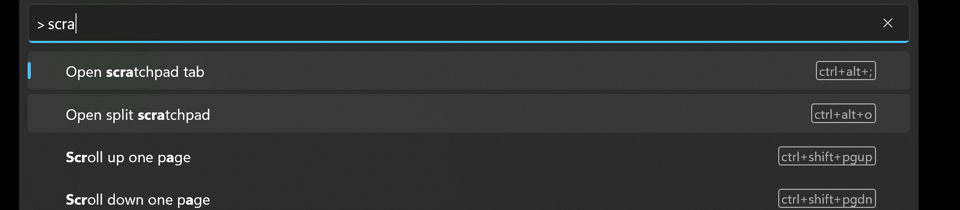
You can also use the Ctrl+Alt+; keyboard shortcut. This will open the scratchpad in a new tab.
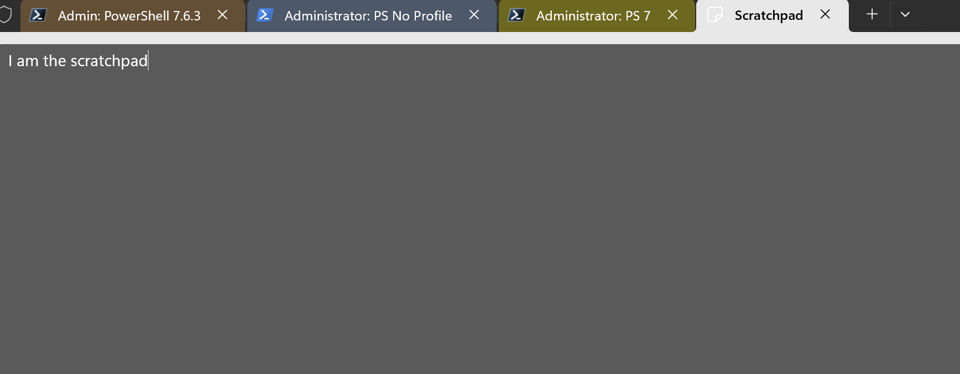
You can type or paste content. Unfortunately, unlike other Windows Terminal tabs, there is nothing you can configure. You can't even change the font size. Then again, the name implies this is a temporary working area. You can use Ctrl+a to select everything in the window. When you are finished with it, you can manually close the tab or use the Ctrl+Shift+w shortcut.
Another possibility is to use the Ctrl+Alt+o shortcut, or the command palette option to split the current window with a scratch pad.
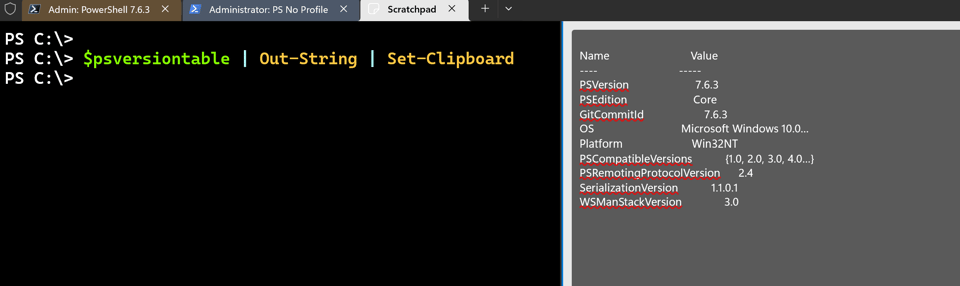
And if you need it, you can split the scratch pad into another scratch pad. Select the scratchpad and use the Ctrl+Alt+o shortcut.
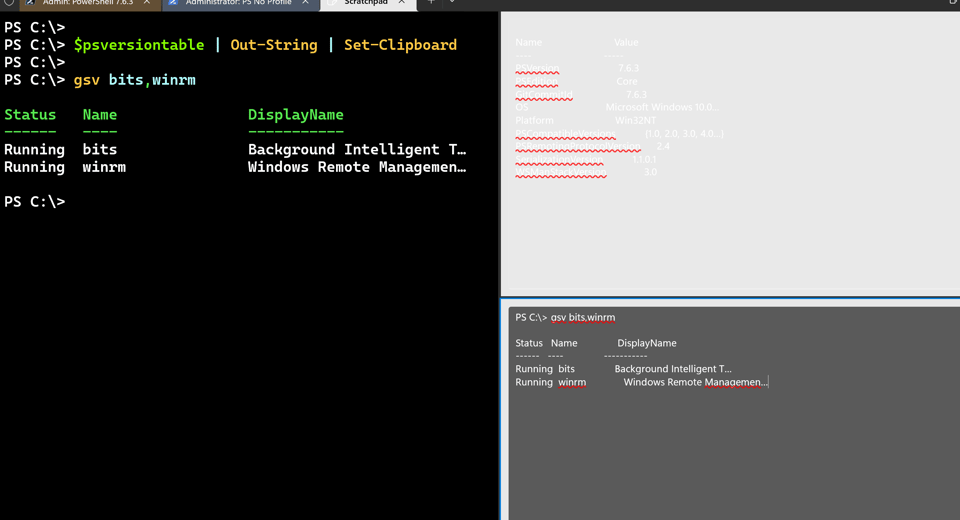
One potential downside to a terminal with a split scratchpad is that there is no way to close the scratchpad alone. If you try to use the close window option, the entire Windows Terminal will crash. To avoid that, you have to close the primary tab which will also close the scratch pad. None of this is an issue when the scratchpad is its tab. I've asked about this bug, but because the scratchpad was never intended for production use, it is unlikely to be addressed.
Despite the limitations, I like having a "buffer" option in my primary area of work, without having to open another application.
New-TemporaryFile
Here's another command that I couldn't believe I had overlooked because it makes scripting so much easier. I'm sure many of you have used code like this to create a temporary file.
PS C:\> [System.IO.Path]::GetTempFileName()
C:\Users\jeff\AppData\Local\Temp\tmpno34hf.tmp
Technically, that only gave me the name. I would still need to create the file.
PS C:\> $temp = New-Item $([System.IO.Path]::GetTempFileName()) -Force
PS C:\> dir $temp

    Directory: C:\Users\jeff\AppData\Local\Temp

Mode                 LastWriteTime         Length Name
----                 -------------         ------ ----
-a---           7/10/2026  9:14 AM              0 tmptxdr3o.tmp
The New-TemporaryFile command, which you can also find in Windows PowerShell 5.1, simplifies this process.
PS C:\> $temp = New-TemporaryFile
PS C:\> $temp

Mode                 LastWriteTime         Length Name
----                 -------------         ------ ----
-a---           7/10/2026  9:16 AM              0 tmpg3py2d.tmp
Although the documentation is a little misleading. According to the help, the file will follow the format tmpNNNN where NNNN is a random hexadecimal value. This is true in Windows PowerShell.
PS C:\> New-TemporaryFile

    Directory: C:\Users\jeff\AppData\Local\Temp


Mode                 LastWriteTime         Length Name
----                 -------------         ------ ----
-a----         7/10/2026   9:23 AM              0 tmpA75A.tmp
Internally, I am pretty sure the command is simply invoking [System.IO.Path]::GetTempFileName(). However, the method has changed in the .NET Framework and it doesn't follow the pattern in PowerShell 7. It shouldn't matter because you'll likely be saving the results to a variable.
What you might want to do is change the file extension.
PS C:\> New-TemporaryFile | ForEach-Object { Rename-Item -Path $_ -NewName "$($_.basename).md" -PassThru}

    Directory: C:\Users\jeff\AppData\Local\Temp

Mode                 LastWriteTime         Length Name
----                 -------------         ------ ----
-a---           7/10/2026  9:32 AM              0 tmpzitt4y.md
The other nice benefit of using New-TemporaryFile is that it supports -WhatIf.


