
Overlooked Opportunities
In this issue:
- PSReadline Key Handlers
- Using an unbound function
- Defining custom key handlers
- Open online help handler
- Removing key handlers
- Summary
At PSConfEU 2026, I presented a session on hidden, or under-utilized features that can streamline your work at at a command prompt, or make your scripting more efficient. These are items that I think more PowerShell professionals should know about and take advantage of. I thought I would cover some of them here. In fact, the newsletter format allows me to dive into a little more detail than a 45-minutes speaking slot.
I won't cover them all today, nor do I plan to discuss everything I covered in my conference session. Let's get started and see what you have been missing, or not taking full advantage of.
PSReadline Key Handlers
I think it is very important to be as efficient and economical when running PowerShell interactively from a command prompt. You should be using features like command aliases all the time in PowerShell. There's nothing wrong with typing gsv | ? status -match r* at a prompt. You know what you are typing and saving keystrokes adds up.
I'm always looking for ways to get more done with less typing. And definitely less use of the mouse. One PowerShell feature that I think is under-utilized are PSReadline key handlers. You most likely already use keyboard shortcuts in PowerShell like F1 to display inline help or F2 to toggle completion display. Run Get-PSReadlineKeyHandler to view defined shortcuts.
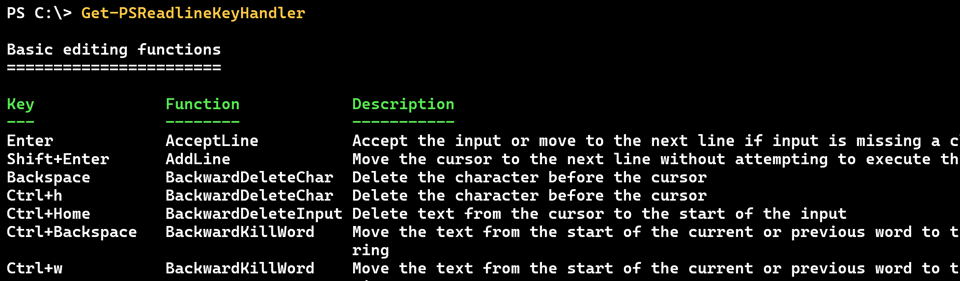
I am expecting you have used some of these without knowing where they are defined. The best part is that you can define your own key handlers.
PSReadline functions
The majority of PSReadline key handlers are focused on PSReadline functions. You can think of these as methods. By default, Get-PSReadlineKeyHandler shows you functions with defined key combinations, also known as chords. Use the Unbound parameter to see what functions have not been set up.
PS C:\> Get-PSReadlineKeyHandler -Unbound

Basic editing functions
=======================

Key     Function                      Description
---     --------                      -----------
Unbound Abort                         Abort the current operation, e.g. incremental history search
Unbound AcceptAndGetNext              Accept the current line and recall the next line from history after the current ...
Unbound BackwardDeleteLine            Delete text from the cursor to the start of the current logical line
Unbound BackwardDeleteWord            Delete the previous word in the line.
...
Hopefully the description is sufficient to explain. We will be using Set-PSReadlineKeyHandler to define or update key handlers.
Searching Chords
One step in the process is identifying a free chord.
> I do not recommend trying to use PSReadline key handlers in the VSCode integrated terminal. VSCode has its own set of key handlers which will take precedence. Everything I am discussing here is for running PowerShell in the normal console or Windows Terminal. Although I should warn you that Windows Terminal also has a set of key handlers which will take precedence so finding an open key combination might take some trial and error.
You can specify one or more chords to see what is in use. Unfortunately, you can't use wildcards.
PS C:\> Get-PSReadLineKeyHandler -Chord f1,f2,f4 | Select group,Key,Function

        Group Key Function
        ----- --- --------
   Prediction F4  ShowFullPredictionTooltip
   Prediction F2  SwitchPredictionView
Miscellaneous F1  ShowCommandHelp
> *Key combinations like ctrl_a are case-sensitive up to a point. The prefix is not, but the letter, i.e. a is case-sensitive.
If nothing is defined you will get no result. The command will not throw an exception.
A Get-PSReadline Proxy Function
Now it is time for a slight detour. Hopefully, you noticed that each defined key handler belongs to a group. Although technically I believe the group and function are defined internally. Regardless, if you wanted to find functions based on a group, you need to use Where-Object.
PS C:\> Get-PSReadLineKeyHandler | where group -eq prediction | select Key,function

Key Function
--- --------
F4  ShowFullPredictionTooltip
F2  SwitchPredictionView
It would be easier if Get-PSReadlineKeyHandler had a Group parameter. So I created a proxy function and added it.


