
Logging PowerShell Remoting Activity
In this issue:
Overview
In this article, you will learn how to configure logging in a PowerShell remoting session. The ideas aren't intended to replace security practices, but rather offer a way to supplement existing mechanisms and software. The implementation relies on a custom event subscription to update a CSV log file of session history. The techniques only apply to PowerShell remoting using the WSMan protocol.
Introduction
I want to return to the topic of customizing PowerShell remoting configurations. Last time I shared some techniques to customize your PowerShell remoting experience. These techniques only apply to traditional PowerShell remoting using the WSMan protocol. They don't apply to remoting using ssh in PowerShell 7.
In the previous newsletter I showed you how to setup a session startup script. Even though PowerShell remoting doesn't support traditional profile scripts, you can use a session startup script to serve the same purpose.
I'm going to continue with this startup script:
#configure the remote environment
$var = '123abc'
Import-Module PSScriptTools
function Get-LastBoot {
    [cmdletbinding()]
    [Alias("glb")]
    param()

    try {
        Get-CimInstance -class Win32_OperatingSystem -Property LastBootUpTime |
            Select-Object LastBootUpTime
    }
    catch {
        #this should never happen
        Write-Warning "There was an error: $($error[0].Exception.message)"
    }
} #end function
[void](New-PSDrive -Name T -PSProvider FileSystem -Root $env:temp)
[void](New-PSDrive -Name W -PSProvider FileSystem -Root c:\work)

Write-Host "[$($env:COMPUTERNAME)] You are logged on to a secure environment." -ForegroundColor magenta
I still have my session configuration from last time.
PS C:\> Enter-PSSession cadenza
[CADENZA] You are logged on to a secure environment.
[cadenza]: PS C:\Users\jeff\Documents> Get-LastBoot

LastBootUpTime
--------------
10/14/2026 2:48:32 AM


[cadenza]: PS C:\Users\jeff\Documents> Get-PSdrive T,W | Select Name,Root

Name Root
---- ----
T    C:\Users\jeff\AppData\Local\Temp
W    C:\work
Capture Logon Information
I'm going to add code to the startup script and capture logon information to a CSV file stored locally, i.e. on the remote machine.
$logPath = "C:\logs\$($env:COMPUTERNAME)-RemoteSessionHistory.csv"
I'm including the computer name in the file name so that there is not confusion about the source. You could try specifying a UNC, but more than likely you'll run into the 2nd Hop problem. In a production setting I would set up some other process to copy this data to a central location.
> Don't forget, that in most cases Windows will automatically log a lot of PowerShell activity to the event log. I'm creating something to supplement that and that will be easier to use.
And even though I am using a CSV file, you could create JSON content, write to a SQL or SQLite database, or whatever else you can think of.
You could simply write information to a straight text file. But I think you will be limited with what information you can record. A straight text or log file is also harder to parse. Serializing an object to a format like CSV or JSON will make it much easier to process the data later. When designing a logging solution, I always recommend you think about who is going to look at the data, what information will they need, and how they might likely consume it.
Get Current User
There are many ways you could capture the current user. It depends on what information you want. One way is to use the .NET Framework and get the current identity.
$user = [System.Security.Principal.WindowsIdentity]::GetCurrent()
This provides a wealth of information you might want to capture.
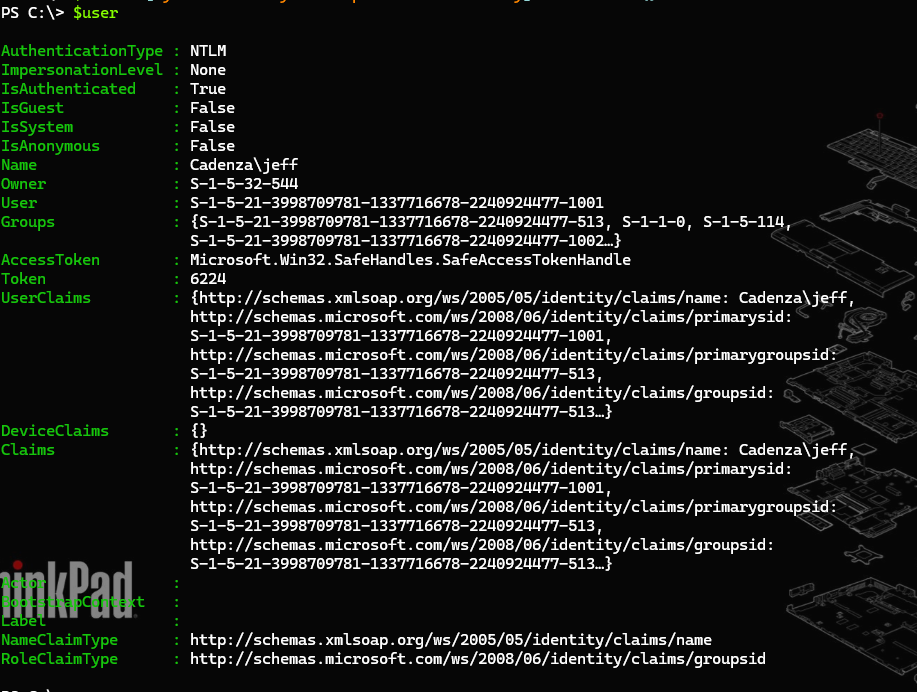
Using this object I can easily get the name and SID.
PS C:\> $user.name
Cadenza\jeff
PS C:\> $user.user

BinaryLength AccountDomainSid                          Value
------------ ----------------                          -----
          28 S-1-5-21-3998709781-1337716678-2240924477 S-1-5-21-3998709781-1337716678-2240924477-1001

PS C:\> $user.user.value
S-1-5-21-3998709781-1337716678-2240924477-1001
Another option might be to use whoami, converting the output to CSV which you can convert to an object.

For my purposes I'm going to create a custom object and append it to the CSV file.
[PSCustomObject]@{
    LogOn        = (Get-Date)
    LogOff       = $Null
    Runtime      = $Null
    User         = $user.Name
    SID          = $user.user.value
    Status       = 'Logon'
    PID          = $PID
    PSVersion    = $PSVersionTable.PSVersion.ToString()
    LanguageMode = $ExecutionContext.SessionState.LanguageMode
} | Export-Csv -Path $LogPath -Append -NoTypeInformation
I am excluding type information which makes it easier to import the file into Excel or a database. Again, you have to consider who is going to use the file and how.
Eventing Options
I could stop here and simply capture when a user logged on. But I would like to capture when they logged off as well. Of course, once I know that I can easily capture the session duration. To accomplish this, I'll set up an event subscription in the startup script.
The event subscription will watch for the PowerShell.Exiting event. When the event fires, I will execute this script block:
$cmd = @"
    `$history = Import-Csv $logPath
    `$current = `$history.Where({ `$_.PID -eq $pid })
    if (`$current) {
        `$current[0].Status = 'Logoff'
        `$current[0].LogOff = Get-Date
        `$current[0].Runtime = New-TimeSpan -Start `$current[0].LogOn -End `$current[0].LogOff
    }
    else {
        '[{0}] Failed to find history item for process id {1}' -f (Get-Date),$pid | Add-Content c:\logs\exit.txt
    }
    #Update the CSV file with updated data
    `$history | Export-Csv -Path $logPath -NoTypeInformation
"@
$action = [scriptblock]::Create($cmd)


