
PowerShell Remote Configuration Tricks
In this issue:
- Overview
- Introduction
- Set-PSSessionConfiguration
- StartupScripts
- Other Configurations
- ModulesToLoad
- Removing a Setting
- Summary
Overview
PowerShell remoting can be customized without creating a full-scale JEA profile. By adjusting session configurations, admins can run startup scripts and auto-import modules, making remote sessions feel like a familiar local environment.
Introduction
Last time I shared some thoughts on cross-version remoting in PowerShell. I showed you briefly how session configurations are used in traditional PowerShell remoting using the WSMan protocol. If I wasn't clear before, let me re-iterate that session configurations are not used with PowerShell remoting using ssh in PowerShell 7.
Today, I want to return to traditional session configurations and demonstrate how you might tweak them to your advantage. At the extreme you can create custom session configurations that lock down the remote session and limit what the user can do. This is the goal of Just Enough Administration (JEA). But I am not going to go that far. I merely want to demonstrate how to make small adjustments to a session configuration that might improve your remoting experience.
Set-PSSessionConfiguration
In Windows PowerShell on one of my laptops I have the default remote session configuration.
PS C:\> Get-PSSessionConfiguration microsoft.powershell

Name          : microsoft.powershell
PSVersion     : 5.1
RunAsUser     :
Permission    : NT AUTHORITY\INTERACTIVE AccessAllowed, BUILTIN\Administrators AccessAllowed,
                BUILTIN\Remote Management Users AccessAllowed
I am not going to create a new session configuration from scratch as you would with JEA. For that you would create a session configuration file with a .pssc extension. Rather, I want to make small adjustments to existing configurations using Set-PSSessionConfiguration.
I encourage you to run help Set-PSSessionConfiguration to read the help. You can make many adjustments with the command without resorting to creating a configuration file.
StartupScripts
Here's one tweak you might want to make. As I explained, when you are in a traditional PowerShell remoting session, there are no PowerShell profile scripts. In fact, $profile isn't even defined in a remoting session. However that's not to say you can't replicate the functionality by specifying a startup script.
PS C:\> Help Set-PSSessionConfiguration -Parameter StartUpScript

-StartupScript [<system.string>]
    Specifies the startup script for the configuration. Enter the fully qualified path of a PowerShell script. The specified script runs in the new session that uses the session configuration.

    To delete a startup script from a session configuration, enter an empty string ("") or a value of $null.

    You can use a startup script to further configure the user session. If the script generates an
    error, even a non-terminating error, the session is not created and the New-PSSession command
    fails.

    Required?                    false
    Position?                    Named
    Default value
    Accept pipeline input?       false
    Accept wildcard characters?  false
Instead of a traditional set of profile scripts, I can specify a script to run every time a new remote session is created. On the remote computer I have this script file I'll use to demonstrate.
#c:\scripts\StartSession.ps1
#this will be run in Windows PowerShell 5.1
#version 1.9.0

#configure the remote environment
$var = '123abc'
Import-Module PSScriptTools
function Get-LastBoot {
    [cmdletbinding()]
    [Alias("glb")]
    param()

    try {
        Get-CimInstance -class Win32_OperatingSystem -Property LastBootUpTime |
            Select-Object LastBootUpTime
    }
    catch {
        #this should never happen
        Write-Warning "There was an error: $($error[0].Exception.message)"
    }
} #end function
[void](New-PSDrive -Name T -PSProvider FileSystem -Root $env:temp)
[void](New-PSDrive -Name W -PSProvider FileSystem -Root c:\work)

Write-Host "[$($env:COMPUTERNAME)] You are logged on to a secure environment." -ForegroundColor magenta
The script defines a variable and a few PSDrives. It also defines a function and imports a module. Finally, it displays a message to the user using Write-Host. Do not have the script file write any object output. That's why I am using Write-Host. As you'll see, this script runs when I use Enter-PSSession as well as when I run Invoke-Command. That's why I don't want any script output to get co-mingled with output from Invoke-Command.
I suppose you could create a duplicate configuration and have one dedicated to interactive sessions, but that's beyond the scope of today's content. I want to add a startup script to the default microsoft.powershell configuration. I'll use Set-PSSessionConfiguration.
Set-PSSessionConfiguration -Name microsoft.powershell -StartupScript C:\scripts\StartSession.ps1
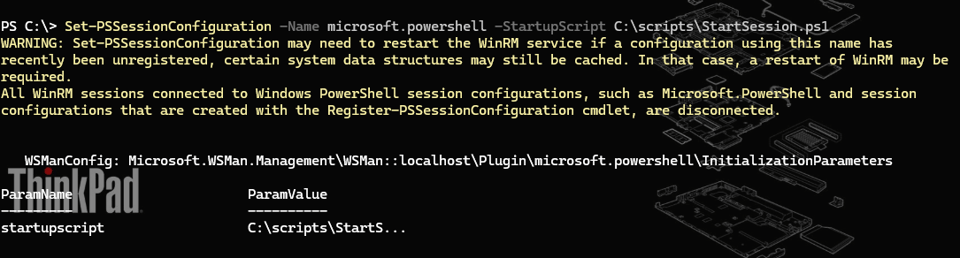
> This command must be run in an elevated PowerShell session.
I would error on the side of caution and restart the WinRM service, once I knew nobody was currently connected remotely.
Restart-Service WinRM
Now I see the change when I look at the configuration.
PS C:\> Get-PSSessionConfiguration microsoft.powershell

Name          : microsoft.powershell
PSVersion     : 5.1
startupscript : C:\scripts\StartSession.ps1
RunAsUser     :
Permission    : NT AUTHORITY\INTERACTIVE AccessAllowed, BUILTIN\Administrators AccessAllowed,
                BUILTIN\Remote Management Users AccessAllowed


