
July 2026 PowerShell Potluck
In this issue:
I hope those of you in the northern hemisphere are enjoying your summer. I've been able to enjoy a little downtime with the family. Of course, PowerShell marches on so let's wrap up the month with our now traditional PowerShell Potluck. Don't worry. I brought all the sides dishes.
Show-ObjectTree
You know I love creating and using terminal user interfaces (TUIs). I recently rediscovered command on my desktop that I had completely forgotten about. I think you'll find it very useful. It is called Show-ObjectTree. The command has an alias of shot. It is part of the Microsoft.PowerShell.ConsoleGuiTools module. The module requires PowerShell 7 and runs cross-platform.
The command is designed to display an object in a tree view. You might think of this as an interactive version of Select-Object and Get-Member.
Get-Service bits | Show-ObjectTree
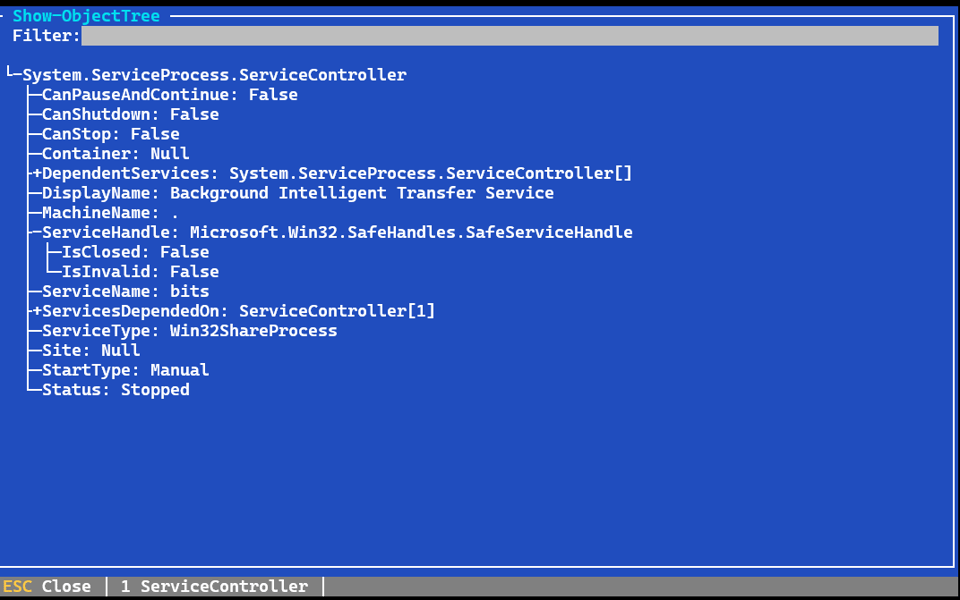
The object is collapsed by default. Click lines to expand.
Limitations
There is one requirement that isn't documented in the limited help. A command like this will run without error:
[PSCustomObject]@{
    PSTypeName = 'psFoo'
    Name       = 'Foo'
    Size       = 765432
    Version    = $PSVersionTable
    PID        = Get-Process -Id $pid | select ID, Name, WS, Path
} | Show-ObjectTree
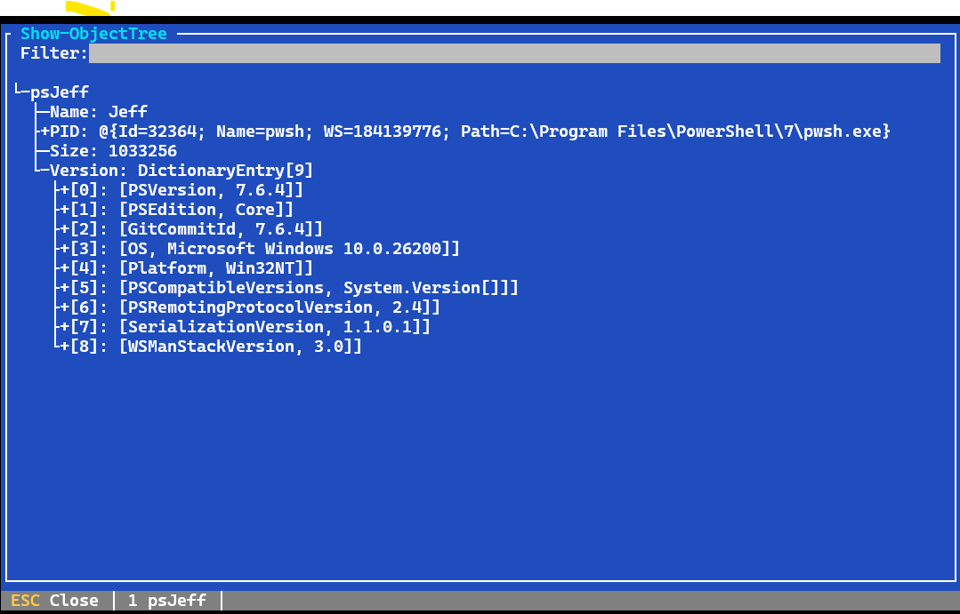
But you won't get any output in the TUI. The object type must be defined in your PowerShell session. One option is to define a PowerShell class.
class psJeff {
    [string]$Name = $env:USERNAME
    [int64]$Size = (Get-Random -min 1KB -max 1mb)
    [hashtable]$Version = $PSVersionTable
    [object]$PID = (Get-Process -Id $pid | select-object ID, Name, WS, Path)
}
Now I can create an instance of the object and show it.
PS C:\> $obj = [psJeff]::new()
PS C:\> shot -input $obj
MinUi
If you want to keep things simple, you can use a minimal user interface.
Get-Process -id $pif | Show-ObjectTree -MinUI
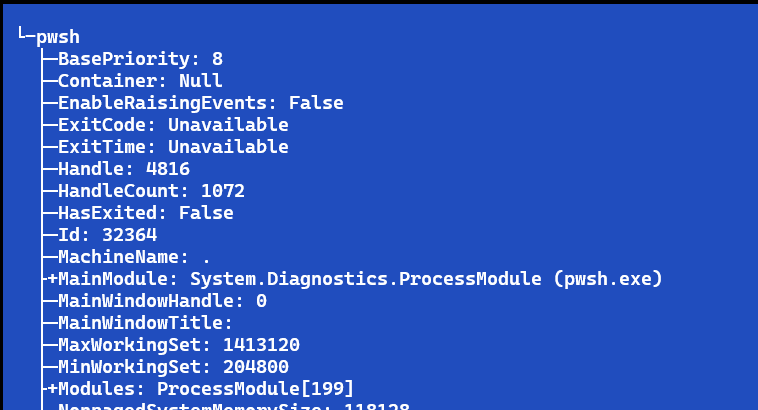
I'll let you play with the filtering feature. This is a handy alternative for discovering an object's properties and related values.
PSScriptTools Update
I was very busy this month updating the PSScriptTools module with 2 major releases. In addition to cleaning up code, adding aliases, and fixing problems, I also added several tools, a few of which originated from this newsletter.
Write-PSHorizontalRule
This command is used to write a horizontal rule line in the console. The rule line is colored using ANSI. You can specify any ANSI or PSStyle foreground sequence as the style. The default is a thin line, but you can create a thick like using the LineWeight parameter. The default line length is the console width.
Optionally, you can insert a title or caption. By default, the caption will be set to the left, but you can adjust the alignment and style.

Show-Enum
This command is intended to make it easier to discover an enum's names and values. We explored enums recently.
 PS C:\> Show-Enum DayOfWeek

       Typename: System.DayOfWeek

    Name      Value
    ----      -----
    Sunday        0
    Monday        1
    Tuesday       2
    Wednesday     3
    Thursday      4
    Friday        5
    Saturday      6
New-ANSIHyperLink
In PowerShell 7, you can use $PSStyle.FormatHyperLink() to create a string with a hyperlink. This method is based on an underlying ANSI escape sequence. This command uses that same sequence so that you can create a hyperlinked string in Windows PowerShell. The command also makes it easier to add other styling. By default, the link will have a solid underline.
Optionally, you can use AsString to see a text version of the string with escape sequence markers.
$l = New-ANSIHyperlink -DisplayText "about Jeff" -Link "https://jdhitsolutions.github.io" -Style "`e[3;93m"
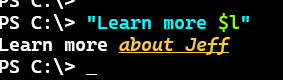
See the help examples for how you might leverage this command. I am using it with Get-PSScriptTools to add a link on each command that opens the corresponding online help location.
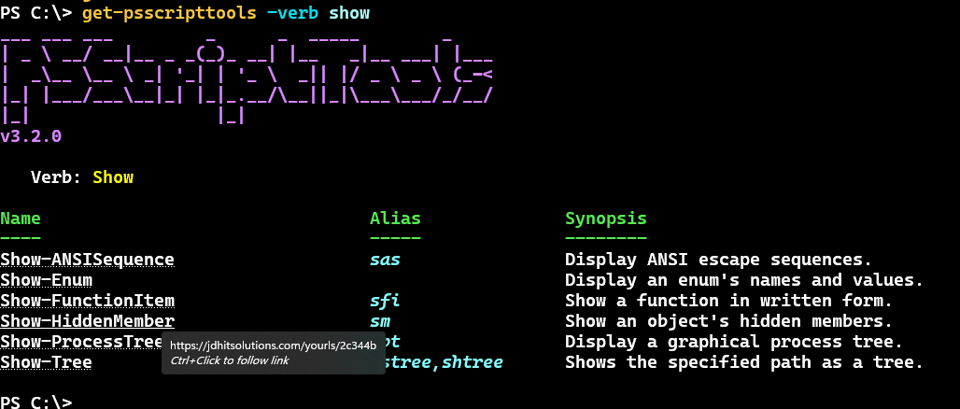
Get-ProcessTree
This command will display a process tree for a given process ID. The command will display a list of processes in order from parent to child. In other words, the oldest parent process will be listed first. The last process in the output will be the process you queried.
This command requires PowerShell 7.
PS C:\> Get-ProcessTree -id $pid

NPM(K)  PM(K)  WS(K) CPU(s)    Id SI ProcessName                 StartTime
------  -----  ----- ------    -- -- -----------                 ---------
   139 461996 458076  87.72 14264  1 explorer        7/28/2026 10:51:21 AM
    51 167088 172996  90.72 18684  1 WindowsTerminal 7/28/2026 10:53:03 AM
   160 175464 320320  31.67 32364  1 pwsh             7/28/2026 1:43:38 PM
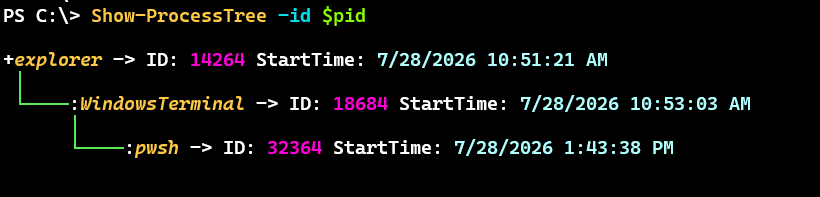
Show-ProcessTree
Or you can use an ANSI-enhanced view of a process tree.
Show-HiddenMember
By design, PowerShell will hide parts of an object that have very little relevance to scripting or interactive PowerShell use. Often, these are .NET properties and methods that are automatically added. You can see them using Get-Member -Force. This command is designed to simplify the process.
It is expected that you will pipe an object to this command like you do with Get-Member. It is also assumed that if you pipe multiple objects they are all of the same type. Only the first object will be processed.
In most cases, you'll see things that are hidden on all objects in PowerShell.
 PS C:\> "powershell" | Show-HiddenMember

       Type: System.String

    Name                    MemberType
    ----                    ----------
    pstypenames           CodeProperty
    psadapted                MemberSet
    psbase                   MemberSet
    psextended               MemberSet
    psobject                 MemberSet
    get_Chars                   Method
    get_Length                  Method
This will be more useful for custom object types where there may be hidden property. I'm working on an update to the PSIntro module which includes a new object type with a hidden member.
PS C:\> Get-PSIntroSettings | Show-HiddenMember -MemberType Properties

   Type: PSIntroSettings

Name                    MemberType
----                    ----------
pstypenames           CodeProperty
Path                      Property
This could be a handy tool to verify that hidden properties are indeed hidden.
Format-BorderBox
Use this command to display a block of text in a colored lined border box. You can use ANSI or PSStyle to specify the line color. The default is green.
Get-WindowsVersionString -Computername Cadenza -UseStyle | Format-BorderBox -BorderColor $PSStyle.Foreground.BrightMagenta

PSConfEU Interview

I've previously shared links to the content from this year's PSConfEU. At the end of the event, I sat down with one of the organizers to chat about the event and the PowerShell community in general. You can watch at https://youtu.be/ExlRYkv0IB4. And be sure to checkout the other content from the event.
MVP Year 20

Finally, it is Microsoft MVP renewal season. If you were on social media the last few weeks you probably saw a lot of announcements. I'm very proud to be renewed for my 20th year as a PowerShell MVP. PowerShell will be celebrating it's 20th anniversary (birthday?) this November, so yes, I have been around since the days when PowerShell only had 160+ commands., no remoting, no modules, and no PSGallery. It has been an amazing journey. Not only to see how PowerShell has grown, but the community as well. It has been my privilege to have helped people learn and expand their skills. I hope to do it for a little longer.
Scripting Challenge
Of course, the end of the month wouldn't be complete without a PowerShell scripting challenge. I think you might have fun with this one. In Windows PowerShell, we could use Get-Process and get processes from a remote computer. The connection was made using legacy remoting protocols that aren't supported in PowerShell 7. That's why you won't see a -Computername parameter in PowerShell 7.
For your challenge, I want you to write an alternative function that uses Get-CimInstance to use the Win32_Process class to get similar information but modeled after Get-Process. In other words, the function should be able to:
- Get all processes by default
- Get a process by name
- Get a process by ID
- include the user name
- query a remote computer by name
I'll let you decide how you want to format the results. Although the more you can make the output similar to Get-Process the better.
There are differences in how processes are defined in .NET vs CIM. You'll need to keep that in mind. Don't worry about capturing FileVersionInfo or ModuleInfo like you see with Get-Process. This information shouldn't be the output of the command anyway. If you really want to be challenged, you could create separate commands to get that information.
Summary
As always, I hoped you learned a few things this month. I also hope you are trying out things I show you. The best way to learn is to do.
See you next month.


Add a comment: