
August 2026 PowerShell Round Up
In this issue:
The summer (in the Northern hemisphere) is just about to an end. Soon it will be back to business full time. Although this newsletter is all business all the time! Let's get right to the monthly round up of PowerShell tidbits and morsels.
PSVersion 7.6.5
Microsoft continues a healthy release cadence for PowerShell. This month saw the release of PowerShell version 7.6.5. According to the release notes there aren't many major changes. But I still encourage you to update.
By the way, if you are using my (now archived) PSReleaseTools module, the Get-PSReleaseCurrent command may not show the absolute latest release as Microsoft may be servicing multiple branches or what they are considering to be stable. The PSReleaseTools module is no longer being maintained so don't expect the behavior to change. Although, you are welcome to fork the module. Or if someone would like to take ownership and put it back into production, I'm open to that as well.
Show-Syntax
Lately, I've found myself running commands like Get-Command Get-Process -Syntax more frequently. I find this to be more succinct than running Get-Help. Of course, since all I'm doing is presenting information, I decided to enhance the output with commands from the pwshSpectreConsole module. I've shared a number of tools I've written that take advantage of this module.
What I wanted to see is the command syntax, but I also wanted mandatory parameters to be highlighted. From the PSScriptTools module, I can use Get-ParameterInfo to identify mandatory parameters.
PS C:\> Get-ParameterInfo Get-Item | Where Mandatory

   ParameterSet: LiteralPath

Name            Aliases         Mandatory    Position    Type
----            -------         ---------    --------    ----
LiteralPath     PSPath,LP       True         Named       System.String[]

   ParameterSet: Path

Name            Aliases         Mandatory    Position    Type
----            -------         ---------    --------    ----
Path                            True         0           System.String[]
To achieve the desired result, I can parse the output from Get-Command as a string and replace the mandatory parameter names with SpectreConsole color markups.
#requires -version 7.5
#requires -module pwshSpectreConsole
#requires -module PSScriptTools

Function Show-Syntax {
    [cmdletbinding()]
    [OutputType('Spectre.Console.Panel')]
    [alias('shsyn')]
    Param(
        [Parameter(
            Position = 0,
            Mandatory,
            ValueFromPipeline,
            HelpMessage = "The name of a PowerShell cmdlet or function"
        )]
        [ValidateNotNullOrEmpty()]
        [string]$Name
        )

    Begin {
        #define an internal function version
        $ver = "1.2.1"
        Write-Verbose "[$((Get-Date).TimeOfDay) BEGIN  ] Starting $($MyInvocation.MyCommand) v$ver"
        Write-Verbose "[$((Get-Date).TimeOfDay) BEGIN  ] Running under PowerShell version $($PSVersionTable.PSVersion)"
        #define the highlight color
        $highLight = "Fuchsia"
        #define panel border color
        $borderColor = "SeaGreen2"
    } #begin

    Process {
        #if alias, get the command
        Try {
            $cmd = Get-Command -Name $Name -ErrorAction Stop
            if ($cmd.CommandType -eq 'alias') {
                $Name = $cmd.ResolvedCommandName
                Write-Verbose "[$((Get-Date).TimeOfDay) PROCESS] Resolved $($cmd.Name) to $Name"
            }
            else {
                $Name = ConvertTo-TitleCase $Name
            }
        }
        Catch {
            throw $_
        }
        $cmdVer = (Get-Command $Name).Version
        Write-Verbose "[$((Get-Date).TimeOfDay) PROCESS] Processing $Name"
        #get syntax and save as string

        $syntax = Get-Command -Name $Name -Syntax
        Write-Information $syntax
        #get mandatory parameters
        $params = (Get-ParameterInfo -Command $name).Where({$_.Mandatory}).Name | Select-Object -Unique
        if ($params) {
            Write-Information $params
            #escape brackets if mandatory parameters found
            $syntax = $syntax.Replace("[","[[").Replace("]","]]")
            foreach ($param in $params) {
                Write-Verbose "[$((Get-Date).TimeOfDay) PROCESS] Highlighting mandatory parameter $param"
                #define a regex pattern to match on the parameter name and optional object type
                [regex]$rx = "(\[\[)?-$param((\]\])?\s\<\w+(\[\[\]\])?\>)?"
                Write-Information $rx
                $paramItem = $rx.Match($syntax).Value
                Write-Information $paramItem
                #insert SpectreConsole highlighting
                $syntax = $syntax.Replace("$paramItem","[$highLight]$paramItem[/]")
            }
        }
        Write-Information $syntax
        $title = "[gold1 italic]{0}{1}[/] PS{2}" -f $Name,$($($cmdVer)?" v$cmdVer":$null),$PSVersionTable.PSVersion
        $syntax | Format-SpectrePanel -Title $Title -Color $borderColor -Expand
    } #process

    End {
        Write-Verbose "[$((Get-Date).TimeOfDay) END    ] Ending $($MyInvocation.MyCommand)"
    } #end
} #close Show-Syntax
I'm using regular expressions to replace the text.
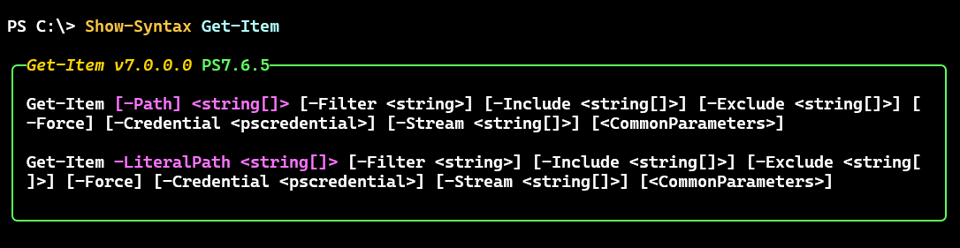
The output also includes the command's module version and the PowerShell version as syntax might change from version to version. I like that I can now easily see mandatory parameters in the syntax.
I've hardcoded the style options but you could easily parameterize them.
PSOh.io
The PowerShell community continues to grow which gives you an opportunity to get involved. A new virtual user group has been organized in Ohio. You can find the group online using the very clever URL https://psoh.io/. Their first major meeting is 5 September at 7:00PM Eastern. PowerShell MVP and author Matthew Dowst will be busting some PowerShell myths. This is a free, virtual event but you should register at https://www.meetup.com/powershellohio/events/316089030/.
I will be presenting on 1 October on ways to add value to your PowerShell functions. The meeting won't be officially scheduled until after the September presentation. Keep an eye on the group's site.
TiPS
I came across a PowerShell module that offers tips on using and learning PowerShell. The module supports Windows PowerShell and PowerShell 7. It should also work cross-platform, although I don't know if every tip is applicable. To use, install the module from the PowerShell Gallery.
Install-PSResource -Name tiPS
You can get a random tip by running Get-PowerShellTip:
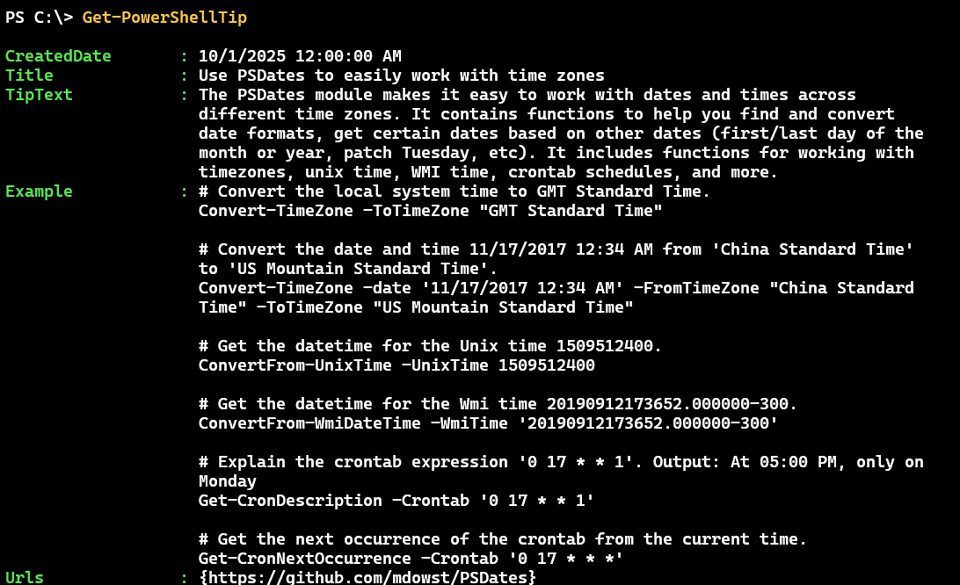
The output is a rich object which you could parse or format as you want. However, the better approach is to use Write-PowerShellTip.
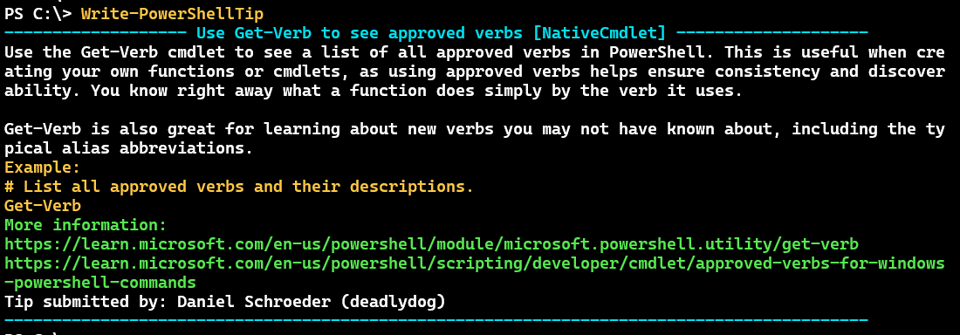
Now you have formatted and styled output.
Even better you can update your profile to display a new tip daily. Run these commands:
Add-TiPSImportToPowerShellProfile
Set-TiPSConfiguration -AutomaticallyWritePowerShellTip Daily -AutomaticallyUpdateModule Weekly
The command will add this line to your PowerShell profile script for CurrentUserAllHosts.
Import-Module -Name tiPS # Added by tiPS to get automatic tips and updates.
You'll get a formatted tip every time you start PowerShell, but only once a day. Although you can set the configuration to a different interval.
Set-TiPSConfiguration -AutomaticallyWritePowerShellTip EverySession
Possible values for the -AutomaticallyWritePowerShellTip parameter are Never, which is the default, EverySession, Daily, Weekly, Biweekly, and Monthly.
You can always manually edit your profile script or run Remove-TiPSImportFromPowerShellProfile. If you decide to uninstall the module, make sure you've removed the tiPS entry from your profile script, otherwise you will get "module not found" error every time.
Are you in a hurry? Run this to read each tip:
(Get-PowerShellTip -allTips).GetEnumerator() | Select-Object -expand value | Foreach-Object { cls; tips -id $_.id ; pause }
For more details, read command help or the README in the GitHub repository.
Scripting Challenge
Finally, I need to give you a challenge to help extend your PowerShell scripting skills.
The commands in the ConfigDefender module aren't especially user friendly. We can get similar information from the AntiMalwareHealthStatus WMI class in the root/Microsoft/SecurityClient namespace.
Your challenge is to write a PowerShell function to query this namespace, including the ability to query a remote computer.
The output should at a minimum include:
- The computer name
- The enabled status
- The product status
- The spyware signature version
- the antivirus signature version
- the time of the last quick scan
- the time of the last full scan
Allow the user to get details from the last full scan, last quick scan, antivirus properties, or antimalware properties. You might do this in one command, or use distinct commands.
Treat all datetime strings as local datetime values.
For bonus points, decipher the ProductStatus and scanning sources from integers to descriptions, i.e. System.
Custom formatting files are always a bonus. You don't have to use the native property names if you think something else would be easier for the user. I'll leave that to you.
Summary
And that should wrap up the summer. As always, thank you for your support. If you would like to update your subscription to learn even more, use the links in the email footer.


Add a comment: