
Solving The Cim Process Challenge
In this issue:
There is only a little bit of the month left, so we need to look at a possible solution to last month's PowerShell scripting challenge.
For your challenge, I wanted you to write an alternative function for Get-Process using Get-CimInstance and the Win32_Process class to get similar information, but modeled after Get-Process. In other words, the function should be able to:
- Get all processes by default
- Get a process by name
- Get a process by ID
- include the user name
- query a remote computer by name
You can decide how to format the results, although the more you can make the output similar to Get-Process the better.
You need to bear in mind that there are differences in how processes are defined in .NET vs CIM. Don't worry about capturing FileVersionInfo or ModuleInfo like you see with Get-Process. This information shouldn't be the output of the command anyway. If you really want to be challenged, you could create separate commands to get that information.
Feel free to stop reading now and see what you can come up with.
Process by ID
Let's start by getting a single process. This is how we would accomplish this with Get-Process.
PS C:\> Get-Process -id $pid

 NPM(K)    PM(M)      WS(M)     CPU(s)      Id  SI ProcessName
 ------    -----      -----     ------      --  -- -----------
    162   125.92     276.37      13.84   13516   2 pwsh
Unfortunately in PowerShell 7 we can no longer query a remote computer. You could use PowerShell remoting, but then we wouldn't have a challenge!
We can get the same information using Get-CimInstance.
PS C:\> $ComputerName = $env:ComputerName
PS C:\> Get-CimInstance -ClassName win32_Process -Filter "ProcessID=$pid" -ComputerName $ComputerName

ProcessId Name     HandleCount WorkingSetSize VirtualSize   PSComputerName
--------- ----     ----------- -------------- -----------   --------------
13516     pwsh.exe 1053        288530432      2341436002304 CADENZA
The object formatting is obviously different but maybe I can address that later.
Getting all processes is matter of not filtering.
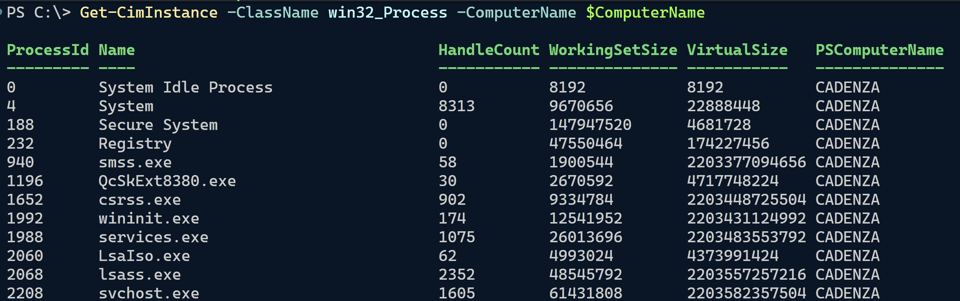
Adding Username
I assume you know how to get the associated user with Get-Process.
PS C:\> Get-Process -id $pid -IncludeUserName

     WS(M)   CPU(s)      Id UserName                       ProcessName
     -----   ------      -- --------                       -----------
    275.99    16.22   13516 Cadenza\jeff                   pwsh
We can get the same information from WMI/CIM by invoking the GetOwner() method on a Win32_Process object.
PS C:\> Get-CimInstance -ClassName win32_Process -filter "ProcessID=$pid" -ComputerName $ComputerName | Invoke-CimMethod -name GetOwner

User Domain  ReturnValue PSComputerName
---- ------  ----------- --------------
jeff Cadenza           0 CADENZA
Here's how I might use this. First, I'll define a few things I'll need.
#define a script block
$getUser = {
    $r = Invoke-CimMethod -InputObject $_ -MethodName GetOwner
    $r.ReturnValue -eq 0 ? "$($r.domain)\$($r.user)" : $null
}
#define a set of parameters to splat to Get-CimInstance
$splat = @{
    ClassName    = 'win32_Process'
    filter       = "ProcessID=$pid"
    ComputerName = $ComputerName
}
Then I can use these elements in my command.
PS C:\> Get-CimInstance @splat | Select-Object ProcessID,Name,HandleCount,WorkingSetSize,
VirtualSize,@{Name="Computername";Expression = {$_.CSName}},
@{Name = 'Username'; Expression = {Invoke-Command $getUser}}

ProcessID      : 13516
Name           : pwsh.exe
HandleCount    : 1127
WorkingSetSize : 344879104
VirtualSize    : 2341481979904
Computername   : CADENZA
Username       : Cadenza\jeff
Wildcard Filtering
Finally, let's look at filtering on a process name. With Get-Process you can use the standard wildcard character.
PS C:\> Get-Process -name one*

 NPM(K)    PM(M)      WS(M)     CPU(s)      Id  SI ProcessName
 ------    -----      -----     ------      --  -- -----------
     55   109.64     163.57     137.77   21520   2 OneDrive
     39    92.71      35.76     183.53   31264   2 OneDrive.Sync.Service
You can do similar filtering with WMI/CIM, except the wildcard character is % and you need to use the LIKE operator.
PS C:\> Get-CimInstance -ClassName win32_Process -filter "Name LIKE 'one%'"

ProcessId Name                      HandleCount WorkingSetSize VirtualSize
--------- ----                      ----------- -------------- -----------
21520     OneDrive.exe              1076        171544576      2204055236608
31264     OneDrive.Sync.Service.exe 753         34914304       2204127555584
The operator is not case-sensitive, but I like to make it upper case so that it stands out. Remember, this is a WQL operator and not a PowerShell operator so there is no dash.
When designing a function, don't force the user to do your work, or expect them to know exotic details like the WQL wildcard character. The normal PowerShell experience is to use *.
[Parameter(
    ParameterSetName = 'Name',
    Position = 0,
    HelpMessage = 'Specify a process name. If an executable, specify the full name, i.e. notepad.exe, or use a wildcard.'
)]
[SupportsWildcards()]
[ValidateNotNullOrEmpty()]
[string]$Name = '*'
You should handle the translation in your code.
switch ($PSCmdlet.ParameterSetName) {
    'Name' {
        $Name = $Name.Replace('*', '%')
        $cimParams['Filter'] = "Name like '$name'"
    }
    'Id' {
        $cimParams['Filter'] = "ProcessID = $id"
        }
}
Don't make the user jump through hoops to use your function.


