Edition 9 – Searching through the Epstein files – here's how
Hey there, Hakan here.
My main roadblock when trying to learn Python was that I never knew what I could use it for. So I would learn how to loop from numbers 0 to 100, but it felt so far removed from the "doing journalism" part. I gave up very often.
As always, we welcome your feedback at readwritenewsletter@proton.me.
So for this edition, I'm going to assume you're interested in Python, but don't know what it could be useful for. Basically me, from ten years ago. After reading this, you'll have a copy-and-pasteable search-tool that is applicable immediately. And by that I mean: I work at paper trail media, and when the DoJ-disclosures dropped in between the years, this is the tool I built and used to work through the files.
(If you don't need that type of walkthrough, you can skip ahead to the Basic search-part of this newsletter.)
My colleague Sophia Baumann has published a behind-the-scenes look at papertrail's reporting in our weekly newsletter here. It's in German.
The only thing I am going to assume for this to work is that you have pyton3 installed on your laptop/desktop/client. (Python Wrangler is a very helpful tool to help you get started.) If you want, you can run all of these commands in the newsletter in a virtual environment (pipenv or uv), but if this sounds confusing and you're zoning out already, just ignore it, it's not important.
After opening up the Terminal on your Macbook, this is what you're going to type.
cd Desktop && mkdir epstein_files && cd epstein_files
This line changes into the Desktop folder, "makes" a directory (mkdir) called epstein_files and moves you into that folder (cd – change directory – is equal to doubleclicking with a mouse).
Download the files
Now, let's download the Epstein files from the website of the DoJ (Epstein Files Transparency Act (H.R.4405)). It's going to be all zipfiles, which you'll unzip and move into the newly created folder.
The final folder structure of epstein_files - after you have downloaded the three python scripts I'm going to talk about further below – should look look like this. The Disclosure-files are on the same level as the Python scripts.
convert_pdf_to_text.py
search_names.py
group_findings.py
list_of_names.txt
└── VOL00001/
    ├── DATA/
    ├── IMAGES/
    │   └── 0001/
    │       └── EFTA00000001.pdf
    │       └── EFTA00000002.pdf
    │       └── EFTA00000003.pdf
└── VOL00002/
    ├── DATA/
    ├── IMAGES/
    │   └── 0001/
    │       └── EFTA00003159.pdf
    │       └── EFTA00003160.pdf
    │       └── EFTA00003161.pdf
    ├── NATIVES/
(and so on and so forth)
That's almost it. For the script to run, you need to install one final thing, a Python library called fitz/PyMuPDF. Back in the Terminal, type this.
pip3 install PyMuPDF
Fitz is a high performance Python library for data extraction and I can highly recommend it. I've used it numerous times, many hits, few misses. I'm sure there are smarter ways to do it, but here's my take at converting PDF files into text. The python-file is called convert_pdf_to_text.py. You can just grab it from the link, there's a button called Download raw file. Store the python script in epstein_files .
I'm not going to explain that bit of the code – I did use Claude Code quite a bit – but the one thing I want to mention is the unicodedata library. I specifically recommend watching this video which deals with diacritics and how complicated things can get real quick.
Sidebar: How computers deal with diacritics is of special interest to me because that was famously the one thing that enabled german law enforcement to find GRU-hacker Dmitriy Badin after he and his gang had hacked their way into the German Parliament. Badin, according to law enforcement, wrote a piece of malware that failed to exfiltrate data because he forgot that a file-path on a German-language desktop might include an umlaut, in this case an "ü". His script failed, he had to rewrite it, then made a mistake, gave away his username, ended up with an arrest warrant.
There's one line (it's number NEIN, as germans love to say) in the code which needs an adjustment. You need to change line 9: BASE_PATH = Path("/path/to/folder"). Instead of /path/to/folder type in the location where you have stored all the files you just downloaded, e.g. Path("/Users/yourname/Desktop/epstein_files"). Run the script like so in your Terminal.
python3 convert_pdf_to_text.py
If everything goes according to plan, you will see something like this.
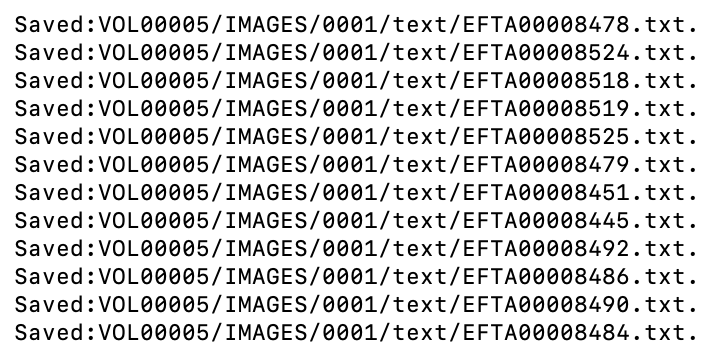
If any of the scripts throw an error message, feel free to send me an email with the error message: readwritenewsletter@proton.me. Your go-to AI-thingie might be another solution.
Basic search for the text files
Within each folder, you now have a newly created subdirectory called text, full of, you guessed it, text-files. Many of the PDF-files consist solely of pictures, so the text-files might look weird, empty even. Cross-check with the actual PDF to see what the file was in the first place. Also, there are a lot of poor-quality scanned pages. While PyMuPDF is great, low-resolution scans from decades ago are a problem in 2026.
However, now that we have those text-files, we can move to the initial stage, which is: Finding things! First of all, open up this link in your browser and download the script, store it as search_names.py.
Searching on your terms
Additionally, create a file called list_of_names.txt. Store it in the same directory as the script, see the folder structure I outlined above. In that file, type the name(s) you're interested in and hit Enter. Let's say you chose these three names.
Trump
Donald Trump
Department of Justice
The first line would find only Trump, the second line would only include results for Donald Trump and the third line would look for Department of Justice. You get the idea.
By default, this script is case-sensitive, so if Epstein wrote names without capitalizing them (clinton instead of Clinton), this script won't find those. In line 7 of the search_names.py file, you will find a so-called flag which allows you to switch from case sensitive to case insensitive: Just change CASE_SENSITIVE = False to True or vice versa (Ironically, True and False are case sensitive here and everywhere in Python, so watch out).
Also, I didn't know about ProcessPoolExecutor, that one's from Claude Code. It speeds up the process. Depending on how many names are in list_of_names.txt, the difference is going be very noticeable.
Here's how you run the script
python3 search_names.py
This script will create a search pattern – just the name, basically – and go through each file and see if it shows up. If it does, then it will include the context. If you look at the search_names.py-script, lines 93 and 94, they read before=10 and after=10, which means 10 lines after the one with the keyword found and 10 lines plus. If that's too much/too little, you can adjust those numbers accordingly. The results are going to be stored as jsonl-file. This is what it'll look like.
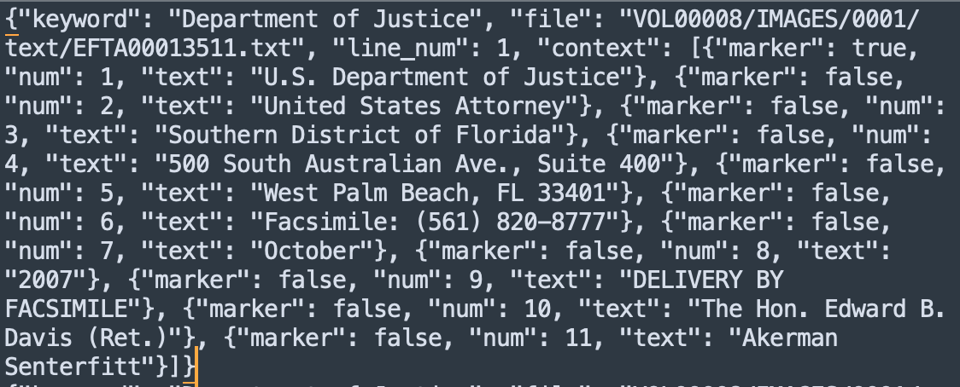
Group the findings
Nothing you need to worry about, the next script will turn all those files back into something you and I can easily read. Here's the script, save it under group_findings.py. In short: It should open up the the jsonl-file we just created in each folder and then do two things.
- create one text file with all the results from that folder
- create another one file called
result.txtthat has all the results, across all files. This file is stored in the mainepstein_files-folder.
Here's what it should look like. First, the file within each folder.
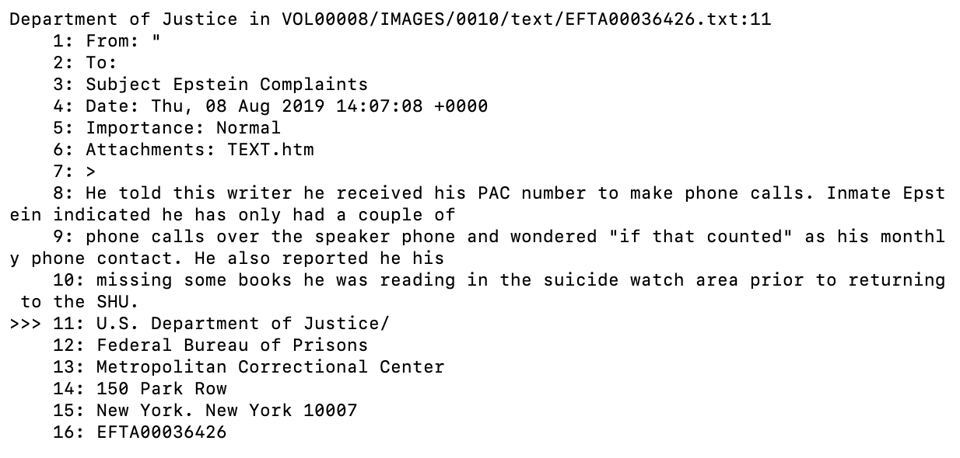
You can see that the search term Department of Justice showed up in VOL00008/IMAGES/0010/EFTA00036426 in line 11 and then the context around it, lines 1 to 11 and 11 to, well, 16, because that's where I cropped the image, but it would continue until line 21.
And here's what results.txt should look like
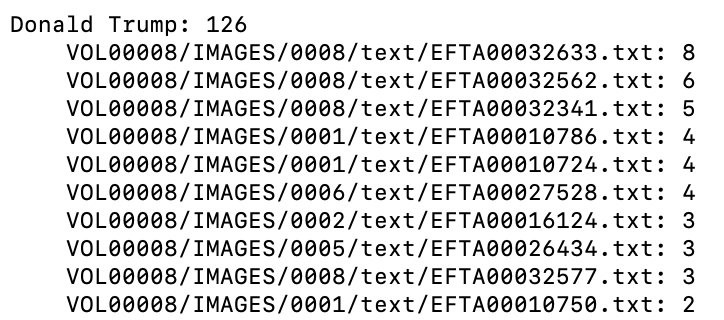
This one is pretty self explanatory. If this is what you're seeing, then everything worked fine. Adjust the scripts as needed.
Bye for now!
This final part is aimed at those who enjoyed the introduction and appreciated the walkthrough.
The sheer joy
I specifically didn't want to do a line-by-line explanation of the code, because to me personally that is the next step. If you ran this script and if it really produced results, you should feel a rush of possibility. At least, that's what happens with me, every time. The sheer joy of doing things that feel like magic, even if they're as ordinary as searching for names. And in that case, learning to code to enhance your reporting might be worth it.