
30 Days of Vibe Coding - Day 9 - TaskTUI
A terminal-based personal kanban board with vim-style navigation and an MCP server for Claude Code integration, built with Go and Bubble Tea.
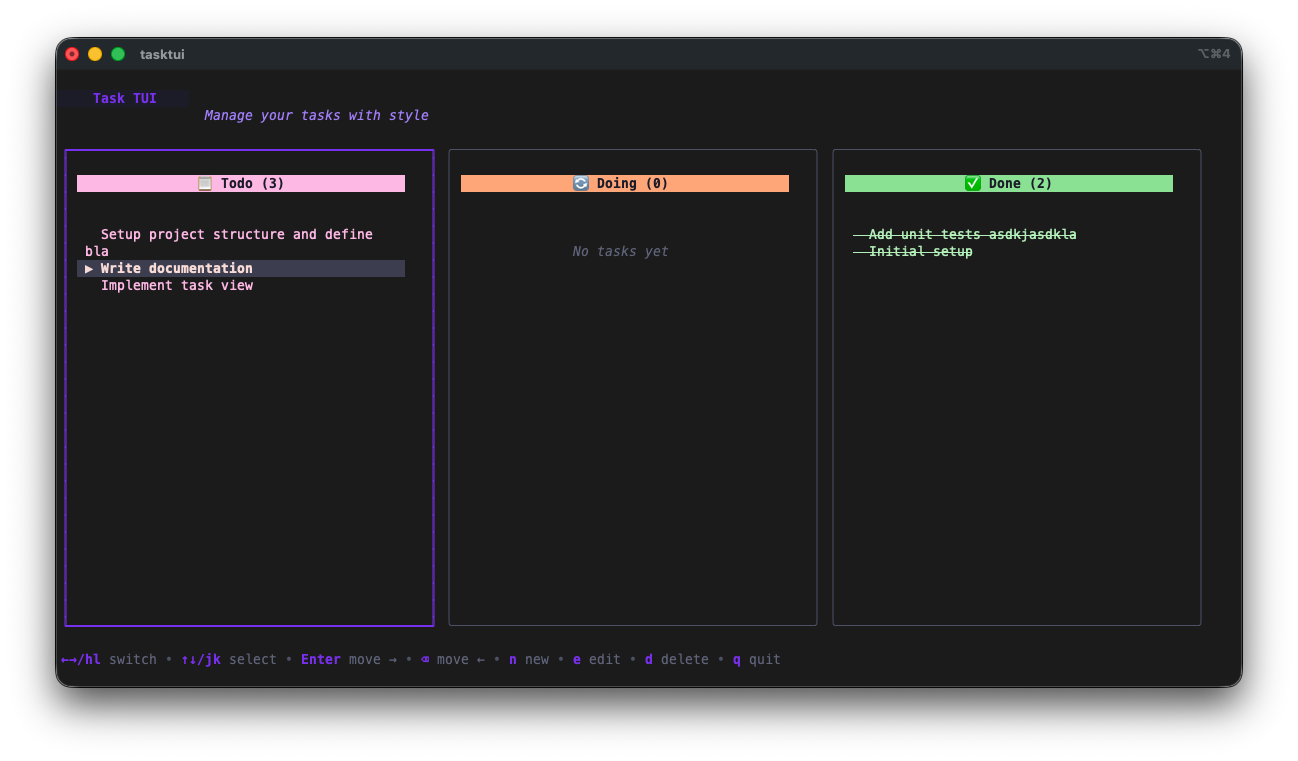
A terminal-based personal kanban board with vim-style navigation and an MCP server for Claude Code integration, built with Go and Bubble Tea.
Day 9. I wanted a task board that lives in the terminal and that Claude can also read and write to.
The Prompt
> "Build a terminal kanban board in Go with an MCP server so Claude can manage tasks."
That was the seed. Watchfire expanded it into 13 tasks covering the full scope: three-column board with vim navigation, Bubble Tea UI, JSON persistence, a file watcher for auto-refresh, an MCP server mode for AI integration, CLI commands for quick task management, and GoReleaser for distribution.
How It Was Built
The 13 tasks took it from nothing to a fully packaged release. The first nine tasks built up the core kanban board: the board model, card rendering, drag-and-drop between columns, and all the Lip Gloss styling to make it look good in the terminal. Task 9 added the MCP server mode. Task 10 brought in real-time file watching. The last three handled CLI commands, GoReleaser config for cross-platform binaries, and the README.
The architecture splits cleanly into packages: task for the domain model, storage for JSON persistence, watcher for filesystem monitoring, mcp for the MCP server, and cli for all the Cobra commands. The entry point routes between three modes depending on how you invoke it: TUI mode (default), CLI mode (with subcommands like add or list), and MCP server mode (with tasktui mcp).
What I Got
The kanban board looks great in the terminal. Three columns with color-coded headers: red/pink for Todo, orange/yellow for Doing, green for Done. Each card shows the task title and description. The selected card gets a highlighted border. You navigate with h/l to switch columns and j/k to move between tasks within a column.
Inline task creation. Press n and a modal pops up where you type the task title and description. It drops right into the Todo column. Press e to edit an existing task the same way.
The input dialog has proper field navigation. Tab between title and description, Enter to confirm. It stays out of your way and works exactly like you'd expect.
Moving tasks between columns is instant. Press Enter or Space to advance a task forward (Todo to Doing to Done), or Backspace to move it back. You can also use Shift+H and Shift+L to move tasks left and right explicitly. The board has full undo/redo support too.
...
---
Read the full article →


Add a comment: