
30 Days of Vibe Coding - Day 8 - NotesTUI
A terminal-based markdown note-taking app with full-text search, categories, themes, and an MCP server for AI integration.
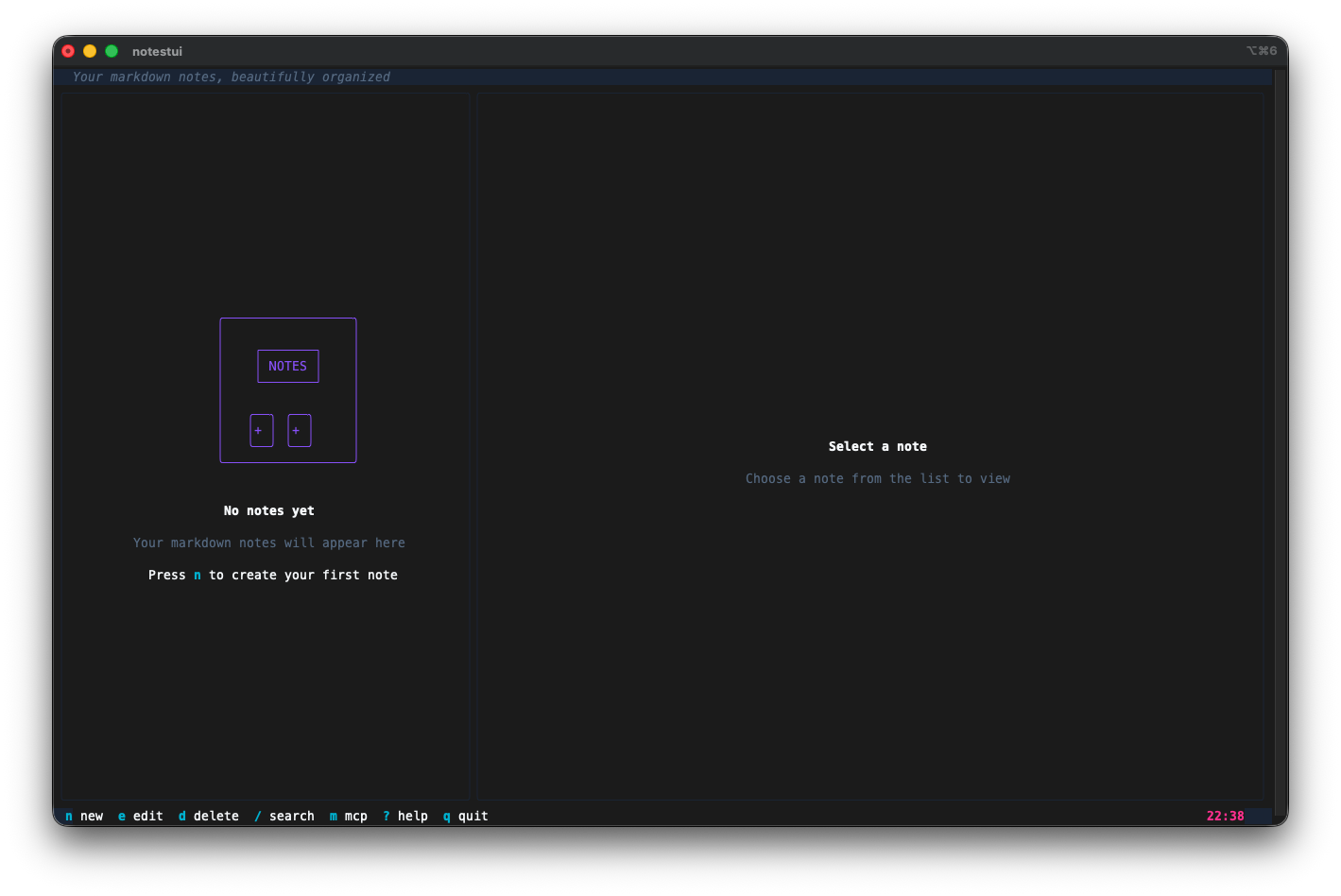
A terminal-based markdown note-taking app with full-text search, categories, themes, and an MCP server for AI integration.
Day 8. Yesterday I built a TUI for git repos. Today I built one for my brain.
The Prompt
> "Build a terminal notes app in Go with markdown support and an MCP server."
That was the starting point. Short, vague, barely a spec. I fed it into Watchfire and let it expand the idea into a full product definition: in-app editing with Glamour for markdown preview, SQLite with FTS5 for full-text search, categories, tags, multiple color themes, vim keybindings, MCP server mode, GoReleaser, GitHub Actions CI, install scripts. All of that came from Watchfire taking my one-liner and turning it into 36 tasks.
How It Was Built
The first 30 or so tasks built the core notes app: creating and editing notes in the terminal, markdown rendering with Glamour, full-text search powered by SQLite FTS5, categories, tags, multiple themes, and vim-style keybindings. The whole thing stores data in ~/.notestui/ with a SQLite database and a YAML config file.
Then the last batch of tasks handled the distribution side. GoReleaser config for cross-platform builds, GitHub Actions for CI, an install script that auto-detects your OS and architecture, and an uninstall script to clean everything up. By the end it had a proper README and was ready to ship as a standalone binary.
The MCP server mode was the interesting part. Running notestui serve starts a Model Context Protocol server that exposes your notes to AI tools. List notes, search, create, update, delete, all through MCP. That means Claude Code or any MCP-compatible AI assistant can work with your notes directly.
What I Got
The empty state is friendly. First time you run it you get a clean welcome screen telling you to press n to create your first note. The bottom bar shows all the keybindings at a glance.
The editor is built right in. Press n and you get fields for title, tags, and content. Tab moves between fields, Ctrl+S saves. No spawning an external editor, everything stays inside the TUI.
Split-pane layout. Notes list on the left, preview on the right. Tags show up as colored badges under the title. The status bar at the top says "Your markdown notes, beautifully organized" which is a nice touch the AI added on its own.
...
---
Read the full article →


Add a comment: