30 Days of Vibe Coding - Day 10 - Miro Clone
A local-first infinite canvas whiteboard with shapes, sticky notes, connectors, layers, and presentation mode.
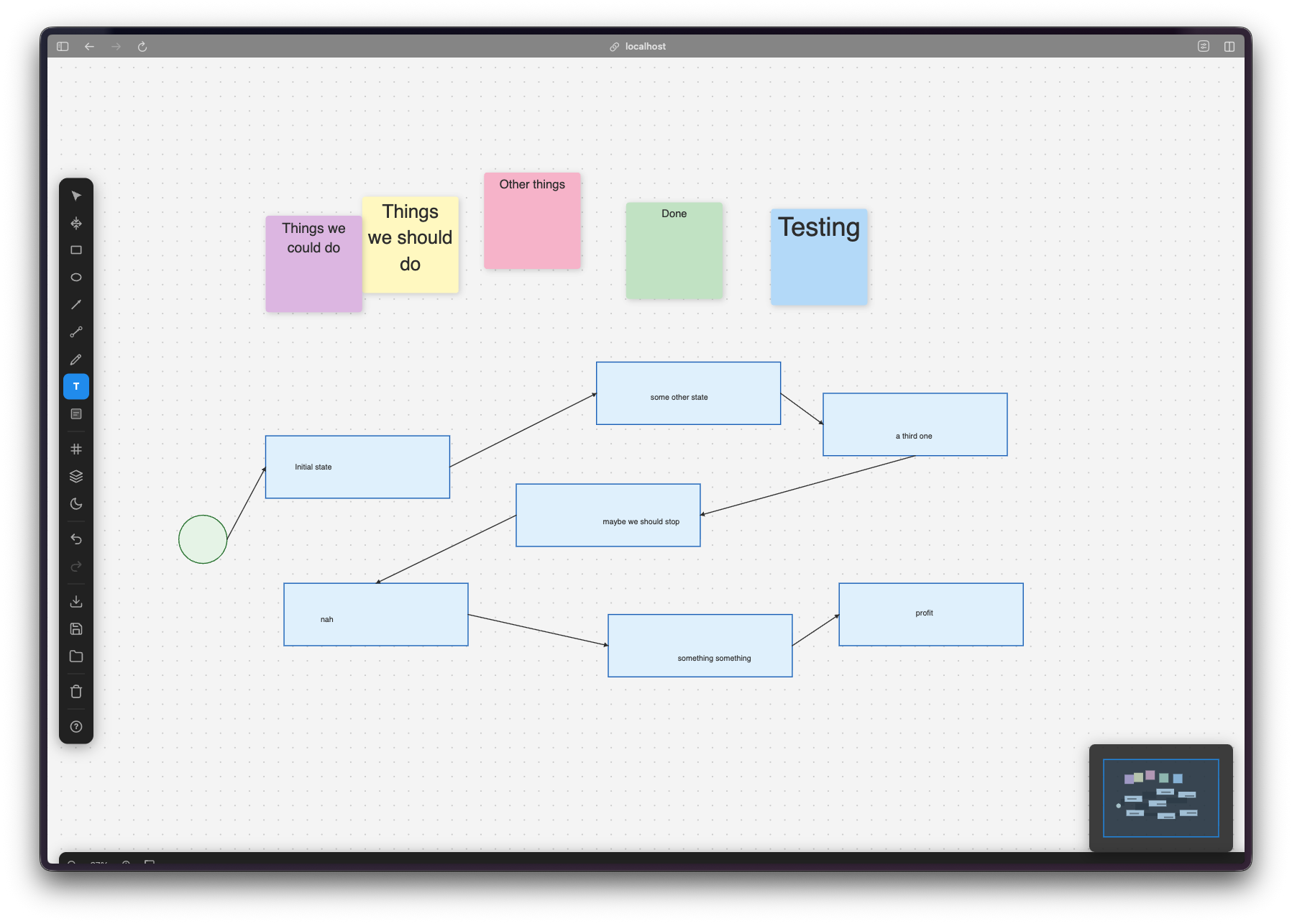
A local-first infinite canvas whiteboard with shapes, sticky notes, connectors, layers, and presentation mode.
Day 10. I asked for a Miro clone. A full infinite canvas with shapes, connectors, layers, and a presentation mode.
The Prompt
> "Build an infinite canvas whiteboard app like Miro. Local-first, TypeScript, HTML5 Canvas."
That was the starting point. Everything else came from the task breakdown.
How It Was Built
This one was big. Watchfire split it into 27 tasks, which is the most I've seen so far in this challenge. The breakdown covered:
1. Shapes and drawing tools (rectangles, ellipses, lines, arrows)
2. Freehand pen tool
3. Text elements
4. Sticky notes with color coding
5. Smart connectors between shapes
6. Grid and snap-to-grid
7. Undo/redo history
8. Export to PNG and JSON
9. Layers panel
10. Color picker
11. Zoom and pan controls
12. Keyboard shortcuts for everything
13. Dark mode
14. Welcome screen with onboarding
15. Presentation mode
27 tasks is a lot. But they were well scoped. Each one added a specific piece of functionality without breaking what came before.
What I Got
This thing is surprisingly full-featured.
It feels like a real whiteboard tool. You open it up and there's an infinite canvas with a dot grid. You can pan around, zoom in and out, drop shapes, write text, connect things with arrows. The basic whiteboard loop just works.
There's a proper welcome screen. It shows you the keyboard shortcuts and how to get started. You can dismiss it and check a box to not show it again. Small touch, but it makes the app feel finished.
Connectors are smart. You draw a line between two shapes and it snaps to connection points. Move a shape and the connector follows. This is the kind of feature that separates a drawing app from a diagramming tool.
The layers panel actually works. Every element shows up in a sidebar list. You can see the hierarchy, reorder things, and manage what's on top of what. It's like a mini Figma layers panel.
Keyboard shortcuts for everything. V for select, R for rectangle, O for ellipse, P for pen, T for text, S for sticky note. Plus all the standard stuff like Cmd+Z for undo, Cmd+Shift+Z for redo. There's a full shortcuts overlay you can pull up with ?.
The pen tool is smooth. I drew a face just to test it. The strokes feel responsive and natural. Not pressure-sensitive or anything fancy, but good enough for sketching ideas during a brainstorm.
The Bug Reports
...
---
Read the full article →


Add a comment: