Inclusive Android Apps #5: The Problem of Drag and Drop
The fifth issue covers the problems drag-and-drop causes, if it doesn't have non-pointer-based alternatives.
I was doing accessibility testing on this app that had a drag-and-drop feature to reorder items in a list. When I started testing with a keyboard, I noticed there was no alternative to drag-and-drop for reordering the list.
Drag-and-drop is a pretty common pattern for ordering lists, moving status on a graphical interface, or arranging widgets on a phone screen. But it's often built in a way that many users can't use it effortlessly, or at all.
The Problem of Drag and Drop
Drag and drop requires users to:
- Press and hold on an element
- Move their finger/pointer while maintaining pressure
- Release at the precise target location
- Do all of this without tremor or accidental release
When there's no alternative method, users who can't perform this gesture are completely locked out of the functionality.
Common drag-and-drop patterns:
- Reordering list items (todo apps, playlists)
- Moving cards between columns (kanban boards)
- Arranging home screen widgets
- Sorting photos in albums
- Prioritizing items in ranked lists
According to the WHO, over 1 billion people have some form of disability. Many rely on alternatives to touch-based gestures. Making drag-and-drop your only reordering method locks them out completely.
Who This Hurts
- People with tremors in their hands (can't always hold and drag)
- Keyboard users (external keyboard, no mouse)
- Switch Access users (can't perform drag gesture)
- Users with limited dexterity (can't hold and drag)
- People on unstable surfaces (moving bus/train)
- Users with repetitive strain injuries
Why Developers (or Designers) Do This
Drag-and-drop feels natural and intuitive for touchscreen users. The visual feedback is immediate and satisfying. Framework support makes it easy to implement, and for developers testing on their own devices with full motor control, it works perfectly.
But here's what gets missed: drag-and-drop is often the ONLY way to reorder items. No keyboard support, no button alternatives, no accessibility considerations. The pattern itself isn't the problem. Not providing any non-pointer input alternatives is the problem.
The Solution
The solution, in its simplest form, is to add alternative ways to complete drag-and-drop gestures. Our example with the draggable list could be made more accessible by adding buttons for reordering the list, displaying those buttons when there is focus within the list and when a button is pressed, and adding accessibility actions and a live region to reorder the list.
Adding Buttons to Reorder the List
The first step to improving the accessibility of a drag-and-drop list is to add buttons to move list items up and down. These buttons need to be accessible to both keyboard users and pointer input (e.g., touch) users.
There are a couple of steps to accomplish this:
- Add buttons to draggable items to reorder them
- Show them when the focus is within the list
- Add a button to show the buttons when pressed
Let's start by adding up/down buttons to each list item (omitted styling):
Row(...) {
  IconButton(
    onClick = {
      // Function to handle the moving of items, used with drag and drop as well
      onMove(index, index - 1)
    },
    enabled = index > 0
  ) {
    Icon(
      modifier = Modifier.rotate(-90f),
      painter = painterResource(R.drawable.ic_arrow),
      contentDescription = "Move $item up",
    )
  }
  IconButton(
    onClick = {
      onMove(index, index + 1)
    },
    enabled = index < listSize - 1,
  ) {
    Icon(
      modifier = Modifier.rotate(90f),
      painter = painterResource(R.drawable.ic_arrow),
      contentDescription = "Move $item down",
    )
  }
}
This code gives us the following:

Managing focus means that when the user activates the button to move an item up or down, the focus should follow. Also, when the user moves the item to the bottom-most or top-most position, the button for moving down or up becomes disabled, so the focus should move to the other button (up or down).
We can accomplish this with focus requesters:
val upFocusRequester = remember { FocusRequester() }
val downFocusRequester = remember { FocusRequester() }

Row(...) {
  IconButton(
    modifier = Modifier.focusRequester(upFocusRequester),
    onClick = {
      onMove(index, index - 1)
      if (index == 1) {
        downFocusRequester.requestFocus()
      } else {
        upFocusRequester.requestFocus()
      }
    }
  ) {...}
  IconButton(
    modifier = modifier.focusRequester(downFocusRequester),
    onClick = {
      onMove(index, index + 1)
      // If moving to the second-to-last position, the next move will disable the down button
      if (index == listSize - 2) {
        upFocusRequester.requestFocus()
      } else {
        downFocusRequester.requestFocus()
      }
    },
  ) {...}
}
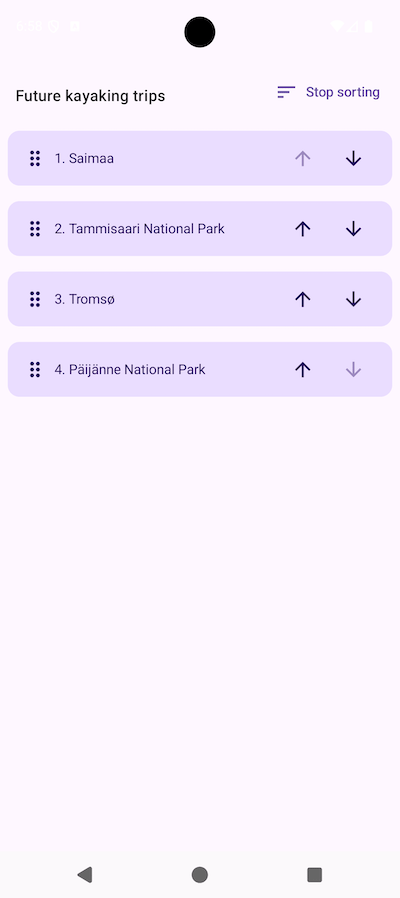
But what if we don't want to display them all the time? We can add a button to switch the list between edit and reorder modes.
We define a variable to control if the buttons are visible, and wrap the Row in a condition checking the variable's value:
val showButtons by remember { mutableStateOf(false) }

...
if (showButtons) {
  Row (..) {..}
}
We also add a button next to the title:
TextButton(
  modifier = Modifier.padding(end = 8.dp),
    onClick = {
      showButtons = !showButtons
    }
) {
  Icon(
    modifier = Modifier.padding(end = 8.dp),
    painter = painterResource(R.drawable.ic_sort),
    contentDescription = null
  )
  val text = if (showButtons) "Stop sorting" else "Sort"
  Text(text)
}
The button has an icon and text that depend on whether showButtons is true or false. And when clicking the button, the showButtons value toggles.
After these changes, there's a way to toggle the visibility of the reorder buttons:
Improving the Screen Reader Experience
How about screen reader users then? The button solution works for them too, but we can enhance it with accessibility actions and live region announcements."
For the row wrapping an item, we'll add a semantics modifier with accessibility actions:
val moveUpAccessibilityAction =
  if (index > 0)
    CustomAccessibilityAction(
      label = "Move $item up",
      action = {
        onMove(index, index - 1)
        true
      }
    )
  else
    null

val moveDownAccessibilityAction =
  if (index < listSize - 2)
    CustomAccessibilityAction(
      label = "Move $item down",
      action = {
        onMove(index, index + 1)
        true
      }
    )
  else
    null

Row(
  modifier = Modifier
    ...
    .semantics {
      customActions = listOfNotNull(
        moveUpAccessibilityAction,
        moveDownAccessibilityAction
      )
    }
) { ... }
This way, a screen reader user can use accessibility actions to reorder the list.
For communicating the changes, we'll need a couple of things. First, we add a variable for the live region text, and a Text-component, which will act as a container for the text:
var liveRegionText by remember { mutableStateOf("") }

Box(
  modifier = Modifier
    .offset(x = (-999).dp)
    .semantics {
      liveRegion = LiveRegionMode.Polite
      text = AnnotatedString(liveRegionText)
    }
  ) {
    Text(liveRegionText)
}
Two things to note here:
- This text is purely for the live region, so announcements for a screen reader, so we don't want to visually show it. That's why the
Boxhas an offset to visually remove it from the screen. - We want to set the live region mode to polite, as this is not information that should be announced right away, whatever the screen reader is announcing at the moment.
Now we just need to set the content of the live region. We'll do it in the onMove-function (omitted non-related bits):
val onMove = { fromIndex: Int, toIndex: Int ->
  val toIndexCoerced = toIndex.coerceIn(0, listSize - 1)
  val fromIndexCoerced = fromIndex.coerceIn(0, listSize - 1)

  scope.launch {
    ...
    val movedItem = list[fromIndexCoerced]
    val upOrDown = if (toIndexCoerced < fromIndexCoerced) "up" else "down"
    liveRegionText = "$movedItem moved $upOrDown"
    delay(100)
    liveRegionText = ""
  }
}
So, inside the onMove, we get the moved item and determine whether the move was up or down based on the indices passed to the function. Based on that information, we set the text, which is then announced. After that, we call delay, then set liveRegionText to an empty string.
Why reset liveRegionText? The reason is that a live region gets announced only when the text changes and if there is text to announce (e.g., it's not an empty string). This way, when the user moves an item up several times, it still gets announced, even if the content was the same as it would be if they moved one item up several times.
The 100ms delay ensures the announcement completes before we clear the text. Without this, rapid actions might not be announced properly.
Testing
- Connect a keyboard and test with it
- Try with Switch Access enabled
- Test while holding the phone with one hand
- Test with a screen reader like TalkBack
Read More
Full code
The full code for the more accessible drag-and-drop implementation.
Understanding SC 2.5.7 Dragging Movements (Level AA)
WCAG's requirements for alternative drag-and-drop movements that inform this solution. Even though the name states "Web Content Accessibility Guidelines", the principles apply to mobile too.
Note: Android-specific guidance on drag-and-drop accessibility is surprisingly limited. If you know of good resources, reply and let me know!
That’s a wrap for Issue #5 of Inclusive Android Apps. What accessibility patterns in your apps have you struggled to implement? Hit reply and let me know!
Next month: Period tracking and inclusive design.
Thanks for reading!
-Eevis
eevis.codes

