
Solving The Uptime History Challenge
In this issue:
Last month I left you with our usual PowerShell scripting challenge. I hope you spent at least a little time thinking about it. Ideally, you came up with a solution. Let's see how your work compares to mine. I'm not implying that my solution is the best or only one, but I think you'll find it educational to compare approaches.
The challenge was to look through the Windows event log and find entries that indicated when a computer shut down and when it started up. I wanted you to show the starttime, the corresponding shutdown time and how long the computer was up.
You needed to take computer crashes into account as well as the current last startup. And of course, you should be able to securely query a remote Windows computer.
From a production perspective, this challenge may not be practical for computers with long uptimes and where event log entries will automatically be trimmed. However, the true value is the experience in researching and crafting a solution.
> It is possible that some of the code snippets might not render properly in your email client. If that is the case, try reading this in the online archive.
Event Log IDs
There are probably several ways you could identify the relevant records in the event log. In the System event log you could use any of these event IDs.
- Event ID 1073 - System Shutdown: This event is logged before 1074. It indicates the shutdown process has begun.
- Event ID 1074 - Shutdown in Progress: This is the main event triggered when the operating system initiates a shutdown. It details the reason for the shutdown (e.g., user initiated, scheduled, unexpected).
- Event ID 1075 - System Shutdown Complete: This event is logged after 1074, confirming the shutdown has finished.
- Event ID 1001 - User logon/logoff: Often, a user initiated the shutdown, so you'll see events related to the user logging off.
- Event ID 1009 - System Restored: This is the key event logged when the operating system has successfully restarted.
$down = Get-WinEvent -FilterHashtable @{LogName = "System"; ID = 1074} -MaxEvents 5
$up = Get-WinEvent -FilterHashtable @{LogName = "System";Id = 1009} -MaxEvents 5
````

Assuming there are results I could sort the data together and start building my output.

I am still using `Get-WinEvent` but I decided to take a different approach regarding what to query. After a bit more research, I found that I can use the `Microsoft-Windows-Kernel-General` provider in the system event log. Event IDs 12 and 13 for this provider correspond to startup and shutdown events.

```powershell
$down = Get-WinEvent -FilterHashtable @{LogName = 'system'; ID = 13; ProviderName = 'Microsoft-Windows-Kernel-General' } -MaxEvents 5
$up = Get-WinEvent -FilterHashtable @{LogName = 'system'; ID = 12; ProviderName = 'Microsoft-Windows-Kernel-General' } -MaxEvents 5
I can join these event log records together and sort them on the TimeCreated property.
$all = $up+$down | sort TimeCreated
This should show me the shutdown and start up events in order.
 PS C:\> $all

   ProviderName: Microsoft-Windows-Kernel-General

TimeCreated                     Id LevelDisplayName Message
-----------                     -- ---------------- -------
3/17/2026 10:09:01 PM           13 Information      The operating system is shutting down at system time 2026-03-...
3/17/2026 10:09:35 PM           12 Information      The operating system started at system time 2026-03-18T02:09:...
3/17/2026 10:12:24 PM           13 Information      The operating system is shutting down at system time 2026-03-...
3/17/2026 10:12:55 PM           12 Information      The operating system started at system time 2026-03-18T02:12:...
3/20/2026 8:27:19 AM            13 Information      The operating system is shutting down at system time 2026-03-...
3/20/2026 8:27:54 AM            12 Information      The operating system started at system time 2026-03-20T12:27:...
3/20/2026 8:32:49 AM            13 Information      The operating system is shutting down at system time 2026-03-...
3/20/2026 8:33:21 AM            12 Information      The operating system started at system time 2026-03-20T12:33:...
3/21/2026 1:07:09 PM            13 Information      The operating system is shutting down at system time 2026-03-...
3/21/2026 1:07:44 PM            12 Information      The operating system started at system time 2026-03-21T17:07:...
Ideally, the entries can be read in pairs. Although, you might want to drop the first item if it isn't a startup entry. The last entry should be a startup event because the server is still running.
FilterXML
Another technique, and one that I think is significantly faster when querying the event log is to use an XML-based filter.
$xml = @'
<querylist>
<query id="0" path="System">
<select path="System">*[System[Provider[@Name='Microsoft-Windows-Kernel-General'] and (EventID=12 or EventID=13)]]</select>
</query>
</querylist>
'@
Before you get too impressed, there's no way I could write this from scratch. I let Windows do it for me. Open the Event Log management console. Select the log and then click Filter Current Log in the Actions pane. I manually entered the filtering criteria in the graphical interface.
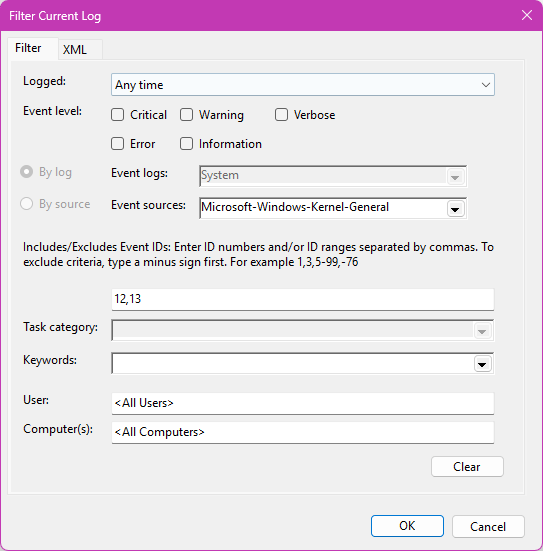
If the filter provides what I want, I can click the XML tag to get the secret sauce.
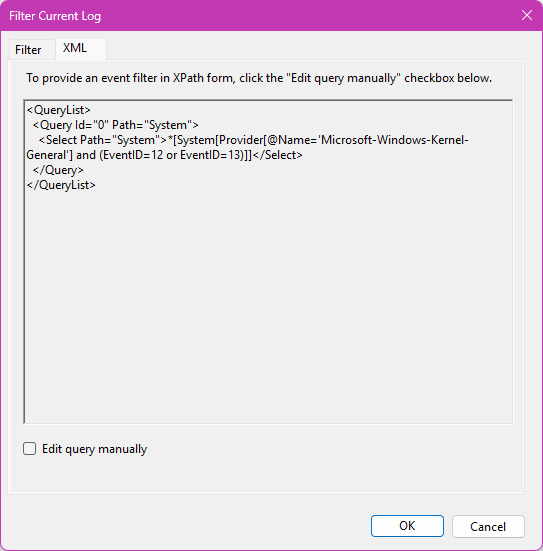
This is what I copied and pasted into my PowerShell script. To use, I'll create a generic list to hold the event log records, sorted by the time created.
$list = [System.Collections.Generic.list[object]]::New()
Get-WinEvent -FilterXml $xml | Sort-Object TimeCreated | ForEach-Object { $list.Add($_) }
Be careful using the -MaxEvents parameter. My query is returning events from multiple event IDs. If I use -MaxEvents, I will be limiting from the total number of events. In my challenge I want to create an uptime history report so I actually want all the matching event log records.
Processing the List
One of the reasons for using a generic list instead of an array, is that I can easily manipulate the list. For example, I want to ensure that the first item in the list is a startup event. If it is event ID, I want to remove it from the list.
if ($list[0].ID -eq 13) {
    $list.RemoveAt(0)
}
This is much easier than rebuilding an array.
I know that I want to include the computername in my output. I'll grab it from the most recent event log record which should accurately reflect the current computer name.
$ComputerName = $list[-1].MachineName.ToUpper()
In a perfect situation, I should see a 12 ID followed by a 13.
PS C:\> $list | Select timeCreated,ID -first 6

TimeCreated           Id
-----------           --
1/31/2026 11:51:37 AM 12
1/31/2026 4:12:09 PM  12
2/4/2026 8:11:52 AM   13
2/4/2026 8:12:23 AM   12
2/4/2026 8:13:54 AM   13
2/4/2026 8:14:24 AM   12


