
Revisiting PSReadLine Color Options
In this issue:
A few years ago, I wrote a few newsletters on how to save and re-use PSReadline color settings. These settings are used for syntax highlighting when typing commands in the console. You can view your settings using Get-PSReadlineOption.
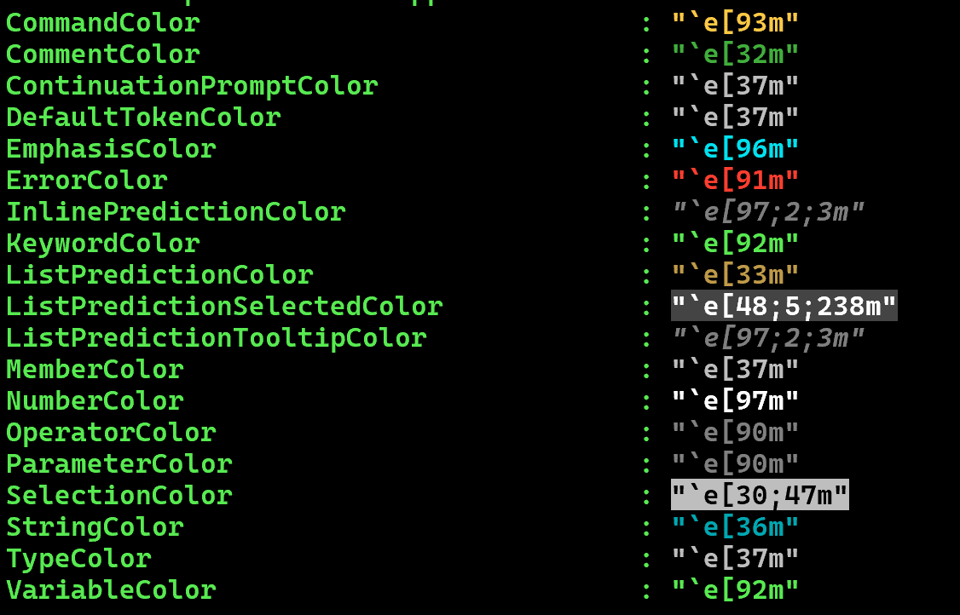
You can modify the values using Set-PSReadlineOption, although I have another way I'll get to later.
My previous article included commands for exporting the colors to a JSON file and then importing them. In your PowerShell profile script you could import the saved color options.
I've been digging around in PSReadLine for an upcoming session I'm doing at PSConfEU and thought I'd revisit my original commands and see how I might improve them.
Parameter Improvements
The original functions required PowerShell 7.4. Since then new versions have been released so I updated the requires statement.
#requires -version 7.6
As far as I know, nothing in my code has changed that truly requires version 7.6, but since that is what I am developing and testing with, that's the requirement I'll use. If at all possible, you should be using the latest stable version anyway.
I also revised some of the parameter validation to include error messages.
Param(
    [Parameter(
        Position = 0,
        Mandatory,
        ValueFromPipeline,
        HelpMessage = 'Specify the path to the JSON file.'
    )]
    [ValidateNotNullOrEmpty()]
    [ValidatePattern('.*\.json$',ErrorMessage = "The parameter value must be a JSON file.")]
    #Validate the parent path exists
    [ValidateScript({ Split-Path $_ -Parent | Test-Path },ErrorMessage = "Failed to find the parent folder.")]
    [string]$Path
...
)
When a parameter fails validation, the user will see my error message.
Exporting Options
The original export command created a very simple JSON file with the PSReadline token name, and the ANSI value. Because I knew that I eventually wanted to be able to show options using the ANSI sequences, I opted to expand the exported data to include those value. This way, I don't have to code for it on the backend. Everything is already defined in the JSON file.
Here are the relevant changes.
Begin {
    $ColorProperties = (Get-PSReadLineOption).PSObject.Properties.where({ $_.Name -match 'color' })
} #begin

Process {
    $ColorProperties | Select-Object Name,Value,
    @{Name="NamePreview";Expression = { "{0}{1}{2}" -f $_.value,$_.Name,"`e[0m"}},
    @{Name="ANSIValue";Expression = { $_.value.replace("`e","``e")}} |
    ConvertTo-Json | Out-File -FilePath $Path -Encoding utf8
} #process
This creates a JSON file like this:
[
  {
    "Name": "ContinuationPromptColor",
    "Value": "\u001b[37m",
    "NamePreview": "\u001b[37mContinuationPromptColor\u001b[0m",
    "ANSIValue": "`e[37m"
  },
  {
    "Name": "DefaultTokenColor",
    "Value": "\u001b[38;5;159m",
    "NamePreview": "\u001b[38;5;159mDefaultTokenColor\u001b[0m",
    "ANSIValue": "`e[38;5;159m"
  },
  {...}
]
One nice advantage is that I can preview the settings simply by converting the JSON file.
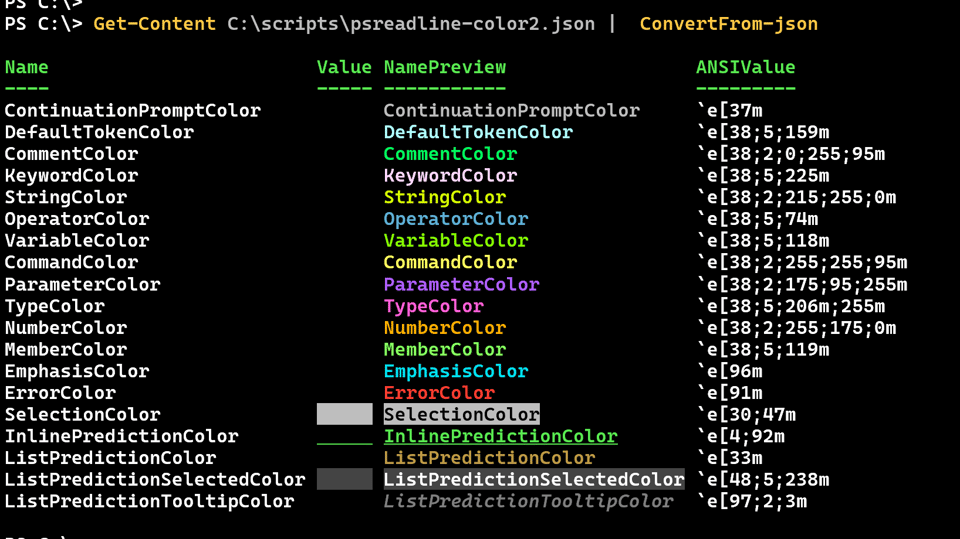
I have a few other preview options I'll get to later.
Importing Options
The change in the JSON file meant I also needed to modify the import function.
$import = Get-Content -Path $Path -Raw | ConvertFrom-Json
$import | ForEach-Object -Begin { $ColorHash = @{} } -Process {
    #use a regular expression to define the proper hashtable key
    $key = $($_.Name) -replace '(token)?color'
    $ansi = $_.AnsiValue
    $sample =$_.NamePreview
    Write-Verbose "[$((Get-Date).TimeOfDay) PROCESS] Importing $key [$sample] "
    $ColorHash.Add($key, $_.Value)
}

If ($PSCmdlet.ShouldProcess($Path, 'Importing PSReadLine Colors')) {
    Set-PSReadLineOption -Colors $ColorHash
}
The verbose messaging provides a visual indication of the style.
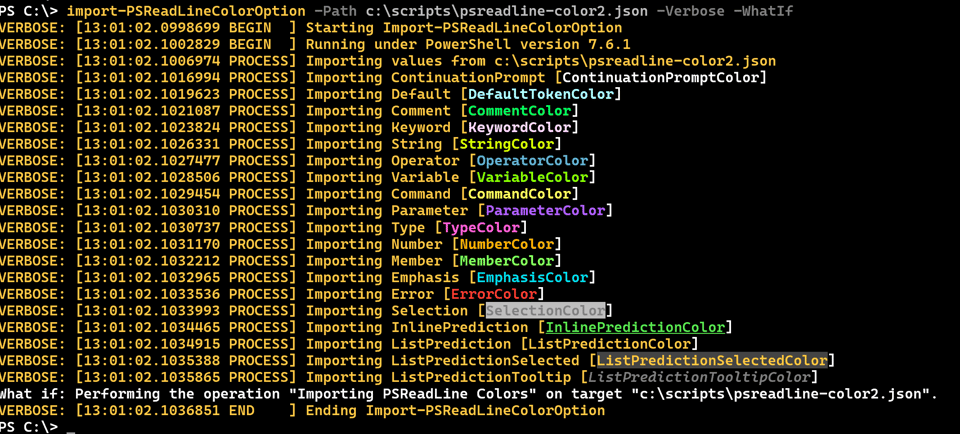
Set Color Option
One feature I didn't offer in the original article was an alternative to setting a color value. It isn't especially difficult to use Set-PSReadLineOption, but what if you only want to set a value for a single setting? Or you wanted to be able to splat or use the pipeline? So I wrote a function that allows me to set individual color options.
The command's parameters correspond to the individual PSReadline color options.
PS C:\> Get-Command Set-PSReadLineColorOption -Syntax

Set-PSReadLineColorOption [[-ContinuationPrompt] <string>] [[-DefaultToken] <string>] [[-Comment] <string>] [[-Keyword] <string>] [[-String] <string>] [[-Operator] <string>] [[-Variable] <string>] [[-Command] <string>] [[-Parameter] <string>] [[-Type] <string>] [[-Number] <string>] [[-Member] <string>] [[-Emphasis] <string>] [[-Error] <string>] [[-Selection] <string>] [[-InlinePrediction] <string>] [[-ListPrediction] <string>] [[-ListPredictionSelected] <string>] [[-ListPredictionTooltip] <string>] [-WhatIf] [-Confirm] [<commonparameters>]
In the function's Begin block, I initialize a hashtable.
$colorHash = @{}
In the process block, I need to process any bound parameters. None of the parameters are mandatory or have a default value, so any bound parameter will be something the user typed. However, I need to exclude common parameters and WhatIf and Confirm.
The built-in $PSBoundParameters is a hashtable so I'll enumerate and filter out any common or confirmation parameters.
$PSBoundParameters.GetEnumerator().Where({ $_.Value -match "^`e" }).Foreach({
    #update the hashtable
    Write-Verbose "[$((Get-Date).TimeOfDay) PROCESS] Setting $($_.Key) to $($_.Value)$($_.Value.replace("`e","``e"))$("`e[0m")"
    $colorHash.Add($_.key, $_.Value)
})
if ($PSCmdlet.ShouldProcess($($colorHash.Keys -join ','), 'Setting new PSReadline color options')) {
    Set-PSReadLineOption -Colors $colorHash
}


