
Registry Management with PowerShell and .NET
In this issue:
- Creating Registry Keys
- Creating Registry Values
- Creating a Registry Tree
- Removing Registry Items
- Removing Registry Keys
- Summary
Over the last several articles we've been looking at how to use the .NET Framework to manage the Windows Registry. Yes, the existing registry PSDrives are useful, but there may be times you want to create a custom tool or take a more direct approach using the Microsoft.Win32.Registry classes. So far, we've been getting information from the registry. Of course, you may want to create, modify, or even remove items from the registry. Let's explore that today.
> I have to give you the standard disclaimer here: Be very careful when working with the Windows registry. You can cause serious problems if you make a mistake. Always back up the registry and your computer before making changes, and always test in a secure, non-production environment.
Creating Registry Keys
Let's begin by creating a new registry key. To avoid permission issues, we'll create a key under HKEY_CURRENT_USER The first thing we need is a connection to the registry hive.
$cu = [Microsoft.Win32.RegistryKey]::OpenBaseKey("CurrentUser","default")
The RegistryKey object has a method called CreateSubKey(), which we can use to create a new key.
Microsoft.Win32.RegistryKey CreateSubKey(string subkey)
Microsoft.Win32.RegistryKey CreateSubKey(string subkey, bool writable)
Microsoft.Win32.RegistryKey CreateSubKey(string subkey, bool writable, Microsoft.Win32.RegistryOptions options)
Microsoft.Win32.RegistryKey CreateSubKey(string subkey, Microsoft.Win32.RegistryKeyPermissionCheck permissionCheck)
Microsoft.Win32.RegistryKey CreateSubKey(string subkey, Microsoft.Win32.RegistryKeyPermissionCheck permissionCheck, Microsoft.Win32.RegistryOptions registryOptions, System.Security.AccessControl.RegistrySecurity registrySecurity)
Microsoft.Win32.RegistryKey CreateSubKey(string subkey, Microsoft.Win32.RegistryKeyPermissionCheck permissionCheck, System.Security.AccessControl.RegistrySecurity registrySecurity)
Microsoft.Win32.RegistryKey CreateSubKey(string subkey, Microsoft.Win32.RegistryKeyPermissionCheck permissionCheck, Microsoft.Win32.RegistryOptions registryOptions)
> Creating a registry key with custom permission is more advanced than we need here, so we'll use the simplest overload.
$NewKey = 'PSCompany'
$k = $cu.CreateSubKey($NewKey)
I can verify this using the existing HKCU: PSDrive.
PS C:\> Get-Item HKCU:\PSCompany\

    Hive: HKEY_CURRENT_USER

Name                           Property
----                           --------
PSCompany
Creating Registry Values
I want to create some registry values so let's see what methods we have to work with.
PS C:\> $k | Get-Member -Name *value* -MemberType method | Select-Object Name

Name
----
DeleteValue
GetValue
GetValueKind
GetValueNames
SetValue
There's no new or add method, so SetValue() is the most likely method.
PS C:\> $k.SetValue.OverloadDefinitions
void SetValue(string name, System.Object value)
void SetValue(string name, System.Object value, Microsoft.Win32.RegistryValueKind valueKind)
Registry Value Types
It looks like the simplest approach is to specify a registry value name and the value.
$k.SetValue("Name","Jeff")
I'm sure you know that registry values can be of different types. It appears PowerShell is smart enough to figure out the type based on the value we provide.
PS C:\> $k.GetValueKind("Name")
String
If we want to be explicit, we can specify the type using the second overload. But what are the possible values? Let's use our old friend Get-TypeMember
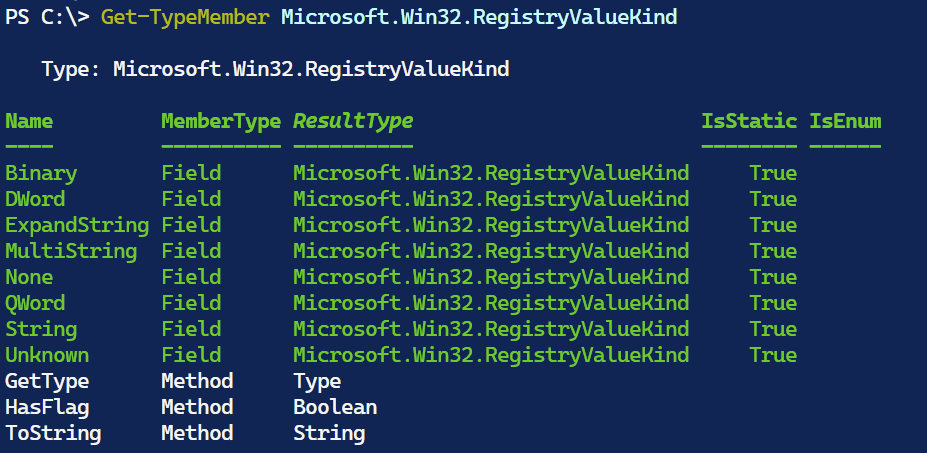
$k.SetValue("CN",$env:COMPUTERNAME,"String")
$k.SetValue("IsAdmin",($true -as [int]),"DWord")
A DWord is a 32-bit integer. I'm storing a boolean value here, but I have to convert it to an integer first. The registry doesn't have a boolean type, so we use 0 for false and 1 for true. For larger numbers, we can use QWord, which is a 64-bit integer.
$c = Get-volume -DriveLetter c
$k.SetValue("CDriveSize",$c.size,"QWord")
So what have I created thus far?


