
Pretty PowerShell Presentation
In this issue:
So lately I've been exploring using PowerShell as a presentation tool. We all know it is a great management tool. If you can run a command to process one thing, it takes very little effort to process 10 or 100 things. That's the power of the pipeline. However, if you are like me and spend a lot of time in the PowerShell console, you'll find yourself using PowerShell for more than managing infrastructure.
We've come a long way since the days of running Windows PowerShell in a cmd prompt. We have many formatting and presentation options with PowerShell 7 running in Windows Terminal. If you've been reading this newsletter for awhile, you've seen me add color to custom formatting. But there is even more that you can do. I thought I'd share a couple of things you might find useful.
Format-SpectreJson
I hope by now I've shown you enough reasons to install the pwshSpectreConsole module. If now, here's another one. It is trivial to view the contents of a JSON file from a PowerShell prompt.
PS C:\> Get-Content c:\scripts\demo.json
{
  "Computername": "WIN11JH",
  "Name": "Jeff",
  "Version": 7.5,
  "OSInfo": {
    "OperatingSystem": "Microsoft Windows 11 Pro",
    "Install": "2024-06-16T21:30:52-04:00"
  },
  "PSHome": "C:\\Program Files\\PowerShell\\7",
  "Services": [
    "WinRm",
    "WinMgmt",
    "WSearch"
  ],
  "Comment": "This is demo data."
}
But it is monochromatic, and it may be difficult to visualize matching up braces and arrays. A better solution is to use Format-SpectreJson from the pwshSpectreConsole module.
Get-Content c:\scripts\demo.json | Format-SpectreJson
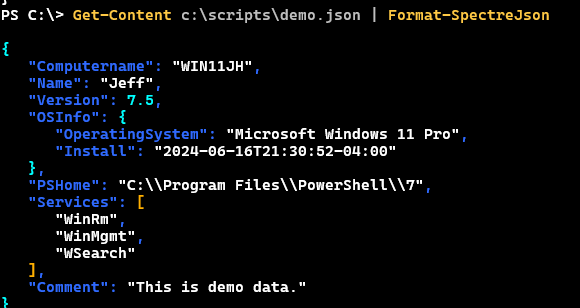
The command uses a default color scheme, but you can change it. Create a hashtable using any of these keys:
- BracketsStyle
- NullStyle
- BooleanStyle
- BracesStyle
- StringStyle
- NumberStyle
- ColonStyle
- MemberStyle
- CommaStyle
The value can be any SpectreConsole color. Run Get-SpectreDemoColors to see your options. You can create a hashtable with as many settings as you want.
$style = @{
    BracketsStyle = "Lime"
    StringStyle = "DarkSlateGray1"
    BracesStyle = "Gold1"
    CommaStyle = "Gold1"
    MemberStyle = "Fuchsia"
    NumberStyle = "Aqua"
}
Use this when you run Format-SpectreJson.
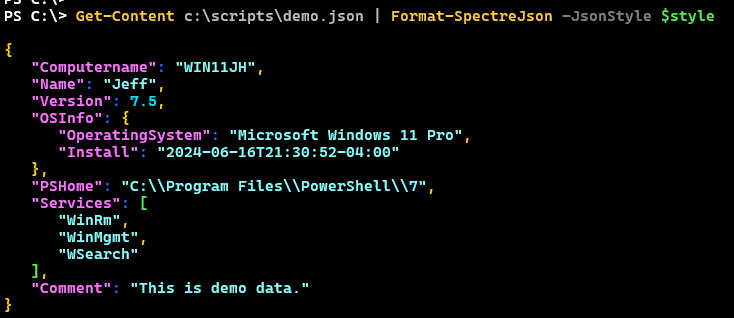
And you aren't limited to colors. Maybe something like this is even easier to read.
$style = @{
    BracketsStyle = "Lime"
    StringStyle = "DarkSlateGray1"
    BracesStyle = "Gold1"
    CommaStyle = "Gold1"
    MemberStyle = "Fuchsia Italic"
    NumberStyle = "Aqua"
}

 Get-Content c:\scripts\demo.json | Format-SpectreJson -JsonStyle $style | Format-SpectrePanel -Title "C:\scripts\demo.json" -Color Gold1
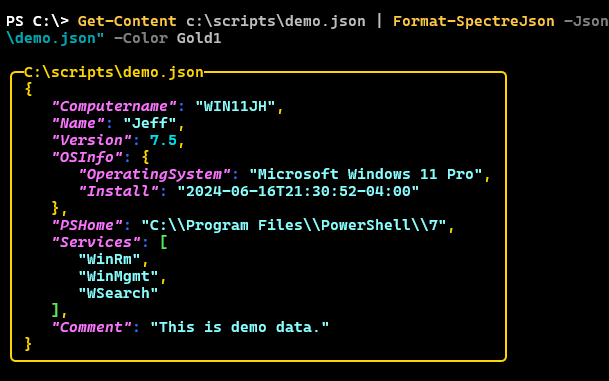
I've taken this a step further and wrapped the formatted JSON in a panel.
Show-JsonFile
I like this idea and it is something I might want to use often. I might also like to see the JSON output with line numbers. This will require me to create my own tooling. But I can use the pwshSpectreConsole commands as a starting point.
I can get the formatted JSON.
#splat the hashtable of parameters for Format-SpectreJson
$data = Get-Content -path $Path | Format-SpectreJson @fsj
Here it gets tricky. First, I need to know how many lines there are so I can pad line numbers with leading zeros.


