
PowerShell Scripting With Custom Event Logs
In this issue:
- Event Log Design
- Adding a Custom Event Log Source
- Write-Event
- Creating a Custom Event Log
- Removing a Custom Event Log
- Summary
Over the last few articles, we've been looking at how to watch for new entries in Windows event. logs. Since we are on the topic of event logs, I thought we should explore other ways you might incorporate them into your PowerShell scripts and tools. This might require a little preparation, but you should be able to automate the process with PowerShell.
I know people spend a lot of time looking for ways to log activity in their PowerShell tools. While there may be value in a separate log file, what about using the Windows event logs? They are already built into Windows, and you can easily view them with the Event Viewer or PowerShell. You could even setup event subscriptions to monitor them remotely.
Event Log Design
Before we go any further, I want to touch on the structure and design of a Windows event log. I'm not going to go into great detail here because this is really a developer-oriented topic. When a log file is setup, it includes a configuration that defines sources, event IDs, and categories. This information is packaged in a DLL and registered with the event log. Creating this file is beyond the scope of what I want to cover and isn't something you would do in PowerShell anyway.
The one element that we can discover and manage with PowerShell are an event log's sources. When using Get-WinEvent these are referred to as Providers. You can retrieve the list of sources from the event log.
If you recall, I showed you that classic event logs like Application and System can be retrieved as Win32_NTEventLogFile objects.
$log = Get-CimInstance Win32_NTEventlogFile -filter "LogFileName='System'"
This object has a property called Sources that contains the list of sources registered with that log.
PS C:\> $log.sources
System
3ware
ACPI
ADP80XX
AFD
...
You can also use the .NET Framework to retrieve the same information.
$system = [System.Diagnostics.Eventing.Reader.EventLogConfiguration]::new("System")
In this case, you are looking at providers.
PS C:\> $system.ProviderNames
3ware
ACPI
ADP80XX
AFD
AmdK8
...
One advantage with this approach is that you can also retrieve provider names from operational logs.
PS C:\> $psop = [System.Diagnostics.Eventing.Reader.EventLogConfiguration]::new('PowerShellCore/Operational')
PS C:\> $psop.providerNames
PowerShellCore
Although, these logs tend to only have a single provider.
PS C:\> [System.Diagnostics.Eventing.Reader.EventLogConfiguration]::new('Microsoft-Windows-PowerShell/Operational').ProviderNames
Microsoft-Windows-PowerShell
PS C:\> [System.Diagnostics.Eventing.Reader.EventLogConfiguration]::new('Microsoft-Windows-GroupPolicy/Operational').ProviderNames
Microsoft-Windows-GroupPolicy
Adding a Custom Event Log Source
The reason I'm showing you all of this is that when you write an entry to an existing event log, you'll need to specify a source. While you can use any of the existing sources, it's a better practice to create your own. This way, you can easily identify entries created by your scripts and tools.
> From this point on, we'll be using classic event logs. The operational and administrative logs are intended for specific system and application use. I would avoid writing custom entries to these logs.
The source name must be unique. Fortunately, you can test for the existence of a source
PS C:\> [System.Diagnostics.EventLog]::SourceExists("WinRM")
True
This is searching all classic event logs. You can also test for a source on a remote computer.
PS C:\> [System.Diagnostics.EventLog]::SourceExists("WinRM","Win11")
True
PS C:\> [System.Diagnostics.EventLog]::SourceExists("PSAutomation","Win11")
False
Another option is to inventory all of the sources on a computer. I wrote a small script that retrieves all of the event logs on a computer and then queries each log for its list of providers (sources).
param(
    [string]$Computername,
    [PSCredential]$Credential
)

$PSBoundParameters.Add('ListLog', '*')

if (-Not $PSBoundParameters.ContainsKey("ComputerName")) {
    $PSBoundParameters["Computername"] = $env:COMPUTERNAME
}
Write-Host "Listing logs on $($PSBoundParameters["Computername"].ToUpper())" -ForegroundColor Cyan
$logs = Get-WinEvent @PSBoundParameters

if ($PSBoundParameters["Computername"] -eq $env:COMPUTERNAME) {
    Write-Host "Connecting locally" -ForegroundColor Yellow
    $session = [System.Diagnostics.Eventing.Reader.EventLogSession]::new()
}
elseif ($credential) {
    Write-Host "Connecting to $Computername as $($Credential.UserName)" -ForegroundColor Magenta
    $domain, $user = $Credential.username.split('\')
    $pass = $Credential.Password
    $session = [System.Diagnostics.Eventing.Reader.EventLogSession]::new($ComputerName, $domain, $user, $pass,"Default")
}
else {
     Write-Host "Connecting to $($PSBoundParameters["Computername"])" -ForegroundColor Yellow
    $session = [System.Diagnostics.Eventing.Reader.EventLogSession]::new($ComputerName)
}

if ($session) {
    $all = foreach ($log in $logs) {
        $logConfig = [System.Diagnostics.Eventing.Reader.EventLogConfiguration]::new($($log.LogName), $session)
        [PSCustomObject]@{
            Log          = $Log.LogName
            Sources      = $logConfig.ProviderNames
            Computername = $Computername.ToUpper()
        }
    } #foreach

    $all
}
else {
    Write-Warning "Failed to connect to $($Computername.ToUpper())"
}
I can query a remote computer.
$r = c:\scripts\Get-AllSources.ps1 -Computername srv1 -credential $artd
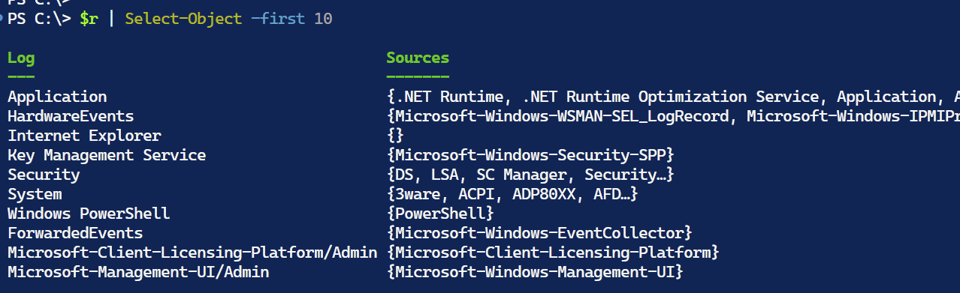
I can use this master list to check for the existence of a source before I try to create it.
PS C:\> $r.sources -contains "OpenSSH"
True
PS C:\> $r.sources -contains "PSAutomation"
False
I'm going to create a new source called PSAutomation in the local Application event log. There are .NET classes I can use, but it is just as easy to use the New-EventLog cmdlet.
New-EventLog -Source PSAutomation -LogName Application
Despite the name, I'm not creating a new event log with this syntax. All I am doing is registering a new source in the Application log.
> Unfortunately, this command does not support -WhatIf, even though it should, so be careful.
If you make a mistake, you can delete the source, including on remote computers.
[System.Diagnostics.EventLog]::DeleteEventSource("PSOops")
[System.Diagnostics.EventLog]::DeleteEventSource("PSOops","SRV1")
Otherwise, I can verify the addition.
PS C:\> [System.Diagnostics.Eventlog]::SourceExists("PSAutomation")
True


