
PowerShell Hide And Seek
In this issue:
Today I thought we'd play a little hide and seek and explore the different ways PowerShell hides things. We'll also look at ways you can un-hide them if you need to as well as hide things yourself.
Files and Folders
The most commonly hidden thing in PowerShell are files and folders. I suppose this is technically an operating or file system feature. But if you are working with files and folders in PowerShell, you will likely run into hidden files and folders.
Often, hidden files and folders are for our convenience and protection. We don't want to accidentally delete or modify them. But sometimes we want to see them.
PS C:\> dir c:\ -file

    Directory: C:\

Mode                 LastWriteTime         Length Name
----                 -------------         ------ ----
-a---           1/15/2026  4:31 PM            395 root.txt
Get-ChildItem has a few parameters that you can use. The dynamic -Hidden parameter will explicitly show hidden items.
PS C:\> dir c:\ -file -Hidden

    Directory: C:\

Mode                 LastWriteTime         Length Name
----                 -------------         ------ ----
-a-hs           1/14/2026  9:14 AM          12288 DumpStack.log.tmp
-a-hs           1/14/2026  9:14 AM    10200547328 pagefile.sys
-a-hs           1/14/2026  9:14 AM       16777216 swapfile.sys
Notice that this didn't include the normal file. To see both normal and hidden files, you can use the -Force parameter.
PS C:\> dir c:\ -file -Force

    Directory: C:\

Mode                 LastWriteTime         Length Name
----                 -------------         ------ ----
-a-hs           1/14/2026  9:14 AM          12288 DumpStack.log.tmp
-a-hs           1/14/2026  9:14 AM    10200547328 pagefile.sys
-a---           1/15/2026  4:31 PM            395 root.txt
-a-hs           1/14/2026  9:14 AM       16777216 swapfile.sys
If you are using Get-Item to get a specific file or folder, you can also use the -Force parameter to see hidden items.
PS C:\> Get-Item c:\scripts\psintro\.git
Get-Item: Could not find item C:\scripts\psintro\.git.
PS C:\> Get-Item c:\scripts\psintro\.git -Force

    Directory: C:\Scripts\PSIntro

Mode                 LastWriteTime         Length Name
----                 -------------         ------ ----
d-rh-           1/14/2026  3:55 PM                .git
Even though we're accessing files and folders, Get-Item does not have a -Hidden parameter. You have to use -Force to see hidden items.
Hiding Files and Folders
Let's say you want to hide a file or folder. You can do that with the Attributes property of the file or folder object.
PS C:\> $f = Get-Item C:\temp\foo.txt
PS C:\> $f

    Directory: C:\temp

Mode                 LastWriteTime         Length Name
----                 -------------         ------ ----
-a---          10/18/2025  1:05 PM            774 foo.txt

PS C:\> $f.attributes
Archive
PS C:\> $f | Get-Member attributes

   TypeName: System.IO.FileInfo

Name       MemberType Definition
----       ---------- ----------
Attributes Property   System.IO.FileAttributes Attributes {get;set;}
As you can see, PowerShell is expecting a specific type for the Attributes property. I can use Get-TypeMember from the PSScriptTools module to learn more:
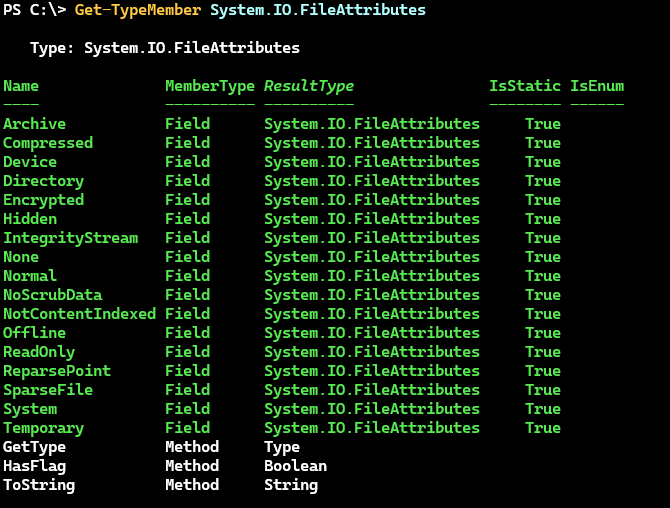
Many of these attributes are set by specific operations or the operating system. But the Hidden attribute is one we can set ourselves without too much worry.
The Attributes property is a special kind of collection so use the += operator to add the Hidden attribute.
PS C:\> $f.attributes += 'Hidden'
PS C:\> Get-Item $f
Get-Item: Could not find item C:\temp\foo.txt.
PS C:\> Get-Item $f -Force

    Directory: C:\temp

Mode                 LastWriteTime         Length Name
----                 -------------         ------ ----
-a-h-          10/18/2025  1:05 PM            774 foo.txt
Un-Hiding Files and Folders
To un-hide, use the -= operator to remove the Hidden attribute. This has to be done on the object itself, although you can use a pipeline to do this in one line.
PS C:\> Get-Item C:\temp\foo.txt -Force | ForEach-Object { $_.Attributes -= 'Hidden'; $_ }

    Directory: C:\temp

Mode                 LastWriteTime         Length Name
----                 -------------         ------ ----
-a---          10/18/2025  1:05 PM            774 foo.txt
The same process will also work on folders.
Command Parameters
Another item that PowerShell can hide are command parameters. This is not an absolute hiding like a hidden file. Rather, some parameters are hidden from the default help and tab completion experience. This is often done when a parameter is no longer needed, or is considered deprecated, but still needs to be available for backward compatibility.
In PowerShell 7, the Format-Hex cmdlet normally is used like this:
PS C:\> Format-Hex C:\temp\list.txt

   Label: C:\temp\list.txt

          Offset Bytes                                           Ascii
                 00 01 02 03 04 05 06 07 08 09 0A 0B 0C 0D 0E 0F
          ------ ----------------------------------------------- -----
0000000000000000 72 65 70 6F 2E 74 78 74 0D 0A 65 76 65 6E 74 73 repo.txt��events
0000000000000010 32 2E 74 78 74 0D 0A 66 2E 74 78 74 0D 0A 70 6F 2.txt��f.txt��po
0000000000000020 77 65 72 73 68 65 6C 6C 2E 65 78 65 2D 30 38 30 wershell.exe-080
0000000000000030 39 32 30 32 35 2D 30 33 31 32 31 36 2E 74 78 74 92025-031216.txt
0000000000000040 0D 0A 70 6F 77 65 72 73 68 65 6C 6C 2E 65 78 65 ��powershell.exe
0000000000000050 2D 30 38 30 39 32 30 32 35 2D 30 33 31 38 33 33 -08092025-031833
0000000000000060 2E 74 78 74 0D 0A 70 73 5B 56 5D 2E 74 78 74 0D .txt��ps[V].txt�
0000000000000070 0A 70 77 73 68 2E 65 78 65 2D 30 38 30 39 32 30 �pwsh.exe-080920
0000000000000080 32 35 2D 30 33 30 34 32 35 2E 74 78 74 0D 0A 70 25-030425.txt��p
0000000000000090 77 73 68 2E 65 78 65 2D 30 38 30 39 32 30 32 35 wsh.exe-08092025
00000000000000A0 2D 30 33 30 37 34 31 2E 74 78 74 0D 0A 73 61 76 -030741.txt��sav
00000000000000B0 65 5B 58 5D 2E 74 78 74 0D 0A 78 5B 5A 5D 2E 74 e[X].txt��x[Z].t
00000000000000C0 78 74 0D 0A                                     xt��
However, previous versions of the command included a -Raw parameter. The PowerShell 7 version of the command still has the parameter, but it is hidden, although you can still use it.
PS C:\> Get-Content C:\temp\list.txt | Format-Hex -Raw
WARNING: Parameter 'Raw' is obsolete. Raw parameter is deprecated.

   Label: String (System.String) <1B368C12>

          Offset Bytes                                           Ascii
                 00 01 02 03 04 05 06 07 08 09 0A 0B 0C 0D 0E 0F
          ------ ----------------------------------------------- -----
0000000000000000 72 65 70 6F 2E 74 78 74                         repo.txt
...
This parameter is now hidden. It is not included in command help, although it is visible in command syntax.
PS C:\> Get-Command Format-Hex -Syntax

Format-Hex [-Path] <string[]> [-Count <long>] [-Offset <long>] [<commonparameters>]

Format-Hex -LiteralPath <string[]> [-Count <long>] [-Offset <long>] [<commonparameters>]

Format-Hex -InputObject <psobject> [-Encoding <encoding>] [-Count <long>] [-Offset <long>] [-Raw] [<commonparameters>]
Let's drill down and look at the parameter definition:
PS C:\> (Get-Command Format-Hex).Parameters["Raw"].Attributes

ExperimentName                  :
ExperimentAction                : None
Position                        : -2147483648
ParameterSetName                : ByInputObject
Mandatory                       : False
ValueFromPipeline               : False
ValueFromPipelineByPropertyName : False
ValueFromRemainingArguments     : False
HelpMessage                     :
HelpMessageBaseName             :
HelpMessageResourceId           :
DontShow                        : True
TypeId                          : System.Management.Automation.ParameterAttribute

Message      : Raw parameter is deprecated.
IsError      : True
DiagnosticId :
UrlFormat    :
TypeId       : System.ObsoleteAttribute
When a parameter is marked with the DontShow property, it is hidden tab completion, although PSReadline will complete it if you type the first letter. It will also be used when running Show-Command. The goal isn't to completely hide the parameter, but to make it less visible to users with the eventual plan of removing it entirely.
Let's see how we can use this in our code.


