
November 2025 PowerShell Potluck
In this issue:
- PSEdit 1.0
- Using CMS Message Cmdlets
- Managing ReadOnly
- Write-PSHost
- Function Design Patterns
- Scripting Challenge
- Summary
Knowing is knowledge, understanding is insight, experience is mastery.
Thank you for joining me for another month of PowerShell insights and knowledge. My goal with this endeavor is to do more than share information. I want to help you better understand how PowerShell works and how to think in PowerShell. Knowing syntax is the first step, but understanding how to apply that knowledge is where the real power lies and the more you do it, the more you will master it. That's why I write these articles each month. I encourage you to look beyond the syntax in my articles and focus on the concepts and patterns that you can apply in your own PowerShell journey. If you aren't a premium supporter, I hope you'll consider trying it for at least month or two. You can cancel at any time. There is a catalog of content going back to 2022. Think about how much you have missed and what you could have learned.
As is the routine around here, the end of the month means it's time for another PowerShell Potluck.
PSEdit 1.0
Adam Driscoll has released version 1.0 of the PSEdit module. This module contains a single command, Show-PSEditor, which I always reference using the psedit alias. I've been using this module since its early days and was very happy to see it reach version 1.0.
The command opens a lightweight code editor directly in your PowerShell console as a Terminal.GUI application.
PS C:\> psedit c:\scripts\jdh-aliases.ps1
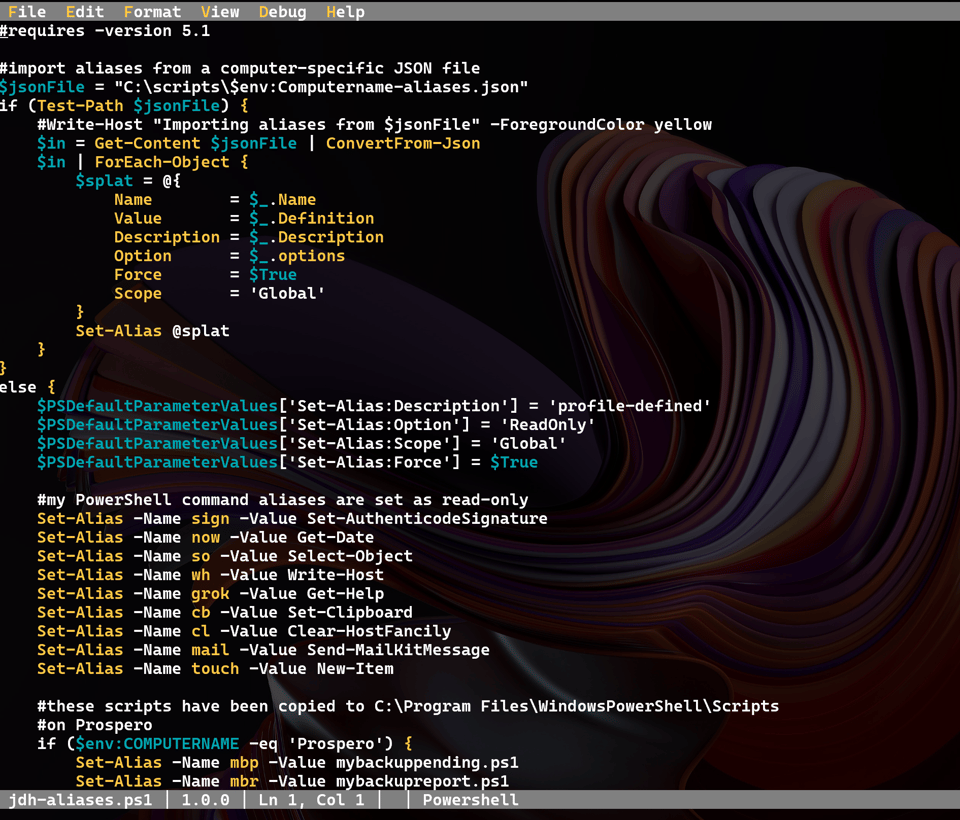
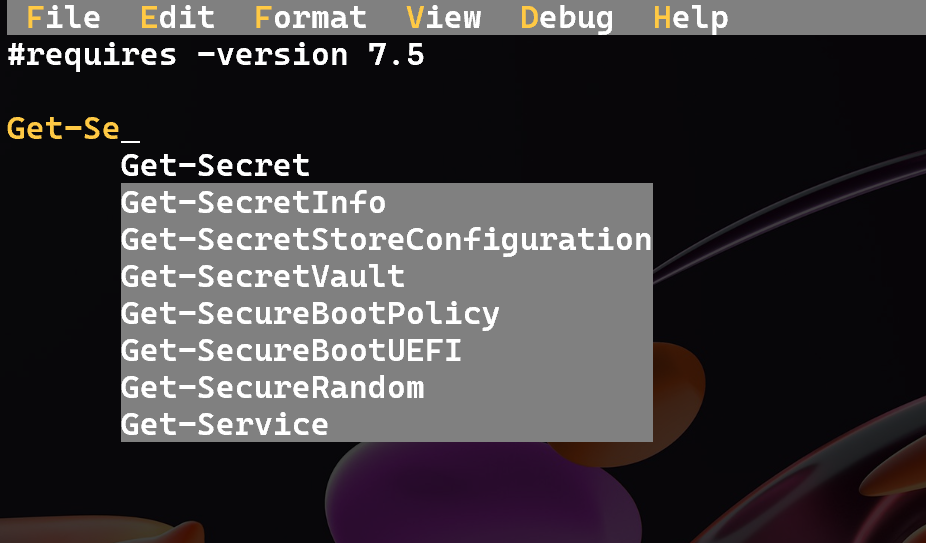
This is similar to the new Edit tool from Microsoft, but goes much further. It supports syntax highlighting and IntelliSense:
You can also run lines of code directly from the editor:
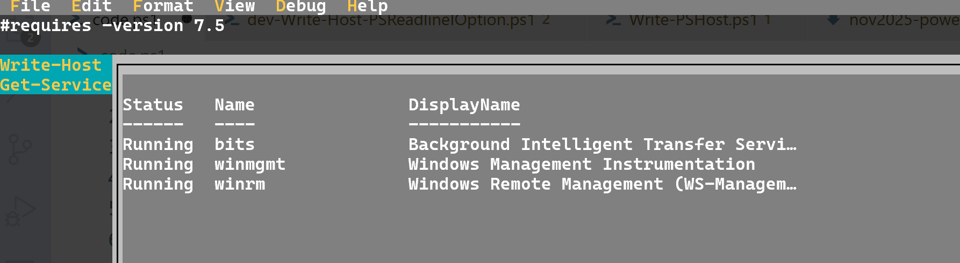
This is a great tool for quick edits or even more extensive coding sessions without leaving the console environment. The current version in the PowerShell Gallery as I'm writing this is 1.0.0. I know there have been a few changes since then and I'm looking forward to seeing an update. In the meantime you can install it from the PowerShell Gallery:
Install-PSResource PSEdit
Using CMS Message Cmdlets
I've written before about the short PowerShell video clips from Matthew Dowst. Recently, he published one on using the CMS message cmdlets. These cmdlets using document encryption certificates to securely store and retrieve messages.
I use this to store sensitive information like API keys or passwords that I need to use in scripts but don't want to store in plain text.
PS S:\> Get-Content .\cadenza-vault.txt
-----BEGIN CMS-----
MIIBqgYJKoZIhvcNAQcDoIIBmzCCAZcCAQAxggFSMIIBTgIBADA2MCIxIDAeBgNVBAMMF2plZmZA
amRoaXRzb2x1dGlvbnMuY29tAhB3d6hhHqr7r0LkWUCMg0eYMA0GCSqGSIb3DQEBAQUABIIBAHQP
5wR4zRcRKaLdj6xC0Qi/kWNECPXFYG0joRgnVVVqVlbYaCfWVBunKPj8qIE8nZIg3V6S36OUuRfK
0RIL8641UInuBws6CJrGkVPJFx88CnBYMOHoKkTmO23rMg7nav6PMZ1p9IHzGirmS8uGJmJSZd5F
PfpOh/Ohv3rcutFPQT/QldFCux1QvgqOnGNdnN5HsfFspWyCQc8J/FywOk/q2dshD0Daktq+R9OX
tAA+bJRmxl4N9h1CdiqhERdqSqi+jefzqd9lbn2e/1J9uf6Se9Oxsl7G0+CILhjKDSN5pckKFdh2
DOqHi8t1zU6BYtmGYO/8KOnhltYUxQFQaPMwPAYJKoZIhvcNAQcBMB0GCWCGSAFlAwQBKgQQSDIT
7ADP6jWMI1LY17UICoAQBbyRJtGwCBD5o6RM07GhdA==
-----END CMS-----
The content can only be decrypted if you have access to the private key associated with the certificate used to encrypt it.
PS S:\> Get-Content .\cadenza-vault.txt | Unprotect-CmsMessage | ConvertTo-SecureString -AsPlainText -Force
I encourage you to take a few minutes to watch https://www.youtube.com/shorts/ZsLkpdX-WYc.
Managing ReadOnly
I occasionally want to clean up a set of folders. However, sometimes they have been set as read-only. I know that I can use the -Force parameter with Remove-Item, but there are situations where all I want to do is remove the attribute. I wrote a set of functions to manage the read-only attribute folders.
First, I wanted a folder to identify if a folder is read-only.
function Get-ReadOnlyDirectory {
    [cmdletbinding()]
    [OutputType('System.IO.DirectoryInfo')]
    [alias('grd')]
    param(
        [Parameter(
            Position = 0,
            ValueFromPipeline,
            HelpMessage = 'Specify the root folder'
        )]
        [ValidateNotNullOrEmpty()]
        [ValidateScript({ Test-Path $_ }, ErrorMessage = 'Cannot find or validate the path {0}.')]
        [System.IO.DirectoryInfo]$Path = '.'
    )

    begin {
        Write-Verbose "[$((Get-Date).TimeOfDay) BEGIN  ] Starting $($MyInvocation.MyCommand)"
        Write-Verbose "[$((Get-Date).TimeOfDay) BEGIN  ] Running under PowerShell version $($PSVersionTable.PSVersion)"
    } #begin

    process {
        [System.IO.DirectoryInfo]$Path = Convert-Path $Path
        Write-Verbose "[$((Get-Date).TimeOfDay) PROCESS] Processing $Path"
        $Path.GetDirectories().where({ $_.Attributes -match 'readonly' })
    } #process

    end {
        Write-Verbose "[$((Get-Date).TimeOfDay) END    ] Ending $($MyInvocation.MyCommand)"
    } #end

} #close Get-ReadOnlyDirectory
The function searches directories in the specified root folder.
PS C:\temp> Get-ReadOnlyDirectory

Mode                 LastWriteTime         Length Name
----                 -------------         ------ ----
d-r--           9/29/2025 12:31 PM                foo
d-r--           9/29/2025  3:22 PM                samples
I then wrote a function to remove the read-only attribute. While working on it, I realized there might be situations where I want to add the read-only attribute, so I made it a more generic Set function using parameter sets.
function Set-ReadOnlyDirectory {
    [cmdletbinding(SupportsShouldProcess, DefaultParameterSetName = 'remove')]
    [OutputType('None', 'System.IO.DirectoryInfo')]
    [alias('srd')]
    param(
        [Parameter(
            Position = 0,
            ValueFromPipeline,
            HelpMessage = 'Specify the root folder'
        )]
        [ValidateNotNullOrEmpty()]
        [ValidateScript({ Test-Path $_ }, ErrorMessage = 'Cannot find or validate the path {0}.')]
        [System.IO.DirectoryInfo]$Path = '.',

        [Parameter(ParameterSetName = 'remove')]
        [switch]$Remove,

        [Parameter(ParameterSetName = 'add')]
        [switch]$Add,

        [switch]$Passthru
    )

    begin {
        Write-Verbose "[$((Get-Date).TimeOfDay) BEGIN  ] Starting $($MyInvocation.MyCommand)"
        Write-Verbose "[$((Get-Date).TimeOfDay) BEGIN  ] Running under PowerShell version $($PSVersionTable.PSVersion)"
    } #begin

    process {
        [System.IO.DirectoryInfo]$Path = Convert-Path $Path | Get-Item
        Write-Information $Path
        Write-Verbose "[$((Get-Date).TimeOfDay) PROCESS] Processing $Path"
        if ($PSCmdlet.ParameterSetName -eq 'remove') {
            if ($Path.Attributes -match 'ReadOnly') {
                Write-Verbose "[$((Get-Date).TimeOfDay) PROCESS] Removing ReadOnly attribute"
                if ($PSCmdlet.ShouldProcess($Path)) {
                    $Path.Attributes -= 'ReadOnly'
                }
            }
            else {
                Write-Warning "The folder $Path is not configured as ReadOnly. Skipping."
            }
        }
        else {
            if ($Path.Attributes -NotMatch 'ReadOnly') {
                Write-Verbose "[$((Get-Date).TimeOfDay) PROCESS] Adding ReadOnly attribute"
                if ($PSCmdlet.ShouldProcess($Path)) {
                    $Path.Attributes += 'ReadOnly'
                }
            }
            else {
                Write-Warning "The folder $Path is already configured as ReadOnly. Skipping."
            }
        }
        if ($Passthru -and (-not $WhatIfPreference)) {
            Get-Item $Path
        }
    } #process

    end {
        Write-Verbose "[$((Get-Date).TimeOfDay) END    ] Ending $($MyInvocation.MyCommand)"
    } #end

} #close Set-ReadOnlyDirectory
The default behavior is to remove the read-only attribute
PS C:\temp> Set-ReadOnlyDirectory .\foo\ -Passthru -Verbose
VERBOSE: [11:13:06.2130382 BEGIN  ] Starting Set-ReadOnlyDirectory
VERBOSE: [11:13:06.2135543 BEGIN  ] Running under PowerShell version 7.5.4
VERBOSE: [11:13:06.2147585 PROCESS] Processing C:\temp\foo\
VERBOSE: [11:13:06.2150746 PROCESS] Removing ReadOnly attribute
VERBOSE: Performing the operation "Set-ReadOnlyDirectory" on target "C:\temp\foo\".

    Directory: C:\temp

Mode                 LastWriteTime         Length Name
----                 -------------         ------ ----
d----           9/29/2025 12:31 PM                foo
VERBOSE: [11:13:06.2331751 END    ] Ending Set-ReadOnlyDirectory
You can specify -Add to add it instead.
PS C:\temp> dir -Directory -filter sq* | Set-ReadOnlyDirectory -Add -WhatIf
What if: Performing the operation "Set-ReadOnlyDirectory" on target "C:\temp\sqlite".
What if: Performing the operation "Set-ReadOnlyDirectory" on target "C:\temp\sqlite119".
What if: Performing the operation "Set-ReadOnlyDirectory" on target "C:\temp\SQLiteConnection-8.0.11-core".
Or I can reset an entire set of folders.
PS C:\> Get-Item c:\temp | Get-ReadOnlyDirectory | Set-ReadOnlyDirectory -Passthru

    Directory: C:\temp

Mode                 LastWriteTime         Length Name
----                 -------------         ------ ----
d----           9/29/2025  3:22 PM                samples
d----           4/30/2025  5:39 PM                sqlite
d----           4/30/2025  6:43 PM                sqlite119
d----            5/1/2025  8:04 AM                SQLiteConnection-8.0.11-core
The functions are written for PowerShell 7.5.
Write-PSHost
I have mentioned in the past that I am a member of the Cmdlet Working Group on the PowerShell GitHub repository. We meet a few times a month to review issues and pull requests. We recently reviewed an issue regarding an enhancement to Write-Host. As you know, the PSReadline module uses a variety of ANSI-defined colors to highlight different types of text in the console. You can view these by running Get-PSReadlineOption.
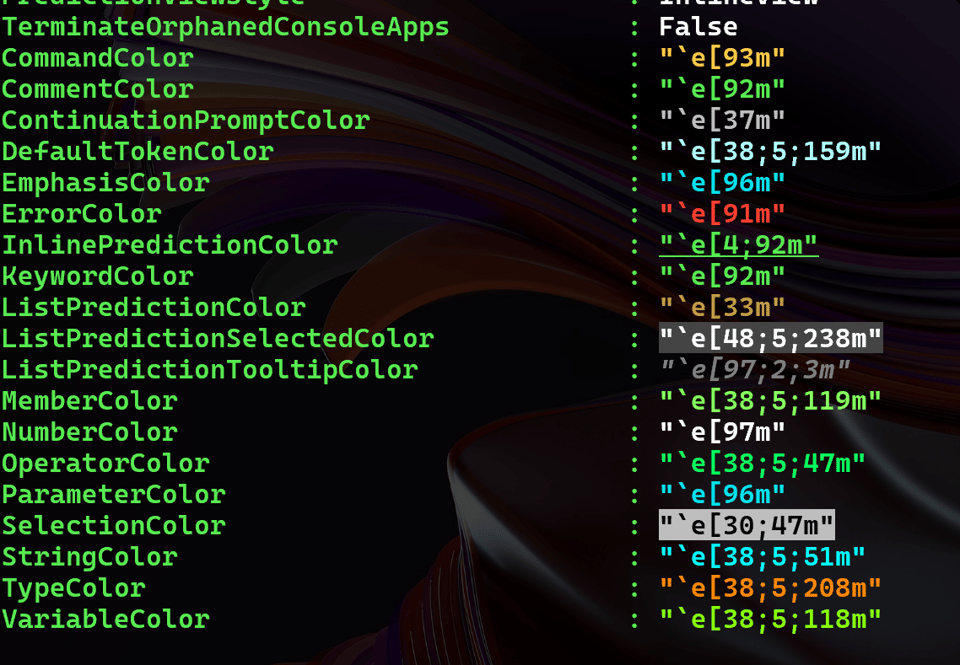
The request was to allow Write-Host to use these colors. The suggestion was to support syntax like this:
Write-Host "There was an error: [ErrorColor]File not found"
The group eventually decided that such a change wasn't necessary since you can do this yourself with syntax like this:
Write-Host "There was an error: $((Get-PSReadlineOption).ErrorColor)File not found.$($PSStyle.reset)"
I'll let you try this for yourself.
However, I liked the idea and thought it would be useful to have a function that simplified this process. So, I wrote an alternative Write-Host function to do this. I could have written this as a proxy function, but since the behavior is different enough, I decided to write it as a separate function.
To simplify this process, I started with a function to list color option tokens.
function Get-PSReadLineColorToken {
    <#
    .SYNOPSIS
    Get PSReadline color token names
    .DESCRIPTION
    Run this command to get a list of PSReadline color tokens.
    .EXAMPLE
    PS C:\scripts> get-PSReadLineColorToken | Out-String

    Token                  Display      ANSI
    -----                  -------      ----
    ContinuationPrompt     `e[37m
    Default                `e[38;5;159m
    Comment                `e[92m
    Keyword                `e[92m
    String                 `e[38;5;51m
    Operator               `e[38;5;47m
    Variable               `e[38;5;118m
    Command                `e[93m
    Parameter              `e[96m
    Type                   `e[38;5;208m
    Number                 `e[97m
    Member                 `e[38;5;119m
    Emphasis               `e[96m
    Error                  `e[91m
    Selection              `e[30;47m
    InlinePrediction       `e[4;92m
    ListPrediction         `e[33m
    ListPredictionSelected `e[48;5;238m
    ListPredictionTooltip  `e[97;2;3m

    The ANSI property is the actual ANSI escape sequence
    .LINK
    Get-PSReadlineOption
    .NOTES
    .NOTES
    Learn more about PowerShell: http://jdhitsolutions.com/yourls/newsletter

    #>
    [CmdletBinding()]
    [OutputType('PSReadlineColorOption')]
    param()

    $esc = '`e'
    $colorOptions = Get-PSReadLineOption | Select-Object $Name

    $colorOptions.PSObject.properties.Where({ $_.name -match 'Color' }) |
    ForEach-Object {
        $token = $_.name
        if ($token -match 'DefaultToken') {
            $token = 'Default'
        }

        [PSCustomObject]@{
            PSTypeName = 'PSReadLineColorOption'
            Token      = $Token.Replace('Color', '')
            Display    = '{0}{1}{2}' -f ($_.Value), ($_.value -replace $([char]27), $esc), "$([char]27)[0m"
            ANSI       = $_.Value
        }
    }
}
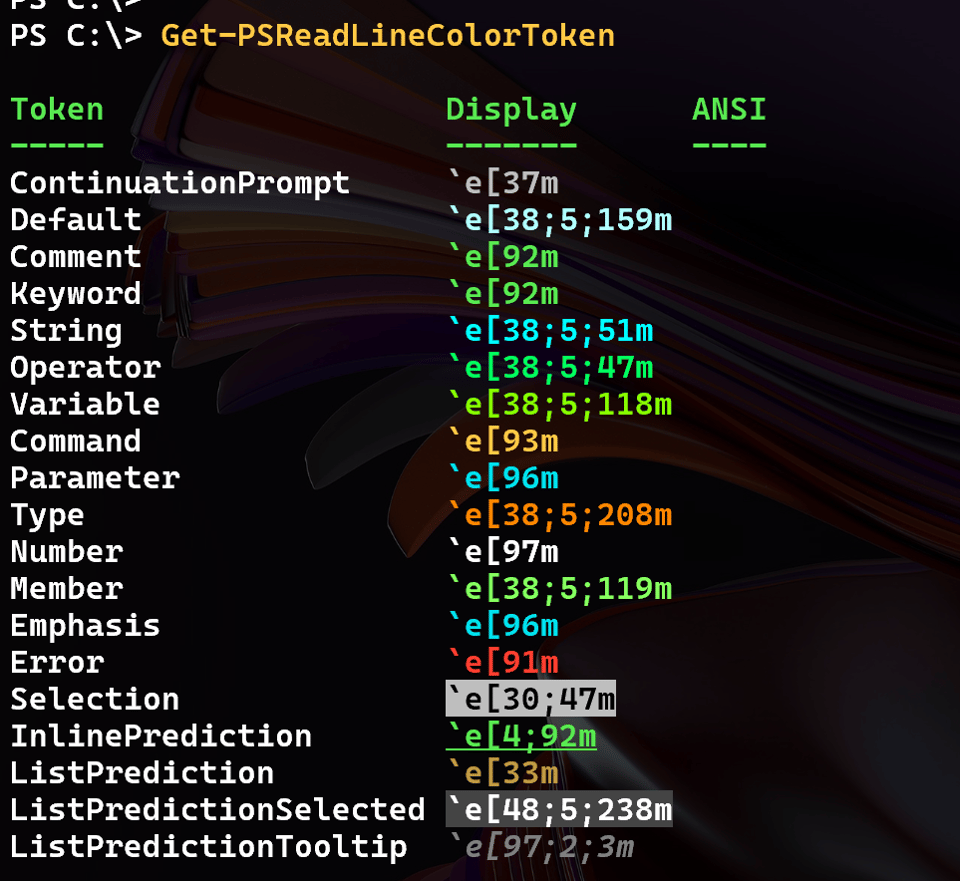
The concept is to create a lookup hashtable of PSReadline color options, along with a few other ANSI options such as bold and italic.
Get-PSReadLineColorToken | foreach -Begin {
    $hash = @{
        '/'        = "$([char]27)[0m"
        'reset'    = "$([char]27)[0m"
        Italic     = "$([char]27)[3m"
        Underline  = "$([char]27)[4m"
        Background = "$([char]27)[7m"
    }
} -Process {
    $hash.Add($_.Token, $_.Ansi)
}
The user could define a string like this:
$in = 'An [italic]exit code[reset] [Error][Background]13[/] has been [Comment]returned[/].'
The concept is to enumerate the look up hashtable and replace each token with the corresponding ANSI escape sequence.
$hash.GetEnumerator() | ForEach-Object {
    $in = $in -replace "\[$($_.Name)\]", $_.Value
} -End {
    $in
}

Here's the function that puts it all together.
function Write-PSHost {
    <#
    .SYNOPSIS
    Write a message to the host using PSReadline colors
    .DESCRIPTION
    This command is designed to write a message to the PowerShell console host using PSReadline colors.

    The PSReadline module defines a set of color tokens using ANSI sequences for command elements such
    as strings and numbers. This function allows you to use those token colors in a message that will
    be written to the PowerShell console host using Write-Host. In other words, instead of using the
    traditional foreground and background console colors, you can use colors defined by the PSReadline
    module.

    Run Get-PSReadlineColorToken to see a list of tokens. In addition to these tokens you can also use:

    - Reset or /
    - Italic
    - Underline
    - Bold
    - Blink
    - Background

    Reference these elements wrapped in brackets to use the style.

    [italic][bold]I[/] am running [variable]PowerShell[/] version [emphasis][background]$($PSVersionTable.PSVersion)[/]

    Be sure to include [/] or [/reset] when you want to "turn-off" the formatting.

    You can use Write-Host parameters NoNewLine and Separator
    .PARAMETER Message
    Enter a formatted string to write to the host. See examples.
    .EXAMPLE
    PS C:\> Write-PShost "[background][command][bold]$((Get-Date).TimeOfDay)[/] Starting [italic][bold]update[/] process"
    13:58:20.8537462 Starting update process

    The output will stylized accordingly.
    .EXAMPLE
    PS C:\> Write-PSHost "[blink][error]You entered an invalid value:[/] [member]FOO[/]"
    You entered an invalid value: FOO

    Note that blinking is not supported in the VSCode integrated PowerShell terminal.
    .LINK
    Write-Host
    .LINK
    Get-PSReadlineOption
    .NOTES
    version: 1.3.1
    Learn more about PowerShell: http://jdhitsolutions.com/yourls/newsletter
    .INPUTS
    String
    #>
    [cmdletbinding()]
    [OutputType('None')]
    [alias('wpsh')]
    param(
        [Parameter(
            Position = 0,
            ValueFromPipeline,
            HelpMessage = 'Enter a formatted string to write to the host'
        )]
        [ValidateNotNullOrEmpty()]
        [Alias('msg')]
        [string[]]$Message,
        [switch]$NoNewLine,
        [string]$Separator
    )

    begin {
        #define version number for the stand-alone function
        $functionVersion = '1.3.1'
        Write-Information "using function version $functionVersion" -Tags runtime
        Write-Verbose "[$((Get-Date).TimeOfDay) BEGIN  ] Starting $($MyInvocation.MyCommand) v$functionVersion"
        Write-Verbose "[$((Get-Date).TimeOfDay) BEGIN  ] Running under PowerShell version $($PSVersionTable.PSVersion)"
        Write-Verbose "[$((Get-Date).TimeOfDay) BEGIN  ] Detected PowerShell host $($Host.Name)"

        #define the lookup hashtable
        Get-PSReadLineColorToken | foreach -Begin {
            $hash = @{
                '/'        = "$([char]27)[0m"
                'reset'    = "$([char]27)[0m"
                Bold       = "$([char]27)[1m"
                Italic     = "$([char]27)[3m"
                Underline  = "$([char]27)[4m"
                Blink      = "$([char]27)[5m"
                Background = "$([char]27)[7m"
            }
        } -Process {
            $hash.Add($_.Token, $_.Ansi)
        }
        Write-Information $hash -Tags data
    } #begin

    process {
        Write-Verbose "[$((Get-Date).TimeOfDay) PROCESS] Processing $Message"
        Write-Information $PSBoundParameters -Tags runtime
        $hash.GetEnumerator() | ForEach-Object {
            $Message = $Message -replace "\[$($_.Name)\]", $_.Value
        }
        #Update the bound parameter
        $PSBoundParameters['Message'] = $Message
        Write-Verbose "[$((Get-Date).TimeOfDay) PROCESS] Invoking the native Write-Host command"
        Microsoft.PowerShell.Utility\Write-Host @PSBoundParameters
    } #process

    end {
        Write-Verbose "[$((Get-Date).TimeOfDay) END    ] Ending $($MyInvocation.MyCommand)"
    } #end

} #close Write-PSHost
Now I can use statements like this:
Write-PShost "[background][command][bold]$((Get-Date).TimeOfDay)[/] Starting [italic][bold]update[/] process"

One thing to keep in mind is that you have no way of knowing what is configured for a given PSReadline color token. But if this is something you want to use on your system where you know what to expect, these functions might be useful.
I might put these together into a simple module and publish to the PowerShell Gallery. For now, grab the code from here and give it a try.
Function Design Patterns
The last thing I want to cover is to add my thoughts to a topic I saw a few weeks ago in social media. The question was about design patterns. The original poster commented that this format was widely used in programming and other scripting languages.
var MyFunc (Param)
{
      code

      return var;

}
Yet many PowerShell functions follow a different pattern:
Function MyFunc
{
      (Param)

      code
}
The original poster didn't understand the need to re-invent the wheel. I am confident most of you can explain why, but let me add my thoughts.
To me, this is a very simple explanation. A PowerShell function is more than a coding construct. You should think of it as a management construct. Yes, you can write a simple PowerShell function to convert grams to ounces and return a value. However we write PowerShell functions to manage things at scale.
We can write a PowerShell function to query event logs on hundreds or thousand of computers; often with rich parameter sets that don't fit nicely into the traditional format. Scripting and automating with PowerShell goes well beyond conventional functions.
Or at least, I think it should based on my nearly 20 years of experience with the language. The more experience you have with PowerShell, and the more you treat it as an automation or management language and not simply another programming language or shell, the more you'll understand my thinking.
Scripting Challenge
I'll leave you with what should be a fun scripting challenge. Write a PowerShell statement to find all files in a folder last modified in a leap year. Once you can find those files, display them grouped by the year they were last modified. If you are feeling ambitions, create an HTML report of the files grouped by year.
You shouldn't need to write a function for this challenge, although you might have to "fake" some files by manually adjusting the last modified time.
Summary
I hope you learned a few things this month and continue to find value in my work. Thank you all for your support.


Add a comment: