
More Registry Roaming
In this issue:
Let's continue exploring how to use the [Microsoft.Win32.RegistryKey] class with PowerShell to work with the Windows registry. The default PSDrives for the registry are extremely useful, but only provide access to the HKEY_CURRENT_USER and HKEY_LOCAL_MACHINE hives. In this article, we'll look at how to access other registry hives and discuss considerations for remoting scenarios. There are a few other hives you might want to work with such as HKEY_USERS. This is where the .NET classes become particularly useful.
Exploring Other Registry Hives
Using regedit.exe, you can see the HKEY_USERS hive contains subkeys for each user profile on the system. Each subkey is named with the user's Security Identifier (SID).
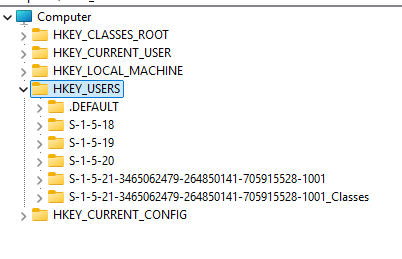
To access these keys programmatically, you can open the hive:
$users = [Microsoft.Win32.RegistryKey]::OpenBaseKey('Users', 'Default')
The subkey names are what you see using regedit.exe.
PS C:\> $users.GetSubKeyNames()
.DEFAULT
S-1-5-19
S-1-5-20
S-1-5-21-3465062479-264850141-705915528-1001
S-1-5-21-3465062479-264850141-705915528-1001_Classes
S-1-5-18
I probably don't need .DEFAULT or the Classes keys so I'll filter those out.
$sids = $users.GetSubKeyNames().Where({ $_ -notMatch 'Default|Classes' })
Resolving SIDs
I know that short SIDs belong to system accounts. I can convert the SID to an account name using the [System.Security.Principal.SecurityIdentifier] class.
$sids | ForEach-Object {
    [PSCustomObject]@{
        RegistryPath = $users.Name
        Name         = $_
        Account      = [System.Security.Principal.SecurityIdentifier]::new($_).Translate('System.Security.Principal.NTAccount').value
    }
}
This gives me more meaningful output.
RegistryPath Name                                         Account
------------ ----                                         -------
HKEY_USERS   S-1-5-19                                     NT AUTHORITY\LOCAL SERVICE
HKEY_USERS   S-1-5-20                                     NT AUTHORITY\NETWORK SERVICE
HKEY_USERS   S-1-5-21-3465062479-264850141-705915528-1001 PROSPERO\Jeff
HKEY_USERS   S-1-5-18                                     NT AUTHORITY\SYSTEM
I could further filter from here. However, it might be better to filter out the SIDs I don't want earlier in the process. I can use a regular expression pattern to only match on a user SID.
$sids = $users.GetSubKeyNames().Where({ $_ -match '^S([\-\d+]){8,}$' })
$sids | ForEach-Object {
    [PSCustomObject]@{
        RegistryPath = $users.Name
        Name         = $_
        Account      = [System.Security.Principal.SecurityIdentifier]::new($_).Translate('System.Security.Principal.NTAccount').value
        ComputerName = $env:COMPUTERNAME
    }
}
This limits the results to only user SIDs.
RegistryPath Name                                         Account       ComputerName
------------ ----                                         -------       ------------
HKEY_USERS   S-1-5-21-3465062479-264850141-705915528-1001 PROSPERO\Jeff PROSPERO
Since I only have one user account, let me save the results to a variable.
$user = $sids | ForEach-Object {
    [PSCustomObject]@{
        RegistryPath = $users.Name
        Name         = $_
        Account      = [System.Security.Principal.SecurityIdentifier]::new($_).Translate('System.Security.Principal.NTAccount').value
        ComputerName = $env:COMPUTERNAME
    }
}
Querying User Registry Keys
I can use this object to build a path to a specific registry key that I can open.
$qPath = Join-Path $user.Name -ChildPath 'Software\Microsoft\Windows\CurrentVersion\Uninstall'
$uninstall = $users.OpenSubKey($qPath)
Using my Get-RegistryKeyData function from last time, I can query uninstall information.
PS C:\> Get-RegistryKeyData -RegistryKey $uninstall -KeyName $uninstall.GetSubKeyNames()[0]

RegistryPath : HKEY_USERS\S-1-5-21-3465062479-264850141-705915528-1001\Software\Microsoft\Windows\CurrentV
               ersion\Uninstall\AgileBits.1Password.CLI_Microsoft.Winget.Source_8wekyb3d8bbwe
Computername : PROSPERO
KeyName      : DisplayName
KeyType      : String
KeyValue     : 1Password CLI

RegistryPath : HKEY_USERS\S-1-5-21-3465062479-264850141-705915528-1001\Software\Microsoft\Windows\CurrentV
               ersion\Uninstall\AgileBits.1Password.CLI_Microsoft.Winget.Source_8wekyb3d8bbwe
Computername : PROSPERO
KeyName      : DisplayVersion
KeyType      : String
KeyValue     : 2.31.1
...

This gives me an object for each key. It might be easier to join objects from the same path into a single object. See if you can visualize what this code is doinbg:

```powershell
$r = $uninstall.GetSubKeyNames() |
Get-RegistryKeyData -RegistryKey $uninstall |
Group-Object RegistryPath -PipelineVariable pv |
ForEach-Object {
    Write-Host "Processing $(Split-Path $pv.Group[0].RegistryPath -Leaf)" -ForegroundColor Yellow
    $_.Group | Sort-Object KeyName |
    ForEach-Object -Begin {
        $hash = [ordered]@{
            Product      = Split-Path $pv.Group[0].RegistryPath -Leaf
            User         = $user.Account
            ComputerName = $env:COMPUTERNAME
        }
    } -Process {
       $hash.Add($_.KeyName, $_.KeyValue)
    } -End {
        #write the hashtable to the pipeline
        $hash
    }
}
I am processing all subkeys and grouping the registry key data by the registry path. For each group, I create a hashtable with some standard properties and then add each key name and value to the hashtable. Finally, I output the hashtable as an object.
PS C:\> $r.count
18
PS C:\> $r[3]

Name                           Value
----                           -----
Product                        {889610CC-4337-4BDB-AC3B-4F21806C0BDE}_is1
User                           PROSPERO\Jeff
ComputerName                   PROSPERO
DisplayIcon                    C:\Users\Jeff\AppData\Local\Programs\UniGetUI\Un…
DisplayName                    UniGetUI
DisplayVersion                 3.3.7
EstimatedSize                  244368
HelpLink                       https://github.com/marticliment/UniGetUI
Inno Setup: App Path           C:\Users\Jeff\AppData\Local\Programs\UniGetUI
Inno Setup: Deselected Tasks   portableinstall
Inno Setup: Icon Group         (Default)
Inno Setup: Language           English
Inno Setup: Selected Tasks     regularinstall,regularinstall\startmenuicon,regu…
Inno Setup: Setup Version      6.7.0
Inno Setup: User               Jeff
InstallDate                    20260204
InstallLocation                C:\Users\Jeff\AppData\Local\Programs\UniGetUI\
MajorVersion                   3
MinorVersion                   3
ModifyPath                     "C:\Users\Jeff\AppData\Local\Programs\UniGetUI\U…
NoRepair                       1
Publisher                      Martí Climent
QuietUninstallString           "C:\Users\Jeff\AppData\Local\Programs\UniGetUI\u…
UninstallString                "C:\Users\Jeff\AppData\Local\Programs\UniGetUI\u…
URLInfoAbout                   https://www.marticliment.com/unigetui/
URLUpdateInfo                  https://github.com/marticliment/UniGetUI
VersionMajor                   3
VersionMinor                   3
If you noticed, I didn't specify a typename for my custom output. That's not really possible since each uninstall entry will have different properties.


