
Leaping to a PowerShell Solution
In this issue:
- Getting Started
- IsLeapYear
- Finding Leap Year Files
- Formatted Grouping
- Creating an HTML Report
- Bonus: SpectreConsole Integration
- Summary
Time to solve the PowerShell scripting challenge from last month. I hope you took some time to figure this out. The process of solving the problem is more important than the solution.
I challenged you to find files in a give file that were last modified in a leap year and display them grouped by year. As a bonus, I suggested creating an HTML report of the results.
Here's how I approached the problem.
Getting Started
The first step might be to display files in a given directory including the year the file was last modified. We know that the file object has a LastWriteTime property which is a DateTime object. This means it has a Year property we can use.
PS C:\> $f = Get-Item $PROFILE
PS C:\> $f.LastWriteTime

Thursday, March 20, 2025 8:47:20 AM

PS C:\> $f.LastWriteTime.Year
2025
I might list files in a directory like this:
PS C:\> Get-ChildItem c:\temp\ -file | Select-Object -first 5 -Property Name,LastWriteTime,
@{Name="Year";Expression = {$_.LastWriteTime.Year}}

Name                LastWriteTime         Year
----                -------------         ----
01 Start Me Up.mp3  3/12/2023 3:57:58 PM  2023
01 Start Me Up.zip  5/28/2025 1:26:33 PM  2025
01 Tom Sawyer 1.zip 5/28/2025 1:26:34 PM  2025
2112.mp3            5/27/2009 1:04:43 PM  2009
40.txt              9/29/2025 10:49:47 AM 2025
IsLeapYear
Next, I have to determine if a year is a leap year. I could create a static list of known leap years and compare the date. I could try to test the year mathematically. But there is an even easier way. The .NET DateTime class has a static method called IsLeapYear that can help.
PS C:\> [datetime]::IsLeapYear(2025)
False
PS C:\> [datetime]::IsLeapYear(2024)
True
I can get a list of leap years from the last 25 years:
PS C:\> 2000..2025 | Where-Object {[Datetime]::IsLeapYear($_)}

2000
2004
2008
2012
2016
2020
2024
Finding Leap Year Files
With this concept in mind, I can now filter files in a directory to only those modified in a leap year.
PS C:\> Get-ChildItem c:\temp\ -file | Where-Object {[DateTime]::IsLeapYear($_.LastWriteTime.Year)}

    Directory: C:\temp

Mode                 LastWriteTime         Length Name
----                 -------------         ------ ----
-a---           12/3/2020  4:33 PM           1729 a.png
-a---          10/16/2012  3:31 PM           1382 Demo-PowerShellHTML.ps1
-a---           10/3/2016  9:03 AM            500 Download-2016Eval.ps1
-a---            5/1/2020  8:31 AM            263 Get-WTProcess.ps1
-a---           3/10/2016  9:22 AM        3784538 Loituma - Ievas polka.mp3
-a---           4/25/2024 12:47 PM            281 multiline-prompt.ps1
-a---            3/1/2016  2:10 PM           5942 New-PSDriveHere.ps1
-a---           2/29/2024  4:44 PM          10060 PSRefresh.ps1
-a---           12/4/2024  4:07 PM          30125 psworkitem.md
-a---           9/15/2024  4:57 PM         104448 testef6.dll
-a---           1/22/2024  4:21 AM            965 testef6.dll.config
-a---           9/15/2024  4:57 PM          25592 testef6.pdb
-a---          10/29/2020  3:24 PM           7552 wtpsremote.ps1
Formatted Grouping
To group the results for display you might be tempted to jump to Group-Object. However, for a simple display, Format-Table will work, especially because it has a GroupBy parameter. The tricky part is that the value we want to group on must be calculated or derived from the file object. We can do this with a calculated property.
PS C:\> Get-ChildItem c:\temp\ -file |
Where-Object {[DateTime]::IsLeapYear($_.LastWriteTime.Year)} |
Sort-Object LastWriteTime,Name |
Format-Table -GroupBy @{Name="Year";Expression={$_.LastWriteTime.Year}} -Property Mode,LastWriteTime,Length,Name

   Year: 2012

Mode  LastWriteTime         Length Name
----  -------------         ------ ----
-a--- 10/16/2012 3:31:46 PM   1382 Demo-PowerShellHTML.ps1

   Year: 2016

Mode  LastWriteTime         Length Name
----  -------------         ------ ----
-a--- 3/1/2016 2:10:23 PM     5942 New-PSDriveHere.ps1
-a--- 3/10/2016 9:22:17 AM 3784538 Loituma - Ievas polka.mp3
-a--- 10/3/2016 9:03:59 AM     500 Download-2016Eval.ps1

   Year: 2020

Mode  LastWriteTime         Length Name
----  -------------         ------ ----
-a--- 5/1/2020 8:31:14 AM      263 Get-WTProcess.ps1
-a--- 10/29/2020 3:24:53 PM   7552 wtpsremote.ps1
-a--- 12/3/2020 4:33:20 PM    1729 a.png

   Year: 2024

Mode  LastWriteTime         Length Name
----  -------------         ------ ----
-a--- 1/22/2024 4:21:34 AM     965 testef6.dll.config
-a--- 2/29/2024 4:44:33 PM   10060 PSRefresh.ps1
-a--- 4/25/2024 12:47:38 PM    281 multiline-prompt.ps1
-a--- 9/15/2024 4:57:47 PM  104448 testef6.dll
-a--- 9/15/2024 4:57:47 PM   25592 testef6.pdb
-a--- 12/4/2024 4:07:30 PM   30125 psworkitem.md
There are a few caveats with this approach. First, you must sort the objects before formatting. I am sorting first on the LastWriteTime and then on the Name to get a consistent order. The secondary sort is probably not necessarily because it will only be used with files that have identical LastWriteTime values.
Second, the value for the GroupBy parameter can be a script block or hashtable. I recommend using the hashtable form as I'm doing so that you have a clean label for the grouping. Finally, when using format grouping, you must also specify the properties you want to see. In my solution, I am simply repeating the default properties shown by Get-ChildItem.
Creating an HTML Report
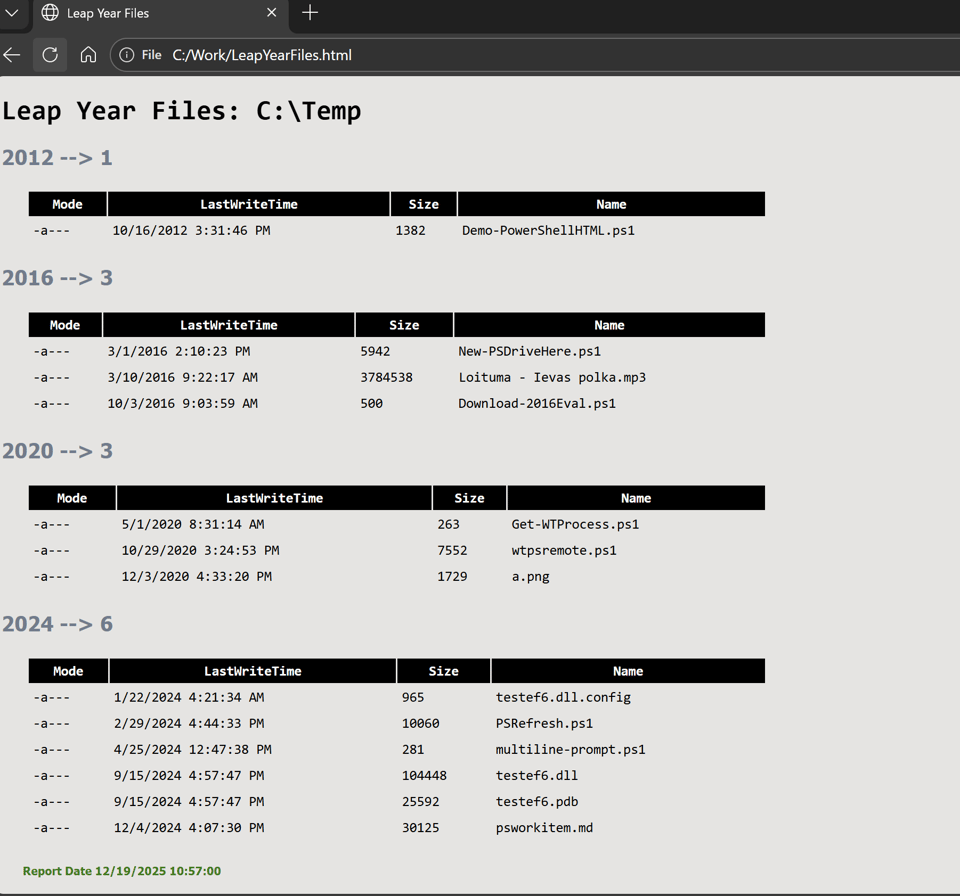
Next, let's move on and use this data to create an HTML report. The following code would go in a script file which I could then execute
#the path to search
$Path = "C:\Temp"
#the output file
$htmlPath = "C:\Work\LeapYearFiles.html"

#get the files
$files = Get-ChildItem $Path -file |
Where-Object {[DateTime]::IsLeapYear($_.LastWriteTime.Year)} |
Sort-Object LastWriteTime,Name
I should have logic to test if there are any files.
if ($files.count -gt 0 ) {
    ##code
}
else {
    Write-Warning "No matching files found in $Path"
}
If files are found, I can create the HTML report. For this task, I want to use Group-Object and group on a custom property.
$grouped = $files | Group-Object {$_.LastWriteTime.Year}
This will create output like this:
Count Name                      Group
----- ----                      -----
    1 2012                      {C:\temp\Demo-PowerShellHTML.ps1}
    3 2016                      {C:\temp\New-PSDriveHere.ps1, C:\temp\Loituma - Ievas polka.mp3, …
    3 2020                      {C:\temp\Get-WTProcess.ps1, C:\temp\wtpsremote.ps1, C:\temp\a.png}
    6 2024                      {C:\temp\testef6.dll.config, C:\temp\PSRefresh.ps1, C:\temp\mult…
My plan is to process each group and create a section in the HTML report for each year. First, I'll define the style I want to use and a few other HTML basics
    $title = "Leap Year Files"
    $head = @"
<style>
body { background-color:#E5E4E2;
font-family:Monospace;
font-size:12pt; }
td, th { border:0px solid black;
border-collapse:collapse;
white-space:pre; }
th { color:white;
background-color:black; }
table, tr, td, th { padding: 5px; margin: 0px ;white-space:pre; }
table { margin-left:25px; width:50%;}
h2 {
    font-family:Tahoma;
    color:#6D7B8D;
    }
    .footer
    { color:green;
    margin-left:25px;
    font-family:Tahoma;
    font-size:10pt;
    }
    </style>
    <title>$Title</title>
"@
Instead of referencing an external CSS file, I am embedding the style directly in the HTML head section. Next, I'll create the basic HTML structure using HTML fragments.
#initialize a list to hold the fragments
$fragments = [System.Collections.Generic.List[string]]::New()
#add a header
$fragments.Add("<H1>Leap Year Files: $Path</H1>")
Foreach ($item in $grouped) {
    #insert a header for the year also showing the count of files
    $fragments.Add("<H2>$($item.Name) --> $($item.Count)</H2>")
    #create a table fragment for the grouping
    $table = $item.Group | Select-Object -Property Mode,LastWriteTime,
    @{Name="Size";Expression = {$_.Length}},Name |
    ConvertTo-Html -Fragment -As Table
    #add the table fragment to the list
    $fragments.Add($table)
}
It isn't a requirement, but I like adding a metadata footer to my HTML reports.
#add a footer
$footer = "<H5 class=footer>Report Date $(Get-Date)</H5>"
$fragments.add($footer)
My style sheet has a style defined for the footer class.
Finally, I can combine all the fragments into a single HTML document and save it to a file.
ConvertTo-HTML -Body $fragments -head $head | Out-File -FilePath $htmlPath
Bonus: SpectreConsole Integration
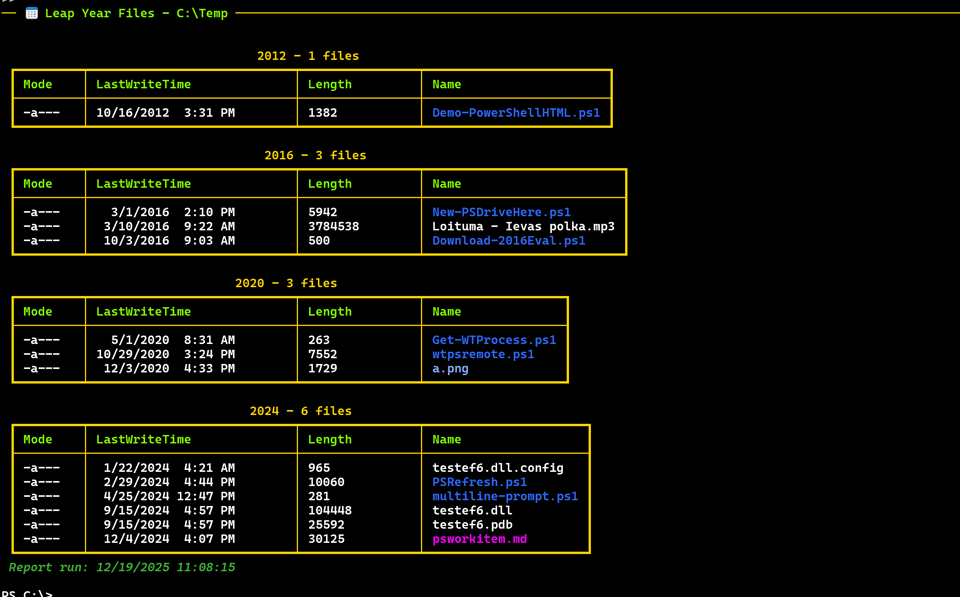
Since we spent some time this month exploring ways to to use the pwshSpectreConsole module, I thought it might be fun to integrate into this challenge. I'm going to start with grouped files.
$Path = "C:\Temp"
$files = Get-ChildItem $Path -file |
Where-Object {[DateTime]::IsLeapYear($_.LastWriteTime.Year)} |
Sort-Object LastWriteTime,Name | Group-Object {$_.LastWriteTime.Year}
My plan is to take each grouping and display the files as a Spectre table. I'll also use a rule line to set off the output.
#parameter hashtable for Format-SpectreTable
$fst = @{
    Title       = $null
    Color       = 'gold1'
    HeaderColor = 'Chartreuse1'
    Border      = 'HeavyEdge'
}
#parameter hashtable for Write-SpectreRule
$rule = @{
    Title     = ":calendar: Leap Year Files - $Path"
    Color     = $fst.HeaderColor
    LineColor = $fst.color
}

Write-SpectreRule @rule

foreach ($item in $files) {
    #set the table title
    $fst["Title"] = "$($item.Name) - $($item.count) files"
    $item.Group | Format-SpectreTable @fst | Format-SpectrePadded -Padding 1
}

Write-SpectreHost "[green italic] Report run: $(Get-Date)[/]" -PassThru
Summary
I hope you see a pattern here. Break the problem down into smaller pieces. Solve each piece individually. Then combine the pieces into a complete solution. Or put another way, get the data, then decide how to present it. As long as you think "objects", this will be a much easier process.
I hope you find these scripting challenges useful because I'll have another one very soon!


Add a comment: