
January 2026 PowerShell Roundup
In this issue:
- PSIntro
- Are You Using That?
- Try/Catch Error Types
- Conference Planning
- The End of an Era
- A New Scripting Challenge
- Summary
I can't believe the first month of 2026 is already behind us! Before we leave, allow me to share a collection PowerShell news, tips, and tricks.
PSIntro
You may have seen me mention the PSIntro PowerShell module before or on social media. I wrote this module to serve as an introduction to PowerShell for new users. It includes a welcome screen with links to learning resources, a set of functions to manage PowerShell profile scripts, and a set of interactive tutorials that guide users through the basics of PowerShell.
A few weeks ago, I released version 2.0 of the module which is a major update. The original version only supported PowerShell 7. But I had several requests to support Windows PowerShell so I rewrote the module to support both versions of PowerShell.
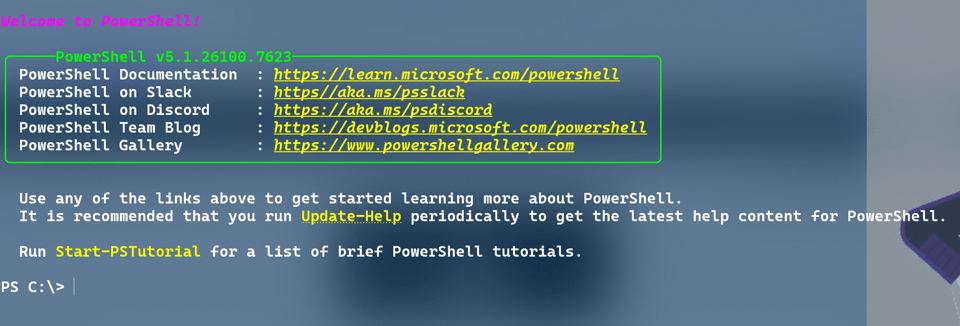
Here's what's included.
PS C:\> Get-ModuleCommand PSIntro


   ModuleName: PSIntro [v2.0.0]

Name              Alias   Synopsis
----              -----   --------
Add-PSIntro               Add Start-PSIntro to your PowerShell profile.
Get-ModuleStatus          Get key module status
Get-ProfileStatus         Get the status of PowerShell profile scripts for the current host.
Get-PSIntro       PSIntro Display a PowerShell welcome screen
New-PSProfile             Create a new PowerShell profile script.
Start-PSTutorial          Start an interactive PowerShell tutorial
Get-ModuleCommand is part of the PSScriptTools module.
I also revamped the tutorial structure to allow you to navigate backwards. I also added a tutorial on using PowerShell profile scripts.
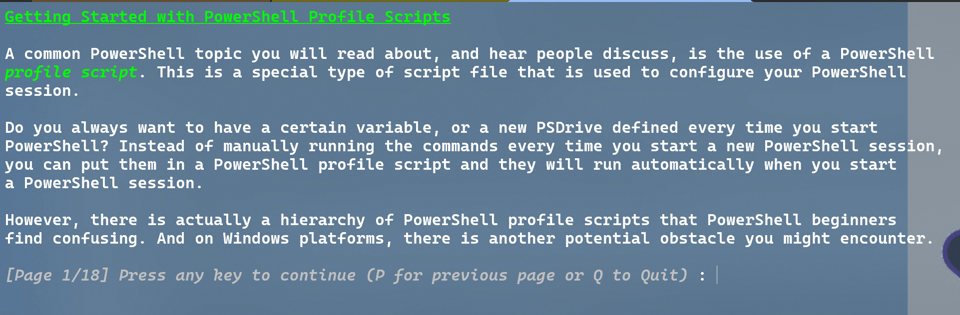
The module has been localized for German and French. You can install the module from the PowerShell Gallery. It would be a great addition to PowerShell beginners on your team.
Are You Using That?
I'm sure I'm not the only one that has tried to remove a file only to be told that the file is in use. There are no native PowerShell cmdlets to use and I haven't found a suitable .NET class or method. But that's ok. Sometimes PowerShell isn't always the best tool for the job. In this case, the best tool is handle.exe` from Sysinternals. I downloaded a copy and put it in my Windows folder so it is always available.
You can run the command in a PowerShell session.
PS C:\> handle.exe 'C:\Users\jeff\AppData\Local\Temp\wctC718.tmp'

Nthandle v5.0 - Handle viewer
Copyright (C) 1997-2022 Mark Russinovich
Sysinternals - www.sysinternals.com

OneDrive.Sync.Service.exe pid: 6084   type: File           958: C:\Users\jeff\AppData\Local\Temp\wctC718.tmp
Run handle -? to see the parameter options. This is where it gets interesting. I can format the output as CSV.
PS C:\> handle.exe -a -v -nobanner 'C:\Users\jeff\AppData\Local\Temp\wctC718.tmp'
Process,PID,Type,Handle,Name
OneDrive.Sync.Service.exe,6084,File,0x00000958,C:\Users\jeff\AppData\Local\Temp\wctC718.tmp
This means I can convert the output into an object and work with it in PowerShell.
PS C:\> handle.exe -a -v -nobanner 'C:\Users\jeff\AppData\Local\Temp\wctC718.tmp' | ConvertFrom-CSV

Process : OneDrive.Sync.Service.exe
PID     : 6084
Type    : File
Handle  : 0x00000958
Name    : C:\Users\jeff\AppData\Local\Temp\wctC718.tmp
Excellent. I can build a tool around this.
#requires -version 7.5
#requires -RunAsAdministrator

<#
This function requires handle.exe from Sysinternals. Put handle.exe in your %PATH% or
modify the code to use a specific file

if ((Get-CimInstance Win32_Processor -Property Caption).Caption -match "ARM") {
    $cmd = Join-Path $env:OneDrive\ToolsArm64 -ChildPath handle.exe
}
else {
    $cmd = Join-Path $env:OneDrive\Tools -ChildPath handle.exe
}
#>

function Get-OpenFileHandle {
    [cmdletbinding()]
    [OutputType('FileHandleInfo')]
    [alias("ofh")]
    param(
        [Parameter(
            Position = 0,
            Mandatory,
            ValueFromPipeline,
            HelpMessage = 'Specify a file to test'
        )]
        [ValidateScript({ Test-Path $_ })]
        [string]$Path
    )

    begin {
        $cmd = 'handle.exe'
        try {
            [void](Get-Command $cmd -CommandType Application -ErrorAction Stop)
        }
        catch {
            Write-Warning "Can't find $cmd"
            break
        }
        #use a timer to track how long it takes to process files
        $timer = [System.Diagnostics.Stopwatch]::new()
        $timer.Start()
        #initialize a file counter
        $i = 0
        Write-Verbose "[$((Get-Date).TimeOfDay) BEGIN  ] Starting $($MyInvocation.MyCommand)"
    } #begin

    process {
        $i++
        Write-Verbose "[$((Get-Date).TimeOfDay) PROCESS] Processing $Path"
        #I think there is a bug with CSV headings when using -u
        #so I will get the process owner separately
        $obj = &$cmd -AcceptEula -a -v -NoBanner $Path |
        ConvertFrom-Csv |
        Add-Member -MemberType ScriptProperty -Name User -Value { (Get-Process -Id $this.pid -IncludeUserName).UserName } -PassThru
        if ($obj) {
            #insert a typename
            $obj.PSObject.TypeNames.Insert(0, 'FileHandleInfo')
            #write the object to the pipeline
            $obj
        }
        else {
            Write-Verbose "[$((Get-Date).TimeOfDay) PROCESS] No open file handles found."
        }
    } #process
    end {
        Write-Verbose "[$((Get-Date).TimeOfDay) END    ] Ending $($MyInvocation.MyCommand)"
        $timer.stop()
        Write-Verbose "[$((Get-Date).TimeOfDay) END    ] Processed $i file(s) in $($timer.elapsed)"
    } #end
}
The comments and verbose messaging should help you understand how it works.
PS C:\> Get-OpenFileHandle C:\Users\jeff\AppData\Local\Temp\038f1525-9b45-485c-a701-3441fa4b211a.tmp

Process : brave.exe
PID     : 6752
Type    : File
Handle  : 0x0000036C
Name    : C:\Users\jeff\AppData\Local\Temp\038f1525-9b45-485c-a701-3441fa4b211a.
          tmp
User    : Cadenza\jeff
Because I added a type name, I could create custom formatting. Although for my purposes it may be just as easy to set default display properties.
Update-TypeData -TypeName FileHandleInfo -DefaultDisplayPropertySet 'Process', 'PID', 'Name', 'User'
Now I have relevant information displayed by default.
PS C:\> dir $env:temp\wct*.tmp | ofh

Process                   PID   Name                                          User
-------                   ---   ----                                          ----
OneDrive.exe              34852 C:\Users\jeff\AppData\Local\Temp\wct74BA.tmp  Cadenza\jeff
OneDrive.Sync.Service.exe 7608  C:\Users\jeff\AppData\Local\Temp\wct8B21.tmp  Cadenza\jeff
This isn't a super fast function when processing a lot of file or a folder since handle.exe can only process one file at a time. In my next iteration I may add support for processing multiple files in parallel using ForEach-Object or thread jobs. Although I suspect I only need to use this to check a specific file when there is an "in use" issue.
Try/Catch Error Types
I am assuming you are using Try/Catch blocks in your PowerShell scripts to handle errors. This is a relatively simple construct. You can have as much code in Try block as you want. If an error occurs, PowerShell jumps to the Catch block to handle the error. This means you might have different errors handled by the same Catch block. Or you can have multiple Catch blocks to handle different types of errors. If that sounds useful, take a few minutes to read https://powershellisfun.com/2025/12/12/powershell-try-catch-specific-error-types/. This should get you started down the right path.
Conference Planning
It is a new year which means you need to start planning your conference schedule.
PowerShell Summit
I will be presenting at this year's PowerShell+DevOps Global Summit in Bellevue, WA in April. My conference work load looks light so I hope to do a lot of socializing. Please don't be shy to introduce yourself and bend my ear. Schedule and tickets are available at https://www.powershellsummit.org/.
PSConfEU
I am also thrilled to be returning to Europe for PSConfEU 2026 this June in Wiesbaden, Germany. It is a short train ride from the Frankfurt airport so it should be easy to get to. I will be presenting sessions titled PowerShell Hidden Secrets and Embracing Events in PowerShell. Registration is open now.
The End of an Era
My last tidbit is a bit bittersweet. In case you missed the news this week, PowerShell inventor and Microsoft Technical Fellow Jeffrey Snover announced his retirement. He left Microsoft a few years ago to take on a role at Google. Even when he stopped having a direct role in PowerShell development, he continued to be an advocate for the product and the community. I am one of many people whose careers have been positively impacted by his work. My career in IT would be very different if PowerShell had not come along.
One of my favorite memories is being in Stockholm for a PowerShell conference. I was able to spend the day with Jeffrey, just the two of us, wandering around Stockholm's Old Town. One of the best days ever.
I'm hoping retirement means more opportunities for him to engage with the PowerShell community. He is still on the schedule for this year's PowerShell Summit to deliver a keynote. This might by your last chance to see him speak live. If he is there, I know it will be standing room only.
You can read more about his retirement at https://winbuzzer.com/2026/01/23/powershell-architect-jeffrey-snover-retires-from-google-xcxwbn/ and https://www.theregister.com/2026/01/22/powershell_snover_retires/.
A New Scripting Challenge
Ok. Time for the first scripting challenge of 2026. I don't think this is especially difficult so I hope you'll give it a try. In the Windows registry, you can find a list of applications scheduled to run automatically. You can find computer-specific applications under HKLM:\SOFTWARE\Microsoft\Windows\CurrentVersion\Run. There is a similar key for user-specific applications under HKCU:.
Write a PowerShell function to query these locations and write a custom object to the pipeline with the following properties:
- The application name
- The application command line
- The registry key path
- Scope (User or Machine based on the registry hive)
- UserName
- ComputerName
The output might look like this:
RegistryPath : HKLM:\SOFTWARE\Microsoft\Windows\CurrentVersion\Run
Scope        : Machine
Name         : SecurityHealth
Command      : C:\Windows\system32\SecurityHealthSystray.exe
Username     : Cadenza\jeff
Computername : CADENZA
Feel free to embellish as you want. At the very least, I suggest providing a typename for your custom object.
Summary
If there is a topic you'd like me to cover this year, you can send an email to behind@jdhitsolutions.com or leave a comment. See you next month!


Add a comment: