
February 2026 PowerShell Potluck
In this issue:
It was a short month, but I think covered a lot of ground. I hope you have a little processing bandwidth left because this month's round-up is heavy on tools and code. I don't have a lot of news items to share, but I do have a couple of new tools and some code snippets that I hope you find useful.
PSTuiTools
I admit that I am fascinated by terminal user interfaces, or TUIs. This is a quasi-graphical interface that runs in a console or terminal window. A common example that you may have seen is Out-ConsoleGridView in PowerShell 7. These types of programs rely on the Terminal.Gui library. Creating a TUI in PowerShell is similar to creating a Windows Presentation Foundation (WPF) script, which means it can be a daunting task. To assist, I created a PowerShell 7 module called PSTuiTools and published it to the PowerShell Gallery.
The module includes several sample PowerShell TUI scripts.
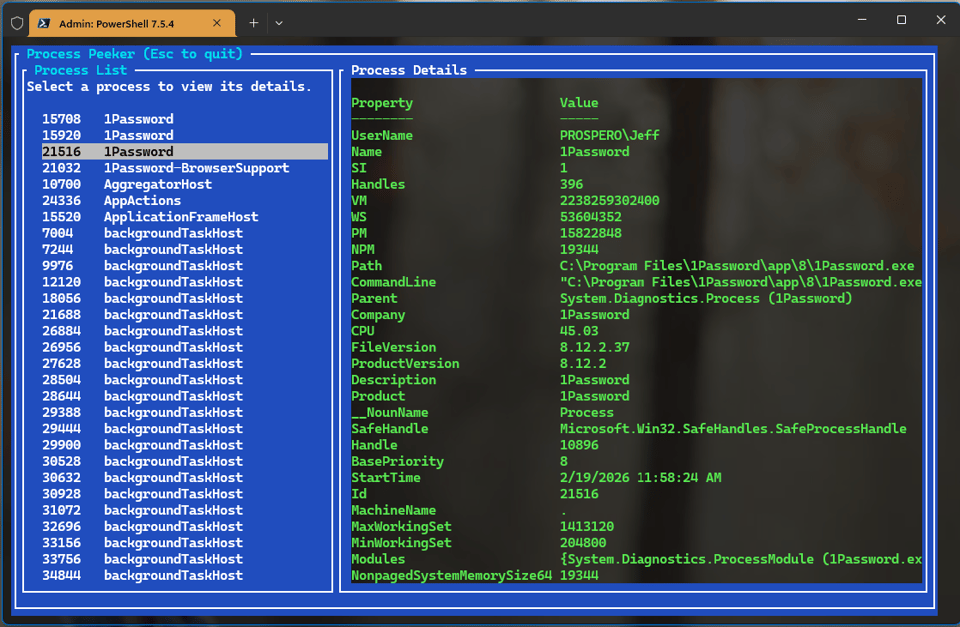
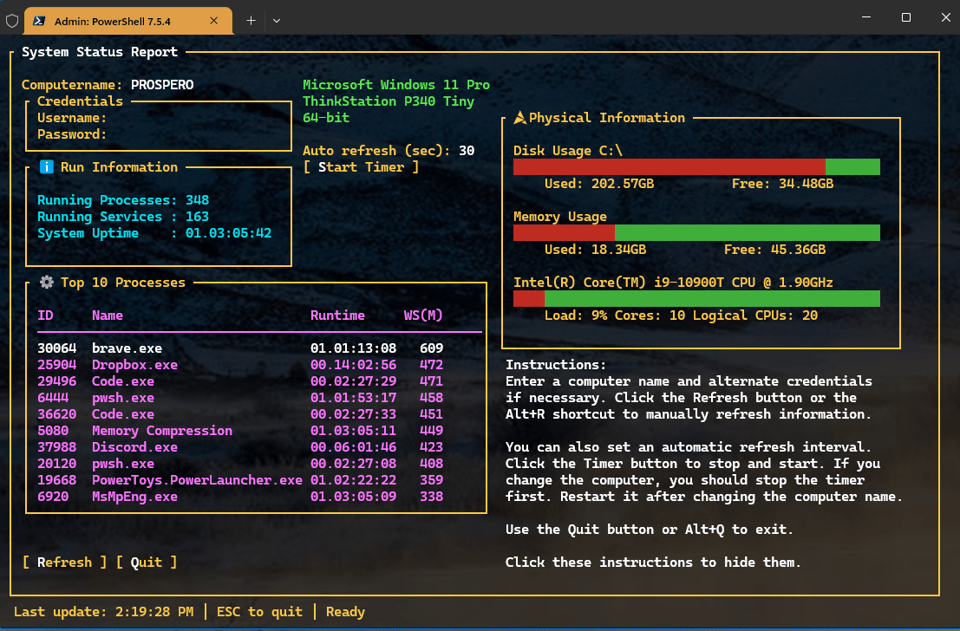
I even created a PowerShell-based MP3 player!
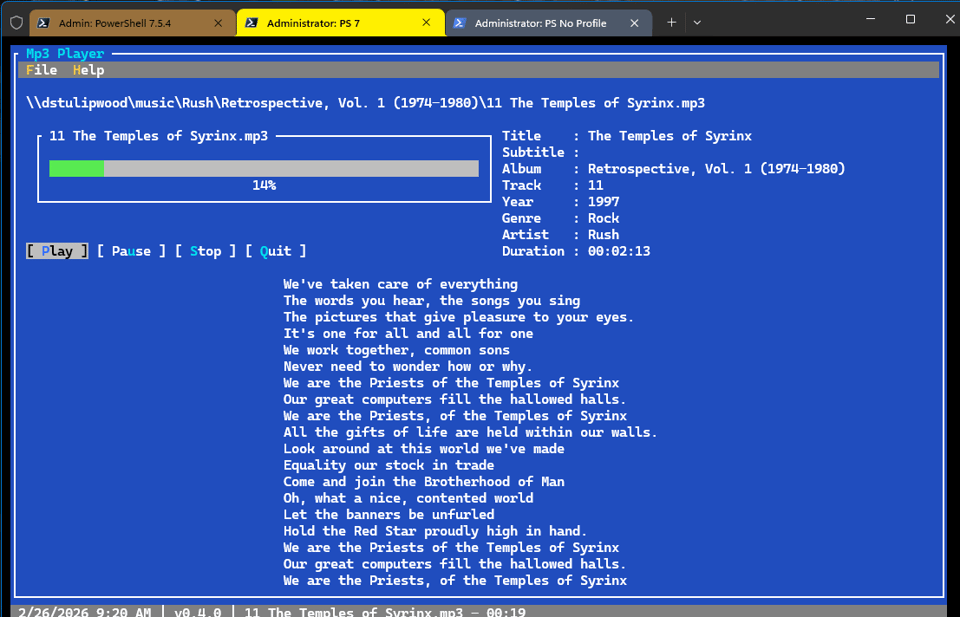
While you are welcome to use and enjoy the tools, I wrote them to be used as reference material for your projects. Installing the module will also install the necessary assemblies.
After you install the module, run Get-PSTuiTools or Invoke-PSTuiTools to learn more.
Add-TypeName
If you've been reading my content for awhile, you've seen me often create formatting and type extensions. In order to do that, the object must have a unique typename. How you define the typename depends on the situation. Where possible, I prefer to use code like this:
[PSCustomObject]@{
  PSTypename   = "PSInfo"
  Name         = "PowerShell"
  Version      = $PSVersionTable.PSVersion.Major
  Computername = [Environment]::MachineName
}
However, sometimes I want to define a typename in a pipelined expression. To make this easier, I wrote a PowerShell function that takes an incoming object, assigns a new type name, then writes the object to the pipeline. In other words, the object coming out of the command will have a new type name.
#requires -version 5.1
function Add-PSTypename {
  [cmdletbinding(SupportsShouldProcess)]
  param(
    [Parameter(
      Position = 0,
      Mandatory,
      HelpMessage = 'Enter a new typename'
    )]
    [ValidateNotNullOrEmpty()]
    [string]$Typename,

    [Parameter(
      Mandatory,
      ValueFromPipeline
    )]
    [ValidateNotNullOrEmpty()]
    [PSObject[]]$InputObject
  )

  process {
    foreach ($item in $InputObject) {
      #insert the new type name
      if ($PSCmdlet.ShouldProcess($item.GetType().Name, "Insert typename $TypeName")) {
          $item.PSObject.TypeNames.Insert(0, $Typename)
      }
      #write the updated object to the pipeline
      $item
    }
  } #process

} # close function
Let's say I am running a command like this:
PS C:\> Get-Process code -IncludeUserName | Select-Object Name,ID,WorkingSet,StartTime,Username

Name       : Code
Id         : 6076
WorkingSet : 111693824
StartTime  : 2/27/2026 12:04:59 PM
UserName   : PROSPERO\Jeff

Name       : Code
Id         : 6896
WorkingSet : 451289088
StartTime  : 2/27/2026 12:03:37 PM
UserName   : PROSPERO\Jeff
...
If you pipe this to Get-Member you'll see a custom object. But I want to give this output a custom type name because I have an existing format file already loaded into my session. I can run this command to insert a typename and automatically get the desired formatting.
PS C:\> Get-Process code -IncludeUserName | Select-Object Name,ID,WorkingSet,StartTime,Username | Add-PSTypename -Typename ProcessPeek

   Username: PROSPERO\Jeff

Id    Name WS(MB) StartTime             RunTime
--    ---- ------ ---------             -------
6076  Code 107    2/27/2026 12:04:59 PM 00.00:37:26
6896  Code 432    2/27/2026 12:03:37 PM 00.00:38:48
7528  Code 53     2/27/2026 12:03:35 PM 00.00:38:50
12980 Code 141    2/27/2026 12:04:25 PM 00.00:38:00
15268 Code 233    2/27/2026 12:04:19 PM 00.00:38:06
17968 Code 35     2/27/2026 12:03:34 PM 00.00:38:51
18364 Code 133    2/27/2026 12:03:35 PM 00.00:38:50
20108 Code 173    2/27/2026 12:03:32 PM 00.00:38:52
23216 Code 145    2/27/2026 12:03:45 PM 00.00:38:40
23224 Code 113    2/27/2026 12:03:45 PM 00.00:38:40
23508 Code 639    2/27/2026 12:03:46 PM 00.00:38:39
24020 Code 110    2/27/2026 12:04:19 PM 00.00:38:06
The type name only applies to these objects. If I re-run the command for different processes, I need to add the type name again.
PS C:\> Get-Process pwsh -IncludeUserName | Select-Object Name,ID,WorkingSet,StartTime,Username | Add-PSTypename -Typename ProcessPeek

   Username: PROSPERO\Jeff

Id    Name WS(MB) StartTime             RunTime
--    ---- ------ ---------             -------
17648 pwsh 332    2/27/2026 12:04:29 PM 00.00:39:35
19620 pwsh 383    2/27/2026 12:02:17 PM 00.00:41:48
20368 pwsh 133    2/27/2026 12:02:34 PM 00.00:41:31
You might also use this on imported data where there is no type information.
PS C:\> $r = import-csv C:\scripts\lmentries.csv | Add-PSTypename LMEntry
PS C:\> $r[0].PSObject.TypeNames
LMEntry
System.Management.Automation.PSCustomObject
System.Object
Import-FromJson
In fact, this is especially useful for Json files. However, instead of relying on Add-PSTypename, I created a function that inserts a new type name directly.
#requires -version 7.5
Function Import-FromJson {
    [cmdletbinding()]
    [OutputType('PSCustomObject')]
    [alias('ij')]
    Param(
        [Parameter(
            Position = 0,
            ValueFromPipeline,
            HelpMessage = "The path to the JSON file"
        )]
        [ValidateNotNullOrEmpty()]
        [ValidateScript({Test-Path $_},ErrorMessage = "Failed to find the specified file {0}")]
        [ValidatePattern("\.json$",ErrorMessage = "You must specify a json file.")]
        [string]$Path,

        [Parameter(HelpMessage = " Gets or sets the maximum depth the JSON input is allowed to have. The default is 102")]
        [ValidateNotNullOrEmpty()]
        [Int32]$Depth = 1024,

        [Parameter(HelpMessage = "Specifies the method used when parsing date time values in the JSON string.")]
        [ValidateSet("Default","Local","Utc","Offset","String")]
        [Microsoft.PowerShell.Commands.JsonDateKind]$DateKind = "Default",

        [Parameter(HelpMessage = "Specify an optional typename to apply to the imported objects.")]
        [ValidateNotNullOrEmpty()]
        [string]$Typename
    )

    Begin {
        Write-Verbose "[$((Get-Date).TimeOfDay) BEGIN  ] Starting $($MyInvocation.MyCommand)"
        Write-Verbose "[$((Get-Date).TimeOfDay) BEGIN  ] Running under PowerShell version $($PSVersionTable.PSVersion)"
    } #begin

    Process {
        Write-Verbose "[$((Get-Date).TimeOfDay) PROCESS] Importing date from $Path"
        Get-Content -Path $Path | ConvertFrom-Json -Depth $depth -DateKind $DateKind |
        Foreach-Object {
            if ($Typename) {
                $_.PSObject.TypeNames.Insert(0,$TypeName)
            }
            #write the object to the pipeline
            $_
        }
    } #process

    End {
        Write-Verbose "[$((Get-Date).TimeOfDay) END    ] Ending $($MyInvocation.MyCommand)"
    } #end

} #close Import-FromJson
The function is a wrapper for ConvertFrom-Json and is really a combination of Get-Content and ConvertFrom-Json. Now, I can simplify the process.
$g = Import-FromJson C:\scripts\gh-emoji.json -Typename ghEmoji
And if I have a formatting file loaded, the objects in $g will automatically be formatted. I could do a similar thing with importing a CSV. Although since there is already an Import-Csv command, maybe I could make a proxy command. I'll let you have that pleasure.
PowerShell Community Awards
The last item of interest is about the PowerShell Community. For the last few years, the organization behind the PowerShell Summit have handed out a set of awards to members of the PowerShell community. The awards are named after important members of the PowerShell community.
- The Don Jones Leadership Award
- The Jeffrey Snover Innovation Award
- The Sean Kearney Spirit Award
The goal is to recognize outstanding contributions to the PowerShell community and inspire the rest of us to greatness. The nomination process is now open to the public through 28 March, 2026. You can nominate people for some or all the awards. I encourage you to make a nomination for each award. The nomination process is anonymous, although you can provide an email address if you'd like.
It is assumed that your nominee is publicly active in the PowerShell community and has a social media presence. You'll need to provide a unique way of identifying them such as social media handle.
Go to https://survey.sogolytics.com/survey/form?k=SsQSQTQTsSPsPsPsP&lang=0 to make your nominations. It should only take a few minutes. Winners will be announced at the PowerShell Summit in April. You do not need to be attending the Summit to nominate.
Scripting Challenge
As is customary, let's close out the month with a new PowerShell scripting challenge.
When a Windows-based computer shuts down or starts up, the activity is captured in the event log. Your challenge is to find corresponding startup and shutdown events and create meaningful PowerShell output. Your first challenge will be to find the right events to use. There are several event types you could use. I'll let you decide what you want to track.
Your output should show:
- the start up time
- the following shutdown time
- the duration of that session
- the computername
The core object might look like this:
StartTime    : 2/23/2026 6:11:45 AM
ShutdownTime : 2/25/2026 11:05:41 AM
Uptime       : 2.04:53:56.4524206
Computername : PROSPERO
You'll need to take crashes or unexpected shutdowns into account. Think about how you want to convey that information. You will also need to take into account the most recent start up event which won't have a corresponding shut down since the computer is still running. How will you handle that?
Write a function that can query a remote computer. Do not use Get-EventLog, which isn't an option in PowerShell 7 anyway. Custom formatting is always a bonus.
See how far you can get before I'm back with a solution in a few weeks.
Summary
That's a wrap on February. There's still time to make travel plans for the PowerShell Summit. Thank you for your continued support. If you are a free subscriber, consider a premium subscription for a month or two so see all that you've been missing.
Do good and make PowerShell a daily habit.


Add a comment: