
Extending the AntiMalwareHealthScan Challenge Solution
In this issue:
Today, I want to return to the solution to the August scripting challenge. A few weeks ago I shared my solution. You were tasked with writing a PowerShell function to retrieve information from the AntiMalwareHealthStatus class in the root\Microsoft\SecurityClient namespace.cc
I know that you can get information using the Get-MpComputerStatus cmdlet. The goal of these scripting challenges isn't necessarily the final result, but rather the experience in tackling the problem. Very often the techniques you use in the challenge can be applied to other work. For example, in this challenge I wanted you to be able to resolve the LastQuickScanSource so that instead of 2, which is what Get-MpComputerStatus returns, your result would show something more meaningful, System. The scripting challenge forced you to discover that information, which itself may have required some new PowerShell techniques as well as how to use that information in your code.
We left off with a working function that writes a custom object to the pipeline.
PS C:\> "cadenza","prospero" | Get-AntiMalwareHealthStatus

Status                      : HEALTH_INITIALIZED
Enabled                     : True
BehaviorMonitor             : True
AntiSpywareSignatureVersion : 1.459.509.0
AntiSpywareEnabled          : True
AVSignatureVersion          : 1.459.509.0
AVEnabled                   : True
LastQuickScan               : 10/1/2026 10:01:41 AM
QuickSource                 : System
LastFullScan                :
FullSource                  : Unknown
Computername                : CADENZA

Status                      : HEALTH_INITIALIZED
Enabled                     : True
BehaviorMonitor             : True
AntiSpywareSignatureVersion : 1.459.516.0
AntiSpywareEnabled          : True
AVSignatureVersion          : 1.459.516.0
AVEnabled                   : True
LastQuickScan               : 9/30/2026 8:36:35 PM
QuickSource                 : System
LastFullScan                : 9/25/2026 4:16:58 PM
FullSource                  : User
Computername                : PROSPERO
Let's build on this.
Extending Type
As you work with a new command, especially one that writes a custom object to the pipeline, you have to think about how it might be consumed or viewed. What information is useful to the user? What other information might be inferred that could be useful?
For example, in my output I have the date of the last quick scan. But how long ago was that? The WMI class includes age-related properties, but the values aren't very useful. I might want to run a command like this:
PS C:\> Get-AntiMalwareHealthStatus | Select-Object Computername,LastQuickScan,QuickSource,
@{Name="QuickScanAge";Expression = {
    if ($_.LastQuickScan) {
        New-TimeSpan -start $_.LastQuickScan -end (Get-Date)
    }
}}

Computername LastQuickScan         QuickSource QuickScanAge
------------ -------------         ----------- ------------
CADENZA      10/1/2026 10:01:41 AM System      23:25:08.8432460
That could be very useful. I can easily do the same thing for the last full scan age.
Of course, I don't want to have to type this code every time I want the information. Because my output has a unique typename, I can update the type definition and add a ScriptProperty.
In the script file that defines the function, I can add these Update-TypeData commands.
Update-TypeData -TypeName AntiMalwareHealth -MemberType ScriptProperty -MemberName QuickScanAge -Value {
    if ($this.LastQuickScan) {
        New-TimeSpan -start $this.LastQuickScan -end (Get-Date)
    }
} -force
Update-TypeData -TypeName AntiMalwareHealth -MemberType ScriptProperty -MemberName FullScanAge -Value {
    if ($this.LastFullScan) {
        New-TimeSpan -start $this.LastFullScan -end (Get-Date)
    }
} -force
The MemberName will become the property name and the result of the Value scriptblock will of course be the value. This script block is essentially the Expression scriptblock from my Select-Object example, with one key difference. Instead of using $_ to reference the current object, when defining a new type member use $this.
These new properties are now part of the object output. Because these are script properties, the value will be calculated every time I access the property.
PS C:\> Get-AntiMalwareHealthStatus Prospero

Status                      : HEALTH_INITIALIZED
Enabled                     : True
BehaviorMonitor             : True
AntiSpywareSignatureVersion : 1.459.516.0
AntiSpywareEnabled          : True
AVSignatureVersion          : 1.459.516.0
AVEnabled                   : True
LastQuickScan               : 9/30/2026 8:36:35 PM
QuickSource                 : System
LastFullScan                : 9/25/2026 4:16:58 PM
FullSource                  : User
Computername                : PROSPERO
QuickScanAge                : 1.12:58:11.9573829
FullScanAge                 : 6.17:17:49.1200870
However, it is now easy to use these properties.
PS C:\> "thinkx1-jh","cadenza","prospero" | Get-AntiMalwareHealthStatus | Select-Object Computername,QuickScanAge,QuickSource,FullScanAge,FullSource | Format-Table

Computername QuickScanAge       QuickSource FullScanAge        FullSource
------------ ------------       ----------- -----------        ----------
THINKX1-JH   6.04:11:29.6172563 System      6.23:29:03.5165494 User
CADENZA      1.01:17:30.4737224 System                         Unknown
PROSPERO     1.14:42:36.6999595 System      6.19:02:13.8572381 User
Another common use of Update-TypeData is to define an alias property. Your output may contain what you could consider as the authoritative property name. However, that may not be the way the user (or you) think about it. Or perhaps the output of your command might get piped to another command and that command has a parameter that accepts pipeline input by property name. Adding an alias property to your object can help.
I don't have much of a need for alias properties with this function, but for the sake of demonstration I'll define one for the Computername property.
Update-TypeData -TypeName AntiMalwareHealth -MemberType AliasProperty -MemberName CN -Value Computername -force
Now I can use this:
PS C:\> "thinkx1-jh","cadenza","prospero" | Get-AntiMalwareHealthStatus | Select-Object CN,*Enabled

CN         Enabled AntiSpywareEnabled AVEnabled
--         ------- ------------------ ---------
THINKX1-JH    True               True      True
CADENZA       True               True      True
PROSPERO      True               True      True
Adding a Property Set
I always recommend creating rich custom objects. If there is information that will be of value to the user, include it. If there is a way to extend the data via script or alias properties, do it. The default object will have many properties, but that gives the user options. You may have some idea of how the user will run your command and use the output, but you can't predict every scenario.
In this challenge, I think it is likely the user will often want to run a command like this:
PS C:\> "thinkx1-jh","cadenza","prospero" | Get-AntiMalwareHealthStatus | Select LastQuickScan,QuickScanAge,QuickSource,LastFullScan,FullScanAge,FullSource,Computername

LastQuickScan : 9/26/2026 7:07:42 AM
QuickScanAge  : 6.04:27:00.9605467
QuickSource   : System
LastFullScan  : 9/25/2026 11:50:08 AM
FullScanAge   : 6.23:44:34.8597384
FullSource    : User
Computername  : THINKX1-JH

LastQuickScan : 10/1/2026 10:01:41 AM
QuickScanAge  : 1.01:33:01.8072923
QuickSource   : System
LastFullScan  :
FullScanAge   :
FullSource    : Unknown
Computername  : CADENZA

LastQuickScan : 9/30/2026 8:36:35 PM
QuickScanAge  : 1.14:58:07.9274588
QuickSource   : System
LastFullScan  : 9/25/2026 4:16:58 PM
FullScanAge   : 6.19:17:45.0847330
FullSource    : User
Computername  : PROSPERO
It isn't unexpected that the user might want to see the quick scan or full scan properties as a group. In PowerShell, this is a property set. I've shown this to you before and the fact that I'm showing it to you again should tell you that I think this is a useful tool.
To define a property set you need to use a ps1xml file. The easiest way is to install the PSTypeExtensionTools module from the PowerShell Gallery. Then you can use New-PSPropertySet
New-PSPropertySet -TypeName AntiMalwareHealth -Name QuickScanInfo -Properties LastQuickScan,QuickScanAge,QuickSource -FilePath .\AntiMalwareHealthStatus.types.ps1xml
The file name format is <typename>.types.ps1xml. I end up with this XML file.
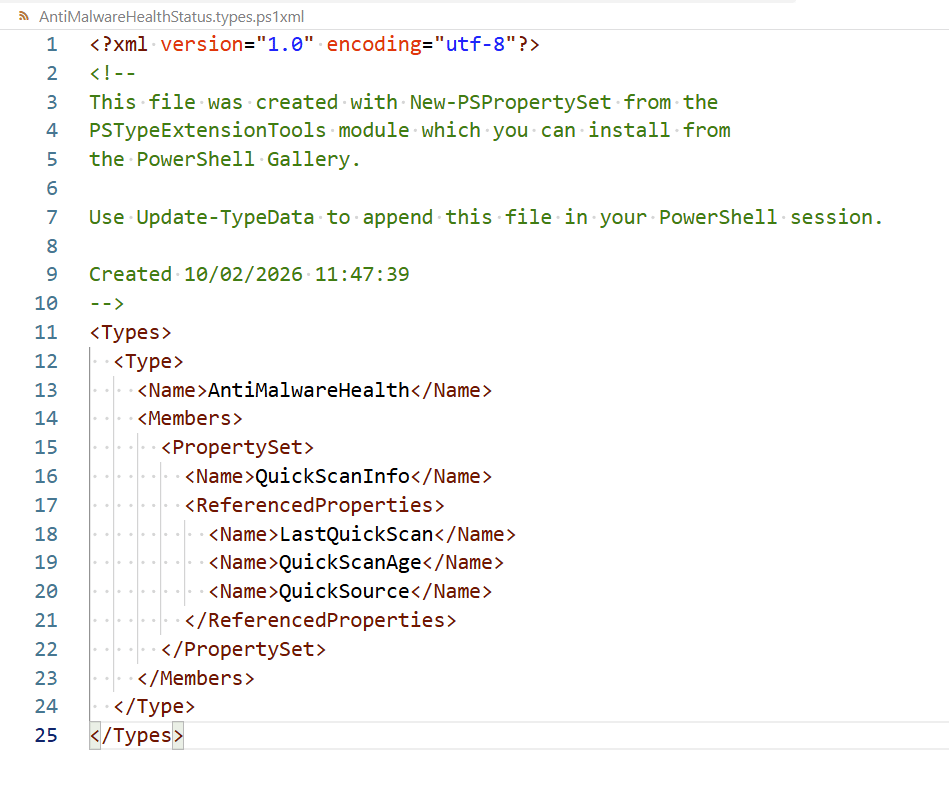
I can then add the other property set.
New-PSPropertySet -TypeName AntiMalwareHealth -Name FullScanInfo -Properties LastFullScan,FullScanAge,FullSource -FilePath .\AntiMalwareHealthStatus.types.ps1xml -Append
> Don't forget to append to the existing file.


