
Evem More PwshSpectreConsole Tools
In this issue:
- Show-TopProcessInfo
- Show-SystemTree
- Convert-SpectreColor
- Show-SpectreColorSample
- SpectreConsole Profile
- Summary
Let's return to one of my favorite topics. I have been creating even more PowerShell tools for myself using the PwshSpectreConsole module. I've shared some of them in the past. I thought I'd share a few new tools and how I'm managing all of them.
But before we get to that, if you are using the module, you should update it from the PowerShell Gallery. A few updates were released yesterday. The current version is 2.6.3.
Here are the new tools I've been creating.
Show-TopProcessInfo
I wrote a simple function to show me top processes by working set. I'm formatting the data with Format-SpectreTable wrapped in a panel.
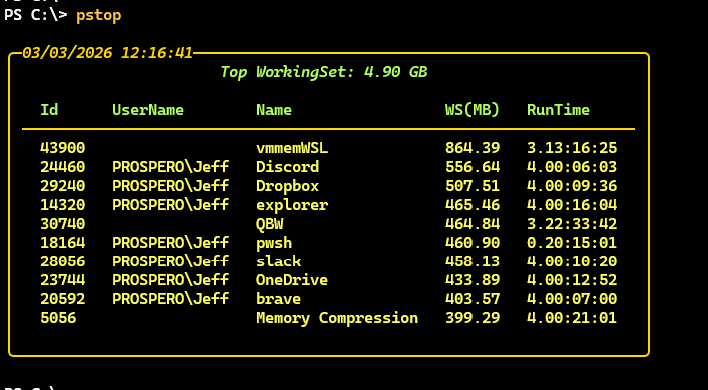
#requires -version 7.5
#requires -module pwshSpectreConsole

Function Show-TopProcessInfo {

<# PSFunctionInfo

Version 1.2.0
Author Jeffery Hicks
CompanyName JDH IT Solutions, Inc.
Copyright (c) JDH IT Solutions, Inc.
Description Show top processes in a Spectre panel
Guid 39bca5e4-bdbe-4f9e-a088-e43dda205d6a
Tags SpectreConsole
LastUpdate 1/30/2026 9:09 AM
Source C:\scripts\show-top.ps1

#>
    [cmdletbinding(DefaultParameterSetName = '__AllParameterSets')]
    [OutputType('Spectre.Console.Table')]
    [alias("pstop")]
    Param(
        [Parameter(Position = 0, HelpMessage = "Specify the top number of processes between 1 and 50")]
        [ValidateRange(1,50)]
        [int]$Count = 10,
        [ValidateNotNullOrEmpty()]
        [string]$PanelColor = "Gold1",
        [ValidateNotNullOrEmpty()]
        [string]$TextColor = "LightGoldenrod1",
        [ValidateNotNullOrEmpty()]
        [string]$HeaderColor = "DarkOliveGreen2",
        [Parameter(HelpMessage = "Clear the screen before displaying the table")]
        [Alias("cls")]
        [switch]$ClearHost,
        [Parameter(ParameterSetName="live",HelpMessage = "Run as a SpectreLive job")]
        [switch]$Live,
        [Parameter(ParameterSetName="live",HelpMessage = "The number of seconds to run live")]
        [int32]$Seconds = 60
    )

    Write-Information $PSBoundParameters -Tags runtime
    $processes = Get-Process -IncludeUserName |
    Sort-Object -Property WorkingSet -Descending -OutVariable procData |
    Select-Object -first $Count -Property ID,UserName,Name,
    @{Name="WS(MB)";Expression = {$_.WorkingSet/1mb}},
    @{Name="RunTime";Expression= {
        $ts = New-TimeSpan -start ($_.StartTime) -end (Get-Date)
        "{0:d\.hh\:mm\:ss}" -f $ts
    }}

    Write-Information $procData -Tags data

    #get total memory of the top selected
    $totalMem = "{0:n2}" -f (($processes | Measure-Object "WS(MB)" -sum).Sum*1MB/1GB)
    $panelTitle = "[italic]$(Get-Date -DisplayHint time)[/]"
    $tableTitle = "[italic $HeaderColor]Top WorkingSet: $totalMem GB[/]"

    #format using SpectreConsole tools
    $fst = @{
        Title       = $tableTitle
        TextColor   = $TextColor
        HeaderColor = $HeaderColor
        Border      = 'Simple'
    }
    Write-Information $fst -Tags runtime
    $fsp = @{
        Color = $PanelColor
        Header = $panelTitle
    }
    Write-Information $fsp -Tags runtime

    $out = $processes | Format-SpectreTable @fst | Format-SpectrePanel @fsp

    if ($ClearHost) {
        Clear-Host
    }

    if ($Live) {
        $runParams = $PSBoundParameters
        #remove any SpectreLive parameters
        [void]$runParams.Remove("Live")
        [void]$runParams.Remove("Seconds")
        [void]$runParams.Remove("Clear")
        Write-Information $runParams -Tags runtime

        Invoke-SpectreLive -Data $out -ScriptBlock {
        param ([Spectre.Console.LiveDisplayContext] $Context)
            $Context.refresh()
            for ($i = 0; $i -lt $Seconds; $i++) {
                Start-Sleep -Seconds 1
                #run the command using display parameters
                $out = Show-TopProcessInfo @runParams
                $context.UpdateTarget($out)
                $Context.refresh()
            }
        }
    }
    else {
        $out
    }
}

#define argument completers
$paramNames = "PanelColor","TextColor","HeaderColor"
Foreach ($paramName in $paramNames) {
    Register-ArgumentCompleter -CommandName Show-TopProcessInfo -ParameterName $paramName -ScriptBlock {
        param($commandName, $parameterName, $wordToComplete, $commandAst, $fakeBoundParameter)

        [Spectre.Console.Color] |
        Get-Member -Static -Type Properties |
        Where-Object name -like "$WordToComplete*"|
        Select-Object -ExpandProperty Name |
        ForEach-Object {
            $show = "[$_]$($_)[/]" | Out-SpectreHost
            [System.Management.Automation.CompletionResult]::new($_, $show, 'ParameterValue', $_)
        }
    }
}
The script uses my argument completer code for color parameters.
Live Update
I am also taking advantage of the Invoke-SpectreLive command. This allows you to run a block of code repeatedly in a loop. The Invoke-SpectreLive command examples are a tad confusing. I hope this is an easier example to follow.
The function output is passed as data to Invoke-SpectreLive. My function lets me specify the number of seconds for live output. As you can see, I'm re-running the main function once a second. The tricky part is updating the context object with the output.
$out = $processes | Format-SpectreTable @fst | Format-SpectrePanel @fsp
#...
$runParams = $PSBoundParameters
#remove any SpectreLive parameters
[void]$runParams.Remove("Live")
[void]$runParams.Remove("Seconds")
[void]$runParams.Remove("Clear")
Invoke-SpectreLive -Data $out -ScriptBlock {
param ([Spectre.Console.LiveDisplayContext]$Context)
    $Context.refresh()
    for ($i = 0; $i -lt $Seconds; $i++) {
        Start-Sleep -Seconds 1
        #run the command using display parameters
        $out = Show-TopProcessInfo @runParams
        $context.UpdateTarget($out)
        $Context.refresh()
    }
}
When run live, the prompt is blocked until the timeout is met.
Show-SystemTree
The pwshSpectreConsole module has a command called Format-SpectreTree which can display information in a tree style. Normally, this is the kind of thing you would use for files and folders. But that isn't a requirement. You can create a tree from any kind of data. I wrote a function to display system information in a tree.
#requires -version 7.5
#requires -module pwshSpectreConsole

#System-Tree.ps1

Function Show-SystemTree {

<# PSFunctionInfo

Version 1.1.1
Author Jeffery Hicks
CompanyName JDH IT Solutions, Inc.
Copyright (c) JDH IT Solutions, Inc.
Description Show system status information as a tree
Guid 4dc9819c-9f50-4fa1-a0f8-3d7769afa817
Tags SpectreConsole
LastUpdate 3/2/2026 2:08 PM
Source C:\Scripts\system-tree.ps1

#>
    [cmdletbinding()]
    [alias("systree")]
    Param(
        [Parameter(
            Position = 0,
            ValueFromPipeline,
            ValueFromPipelineByPropertyName,
            HelpMessage = "Specify the name of a computer to query."
            )]
        [Alias("cn")]
        [ValidateNotNullOrEmpty()]
        [string]$Computername = $env:COMPUTERNAME,
        [ValidateNotNullOrEmpty()]
        [PSCredential]$Credential
        )

        Begin {
            Write-Verbose "[$((Get-Date).TimeOfDay) BEGIN  ] Starting $($MyInvocation.MyCommand)"
            Write-Verbose "[$((Get-Date).TimeOfDay) BEGIN  ] Running in PowerShell v$($PSVersionTable.PSVersion)"

            $icm = @{
                ScriptBlock = {
                    #ignoring services with permission denied errors
                    #only get the necessary properties for better performance
                    @{
                        volume    = (Get-Volume -DriveLetter C)
                        processes = (Get-Process | Select-Object ID, WorkingSet, StartTime, Name)
                        services  = (Get-Service -ErrorAction SilentlyContinue | Select-Object Name, StartType, Status)
                        os        = (Get-CimInstance Win32_OperatingSystem -Property Caption, CSName)
                    }
                }
            }
        } #begin

        Process {
            Write-Verbose "[$((Get-Date).TimeOfDay) PROCESS] Processing $($ComputerName.ToUpper())"

            if ($Computername -ne $env:Computername) {
                Try {
                    $remote = New-PSSession @PSBoundParameters -ErrorAction Stop
                    $icm.Add("Session",$remote)
                }
                Catch {
                    Throw $_
                }
            }

            #region Get all the necessary data

            $sysData = Invoke-Command @icm

            #parse out the data
            $c = $sysData.volume
            $allProcesses = $sysData.processes
            $allServices = $sysData.services
            $os = $sysData.os

            If ($remote) {
                Remove-PSSession $remote
            }
            #endregion
            #region Create the output locally

            #process the data
            $processData = $allProcesses | Sort-Object WorkingSet -Descending |
            Select-Object -first 5 -Property ID,@{Name="WS(MB)";Expression={$_.WorkingSet/1mb}},
            @{Name="Runtime";Expression = {New-TimeSpan -Start $_.StartTime -end (Get-Date)}},Name
            $svc = $allServices | Group-Object Status -AsHashTable -AsString
            $svc2 = $allServices | Group-Object StartType -AsHashTable -AsString

            #define the SpectreConsole items
            $bar = @()
            $bar+= New-SpectreChartItem -Label UsedGB -Value ([math]::Round(($c.Size - $c.SizeRemaining)/1gb,2)) -Color yellow
            $bar+= New-SpectreChartItem -Label FreeGB -Value ([math]::Round($c.SizeRemaining/1gb,2)) -Color SeaGreen1
            $cChart = Format-SpectreBreakdownChart -Data $bar -Width 50
            $procTable = $processData | Format-SpectreTable -TextColor green1 -Title "Top Processes" -Color gold1

            #notice the use of double brackets to escape the []
            $data = @{
                Value = ":desktop_computer: [green1 italic]$($os.CSName)[/] [[$($os.Caption)]]"
                Children = @(
                    @{
                        Value = ":computer_disk: Drive C"
                        Children = @(
                            @{Value = $cChart},
                            @{Value = $c.HealthStatus}
                        )
                    },
                    @{
                        Value = ":wrench: Services"
                        Children = @(
                            @{Value = "Running: $($svc['Running'].count)"},
                            @{Value = "Stopped: $($svc['Stopped'].count)"},
                            @{Value = "Automatic: $($svc2['Automatic'].count)"},
                            @{Value = "Manual: $($svc2['Manual'].count)"},
                            @{Value = "Disabled: $($svc2['Disabled'].count)"}
                        )
                    },
                    @{
                        Value = ":shield:  Processes"
                        Children = @(
                            @{ Value = "Running: $($allProcesses.count)"},
                            @{ Value = $procTable}
                        )
                    }
                )
            } #data
            Format-SpectreTree -Data $data -color Gold1 -Guide BoldLine
            #endregion
        } #process
        End {
            Write-Verbose "[$((Get-Date).TimeOfDay) END    ] Ending $($MyInvocation.MyCommand)"
        } #end

} #close function


