
December 2025 PowerShell Last Call
In this issue:
- Multiple Grouping
- Folder Chart
- PSAstViewer
- Look Who's Talking
- 2026 Events
- Scripting Challenge
- Summary
Somehow, the end of the year is here. Since I suspect many of you are on a well-earned holiday break I'll keep this month's round up brief.
Multiple Grouping
I love using Group-Object to summarize and analyze data in PowerShell. Normally, we group by a single property.
PS C:\> Get-ChildItem -Path c:\Temp -file | Group-Object -Property Extension

Count Name                      Group
----- ----                      -----
    2 .adoc                     {C:\temp\dt.adoc, C:\temp\test1.adoc}
    1 .config                   {C:\temp\testef6.dll.config}
    6 .csv                      {C:\temp\p.csv, C:\temp\ps-exit.csv, C:\temp\PS…
    1 .data                     {C:\temp\z.data}
    3 .db                       {C:\temp\allproc.db, C:\temp\northwindEF.db, C:…
...
However, you can also group on multiple properties.
PS C:\> Get-ChildItem -Path c:\Temp -file | Group-Object -Property Extension, Attributes

Count Name                      Group
----- ----                      -----
    2 .adoc, Archive            {C:\temp\dt.adoc, C:\temp\test1.adoc}
    1 .config, Archive          {C:\temp\testef6.dll.config}
    6 .csv, Archive             {C:\temp\p.csv, C:\temp\ps-exit.csv, C:\temp\PS…
    1 .data, Archive            {C:\temp\z.data}
    3 .db, Archive              {C:\temp\allproc.db, C:\temp\northwindEF.db, C:…
.,..
The files in each group share both the same file extension and the same file attributes. This can be a powerful way to analyze data.
PS C:\> Get-Process | where-Object StartTime | Group-Object {($_.startTime).ToString("d")},PriorityClass | Sort-Object Name

Count Name                      Group
----- ----                      -----
   13 12/10/2025                {System.Diagnostics.Process (csrss), System.Dia…
    1 12/10/2025, AboveNormal   {System.Diagnostics.Process (svchost)}
    2 12/10/2025, High          {System.Diagnostics.Process (NgcIso), System.Di…
    2 12/10/2025, Idle          {System.Diagnostics.Process (LenovoVantage-(Van…
  115 12/10/2025, Normal        {System.Diagnostics.Process (AggregatorHost), S…
    2 12/13/2025, Normal        {System.Diagnostics.Process (FileSyncHelper), S…
    2 12/16/2025, Normal        {System.Diagnostics.Process (svchost), System.D…
...
Formatting the grouped data requires a little creativity. For the sake of demonstration I am filtering further to show only the top five memory-consuming processes in each group.
PS C:\> Get-Process | Where-Object StartTime |
Group-Object {($_.startTime).ToString("d")},PriorityClass |
Sort-Object Name -PipelineVariable pv| Foreach-Object {
  $_.Group | Sort-Object WorkingSet -Descending |
  Select-Object -first 5 |
  Add-Member -MemberType NoteProperty -Name Grouping -Value $pv.Name -passthru |
  Format-Table -GroupBy Grouping
}

   Grouping: 12/10/2025

 NPM(K)    PM(M)      WS(M)     CPU(s)      Id  SI ProcessName
 ------    -----      -----     ------      --  -- -----------
      0     0.23     140.28       0.00     188   0 Secure System
      0     0.48      58.50      16.08    4240   0 Memory Compression
     27    15.34      47.57      12.62     232   0 Registry
     28    16.38      45.49     356.39    2004   0 lsass
     21    13.47      37.62     215.06    9840   0 svchost


   Grouping: 12/10/2025, AboveNormal

 NPM(K)    PM(M)      WS(M)     CPU(s)      Id  SI ProcessName
 ------    -----      -----     ------      --  -- -----------
     39     9.34      15.35      13.47    2600   0 svchost


   Grouping: 12/10/2025, High

 NPM(K)    PM(M)      WS(M)     CPU(s)      Id  SI ProcessName
 ------    -----      -----     ------      --  -- -----------
   3486    35.82      38.53     272.97    2444   0 WUDFCompanionHost
    485    30.13      33.34      12.14    4560   0 NgcIso
...
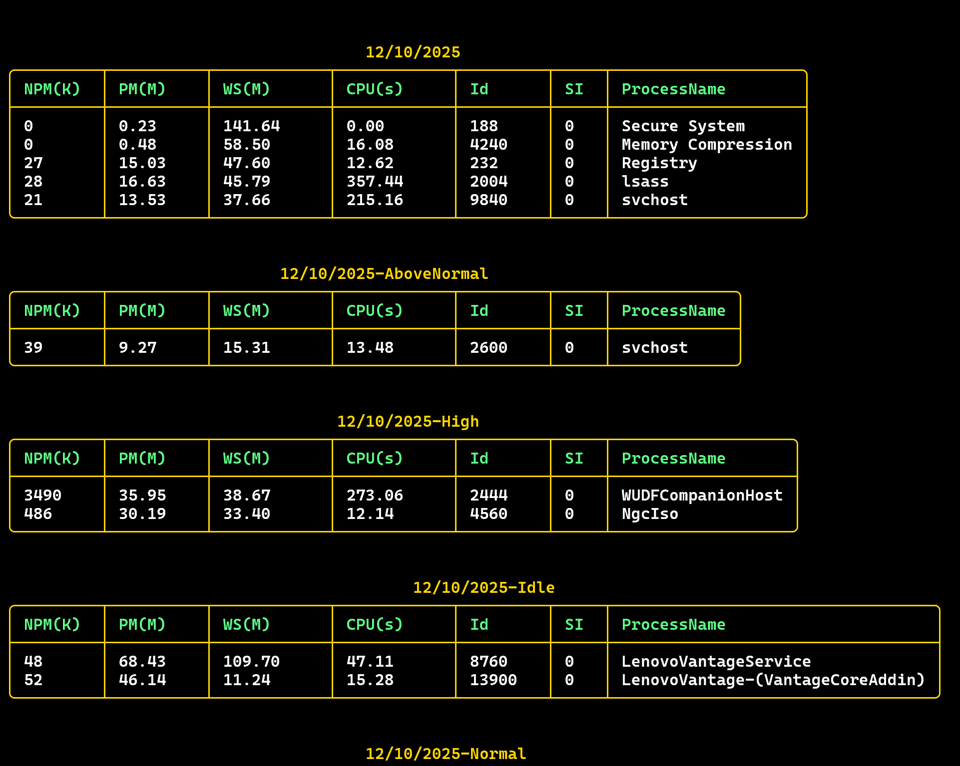
Or, because we've been having fun with the SpectreConsole module, how about a stylized table?
Get-Process | Where-Object StartTime |
Group-Object {($_.startTime).ToString("d")},PriorityClass |
Sort-Object Name | Select-Object -Property Count,
@{Name="Group";Expression = {$_.Name -replace ", ","-"}},
@{Name="Processes";Expression={$_.Group}} | ForEach-Object {
  $title = $_.group | Format-SpectrePadded -pad 1.5| Out-SpectreHost
  $data = $_.processes | Sort-Object WorkingSet -Descending | Select-Object -first 5
  Format-SpectreTable -Title $title -data $data -Color Gold1 -HeaderColor SeaGreen1
}
Folder Chart
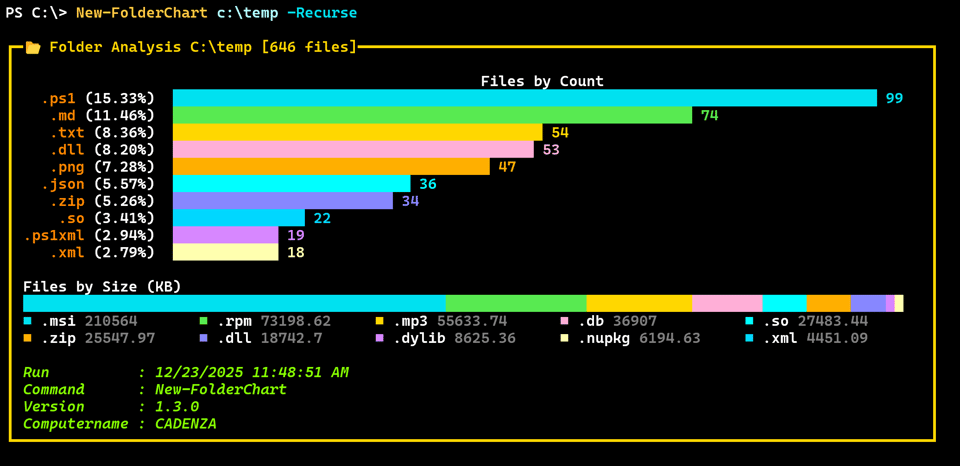
I hope you enjoyed the articles this month on scripting with the pwshSpectreConsole module. Here's a bonus function that analyzes a folder and produces a SpectreConsole panel with charts showing file distribution by type and size.
#requires -version 7.5
#requires -module pwshSpectreConsole

Function New-FolderChart {
    [CmdletBinding()]
    [OutputType("Spectre.Console.Panel")]
    param(
        [Parameter(Position = 0,ValueFromPipeline)]
        [ValidateScript({Test-Path $_})]
        [ValidateNotNullOrEmpty()]
        [string]$Path = '.',
        [switch]$Recurse
)

    Begin {
        Write-Verbose "[$((Get-Date).TimeOfDay) BEGIN  ] Starting $($MyInvocation.MyCommand)"
        #define an internal version number for this stand-alone script
        $cmdVersion = "1.3.0"
        $PSBoundParameters.Add('File', $True)
        Write-Information $cmdVersion -Tags runtime
    } #begin

    Process {
        $Path = Convert-Path $Path
        Write-Information "Processing $path" -Tags runtime
        Write-Verbose "[$((Get-Date).TimeOfDay) PROCESS] Processing $Path"
        $rows = @()
        $extData = Get-ChildItem @PSBoundParameters -OutVariable files |
        Group-Object -Property Extension |
        ForEach-Object {
            [PSCustomObject]@{
                Path = Convert-Path $Path
                Extension = $_.Name
                Count = $_.Count
                Size = ($_.Group | Measure-Object -Property Length -Sum).Sum
            }
        }
        Write-Information $extData -Tags data
        Write-Verbose "[$((Get-Date).TimeOfDay) PROCESS] Created $($extData.Count) extension objects"
        $rows += $extData | Sort-Object -Property Count -Descending | Select-Object -first 10 |
        ForEach-Object -begin {
            $i=0
            $colors = @(
                "aqua",
                "lime",
                "gold1",
                "pink1",
                "orange1",
                "Cyan1",
                "lightSlateBlue",
                "Turquoise2"
                "violet",
                "Wheat1"
                )
            } -process {
                #if no extension use  label of 'none'
                $name = $_.Extension ? $_.Extension : "none"
                Write-Verbose "[$((Get-Date).TimeOfDay) PROCESS] Creating chart item $name"
                $label = "[DarkOrange]{0}[/] ({1:p2})" -f $name,($_.count/$files.count)
                New-SpectreChartItem -Label $label -Value $_.Count -color $colors[$i]
                $i++
            } | Format-SpectreBarChart -Width 100 -Label $("Files by Count" | Format-SpectrePadded -pad 1 | Out-SpectreHost) | New-SpectreGridRow

        $rows += Write-SpectreHost "Files by Size (KB)" -PassThru |
        Format-SpectrePadded -left .5 -Right 0 -Top 1 -bottom 0 | New-SpectreGridRow

        $rows+= $extData | Sort-Object -Property Size -Descending | Select-Object -first 10 |
        ForEach-Object -begin {
            $i=0
            $colors = @(
                "aqua",
                "lime",
                "gold1",
                "pink1",
                "Cyan1",
                "orange1",
                "lightSlateBlue",
                "violet",
                "Wheat1",
                "Turquoise2"
                )
            } -process {
                $label = $_.Extension ? $_.Extension : "none"
                New-SpectreChartItem -Label $label -Value ([math]::Round($_.size/1KB,2)) -color $colors[$i]
                $i++
            } | Format-SpectreBreakdownChart -Width 100 | New-SpectreGridRow

        Write-Verbose "[$((Get-Date).TimeOfDay) PROCESS] Defining command metadata"
        #add some metadata to the output
        $meta = [PSCustomObject]@{
            Run = (Get-Date)
            Command = $MyInvocation.MyCommand
            Version = $cmdVersion
            Computername = $env:COMPUTERNAME
        } | Format-List | Out-String

        Write-Information $meta -Tags runtime

        $rows += Write-SpectreHost "[italic chartreuse1]$($meta.Trim())[/]" -PassThru |
        Format-SpectrePadded -top 1 -Bottom 0 -Left 0 -Right 0 | New-SpectreGridRow

        Write-Verbose "[$((Get-Date).TimeOfDay) PROCESS] Created $($rows.count) rows"
        Write-Information $rows -Tags data

        $rows | Format-SpectreGrid |
        Format-SpectrePanel -Title ":open_file_folder: Folder Analysis $Path [[$($files.count) files]]" -Border Heavy -Color gold1
    } #process

    End {
        Write-Verbose "[$((Get-Date).TimeOfDay) END    ] Ending $($MyInvocation.MyCommand)"
    } #end
}
Specify a folder path and optionally the -Recurse switch to include sub-folders.
PSAstViewer
This month, I also came across an interesting module that will visualize the Abstract Syntax Tree (AST) of PowerShell code using WinForms. The module will will only work on Windows systems. Install it from the PowerShell Gallery.
Install-PSResource -Name PsAstViewer
The module has a single command.
Show-AstViewer C:\scripts\sample-script.ps1
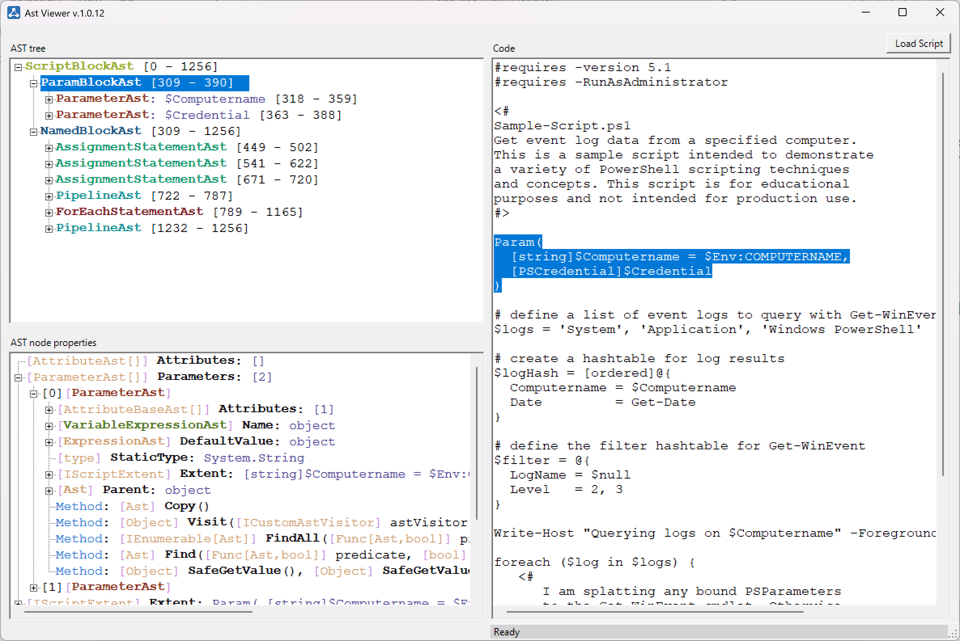
If you select AST Nodes in the left pane, the corresponding code is highlighted in the right pane. Likewise, you can select code in the right pane, right-click and choose "Find in AST Tree view" to highlight the corresponding node in the left pane.
Understanding how to use the AST is an advanced and complex topic. This is a terrific tool to help visualize the structure of PowerShell code.
You can learn more from the project's repository at https://github.com/Krinopotam/PsAstViewer
Look Who's Talking
I've been busy recently speaking at several events. Fortunately, recordings are available for those of you who missed them live.
PowerShell Wednesday
Earlier this month I did a presentation for PowerShell Wednesday, which is hosted on the PDQ Discord server. I shared how I use PowerShell to run my day and demonstrated several PowerShell tools I've built to streamline my day.
You can watch the recording on YouTube.
PowerShell Podcast
After the PowerShell Wednesday presentation, I recorded a PowerShell Podcast episode with Andrew Pla.

This command is from the PSPodcast module
You can listen or download the episode, or watch it on YouTube
PDQ Live Finale
Finally, I took part in a PowerShell panel during the PDQ Live Finale show. This was a full day event. Or you can jump to our little segment. We chatted about what we've been working on in PowerShell, and I share my usual thoughts on how people should be approaching PowerShell. The segment is about an hour so I hope you'll find some time to watch.
2026 Events
A new year means a new slate of conferences and events. I hope you can find your way to event next year. Fantastic content that you can immediately use is a given. The real value is in connecting with the PowerShell community. Many people find the "hallway track" conversations to be the most valuable part of attending an event.
PowerShell Summit 2026
The annual PowerShell+DevOps Global Summit will once again be in Bellevue, WA April 13-16, 2026. If PowerShell is part of your day job, this is the event for you. I will be presenting a session on mastering PowerShell parameters. Tickets are already on sale and are limited. You can learn more, see the schedule, and purchase tickets at https://www.powershellsummit.org/
PowerShell Conference Europe 2026
The European equivalent event, referred to as PSConfEu, will be held in Wiesbaden, Germany June 1-4 2026. Wiesbaden is a short train ride from Frankfurt airport. Again, the community surrounding this event is terrific. I am waiting to here if any of my session proposals were accepted, but don't let that stop you from registering. You can learn more at https://psconf.eu/
If you run an event or user group and would like me to help promote it, please let me know! Likewise, if you would like me to speak at your event in 2026, let's talk.
Scripting Challenge
Finally, let's round out the month with a scripting challenge.
Write a PowerShell function to create a customized version of the $PSVersionTable variable. The command should create output in the global scope. Your function should meet the following requirements:
- Allow the user to define the variable name.
- Allow the user to create a hashtable or a custom object.
- On Windows systems, update the operating system value from WMI.
- Add a computername entry.
- Add the date PowerShell was updated. Hint: Get the command folder last write time.
- Remove the following entries: WsmanStackVersion,SerializationVersion,PSRemotingProtocolVersion.
- The code must run cross-platform
Write your code to be as efficient as possible, yet still easy to understand.
For a bonus, create a custom formatted view for object output.
Name                           Value
----                           -----
GitCommitId                    7.5.4
Computername                   CADENZA
Installed                      10/27/2025 8:09:05 AM
PSVersion                      7.5.4
Platform                       Win32NT
OS                             Microsoft Windows 11 Pro
PSCompatibleVersions           {1.0, 2.0, 3.0, 4.0…}
PSEdition                      Core
I'll be back next month with my solution.
Summary
I want to thank you for your support and interest in my work this year. I published over 175,000 words across 95 issues this year. This breaks down to at least a 500 page book! If you are a free subscriber, I hope you will consider becoming a premium supporter in 2026. Your support helps me continue to create high-quality PowerShell content and think about how much you'll learn.
To my premium supporters a sincere thank you. I invest of a lot of time into creating content that goes above the cost of a subscription. I take your support seriously and strive to provide as much value as I can for your investment.
With that, I hope you have a wonderful holiday season and a happy new year. See you in 2026!
-
I did not know about Group-Object. Thanks 👍🏻


Add a comment: