
Creating A Csv Display Tool
In this issue:
- Defining Style
- Finding Quotes
- Styling Steps
- Creating SpectreConsole Output
- Format-SpectreCsv
- Summary
I was idly noodling around in PowerShell the other day. I find it oddly relaxing. Somehow I ended up looking at CSV files, which somehow got me thinking about the pwshSpectreConsole module. I've been very intrigued by the presentation possibilities.
The module already has a command to add style to JSON output. Instead of looking at plain text from this command:
Get-Process pwsh -IncludeUserName |
Select ID,@{Name="Memory";Expression = {$_.WorkingSet/1mb}},
Name,StartTime,Path,UserName |
ConvertTo-Json
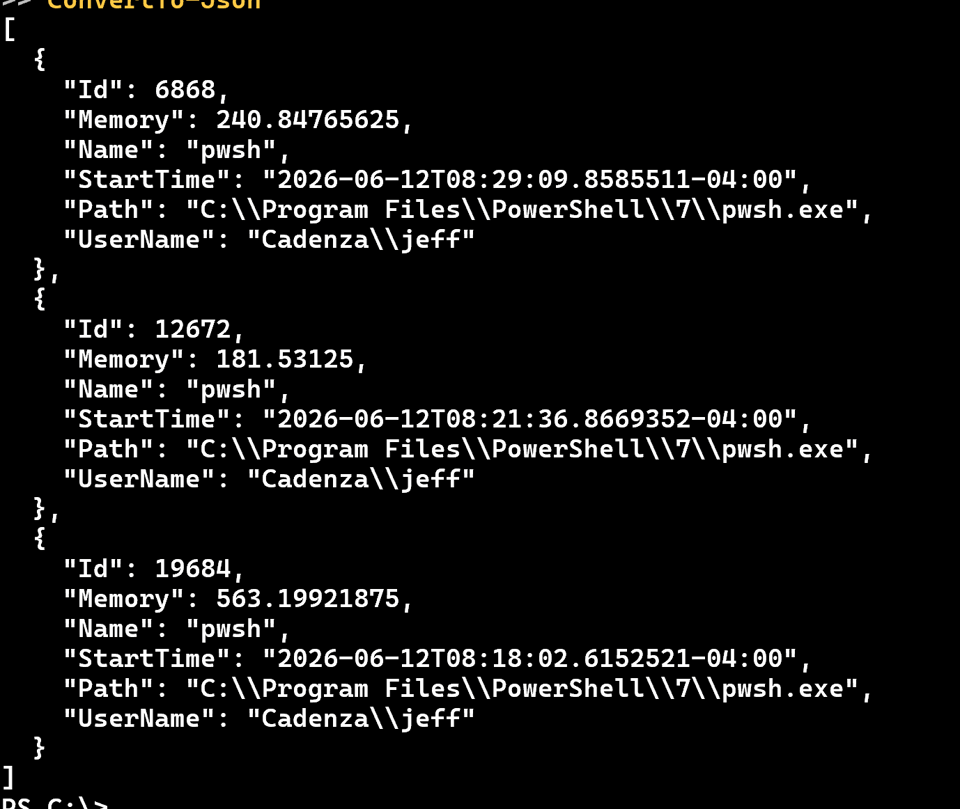
You can style it with Format-SpectreJson
Get-Process pwsh -IncludeUserName |
Select ID,@{Name="Memory";Expression = {$_.WorkingSet/1mb}},
Name,StartTime,Path,UserName |
ConvertTo-Json |
Format-SpectreJson -JsonStyle @{stringStyle = "LightSalmon1";MemberStyle="SeaGreen2"}
In this example, I am defining a custom style for detected strings and the members.
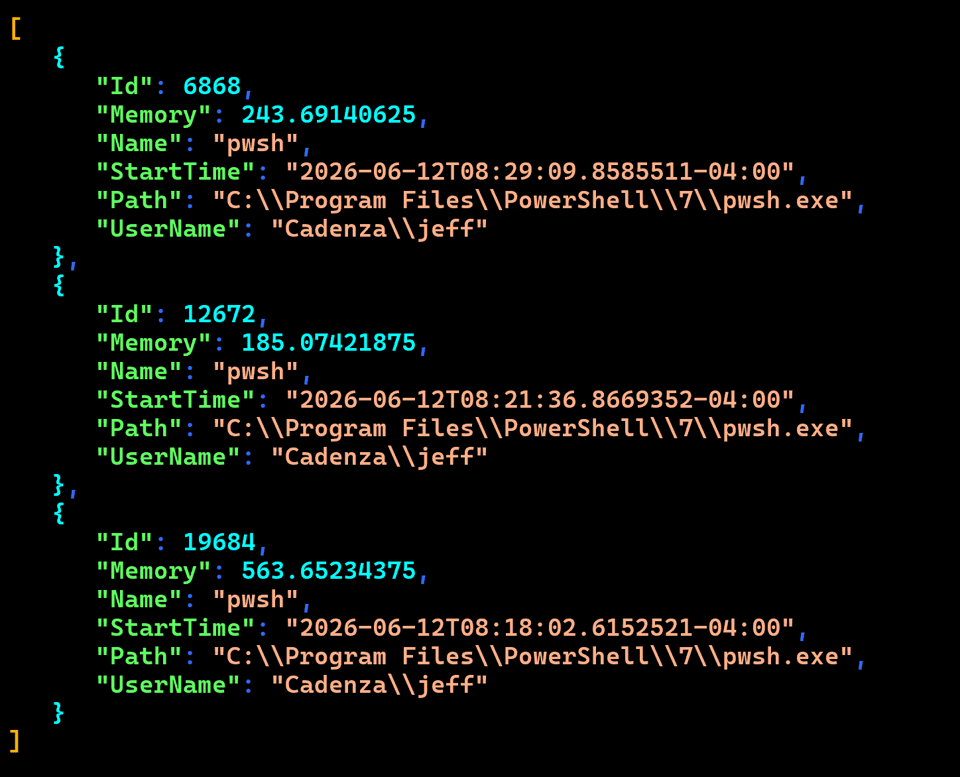
This makes the data a bit easier to read.
I started thinking how nice it would be to have something similar for CSV files. Running code like this works:
Get-Process pwsh -IncludeUserName |
Select ID,@{Name="Memory";Expression = {$_.WorkingSet/1mb}},
Name,StartTime,Path,UserName |
ConvertTo-Csv

But it isn't very compelling. The pwshSpectreConsole module doesn't have a similar command for formatting CSV files, so I decided to write it.
Defining Style
I wanted to follow the pattern used in Format-SpectreJson where a set of styles is applied to file, but the user can override one or more settings. Using this command's help as a guideline, I determined that I wanted to stylize these parts of a CSV file.
- Delimiter
- Quotes
- Header
- Comment
- Number
- DateTime
- Text
- True
- False
> If my function was going to be a part of the pwshSpectreConsole module, I might try to define a global style hashtable that could be used to format Json and CSV files.
In the Begin block of my function, I define my default style hashtable using SpectreConsole colors and styles.
$CsvStyleHash = @{
    Delimiter = 'Aqua'
    Quotes    = 'CornflowerBlue'
    Header    = 'Gold1 Italic Bold'
    Number    = 'LightGoldenrod1'
    DateTime  = 'MediumOrchid1'
    True      = 'Chartreuse1'
    False     = 'LightCoral'
    Text      = 'LightSalmon1'
    Comment   = 'Green1 underline'
}
A nice feature is that you can easily add decorations like italic. The CSV header will be displayed by default italicized and bold using the Gold1 color.
Merging Styles
To align with the design of Format-SpectreJson, I added a function parameter to allow the user to specify custom style selections.
[Parameter(HelpMessage = "You can specify a full or partial style hashtable.")]
[Alias('Style')]
[ValidateNotNullOrEmpty()]
[hashtable]$CsvStyle
If a user provides a value, I'll update the default hashtable with the new value.
if ($PSBoundParameters.ContainsKey('CsvStyle')) {
    $CsvStyle.Keys.ForEach({
        Write-Verbose "Updating style for $_ to $($CsvStyle[$_])"
        $CsvStyleHash[$_] = $CsvStyle[$_]
    })
}
Note that I am using a separate name for the parameter from the internal default hashtable. This makes it possible to easily update values. I am also using the ForEach method to eke out a little more performance.
Delimiter Styling
With style defined, I can begin using it. I have defined a parameter for the user to specify the delimiter character using the comma as the default.
[ValidateNotNullOrEmpty()]
[PSDefaultValue(Help=",")]
[char]$Delimiter = ',',
The delimiter technically can be any single character, or even a tab. I could probably use a regular expression pattern to detect the delimiter, but the process becomes very, very difficult if the delimiter is something like a tab or if the CSV file doesn't use quotes. The safest approach is to have the user specify the delimiter.
As long as the delimiter is a character, I can define a style using the value from the hashtable.
#treat the delimiter as a string to perform the regex match
if ([string]$Delimiter -match '\S') {
    $delimStyle = '[{0}]{1}[/]' -f $CsvStyleHash.Delimiter, $Delimiter
    Write-Information "delimStyle = $delimStyle"
}
Later, when I am processing the line of text, I can replace the delimiter with the style string.
if ($DelimStyle) {
    $Data = $Data.Replace([string]$Delimiter, $delimStyle)
}
Finding Quotes
I want to style the quote character, assuming one is being used. I am also assuming it will be either a single quote (') or straight double quote ("). When creating a PowerShell tool you have to live with the idea that there will always be edge cases where your command will fail. I'm creating my command to handle what I am assuming will be the most likely CSV file layouts.
I decided to use a regular expression pattern to detect quotes.
[regex]$qRx = "'|`""
The pattern will match on a single quote or a double quote. Because quoting quote characters can get tricky, I'm escaping the double quote character. Or I could have used the character equivalent, [char]34.


