
Capturing The Registry With A (dot)Net
In this issue:
When I first started using PowerShell, I was blown away by being able to do this:
PS C:\> cd hklm:
PS HKLM:\> cd '.\SOFTWARE\Microsoft\Windows NT\CurrentVersion'
PS HKLM:\SOFTWARE\Microsoft\Windows NT\CurrentVersion> Get-Item .

    Hive: HKEY_LOCAL_MACHINE\SOFTWARE\Microsoft\Windows NT

Name                           Property
----                           --------
CurrentVersion                 SystemRoot                : C:\WINDOWS
                               BaseBuildRevisionNumber   : 1
                               BuildBranch               : ge_release
                               BuildGUID                 : ffffffff-ffff-ffff-ffff-ffffffffffff
                               BuildLab                  : 26100.ge_release.240331-1435
                               BuildLabEx                : 26100.1.amd64fre.ge_release.240331-1435
                               CompositionEditionID      : Enterprise
                               CurrentBuild              : 26200
                               CurrentBuildNumber        : 26200
                               CurrentMajorVersionNumber : 10
                               CurrentMinorVersionNumber : 0
                               CurrentType               : Multiprocessor Free
                               CurrentVersion            : 6.3
                               DisplayVersion            : 25H2
                               ...
I was navigating the Windows Registry like it was a file system! This was stunning. Up until then there were limited scripting and automation options for working with th registry. And certainly nothing as easy as using a PowerShell provider to expose the registry like a file system.
For most registry management tasks, using the PowerShell provider to access HKEY_LOCAL_MACHINE (HKLM) and HKEY_CURRENT_USER (HKCU) is sufficient. Although you need to use PowerShell remoting to access the registry of remote computers, this method is straightforward and effective for many scenarios.
But I like to dig deeper and go behind the scenes. The Registry provider is terrific, but it has limitations and isn't always intuitive. Let's explore the .NET classes that PowerShell uses under the hood to interact with the Windows Registry. I'm not suggesting that this is the best way to work with the registry, but it's a useful skill to have in your toolkit. And as you'll see, you'll need these tools for more advanced registry tasks.
Microsoft.Win32.RegistryKey
The secret ingredient that makes the PowerShell Registry provider work is the Microsoft.Win32.RegistryKey class from the .NET Framework. This class provides methods and properties to interact with registry keys and values. The provider abstracts the complexity of the RegistryKey class, allowing you to navigate and manipulate the registry as if it were a file system.
PS HKLM:\SOFTWARE\Microsoft\Windows NT\CurrentVersion> (Get-Item .).GetType().FullName
Microsoft.Win32.RegistryKey
However, more advanced and experienced PowerShell users may want to work directly with the RegistryKey class for more control and flexibility.
Let's use Get-TypeMember from the PSScriptTools module to peek at the members of the RegistryKey class.
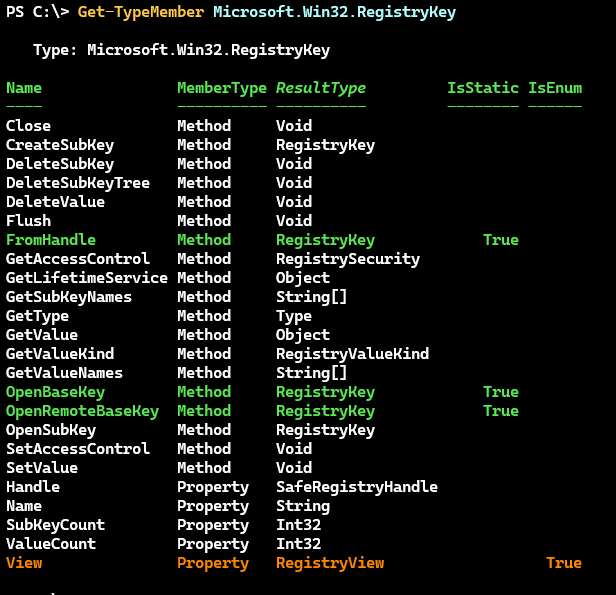
The class has a static method called OpenBaseKey that allows you to open a registry hive.
PS C:\> [Microsoft.Win32.RegistryKey]::OpenBaseKey.OverloadDefinitions
static Microsoft.Win32.RegistryKey OpenBaseKey(Microsoft.Win32.RegistryHive hKey, Microsoft.Win32.RegistryView view)
The method takes two parameters: a RegistryHive enumeration value that specifies the hive to open (e.g., HKEY_LOCAL_MACHINE, HKEY_CURRENT_USER, etc.) and a RegistryView enumeration value that specifies the view of the registry (e.g., Default, Registry32, or Registry64). You can see the expected object types so I can explore those as well.
PS C:\> Get-TypeMember Microsoft.Win32.RegistryHive

   Type: Microsoft.Win32.RegistryHive

Name            MemberType ResultType                   IsStatic IsEnum
----            ---------- ----------                   -------- ------
ClassesRoot     Field      Microsoft.Win32.RegistryHive     True
CurrentConfig   Field      Microsoft.Win32.RegistryHive     True
CurrentUser     Field      Microsoft.Win32.RegistryHive     True
LocalMachine    Field      Microsoft.Win32.RegistryHive     True
PerformanceData Field      Microsoft.Win32.RegistryHive     True
Users           Field      Microsoft.Win32.RegistryHive     True
GetType         Method     Type
HasFlag         Method     Boolean
ToString        Method     String

PS C:\> Get-TypeMember Microsoft.Win32.RegistryView

   Type: Microsoft.Win32.RegistryView

Name       MemberType ResultType                   IsStatic IsEnum
----       ---------- ----------                   -------- ------
Default    Field      Microsoft.Win32.RegistryView     True
Registry32 Field      Microsoft.Win32.RegistryView     True
Registry64 Field      Microsoft.Win32.RegistryView     True
GetType    Method     Type
HasFlag    Method     Boolean
ToString   Method     String
Any of the fields should be a valid value.
> You might see different values in Windows PowerShell. I am using PowerShell 7.5.4.
Opening A Registry Hive
I'm going to open the HKEY_LOCAL_MACHINE hive using the OpenBaseKey method.
$regBase = [Microsoft.Win32.RegistryKey]::OpenBaseKey('localMachine', 'default')
The object is relatively simple.
PS C:\> $regBase | Select *

SubKeyCount : 8
View        : Default
Handle      : Microsoft.Win32.SafeHandles.SafeRegistryHandle
ValueCount  : 1
Name        : HKEY_LOCAL_MACHINE
I can use the object's methods to list the immediate subkeys.
PS C:\> $regBase.GetSubKeyNames()
BCD00000000
COMPONENTS
HARDWARE
SAM
SCHEMA
SECURITY
SOFTWARE
SYSTEM
> You will encounter the same permission limitations as you would with any other registry tool.
Opening A Subkey
Let's open a subkey. I can specify it as a path.
$key = 'software\microsoft\Windows NT\CurrentVersion'
$cv = $regBase.OpenSubKey($key)
$cv is also a RegistryKey object.
Accessing Registry Values
The registry values are the item properties you work with in the Registry provider. You can use the GetValueNames method to list the value names.
PS C:\> $cv.GetValueNames()
SystemRoot
BaseBuildRevisionNumber
BuildBranch
BuildGUID
BuildLab
...
Once you know the value name, you can retrieve the value using the GetValue method.
PS C:\> $cv.GetValue('RegisteredOwner')
Jeff Hicks


